> For the complete documentation index, see [llms.txt](https://docs.docbits.com/llms.txt). Markdown versions of documentation pages are available by appending `.md` to page URLs; this page is available as [Markdown](https://docs.docbits.com/infor-integration-and-configuration/importing-customer-master-data/m3/table-extraction-for-costing-element.md).
# Table Extraction for costing Element
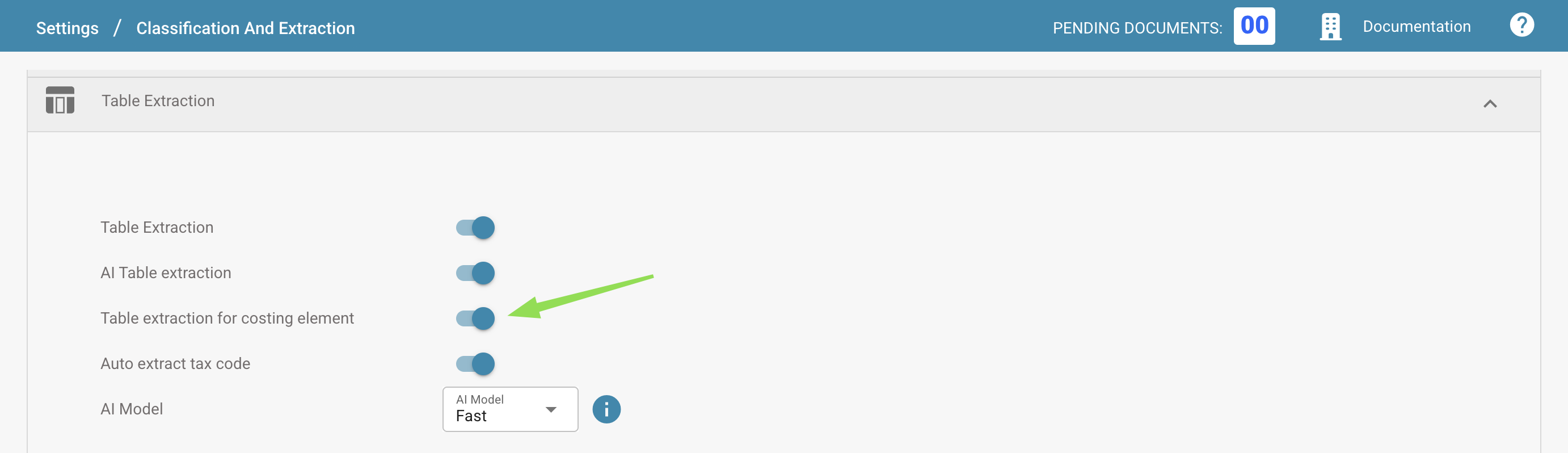
Navigate to **Settings → Document Processing → Classification and Extraction**
**Note:** To enable table extraction for **Costing Elements**, you must first import the relevant Costing Element table into **DocBits**. Without this configuration, users will encounter the following error when opening a document:
***"Costing elements are not properly configured. Please ask your admin to configure it."***
## Steps to Import Costing Elements from M3
1. **Access PPS280 in M3:**
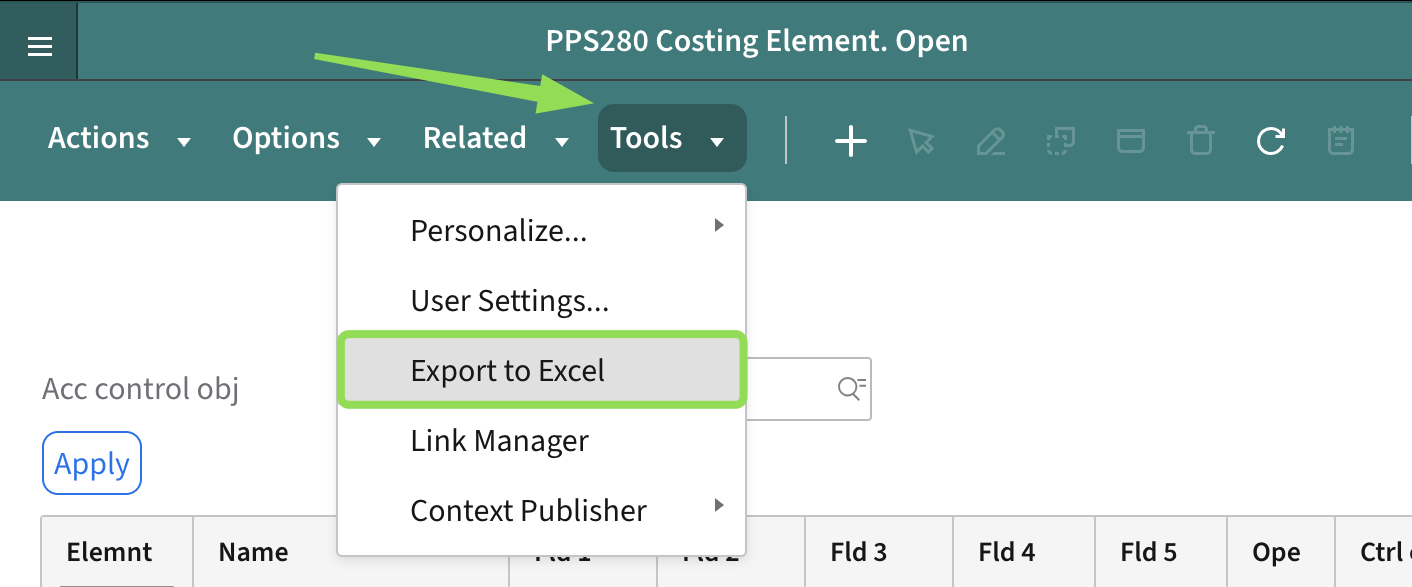
* From the M3 homepage, press `Command + R` and search for **PPS280**.
* Select any/all lines from the results.
2. **Export the Data:**
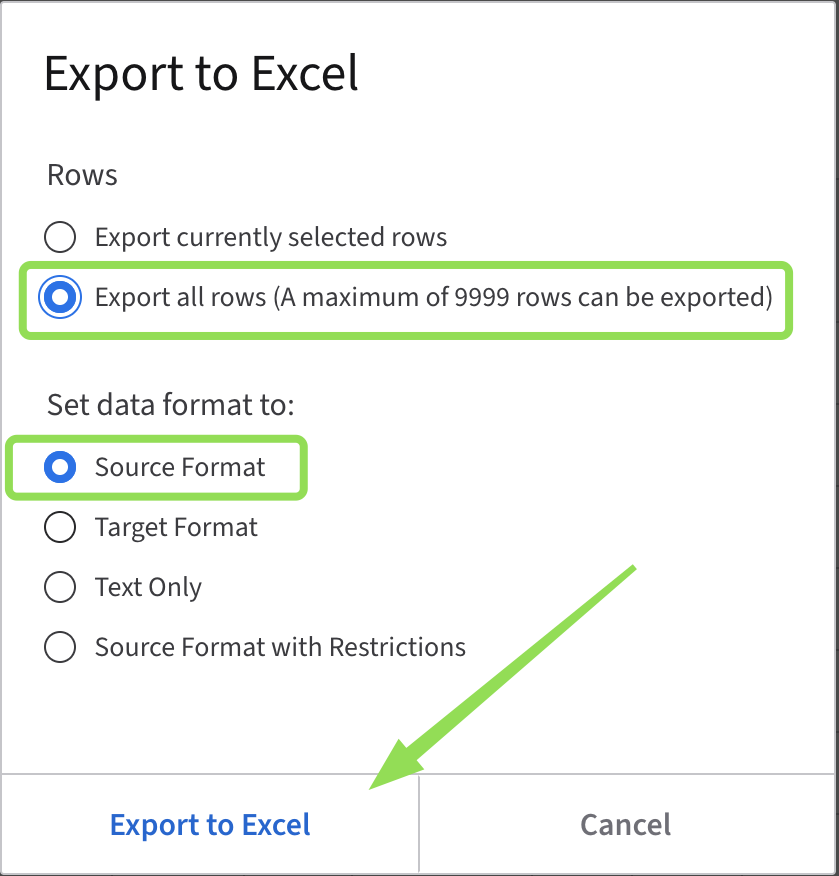
* In the next menu, click **TOOLS → Export to Excel**.\\
* Choose **Export All Rows**, then press **EXPORT**.
3. **Modify the Excel File:**\
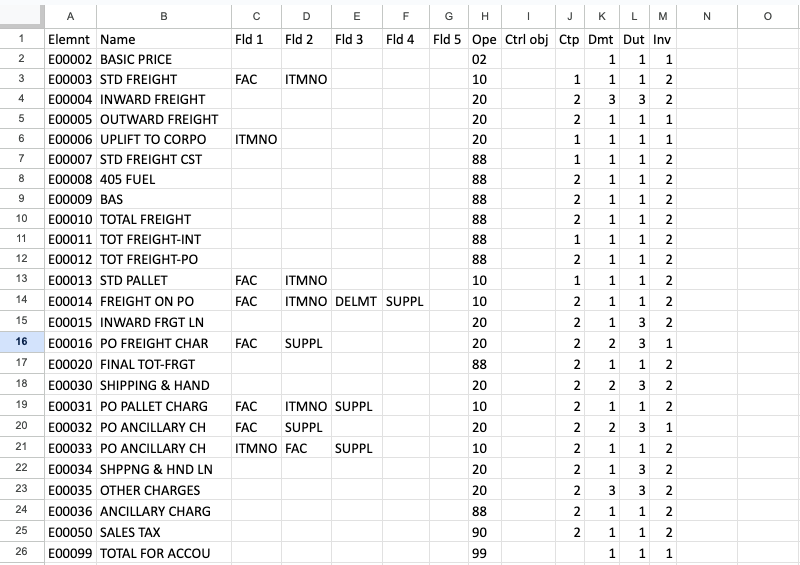
Open the downloaded Excel file and make the following changes:
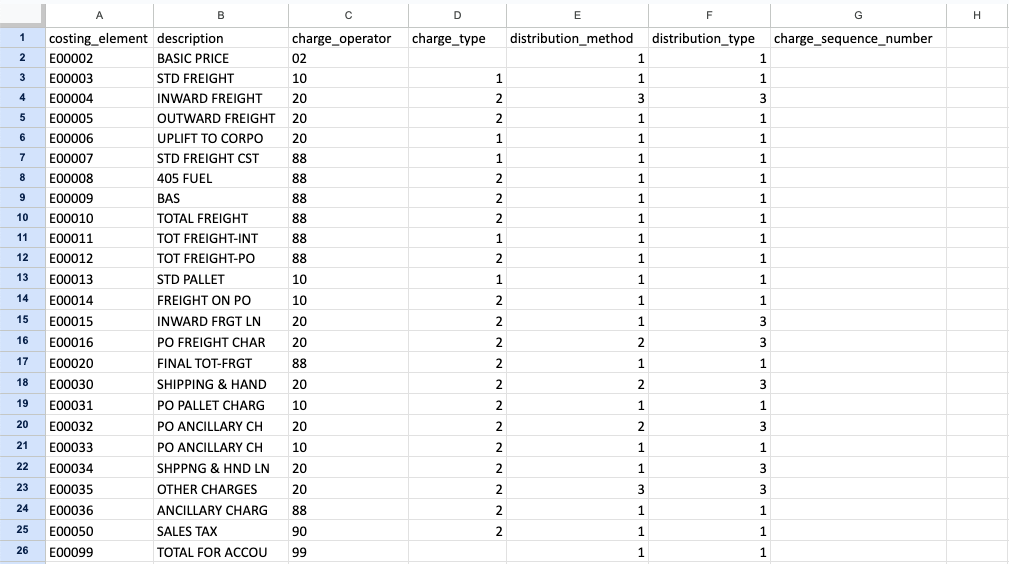
* **Rename columns:**
* Column A → `costing_element`
* Column B → `description`
* Column H → `charge_operator`
* Column J → `charge_type`
* Column K → `distribution_method`
* Column L → `distribution_type`
* Column N → `charge_sequence_number`.
* Enter the appropriate sequence numbers.
* If left empty, the system will default to **10**.
* **Remove all other columns** that are **not listed above**, even if they **contain data or are not empty**.
4. **Visual Example – Before and After:**\
Below are examples of the Excel file *before* and *after* applying the required modifications:
* **Before Modification:**
* **After Modification:**
5. **Convert to CSV:**
* Save the modified Excel file as a `.csv`
6. **Upload to DocBits:**
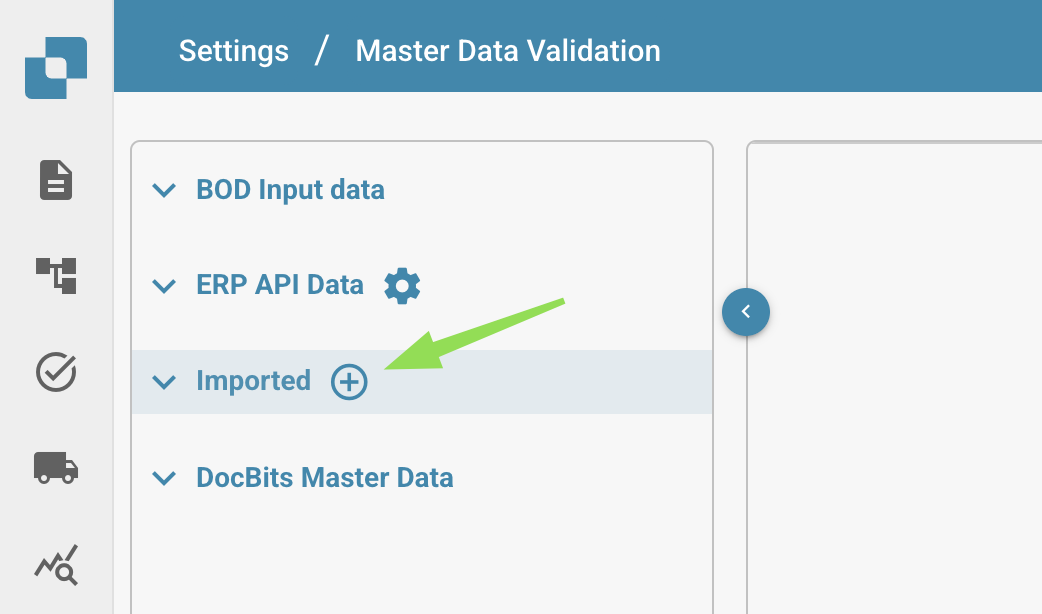
* Go to **Settings → Document Processing → Master Data Lookup**
* Click on the Plus next to imported
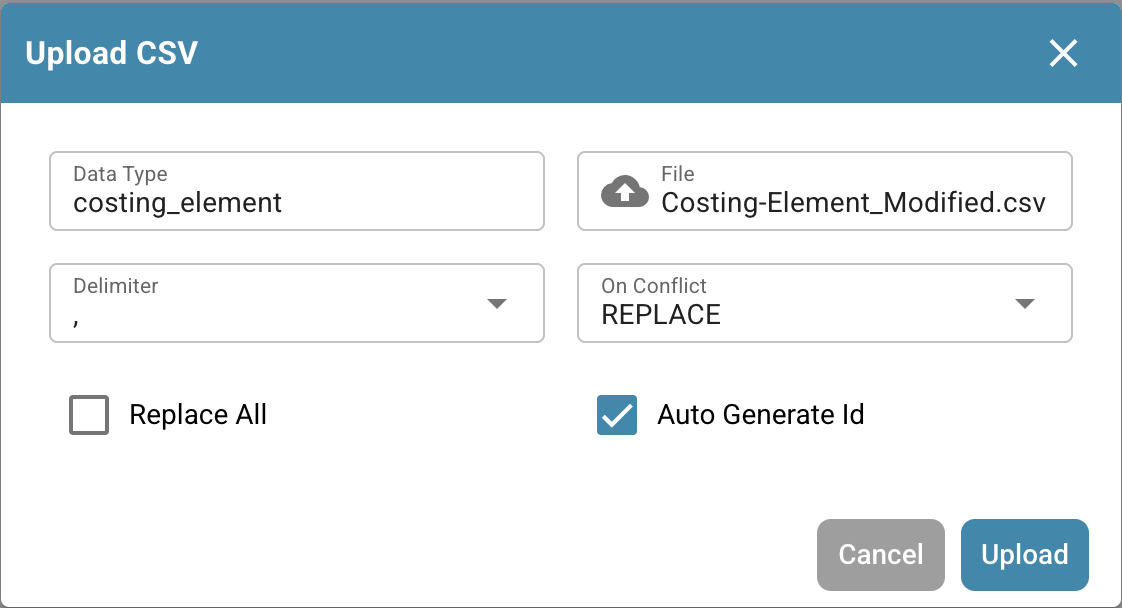
* Fill in the required informations
* **Data Type**: `costing_element`
* **File**: Select your modified `.csv` file
* **Delimiter**: `comma`
* **On Conflict**: Choose a conflict resolution strategy
* **Auto-generate ID**: Make sure this option is **checked**\\
---
# Agent Instructions
This documentation is published with GitBook. GitBook is the documentation platform designed so that both humans and AI agents can read, navigate, and reason over technical content effectively. Learn more at gitbook.com.
## Querying This Documentation
If you need additional information that is not directly available in this page, you can query the documentation dynamically by asking a question.
Perform an HTTP GET request on the current page URL with the `ask` query parameter, and the optional `goal` query parameter:
```
GET https://docs.docbits.com/infor-integration-and-configuration/importing-customer-master-data/m3/table-extraction-for-costing-element.md?ask=&goal=
```
`ask` is the immediate question: it should be specific, self-contained, and written in natural language.
`goal` is optional and describes the broader end goal you are ultimately trying to accomplish on behalf of the user. GitBook uses it to tailor the answer towards what is most useful for that goal.
The response will contain a direct answer to the question and relevant excerpts and sources from the documentation.
Use this mechanism when the answer is not explicitly present in the current page, you need clarification or additional context, or you want to retrieve related documentation sections.