> For the complete documentation index, see [llms.txt](https://docs.docbits.com/llms.txt). Markdown versions of documentation pages are available by appending `.md` to page URLs; this page is available as [Markdown](https://docs.docbits.com/administration-and-setup/settings/global-settings/email-notification/managing-notifications.md).
# Managing Notifications
To edit, disable, or delete existing notifications and adapt them to changes in document processing workflows or user responsibilities, you can do the following:
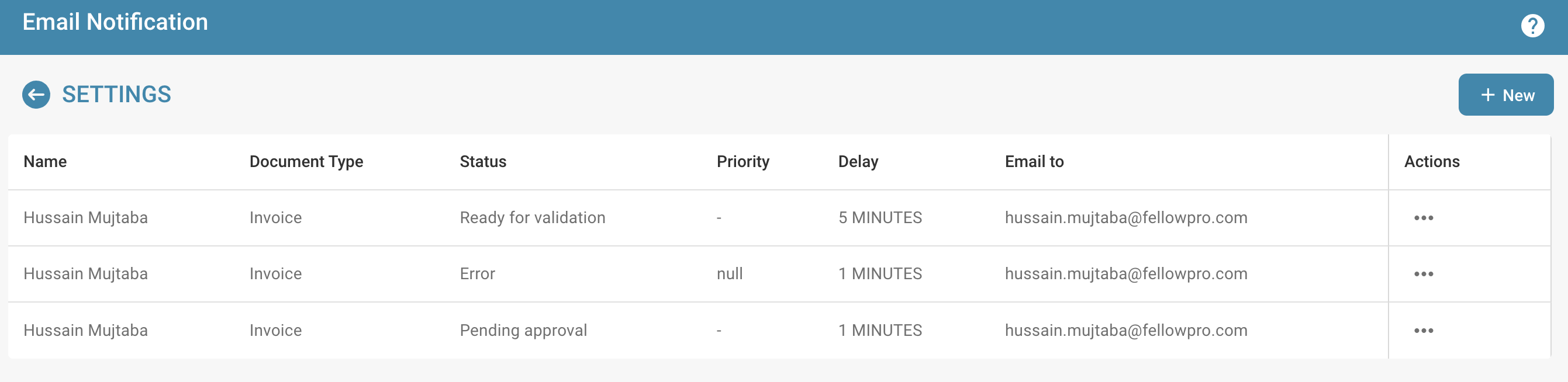
**Navigate to notification settings:** Go to your system's settings where you can manage notifications. You can find these in the “Settings” section, “Global Settings” and then under “Email notification”.
**Look for the list of existing notifications:** In the notification settings you will find a list of existing notifications. This list shows you all notifications that are currently set up.
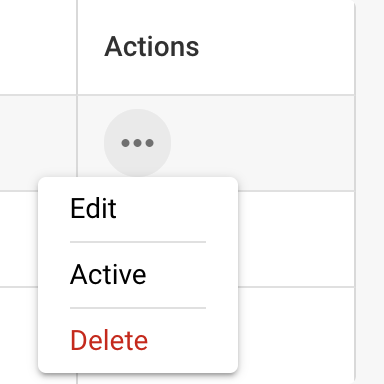
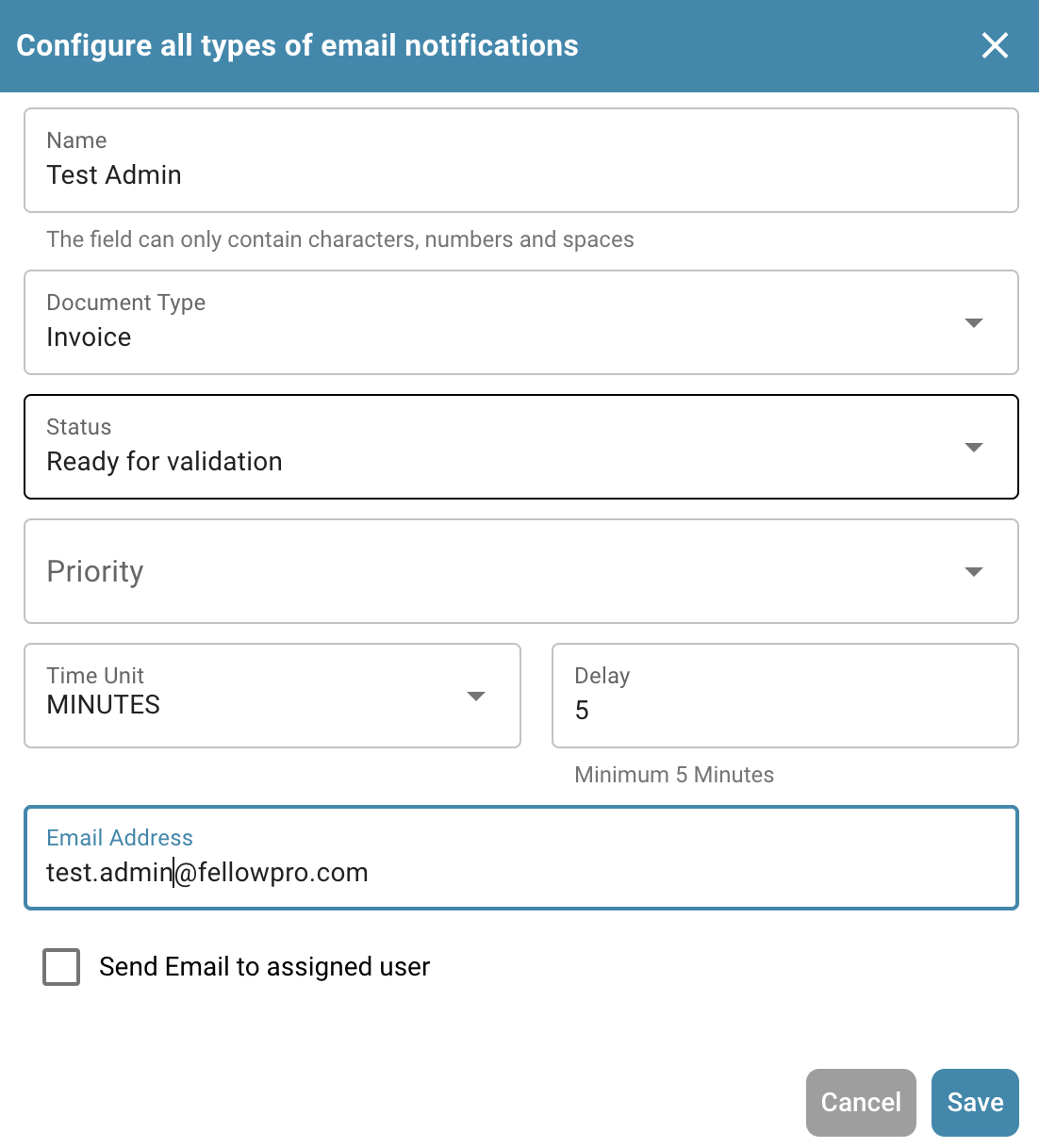
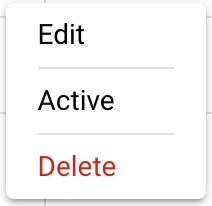
**Edit a notification:** To edit an existing notification, find the notification in the list and select the edit option. This allows you to change the notification settings, such as the document type, status, triggering events or recipients.
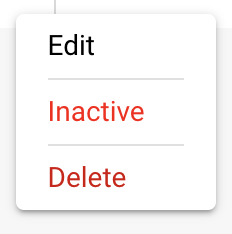
**Turn off a notification:** If you want to temporarily turn off a notification, find the notification in the list and select the option to turn it off. This will temporarily stop the notification without deleting it, so you can reactivate it later if necessary.
**Delete a notification:** To permanently remove a notification, find the notification in the list and select the delete option. This will completely remove the notification from the system and cannot be restored.
**Adapt to Changes:** Periodically review your notification settings and adjust as necessary to reflect changes in document processing workflows or user responsibilities. This could include updating notifications due to new events, changed responsibilities, or other organizational changes.
**Save the changes:** After making your changes, don't forget to save them for them to take effect.
By regularly reviewing and adjusting your notification settings, you can ensure that your notifications always meet current needs and workflows. This helps ensure efficient communication and ensures that the right people are notified of important events in a timely manner.
---
# Agent Instructions
This documentation is published with GitBook. GitBook is the documentation platform designed so that both humans and AI agents can read, navigate, and reason over technical content effectively. Learn more at gitbook.com.
## Querying This Documentation
If you need additional information that is not directly available in this page, you can query the documentation dynamically by asking a question.
Perform an HTTP GET request on the current page URL with the `ask` query parameter, and the optional `goal` query parameter:
```
GET https://docs.docbits.com/administration-and-setup/settings/global-settings/email-notification/managing-notifications.md?ask=&goal=
```
`ask` is the immediate question: it should be specific, self-contained, and written in natural language.
`goal` is optional and describes the broader end goal you are ultimately trying to accomplish on behalf of the user. GitBook uses it to tailor the answer towards what is most useful for that goal.
The response will contain a direct answer to the question and relevant excerpts and sources from the documentation.
Use this mechanism when the answer is not explicitly present in the current page, you need clarification or additional context, or you want to retrieve related documentation sections.