> For the complete documentation index, see [llms.txt](https://docs.docbits.com/llms.txt). Markdown versions of documentation pages are available by appending `.md` to page URLs; this page is available as [Markdown](https://docs.docbits.com/administration-and-setup/settings/document-processing/documents-expiry.md).
# Documents Expiry
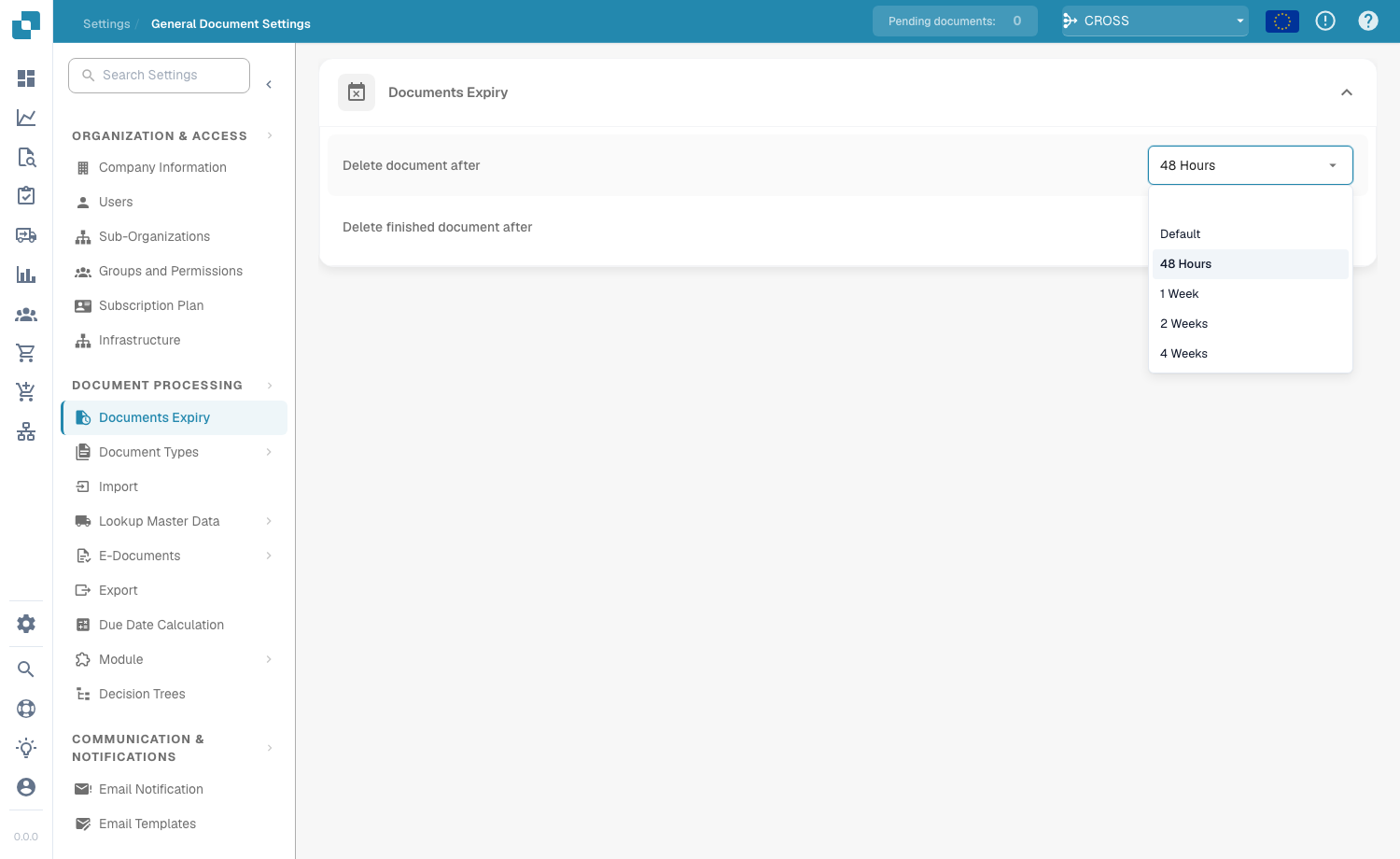
Documents Expiry settings
Under **Document Processing → Documents Expiry** you control how long DocBits keeps your documents before deleting them automatically. This helps you manage storage, enforce data-retention policies, and stay compliant with legal or organizational rules about how long documents may be stored.
Two settings control the automatic deletion:
| Setting | What it controls |
| ---------------------------------- | ------------------------------------------------------------------------------------------------------- |
| **Delete document after** | How long any processed document is kept before it is automatically deleted. |
| **Delete finished document after** | How long a finished (fully processed and exported) document is kept before it is automatically deleted. |
For each setting you choose a time frame from the dropdown:
Available retention periods
| Option | Meaning |
| ------------ | ------------------------------------------------------------- |
| **Default** | Use the system default retention period (no custom override). |
| **48 Hours** | Delete 48 hours after processing. |
| **1 Week** | Delete after one week. |
| **2 Weeks** | Delete after two weeks. |
| **4 Weeks** | Delete after four weeks. |
Both settings make sure documents are not kept on the system longer than necessary — this avoids unnecessary storage use and keeps the document workflow clutter-free. They are especially important for organizations that must follow specific regulatory requirements for document retention.
---
# Agent Instructions
This documentation is published with GitBook. GitBook is the documentation platform designed so that both humans and AI agents can read, navigate, and reason over technical content effectively. Learn more at gitbook.com.
## Querying This Documentation
If you need additional information that is not directly available in this page, you can query the documentation dynamically by asking a question.
Perform an HTTP GET request on the current page URL with the `ask` query parameter, and the optional `goal` query parameter:
```
GET https://docs.docbits.com/administration-and-setup/settings/document-processing/documents-expiry.md?ask=&goal=
```
`ask` is the immediate question: it should be specific, self-contained, and written in natural language.
`goal` is optional and describes the broader end goal you are ultimately trying to accomplish on behalf of the user. GitBook uses it to tailor the answer towards what is most useful for that goal.
The response will contain a direct answer to the question and relevant excerpts and sources from the documentation.
Use this mechanism when the answer is not explicitly present in the current page, you need clarification or additional context, or you want to retrieve related documentation sections.