> For the complete documentation index, see [llms.txt](https://docs.docbits.com/llms.txt). Markdown versions of documentation pages are available by appending `.md` to page URLs; this page is available as [Markdown](https://docs.docbits.com/administration-and-setup/settings/global-settings/document-types/table-columns.md).
# Table Columns
Table columns define which columns the line-item table of a document type has: what DocBits extracts into each column, what the user sees on the validation screen, and what is sent to the ERP on export.
**Where:** Settings → Global Settings → Document Types → Table Columns
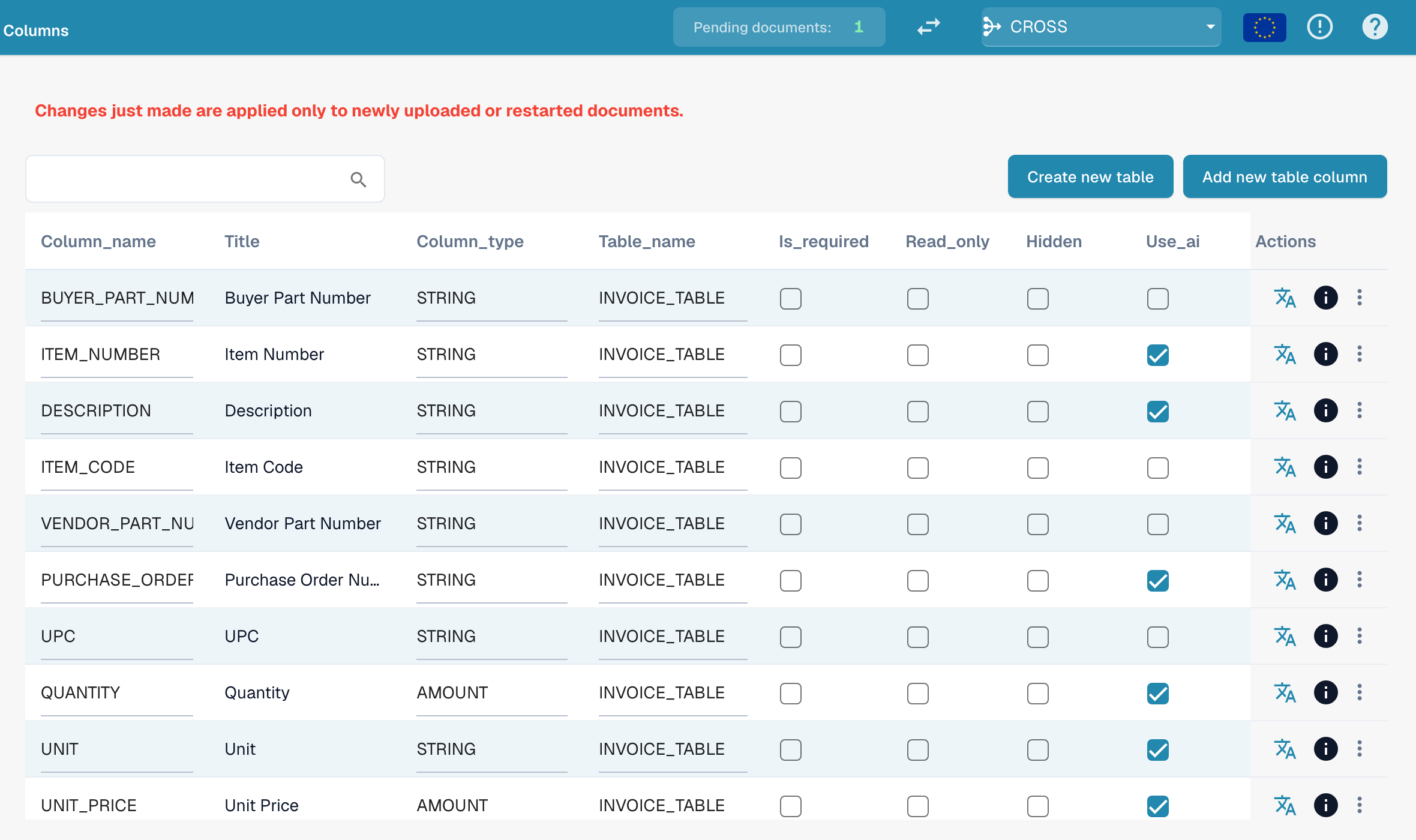
Table Columns: one row per column, flags are switched directly in the list
## What you see
Each row is one column of one table. The list shows:
| Column | Meaning |
| --------------- | --------------------------------------------------------------------------------------------------------------------------------------------------------------------------------------------------------------------------------- |
| **Column name** | Technical name, generated from the title (upper case, underscores). Used in scripts, export mappings and the API. Cannot be changed later. |
| **Title** | Label shown on the validation screen. Change it with the translate icon in the *Actions* column (*Update translation key*). |
| **Column Type** | `AMOUNT`, `STRING`, `DATE`, `NUMBER`, `BOOLEAN` or `CURRENCY`. Determines validation and formatting. |
| **Table name** | The table the column belongs to, for example `INVOICE_TABLE`. |
| **Is Required** | The document cannot be approved while this column is empty in any row. |
| **Read Only** | Users see the value but cannot edit it. |
| **Hidden** | The column is neither shown nor exported. Used to switch off default columns you do not need. |
| **Use AI** | The AI table extraction fills this column, even when a supplier has trained rules. |
| **Actions** | Translate icon: rename the title. Info icon: where the shown label comes from (your translation, the default, the key). Three-dot menu: *Delete*, only for columns your organization created; default columns can only be hidden. |
Two buttons above the list:
* **Create new table**: a second line-item table for the document type (for example a charges table next to the item table).
* **Add new table column**: opens the dialog described in [Adding a new column](/administration-and-setup/settings/global-settings/document-types/table-columns/adding-a-new-column.md).
## Default columns and your own columns
Every document type ships with a set of default columns (for invoices: item number, description, quantity, unit price, total amount, tax, …). They belong to DocBits, not to your organization, so they cannot be deleted, hide them instead. Columns you add yourself belong to your organization and can be deleted.
{% hint style="info" %}
**Changes apply to new documents only.** A column you add, hide or delete appears on documents that are uploaded or restarted after the change. Documents already on the dashboard keep their table as it was extracted. Restart a document to pick up the new configuration.
{% endhint %}
## Related pages
* [Purpose and use](/administration-and-setup/settings/global-settings/document-types/table-columns/purpose-and-use.md): where table columns show up
* [Adding a new column](/administration-and-setup/settings/global-settings/document-types/table-columns/adding-a-new-column.md)
* [Editing and deleting columns](/administration-and-setup/settings/global-settings/document-types/table-columns/editing-and-deleting-columns.md)
* [Best practices](/administration-and-setup/settings/global-settings/document-types/table-columns/best-practices-2.md)
* [Troubleshooting](/administration-and-setup/settings/global-settings/document-types/table-columns/troubleshooting-1.md)
* [Training Line Fields / Table Training](/administration-and-setup/setup/document-training/training-line-fields-table-training.md): teach DocBits where a supplier's table is
* [AI Table](/end-user-and-partner-section/end-user-section/ai-table.md): what the user sees on the validation screen
---
# Agent Instructions
This documentation is published with GitBook. GitBook is the documentation platform designed so that both humans and AI agents can read, navigate, and reason over technical content effectively. Learn more at gitbook.com.
## Querying This Documentation
If you need additional information that is not directly available in this page, you can query the documentation dynamically by asking a question.
Perform an HTTP GET request on the current page URL with the `ask` query parameter, and the optional `goal` query parameter:
```
GET https://docs.docbits.com/administration-and-setup/settings/global-settings/document-types/table-columns.md?ask=&goal=
```
`ask` is the immediate question: it should be specific, self-contained, and written in natural language.
`goal` is optional and describes the broader end goal you are ultimately trying to accomplish on behalf of the user. GitBook uses it to tailor the answer towards what is most useful for that goal.
The response will contain a direct answer to the question and relevant excerpts and sources from the documentation.
Use this mechanism when the answer is not explicitly present in the current page, you need clarification or additional context, or you want to retrieve related documentation sections.