> For the complete documentation index, see [llms.txt](https://docs.docbits.com/llms.txt). Markdown versions of documentation pages are available by appending `.md` to page URLs; this page is available as [Markdown](https://docs.docbits.com/end-user-and-partner-section/end-user-section/ai-table.md).
# AI Table
The AI Extracted Table is the line-item table that DocBits reads with AI when a supplier has no trained table rules. It appears on the validation screen below the header fields. This page covers when you get it, how to re-run it, and how to shape what it extracts.
## When you get the AI table
* An admin has switched on **AI Table extraction** (Settings → Document Processing → Classification and Extraction). If it is off, the table area shows *AI Table will display here. Enable in …*.
* The supplier has **no saved rules**. As soon as someone trains the supplier's table and clicks *Save Rules*, the saved rules replace the AI table for that supplier; the rows then appear in the *Extracted table* tab instead of the *AI Extracted table* tab.
* Exception: columns marked **Use AI** in the table-column settings are filled by the AI even for suppliers with saved rules, see [Use AI per column](#use-ai-per-column).
Which AI tier reads the table (Fast, Full, Nexus) is set per organization and can be overridden per supplier under *More settings* on the validation screen, see [Supplier-Specific AI Model](/end-user-and-partner-section/end-user-section/validation-screen/supplier-specific-ai-model-for-field-and-table-extraction.md).
## Re-extracting the AI table
Use this when rows are missing or a column is shifted and you want the AI to try again, for example after adding a [tag](/end-user-and-partner-section/end-user-section/ai-table/ai-table-tags.md):
1. Add or change [tags](/end-user-and-partner-section/end-user-section/ai-table/ai-table-tags.md) in the field below the table and click **Apply**. The AI rebuilds the table for this document with your tags and column changes; nothing is stored for the supplier yet. If the document has PO-matched lines, DocBits warns that the matches are removed by the rebuild.
2. Happy with the result? Click **Save** (*Save Rules*) so the next document of this supplier is extracted the same way.
3. To start over, click **Delete** (*Delete Rules*): DocBits confirms *Rules has been deleted successfully* and runs the AI extraction again without any saved tags or formatting.
*Delete Rules* removes the tags and formatting rules saved for this supplier, not the table-column configuration. To re-extract the whole document (header and table) after an admin changed settings or columns, use *Restart* in the document menu on the dashboard instead.
## Use AI per column
Each table column has a **Use AI** flag (Settings → Global Settings → Document Types → [Table Columns](/administration-and-setup/settings/global-settings/document-types/table-columns.md)). With the flag on, the AI fills that column even when the supplier has saved rules; the other columns keep coming from the rules. Typical use: a free-text description column that trained rules capture badly, or a value that moves around on the page.
Be aware that the AI then guesses that column from the whole row. If it consistently puts the wrong value there (for example the line total into *Charges*) the line-total check fails on every row. In that case switch *Use AI* off for that column, or add a tag that tells the AI what the column is.
## Structured extraction
With **Use Structured Extraction (AI)** enabled in the organization settings, the AI returns the table in a fixed structure that maps straight onto the configured table columns instead of copying the supplier's column headers. Column names then always match your configuration; a column the supplier prints but you have not configured is not extracted. Ask your admin to switch it on when supplier headers vary a lot and you spend time remapping.
## Working with the extracted table
Here are the key capabilities and usage instructions:
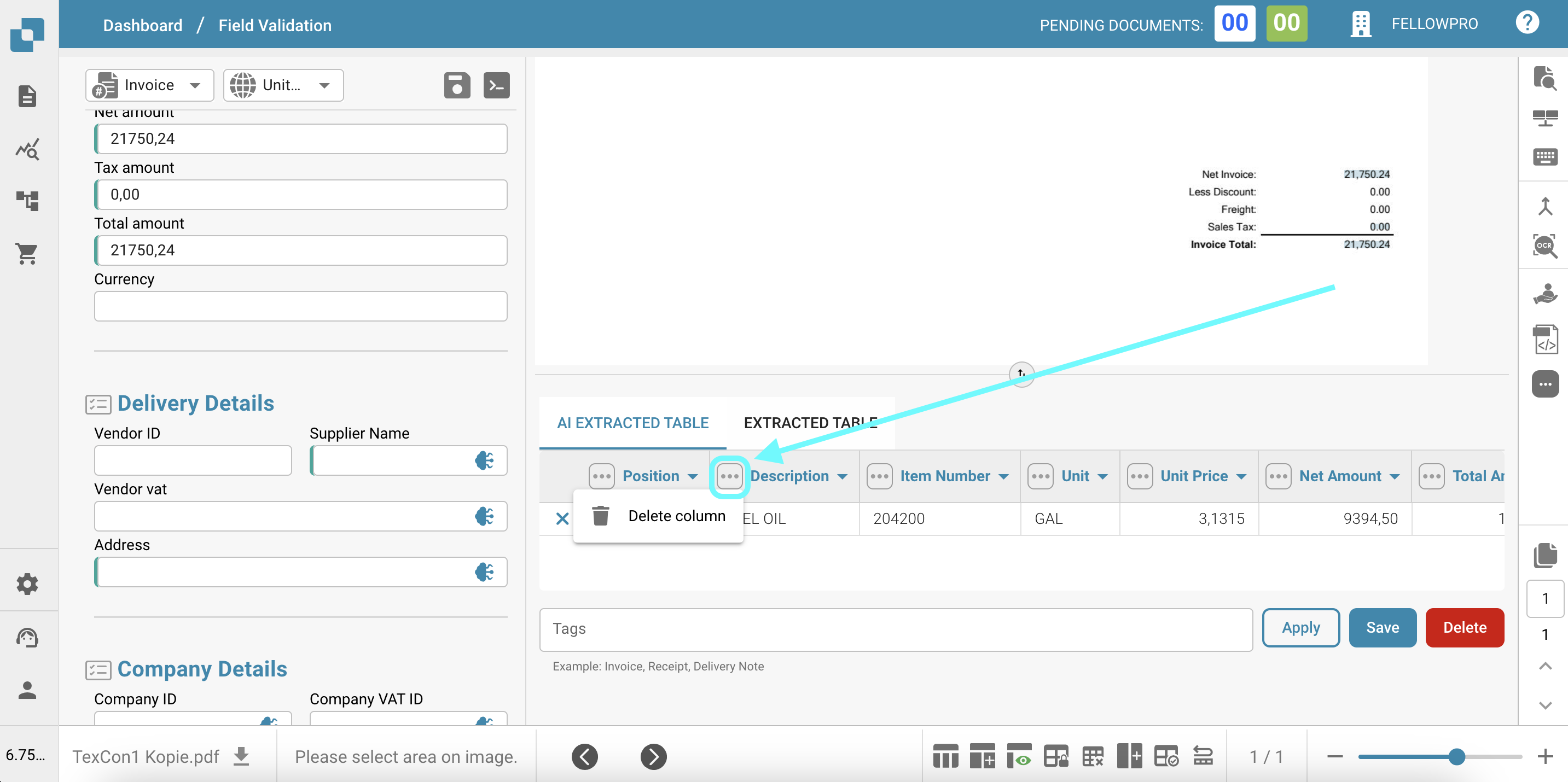
* **Deleting Columns**: If certain columns in the extracted table are not needed, users can easily remove them by clicking the "Delete column" icon (represented by three vertical dots) next to the column header. This helps declutter the table and focus only on relevant information.
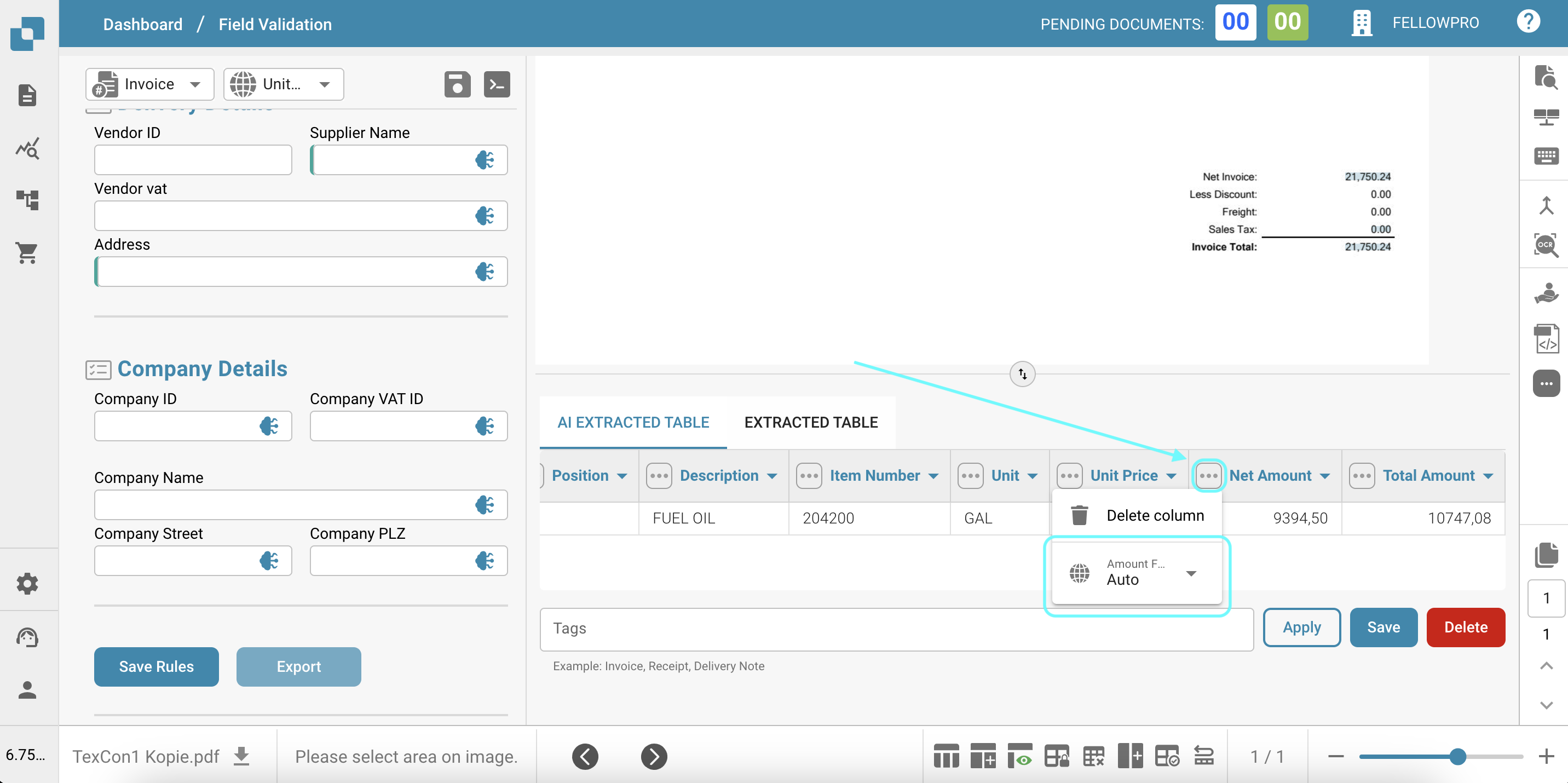
* **Changing Currency Format**: The currency format can be changed by selecting the desired format from the dropdown menu next to the "Currency" field. This ensures that the currency values are displayed in the preferred format, making it easier to interpret and analyze the financial data.
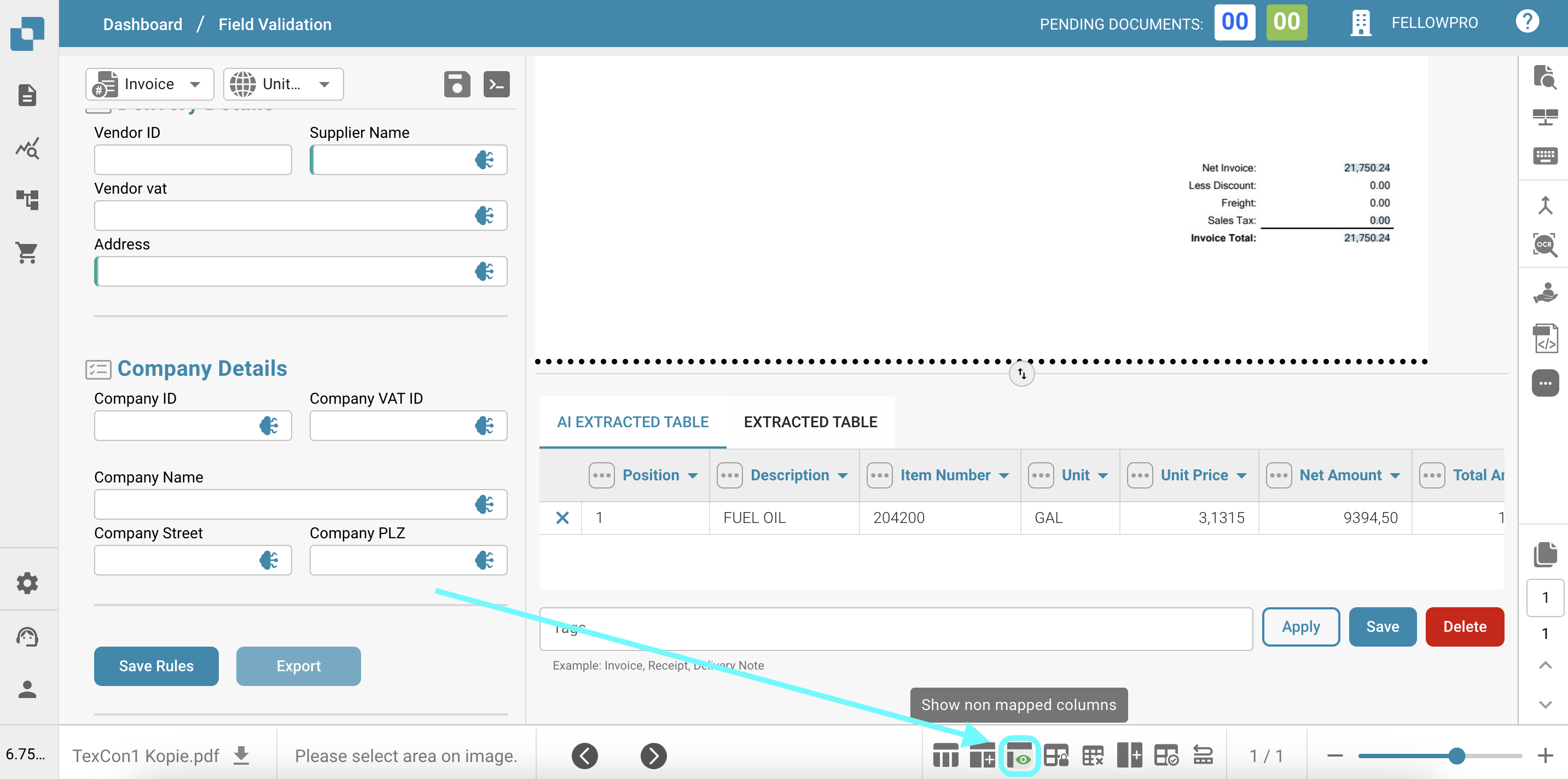
* **Showing/Hiding Non-Mapped Columns**: By default, only the mapped columns (columns with extracted data) are visible in the table. However, users can choose to show or hide the non-mapped columns by clicking the "Hide non mapped columns" or "Show non mapped columns" button at the bottom of the table. This feature is useful when users want to review all available columns, even if they don't currently contain data.
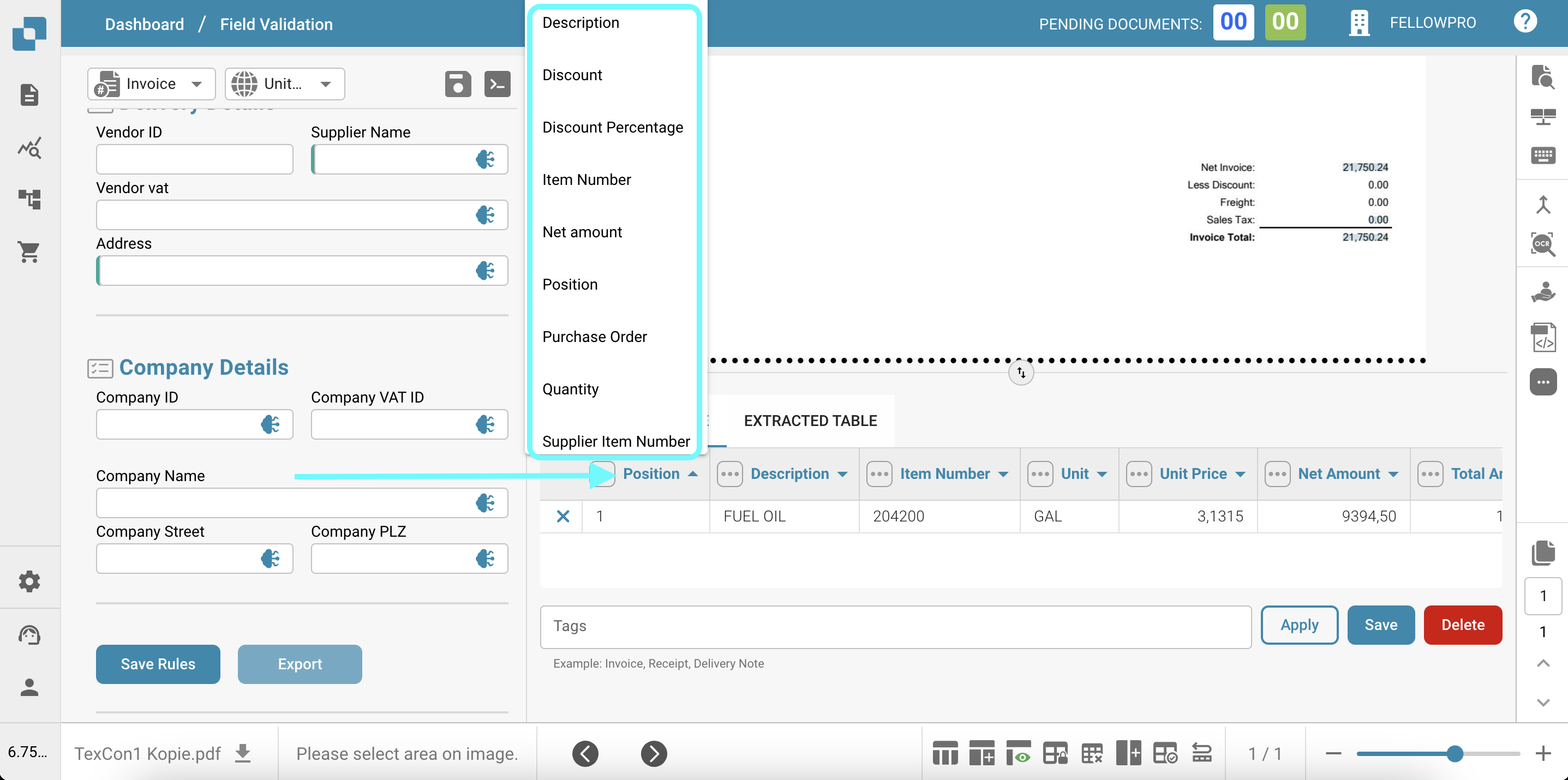
* **Changing Table Headers**: The table headers (column names) can be modified by clicking on the header and entering the desired name. This feature allows users to customize the column names to better align with their terminology or preferences, making the data more readable and understandable.
* **Saving what you changed**: **Save** next to the tags (tooltip *Save Rules*) stores the current column mapping, hidden columns and tags for this supplier. The next document of the supplier is extracted with them.
These features give you control over the extracted data. When the same supplier needs the same corrections every time, train the table once instead, [Training Line Fields / Table Training](/administration-and-setup/setup/document-training/training-line-fields-table-training.md), and the AI table is no longer used for that supplier.
---
# Agent Instructions
This documentation is published with GitBook. GitBook is the documentation platform designed so that both humans and AI agents can read, navigate, and reason over technical content effectively. Learn more at gitbook.com.
## Querying This Documentation
If you need additional information that is not directly available in this page, you can query the documentation dynamically by asking a question.
Perform an HTTP GET request on the current page URL with the `ask` query parameter, and the optional `goal` query parameter:
```
GET https://docs.docbits.com/end-user-and-partner-section/end-user-section/ai-table.md?ask=&goal=
```
`ask` is the immediate question: it should be specific, self-contained, and written in natural language.
`goal` is optional and describes the broader end goal you are ultimately trying to accomplish on behalf of the user. GitBook uses it to tailor the answer towards what is most useful for that goal.
The response will contain a direct answer to the question and relevant excerpts and sources from the documentation.
Use this mechanism when the answer is not explicitly present in the current page, you need clarification or additional context, or you want to retrieve related documentation sections.