> For the complete documentation index, see [llms.txt](https://docs.docbits.com/llms.txt). Markdown versions of documentation pages are available by appending `.md` to page URLs; this page is available as [Markdown](https://docs.docbits.com/administration-and-setup/setup/document-types/fuzzy-data-configuration-with-master-data.md).
# Fuzzy Data Configuration with Master Data
### **Overview**
Each document type has its own default configurations and must be set up separately. While this example explains the setup for **Invoices**, the same process applies to all document types.
### To configure Fuzzy Data, navigate to:
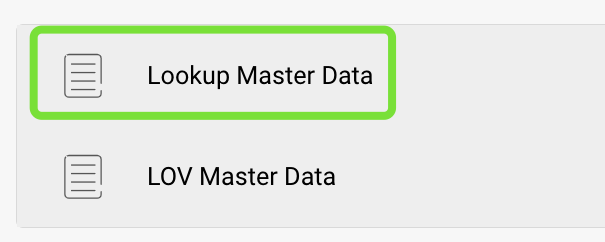
Settings → Global Settings → Document Types → Invoice → Fields → Master Data Settings → Lookup Master Data
### **Default Lookups**
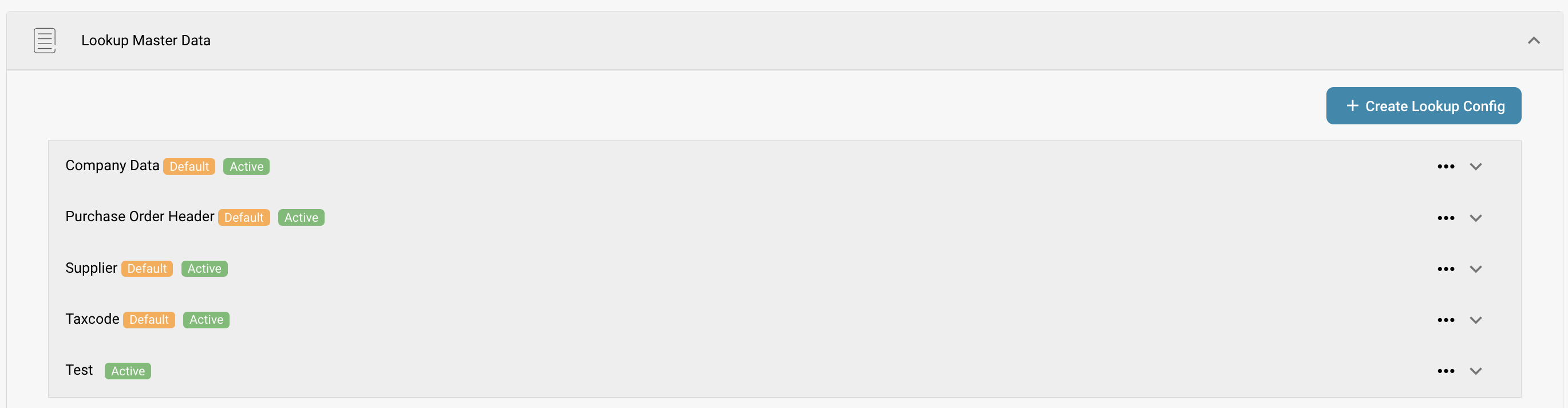
There are **four default lookup groups** for invoices:
1. **Company Data**
2. **Purchase Order Header**
3. **Supplier**
4. **Tax Code**
Each group contains specific fields. Click on a group to **expand** it and view the fields. Default lookup groups are labeled with a **"Default" tag**.
### **Lookup Configuration Status**
* **Active configurations** are marked with an **"Activated" tag**.
* **Deactivated configurations** are marked with a **"Deactivated" tag**.
### **Prerequisite: Importing Master Data**
For Fuzzy Data to function correctly, the relevant **master data** must be imported. Without this, the system has no reference data to use. Here is how to import master data:
{% content-ref url="/pages/5GipzLZwGVljb8NBBZOT" %}
[Importing Master Data](/infor-integration-and-configuration/importing-customer-master-data.md)
{% endcontent-ref %}
### **Managing Lookup Groups**
Each lookup group is **activated by default** but can be modified by clicking the three dots:
* **Deactivate** → Deactivates a group. *(Only available for activated groups)*
* **Activate** → Deactivates a group. *(Only available for deactivated groups)*
* **Duplicate** → Creates a copy that can be modified without affecting the original.
* **View** → Displays information such as the **document type** it belongs to and the **lookup table** it uses. *(Only available for default groups)*
* **Edit** → Available for **non-default** groups. Allows modifying group details.
* **Delete** → Removes the group entirely. *(Only for non-default groups)*
### **Creating a New Lookup Configuration**
There are **two ways** to create a lookup configuration:
1. **Duplicate an existing lookup**
* This copies all information and fields from an existing group.
* You only need to provide a **new name**.
2. **Create a lookup from scratch**\\
* Click **"Create Lookup Configuration"**.
* Fill in the required details:
* **Configuration Name**
* **Lookup Table** (Master Data Table to be used)
* **Conflict Handler** (Choose one: Best Score, Return None, Return First)
* **Context Type** → Defines where the lookup is applied:
* **Header** → Used for document-level fields such as Invoice Number, Date, etc.
* **Line** → Used for line item fields within the invoice table. If **Line** is selected, the user must also specify **which invoice table** should be used.
* **Match All** → When enabled, a supplier must match **all** used fields. When disabled, matching **one** field is enough. See [How DocBits Picks One Supplier](#how-docbits-picks-one-supplier).
### **Managing Fields Within a Lookup Group**
Each group contains fields that can be **added, removed, edited, or viewed**, depending on whether they are default fields or custom fields.
#### **Default Fields**
* Marked with a **"Default" tag**.\\
* **Can only be viewed**, not edited or deleted.
#### **Non-Default Fields**
* **Can be edited or deleted** by clicking the three dots and selecting **Edit** or **Remove**.
#### **Adding a New Field**
**Note:** You can create fields inside a default Lookup configurations.
To add a new field within a group:
1. Click **"Create"** inside the relevant group.\\
2. Provide the following details:
* **Lookup Field** → Column name from the master data lookup table.
* **Validation Field** → Corresponding DocBits field.
* **Parent Field** →
* **Search Operator** → Choose one:
* Smart
* Contains
* Exact
* Starts with
* Ends with
* **Checkboxes:**
* **Auto Trigger** → When enabled, the field will automatically trigger the lookup process during extraction. That means as soon as the related DocBits field is populated, the system will populate the remaining fields **automatically**.
* **Searchable** → Adds the field to the **automatic** supplier search **and** enables it as a **Fuzzy Data** field for manual searches (blue icon in validation screen). See [How DocBits Picks One Supplier](#how-docbits-picks-one-supplier).
### **How DocBits Picks One Supplier**
When a document arrives, DocBits searches your master data for the supplier. Three settings decide the result. This section explains them step by step, with examples.
#### **Step 1 — Which fields are used for the search**
DocBits uses a field for the search only when both points are true:
* the field is ticked **Searchable** or **Auto Trigger** in the lookup configuration, and
* the field has a value on the document.
How the value got into the field does not matter. A trained field, a field filled by AI and a value typed by a user are all treated the same.
{% hint style="warning" %}
**Searchable does two things.** It shows the blue search icon in the validation screen, **and** it adds the field to the automatic supplier search. A field that you only want to search by hand should stay unticked.
{% endhint %}
#### **Step 2 — One search, not one search per field**
DocBits does **not** search each field on its own. It builds **one** search over all used fields. **Match All** decides how they are combined:
* **Match All off** (default) → "find every supplier that matches the Tax ID **OR** the supplier name". This gives a **longer** list.
* **Match All on** → "find every supplier that matches the Tax ID **AND** the supplier name". This gives a **shorter** list.
Keep in mind that the search operators **Smart** and **Contains** look for a part of the text. The name "Meier" also finds "Meier Bau GmbH" and "Meier & Sons Ltd". A supplier name therefore often finds several suppliers.
#### **Step 3 — What happens when the list has more than one supplier**
The **Conflict Handler** decides:
* **Best Score** → takes the supplier that matches the most fields. Never leaves the supplier empty.
* **Return None** → leaves the supplier empty, so that a user picks it.
* **Return First** → takes the first supplier of the list.
#### **Examples**
In all examples the document carries a Tax ID and a supplier name, and both fields are **Searchable**.
Tax ID finds
Name finds
Match All off + Return None
Match All on + Return None
Match All off + Best Score
only A
A and B
empty
A
A
A and B
only B
empty
B
B
A, B and C
C, D and E
empty
C
C
A, B and C
B, C and D
empty
empty
B or C, not reliable
only A
nothing
A
empty
A
How to read the table:
* **Rows 1 to 3** are the normal case. One field is unique, the other one is not. With **Match All off** the list holds several suppliers and **Return None** leaves the field empty. **Match All on** keeps only the supplier that matches both fields and finds it.
* **Row 4** has no unique supplier at all. Leaving it empty is correct. **Best Score** still picks one of them, which can be the wrong supplier.
* **Row 5** is the risk of **Match All on**. See the warning below.
{% hint style="warning" %}
**Match All can lose a supplier.** With **Match All on** every used field must match. If one field carries a value that does not exist in your master data — a typo, an old company name, a value read from the page — the whole search returns nothing and no supplier is found, even though the Tax ID alone would have found the right one.
{% endhint %}
#### **A supplier was recognised before and is not recognised any more**
Almost always one more field started to deliver a value. Check in this order:
1. Open the document. Which field of the lookup group now carries a value that used to be empty?
2. Open the lookup configuration. Is that field ticked **Searchable** or **Auto Trigger**? If yes, it now takes part in the search and makes the result list longer.
3. Choose one of the three ways out:
* **The field should not take part in the search** → untick **Searchable** and **Auto Trigger** for that field. The field keeps its value on the document and is still shown to the user. This is the smallest change.
* **The field should take part** → switch **Match All** on, but read the warning above first.
* **You want a supplier in every case** → set the **Conflict Handler** to **Best Score**. Accept that it can pick the wrong supplier instead of leaving the field empty.
### **Final Step: Adding Fields to the Layout**
After configuring Fuzzy Data fields, **make sure to add them to the layout using the Layout Builder**. If fields are not added to the layout, they will not be available for use.
{% content-ref url="/pages/9JUDWHcXkc4kTWbjwrt9" %}
[Layout Manager](/administration-and-setup/settings/global-settings/document-types/layout-manager.md)
{% endcontent-ref %}
---
# Agent Instructions
This documentation is published with GitBook. GitBook is the documentation platform designed so that both humans and AI agents can read, navigate, and reason over technical content effectively. Learn more at gitbook.com.
## Querying This Documentation
If you need additional information that is not directly available in this page, you can query the documentation by asking a question.
Perform an HTTP GET request on the following URL with the `ask` and `goal` query parameters:
```
GET https://docs.docbits.com/administration-and-setup/setup/document-types/fuzzy-data-configuration-with-master-data.md?ask=&goal=
```
`ask` is the immediate question: it should be specific, self-contained, and written in natural language.
`goal` is what the user is ultimately trying to achieve, the reason they need the answer. Sharing it helps GitBook give you a better, more relevant answer. A goal is most helpful when it describes the outcome the user wants rather than restating the question. For example, with `ask=how do I create an API token`, a goal like `automate deployments from our CI pipeline` lets GitBook tailor the answer to that use case.
The response will contain a direct answer to the question and relevant excerpts and sources from the documentation.
Use this mechanism when the answer is not explicitly present in the current page, you need clarification or additional context, or you want to retrieve related documentation sections.