> For the complete documentation index, see [llms.txt](https://docs.docbits.com/llms.txt). Markdown versions of documentation pages are available by appending `.md` to page URLs; this page is available as [Markdown](https://docs.docbits.com/advanced-functions-and-tools/docbits-operator.md).
# DocBits Operator
## Overview
The **DocBits Operator** is an AI-powered automation assistant designed to simplify repetitive tasks in your workflows. Users create *prompts*—step-by-step instructions enhanced with variables—that guide the AI to navigate, input data, and click through interfaces automatically. This reduces manual effort and speeds up routine operations.
## Enabling the DocBits Operator
To enable the DocBits Operator, follow these steps:
1. **Navigate to Settings**:
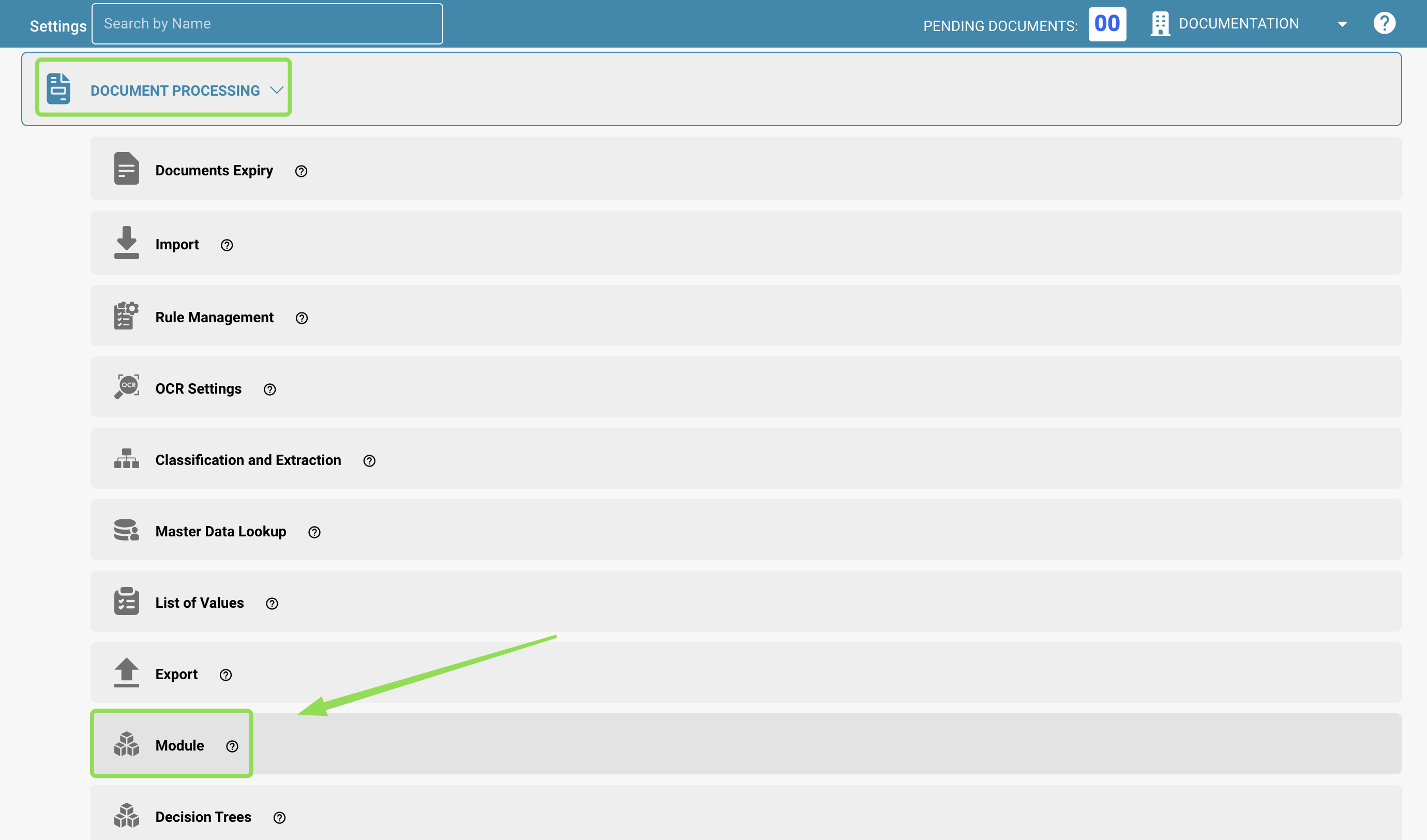
* From the Dashboard, go to **Settings**.
* Select **Document Processing** and then choose **Module**.
2. **Enable the Feature**:
* Scroll down to locate the **DocBits Operator** option.
* Toggle the slider to enable the **DocBits Operator**.
## Accessing the Interface
* Once the feature is enabled, open the **DocBits Operator** from the main navigation menu.
### **1. Prompt Input**
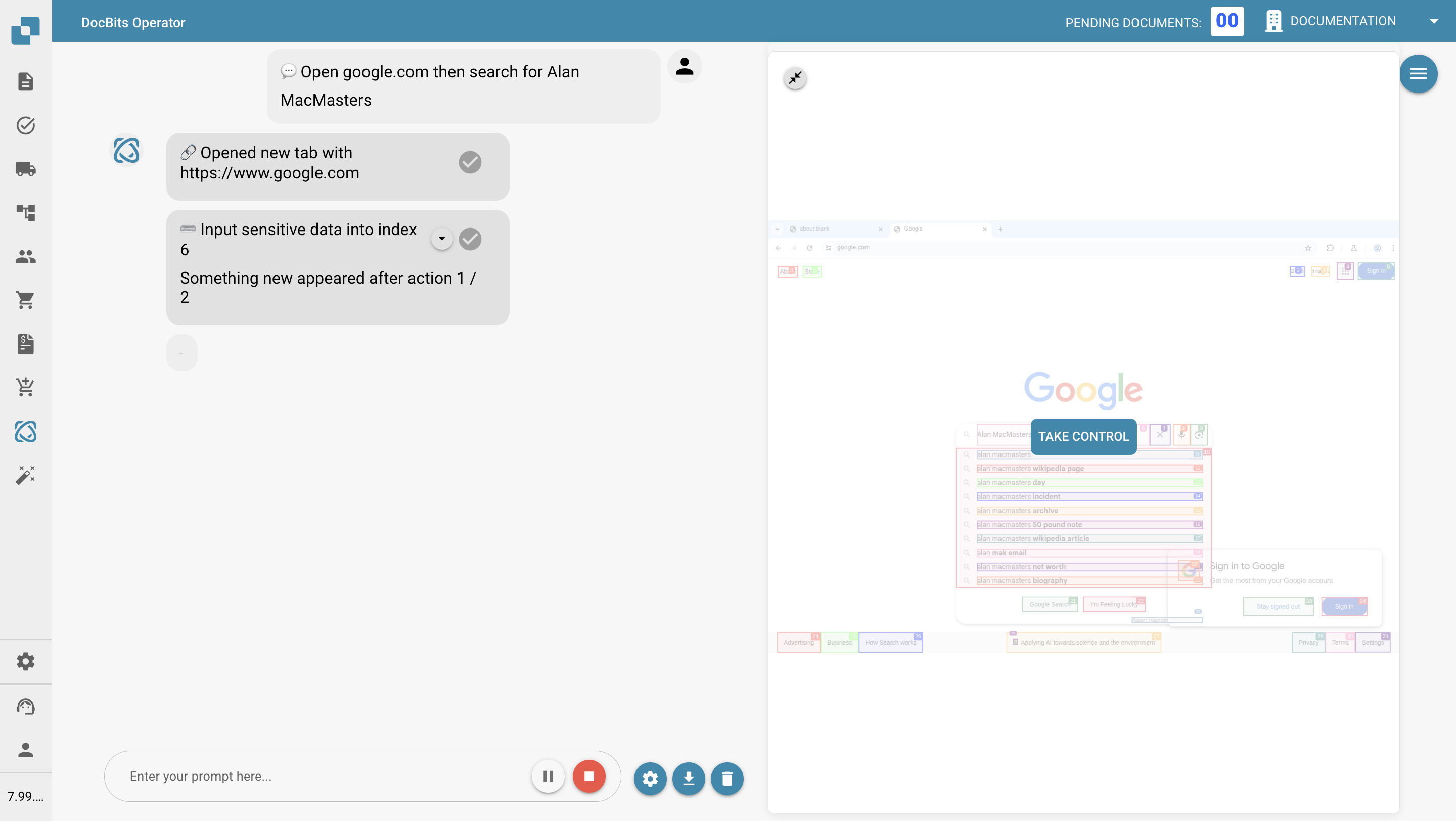
At the bottom of the screen, there is an input field labeled *“Enter your prompt here…”*. This is where users write instructions for the operator to follow.
Next to the input field are several control buttons:
* **Prompt Variables** – Opens a popup where you can enter key-value pairs used in the prompt. Variables are written using curly braces, like `{invoice_number}` or `{url}`. These values apply only to the current prompt in the input field.
* **Save Prompt** – Saves the current prompt. Choose to save it as either:
* **Organization Prompt** – Editable within your organization; includes both the prompt and defined variable values.
* **Global Prompt** – Shared across all tenants; includes only the prompt and variable placeholders (no values are saved).
* **Clear Chat** – Clears the current conversation with the operator, but leaves the prompt in the input field unchanged. Useful when reusing or refining a prompt.
For detailed guidance on how to write effective prompts—including syntax, variables and examples—please see the [**Prompt Writing Guide**](/advanced-functions-and-tools/docbits-operator/prompt-writing-guide.md).
### **2. Sidebar Navigation**
Use the top-left icon to open or close the sidebar. The sidebar shows saved prompts, organized in two categories:
* **Organization Prompts**: Editable and reusable within your organization.
* **Global Prompts**: Shared across all tenants. These cannot store variables and cannot be edited or deleted.
* A global prompt is still editable and deletable by the **organization that created it**, where it appears under Organization Prompts.
* **Search Functionality:** a search bar at the top of the sidebar allows users to quickly find saved prompts by name or keyword.
* **Icon Reference:** Each saved prompt has a set of action icons
* **Arrow** – Start the prompt
* **Pen** – Edit the prompt (available only for your own organization’s prompts)
* **Trashcan** – Delete the prompt (available only for your own organization’s prompts)
### 3. Save Prompt
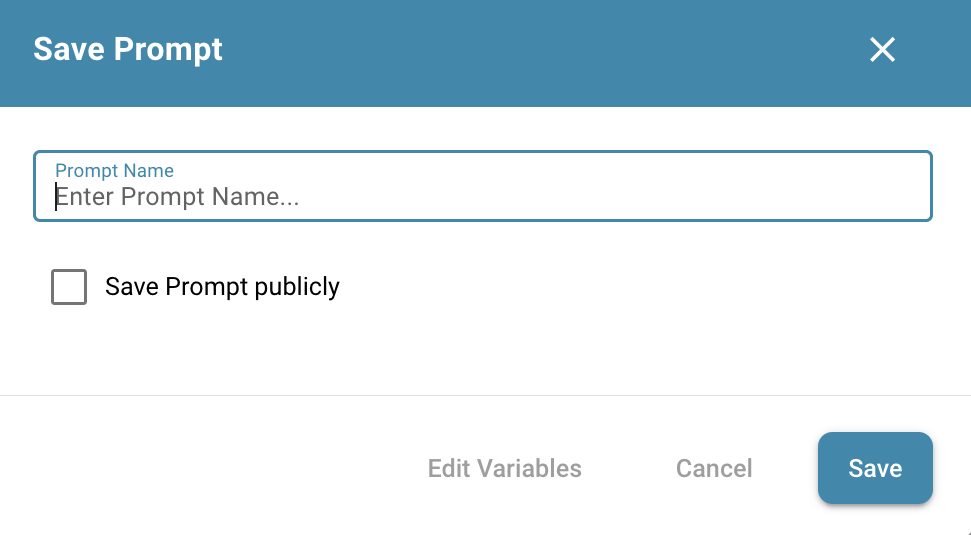
Clicking the **Save Prompt** button opens a popup where you can save the current prompt for future use.
#### **Save Prompt Popup Fields**
* **Prompt Name:** Enter a name to identify the prompt.
* **Save Prompt Publicly (Checkbox):** When checked, the prompt will be saved as a **Global Prompt**. Global Prompts are shared across all tenants and cannot store variable **values** (only variable **names**).
* **Edit Variables:** Opens the [**Prompt Variables Popup**](/advanced-functions-and-tools/docbits-operator/prompt-writing-guide.md#prompt-variables-popup) to review or adjust variable definitions before saving.
**Actions**
* **Cancel:** Closes the popup without saving.
* **Save:** Saves the prompt using the specified name and visibility setting.
### 4. Prompt Execution Controls
When a prompt is running, users have several control options to manage or intervene in the execution process:
* **Pause Prompt:** Temporarily halts the current execution. Useful if you want to observe the current state or prepare the system for the next steps.
* **Resume Prompt:** Continues execution from the point where it was paused. 
* **Cancel Prompt:** Stops the execution entirely and resets the session. This is helpful if the prompt needs to be aborted or restarted due to incorrect behavior or changes in input.
* **Take Control:** Allows the user to manually intervene by interacting directly with the system. This is useful if the operator gets stuck or misinterprets a step. Taking control **automatically pauses** the prompt and switches to manual mode until you choose to resume or cancel.
### 5. Operator Detail View
Once a prompt is started, an additional button becomes available that allows users to switch to a **detailed execution view**. 
* **Open Detail View:** This button takes you to a dedicated view that shows, step-by-step, what the operator is doing in real time.
In the detail view, users can:
* Monitor each action being performed (e.g., clicks, inputs, waits).
* See which step is currently active.
* Identify where issues occur if the prompt encounters problems.
* Use the same **Pause**, **Resume**, **Cancel**, and **Take Control** actions.
---
# Agent Instructions
This documentation is published with GitBook. GitBook is the documentation platform designed so that both humans and AI agents can read, navigate, and reason over technical content effectively. Learn more at gitbook.com.
## Querying This Documentation
If you need additional information that is not directly available in this page, you can query the documentation dynamically by asking a question.
Perform an HTTP GET request on the current page URL with the `ask` query parameter, and the optional `goal` query parameter:
```
GET https://docs.docbits.com/advanced-functions-and-tools/docbits-operator.md?ask=&goal=
```
`ask` is the immediate question: it should be specific, self-contained, and written in natural language.
`goal` is optional and describes the broader end goal you are ultimately trying to accomplish on behalf of the user. GitBook uses it to tailor the answer towards what is most useful for that goal.
The response will contain a direct answer to the question and relevant excerpts and sources from the documentation.
Use this mechanism when the answer is not explicitly present in the current page, you need clarification or additional context, or you want to retrieve related documentation sections.