> For the complete documentation index, see [llms.txt](https://docs.docbits.com/llms.txt). Markdown versions of documentation pages are available by appending `.md` to page URLs; this page is available as [Markdown](https://docs.docbits.com/administration-and-setup/settings/document-processing/classification-and-extraction.md).
# Classification And Extraction
Classification and Extraction Page
## Overview
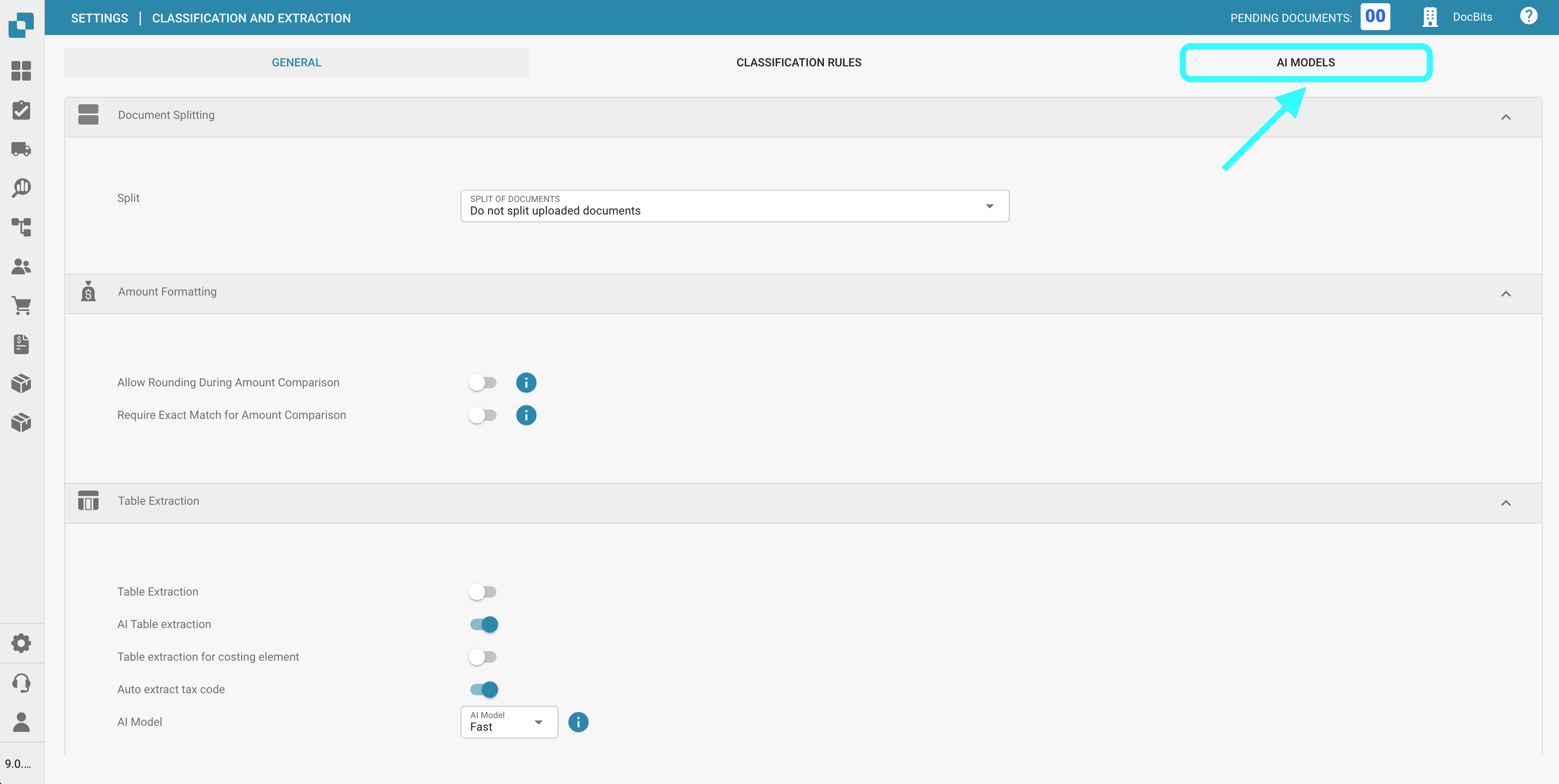
In the **Classification and Extraction** settings, you can:
* Enable **Document Splitting** based on QR codes
* Configure **amount formatting**
* Set up **table extraction**
* Toggle processing of unsupported **ZUGFeRD** files
* Define special classification rules
* Monitor Custom-Trained **AI Models** used in the classification process
This page provides a detailed explanation of all available settings.
## **Accessing Classification and Extraction Settings**
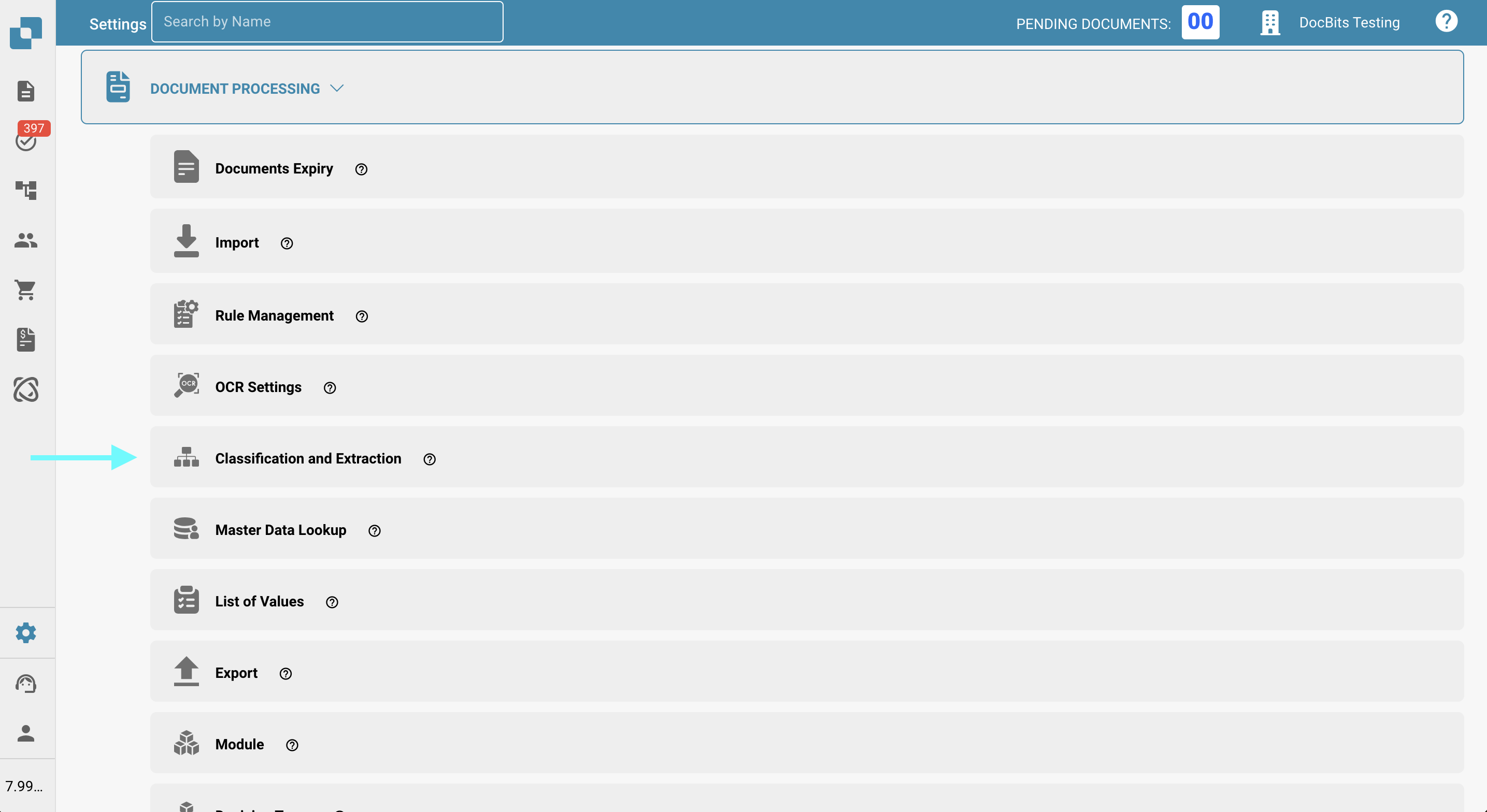
To access the **Classification and Extraction** settings, go to:\
**Settings → Document Processing → Classification and Extraction**
## Document Splitting
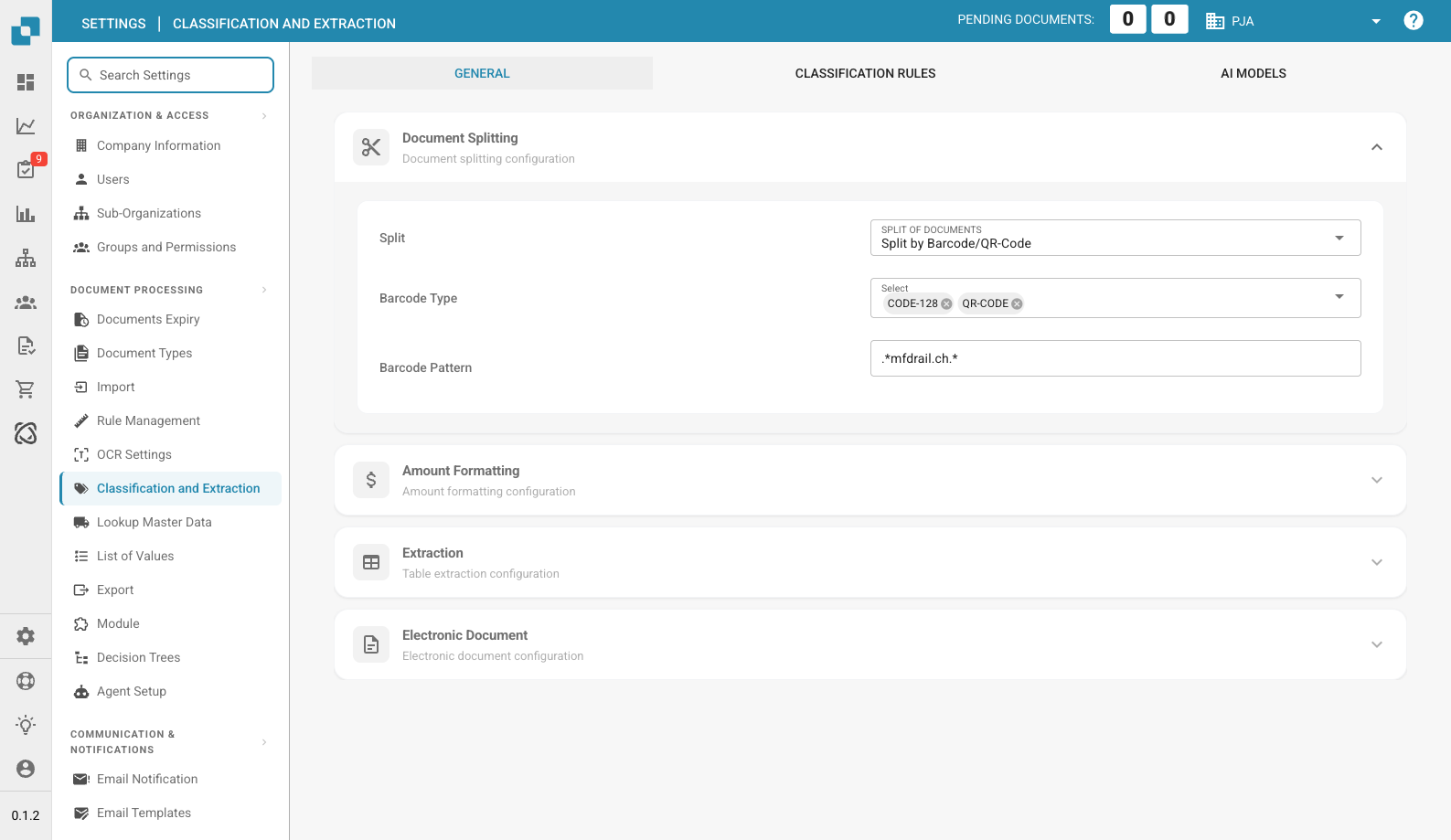
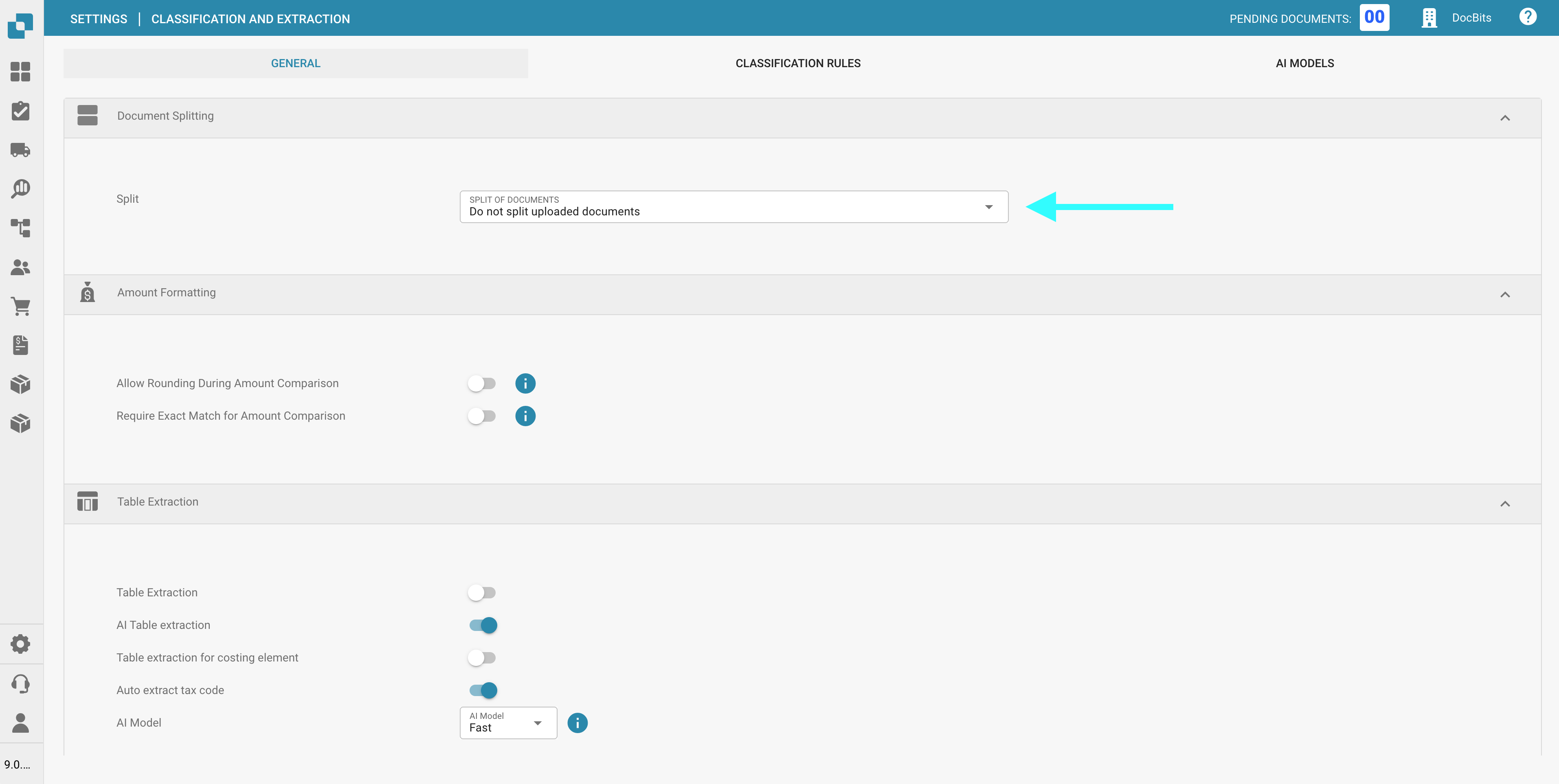
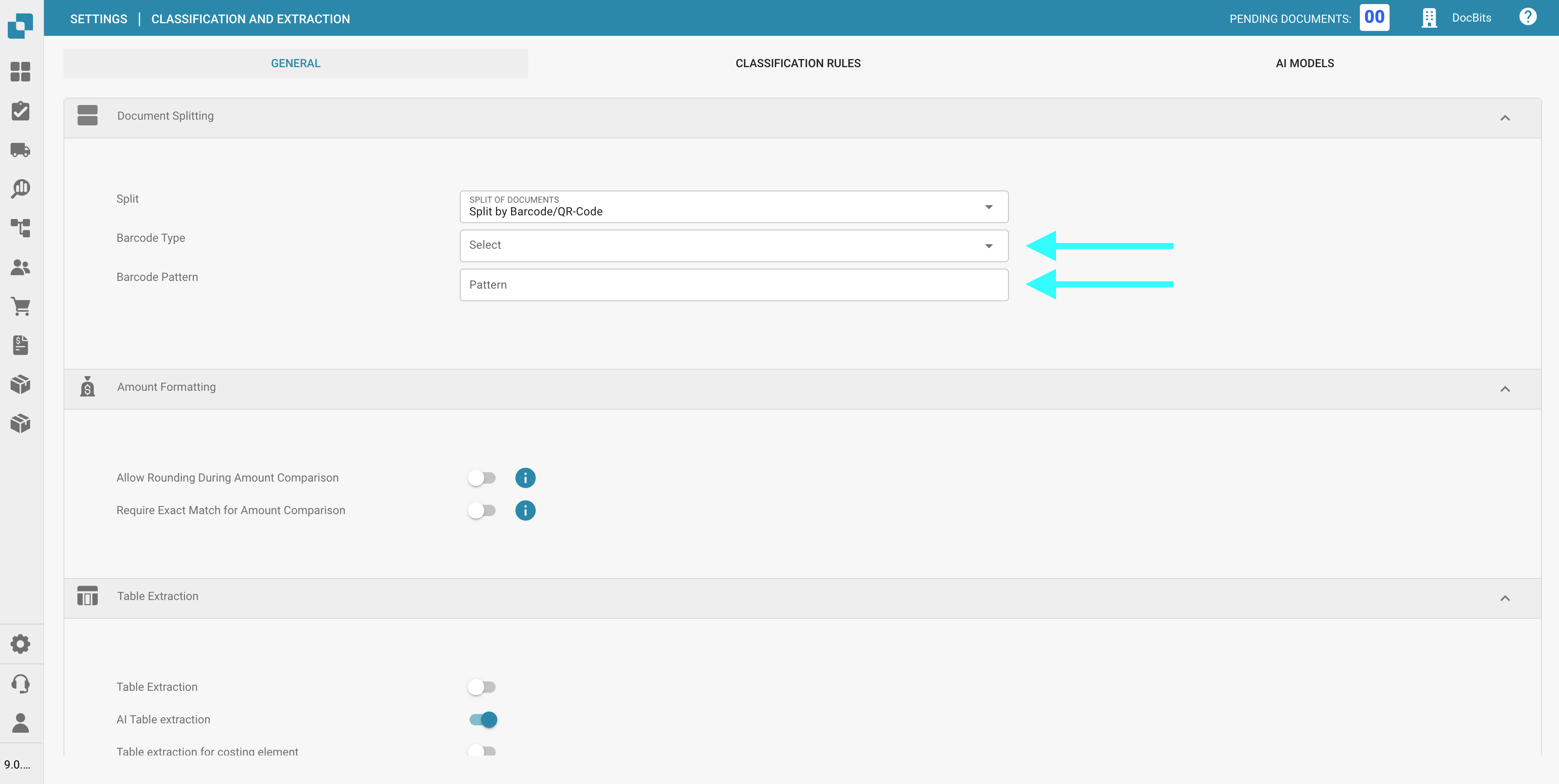
In the **Document Splitting** section, you can configure whether an uploaded document should be split into multiple documents whenever a **barcode** appears on one of its pages.
To activate this feature:
1. Go to the **Document Splitting** section.
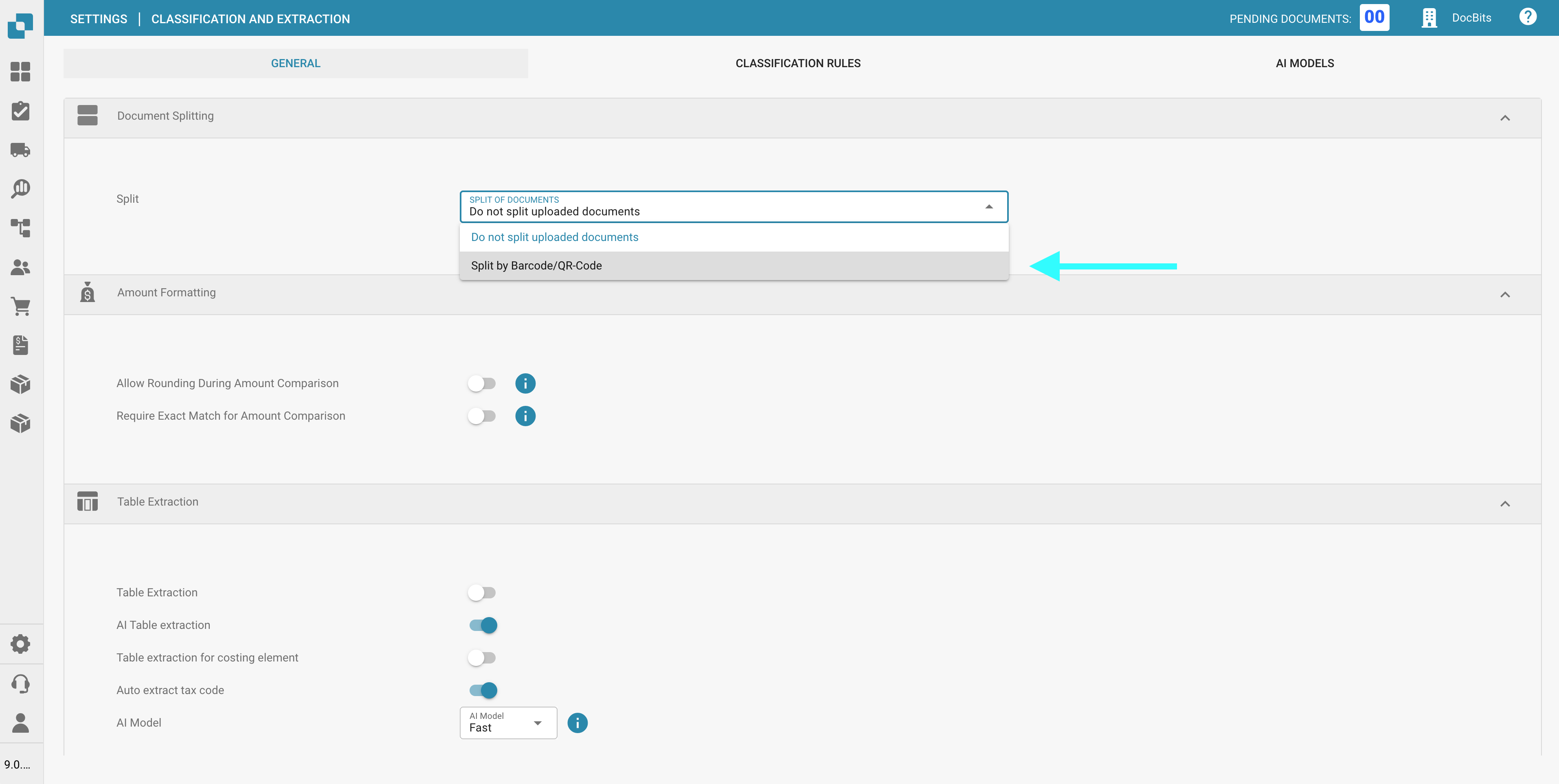
2. Open the dropdown menu.
3. Select **Split by Barcode/QR Code**.
You will then have the option to:
* Select one or more barcode types to be detected.
* Specify a regex pattern that the barcode must match in order to trigger document splitting.
## Amount Formatting
In the **Amount Formatting** section, you have two options:
* **Allow Rounding During Amount Comparison:**\
If enabled, a tolerance of ±0.5 is allowed during amount comparison.\
If disabled, a default tolerance of ±0.05 applies.
* **Require Exact Match for Amount Comparison:**\
If enabled, amounts must match exactly with zero tolerance.\
If disabled, a tolerance of ±0.05 is allowed.
**Note**: Only one of these settings can be active at a time.
## Table Extraction
{% hint style="info" %}
**Prerequisites for a working table extraction**
* The document type has **table columns** (Settings → Global Settings → Document Types → [Table Columns](/administration-and-setup/settings/global-settings/document-types/table-columns.md)). Without columns there is nothing to extract into.
* **Table Extraction** or **AI Table Extraction** is switched on below, for the whole organization.
* The document has readable text: OCR ran, or E-Text is used for born-digital PDFs ([OCR Settings](/administration-and-setup/settings/document-processing/ocr-settings.md)).
* Training and AI models are **per supplier**. A trained table applies only to documents of the supplier it was trained on.
{% endhint %}
You can extract tables from documents by enabling either **Table Extraction** or **AI Table Extraction**. A trained table (whether AI-based or manual) is always linked to a specific supplier.
**Table Extraction:** Activates rule-based table extraction. Tables are trained per supplier on the validation screen (*Go to table extraction view*).\
Learn more about training [here](/administration-and-setup/setup/document-training/training-line-fields-table-training/defining-tables-and-columns.md).
**AI Table Extraction:** Uses AI to extract the table of any supplier without training. If the results for one supplier are not accurate enough, train that supplier's table; the saved rules then take precedence over the AI for that supplier.
**Use Table Extraction Vision (AI):** The AI reads the page image instead of the text layer. Helps with scanned documents and tables without clear text structure; slower.
**Use Structured Extraction (AI):** The AI returns the table in a fixed structure that maps directly onto the configured table columns. Recommended when column headers on the documents vary a lot.
**Table Extraction for Costing Element:** When enabled, DocBits can extract costing elements from tables at the line level and classify them accordingly.\
Detailed explanation available [here](/administration-and-setup/settings/document-processing/classification-and-extraction/table-extraction-for-costing-element.md).
**Auto Extract Tax Code:** When enabled, the system automatically fills the **Tax Code** field on the Validation Screen, provided that a tax code field is configured.\
More information on this setting [here](/administration-and-setup/settings/document-processing/classification-and-extraction/auto-extract-tax-code.md).
**Save extraction rules (Admin only):** Only administrators can click *Save Rules* in table training. Switch it on when users keep saving rules that break a supplier's extraction.
**AI Model:** Selects the AI tier used for table extraction: **Fast** (default), **Full** (highest accuracy, slower) or **Nexus** (opt-in third tier). The table below the selector shows:
* Which **suppliers** use which AI model
* Whether they use E-Text
* Options to delete an entry or reset the training data
This setting is explained in detail [here](/administration-and-setup/settings/document-processing/classification-and-extraction/ai-model.md).
### Why does the table look different per supplier?
Everything that DocBits learns about a table is stored **per supplier**:
* **Saved rules** (table training): position of the table and mapping of its columns on that supplier's layout.
* **AI table tags and formatting rules**: hints the user saved for that supplier's AI table.
* **Supplier-specific AI model**: the tier chosen for that supplier under *More settings* on the validation screen.
So supplier A with saved rules shows a deterministic table in the *Extracted table* tab of the validation screen, while supplier B without rules gets the *AI Extracted table*. To make supplier B behave like A, train B's table once. To reset a supplier, delete its rules on the validation screen or reset its training data in the AI Model table.
### Preference keys
Every toggle in this section is stored as an organization preference. Use the key when you set the value through the API (`/preferences/set_preference`), a script, or the DocBits MCP (`get_preference` / `set_preference`).
| Setting (UI label) | Preference key | Values |
| -------------------------------------------------- | ----------------------------- | -------------------------------------------------------------- |
| Table Extraction | `TABLE_EXTRACTION_SETTING` | `true` / `false` |
| AI Table extraction | `USE_AI_TABLE_EXTRACTION` | `true` / `false` |
| Use Table Extraction Vision (AI) | `TABLE_EXTRACTION_USE_VISION` | `true` / `false` |
| Use Structured Extraction (AI) | `USE_STRUCTURED_EXTRACTION` | `true` / `false` |
| Table extraction for costing element | `CHARGES_TABLE_EXTRACTION` | `true` / `false` |
| Auto extract tax code | `AUTO_EXTRACT_TAX_CODE` | `true` / `false` |
| Save extraction rules (Admin only) | `ONLY_ADMIN_CAN_SAVE_RULES` | `true` / `false` |
| AI Model | `AI_MODEL` | `gpt-5.4-mini` (Fast), `gpt-5.5` (Full), `qwen3.8-max` (Nexus) |
| Table extraction version (confirmation dialog) | `TBL_EXT_VERSION` | version string |
| OCR Settings → Use AI data for tables if available | `USE_AI_DATA_FOR_TABLE` | `true` / `false` |
| OCR Settings → Use E-Text if available | `USE_ETEXT_IF_AVAILABLE` | `true` / `false` |
Notes:
* Boolean preferences are stored as the strings `true` / `false`; a key that was never set counts as `false`. If you send `1` or `0`, DocBits stores `true` / `false`.
* `AI_MODEL` unset means **Fast**.
* Changing a key takes effect for documents processed afterwards. Restart a document to re-extract it with the new setting.
* Per-supplier choices (E-Text, AI model, saved rules) are not organization preferences; they are set on the validation screen under *More settings* for a document of that supplier.
## Electronic Document
**Process Unsupported ZUGFeRD PDF:** If enabled, unsupported **ZUGFeRD** versions will be processed as standard PDFs, and the embedded XML will be ignored.
The list of supported **ZUGFeRD** versions can be found [here](/administration-and-setup/settings/global-settings/document-types/edi/zugferd.md).
## **Classification Rules**
In the **Classification Rules** section, you can define specific **regex** patterns and criteria to help the system automatically classify documents during processing.
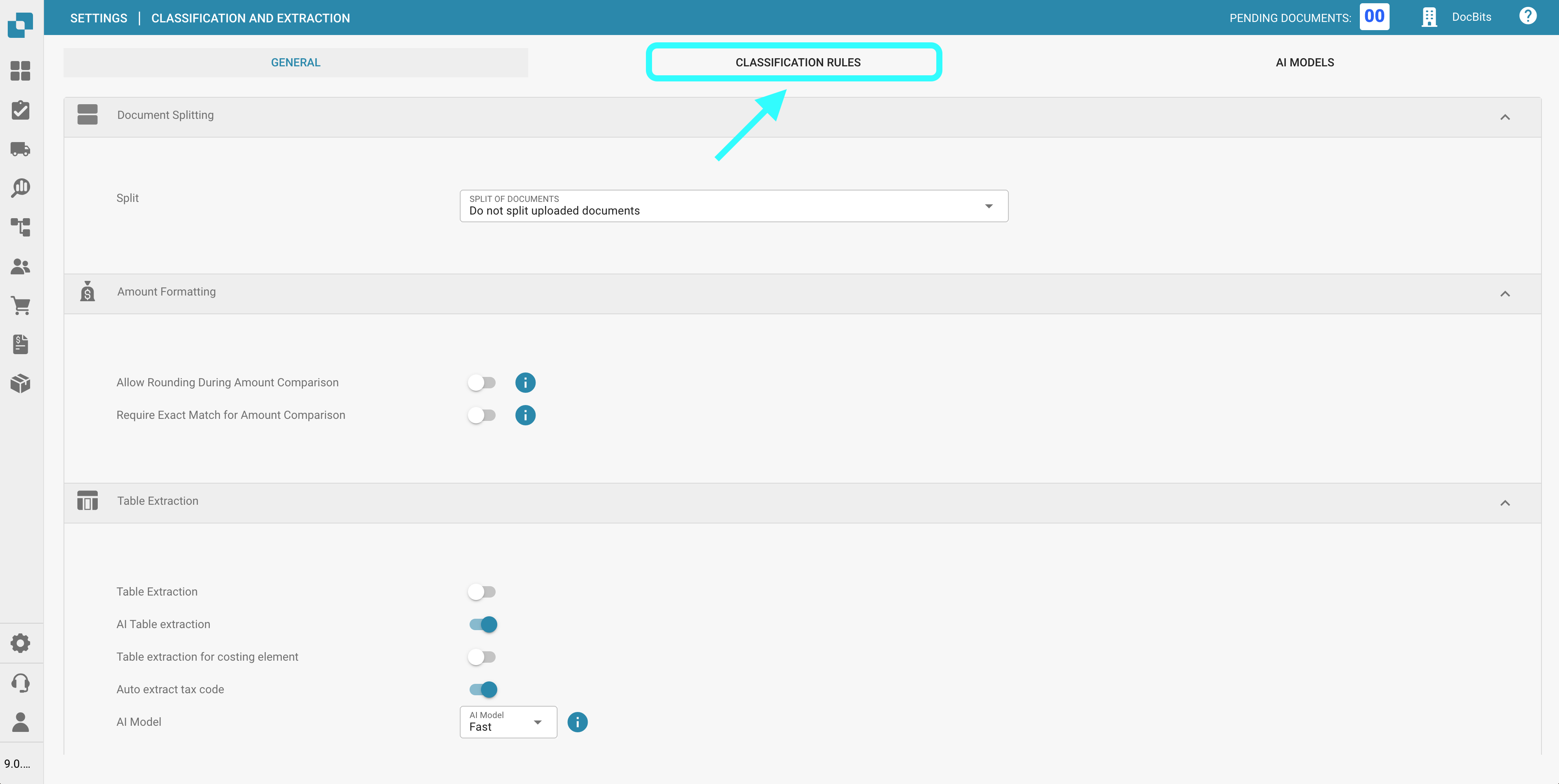
To access this section, click the **Classification Rules** tab at the top of the page.
### **Add a New Classification Rule**
To create a new rule:
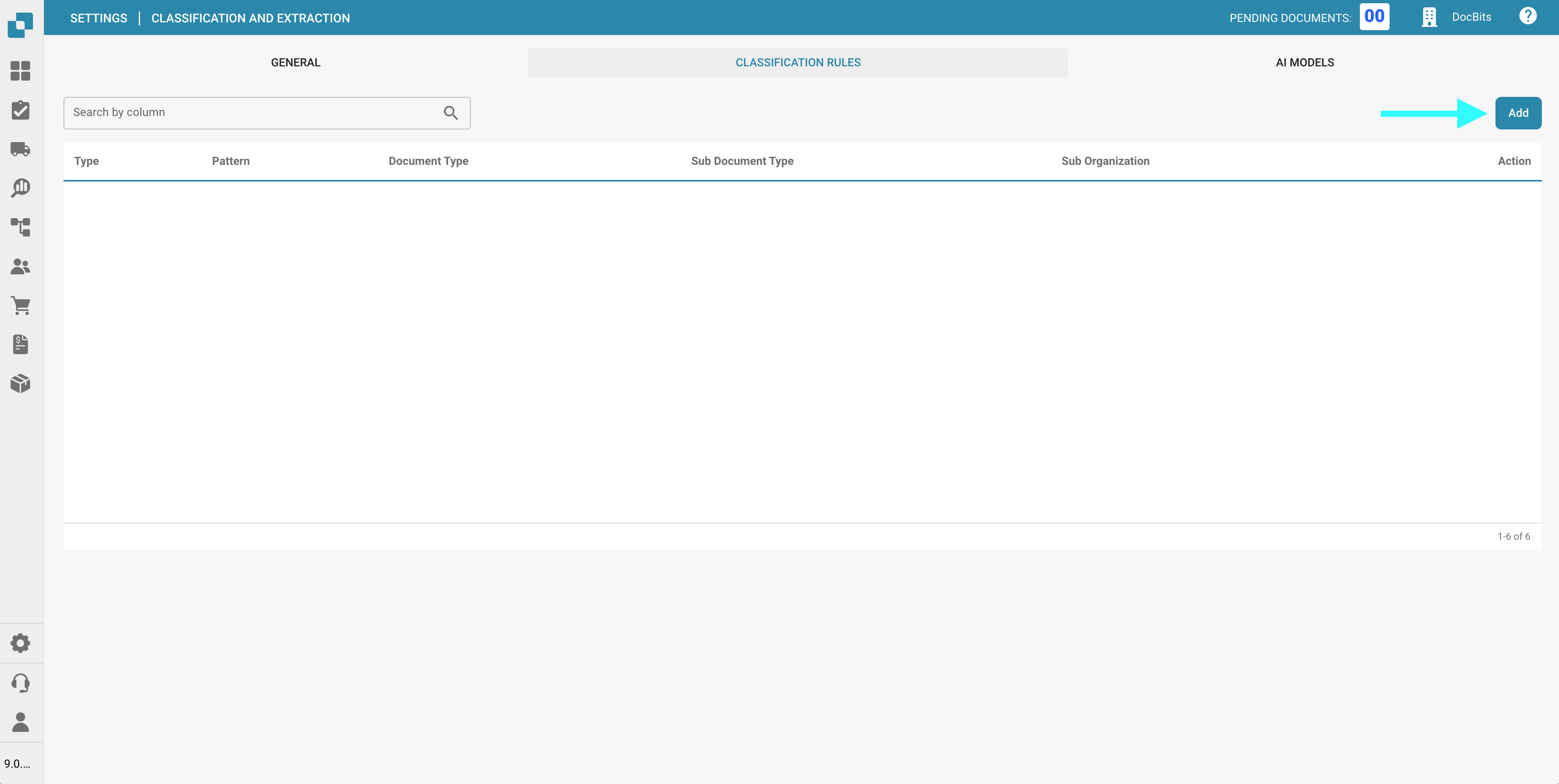
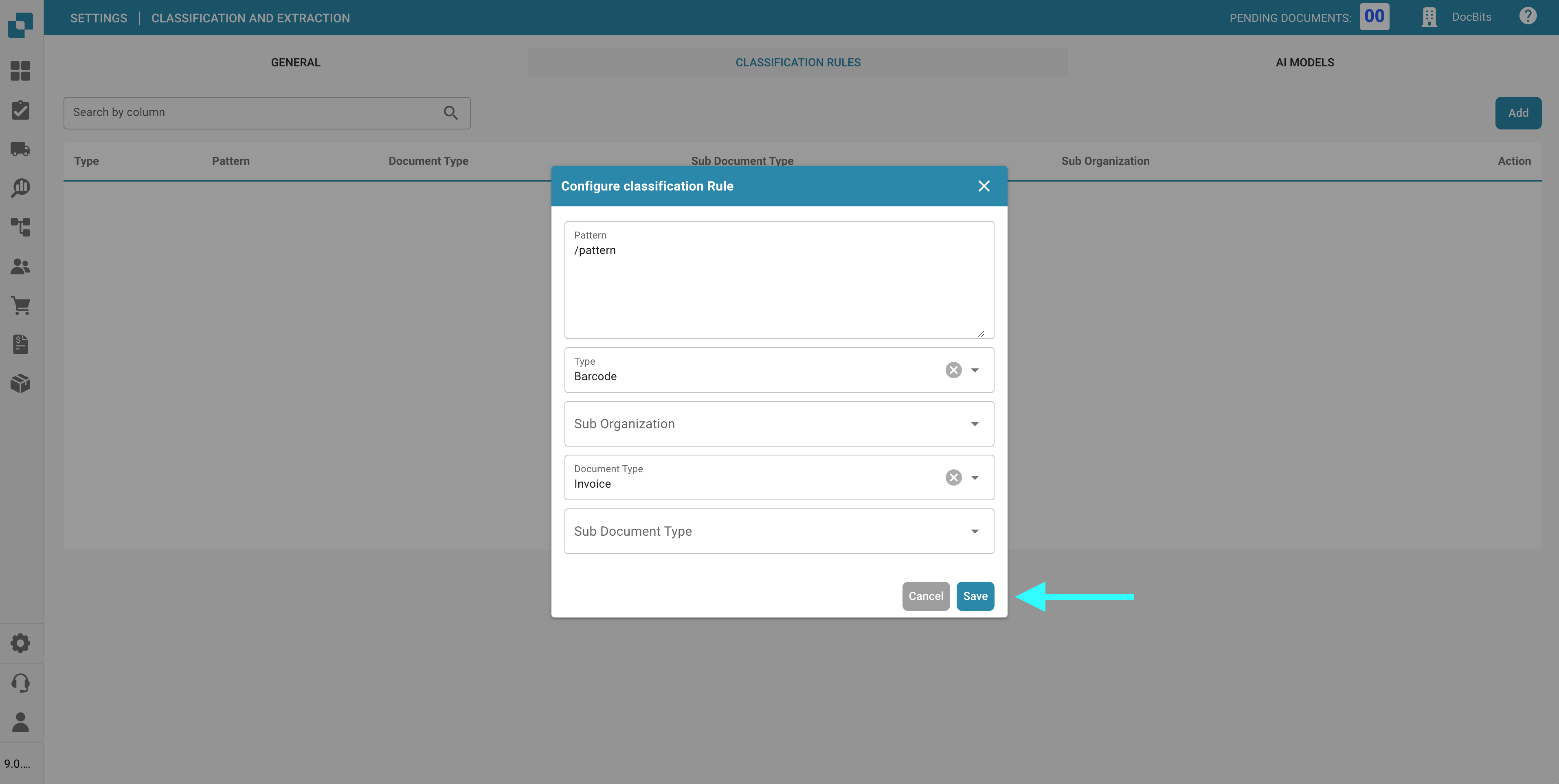
1. Click **Add** in the top-right corner.
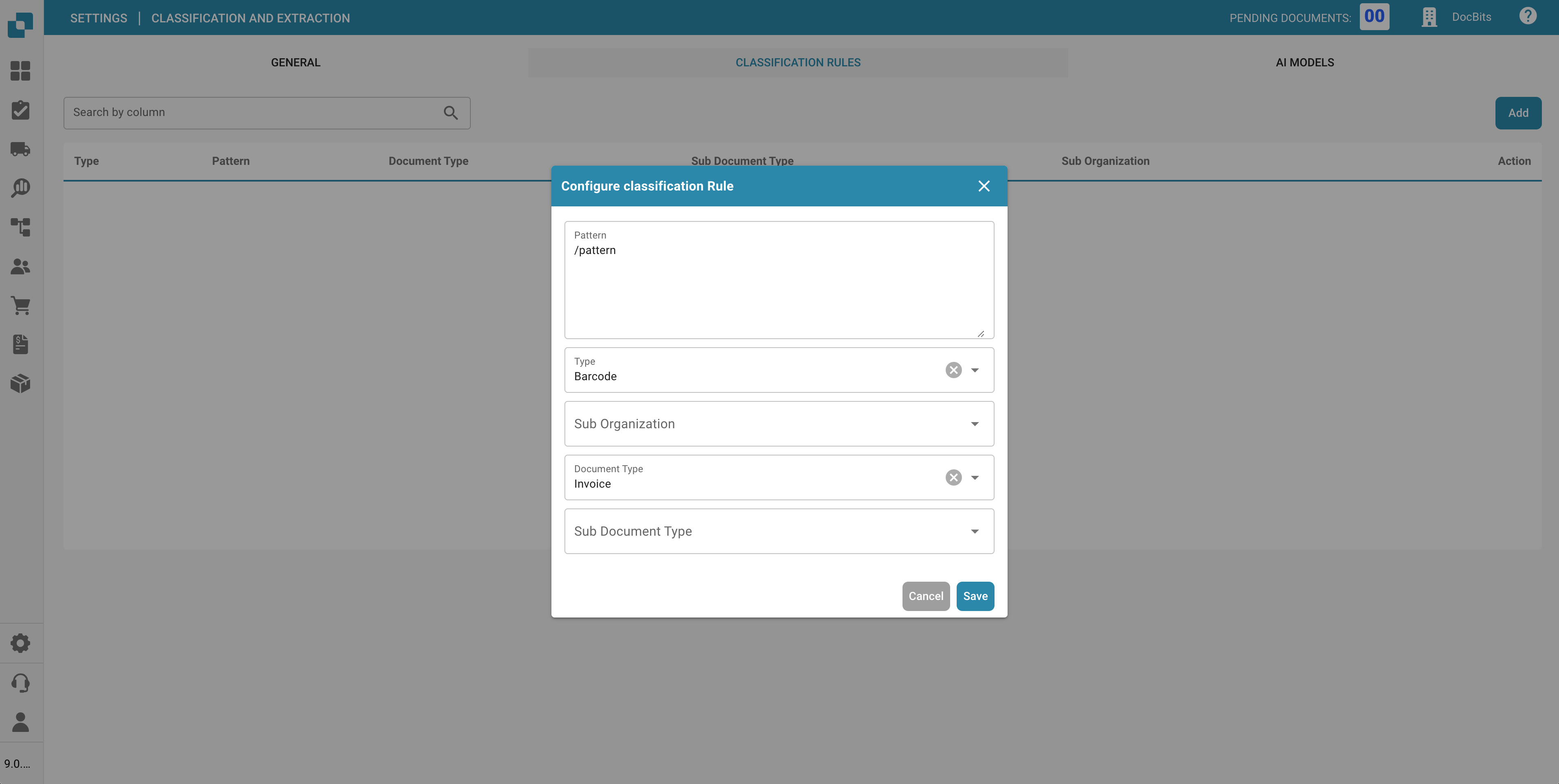
2. Fill in the following fields:
* **Pattern**: The regex pattern the system should search for to trigger classification.
* **Type**: Where the pattern should be searched (e.g., **Barcode**).
* **Sub Organization** *(optional)*: Specify which sub organization the rule applies to.
* **Document Type**: Define the document type to assign when the pattern is matched.
* **Sub Document Type** *(optional)*: Specify a sub type for more detailed classification.
3. Click **Save** to save your classification rule.
### **Edit a Classification Rule**
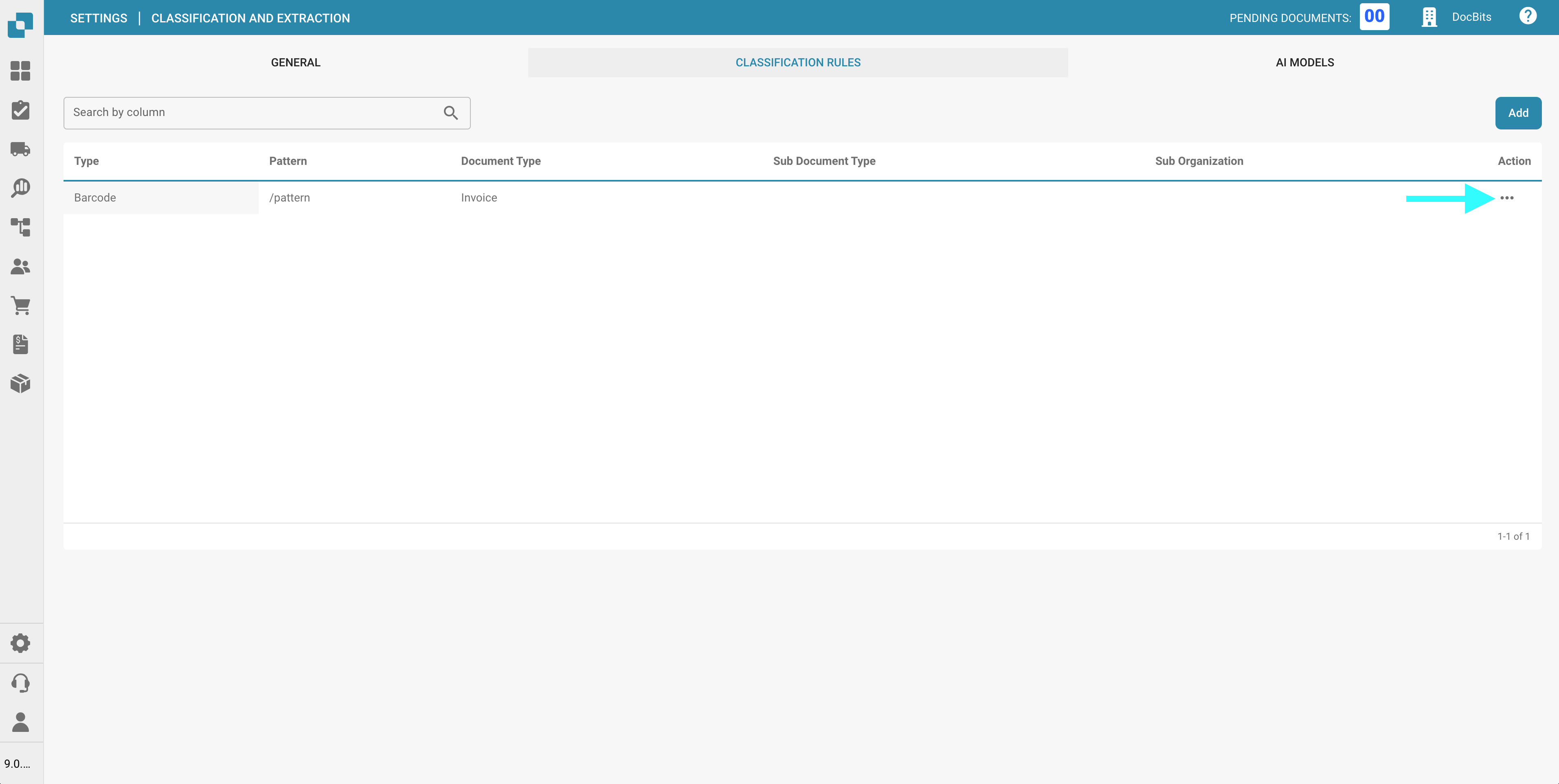
To edit an existing rule:
1. Click the three dots in the **Actions** column.
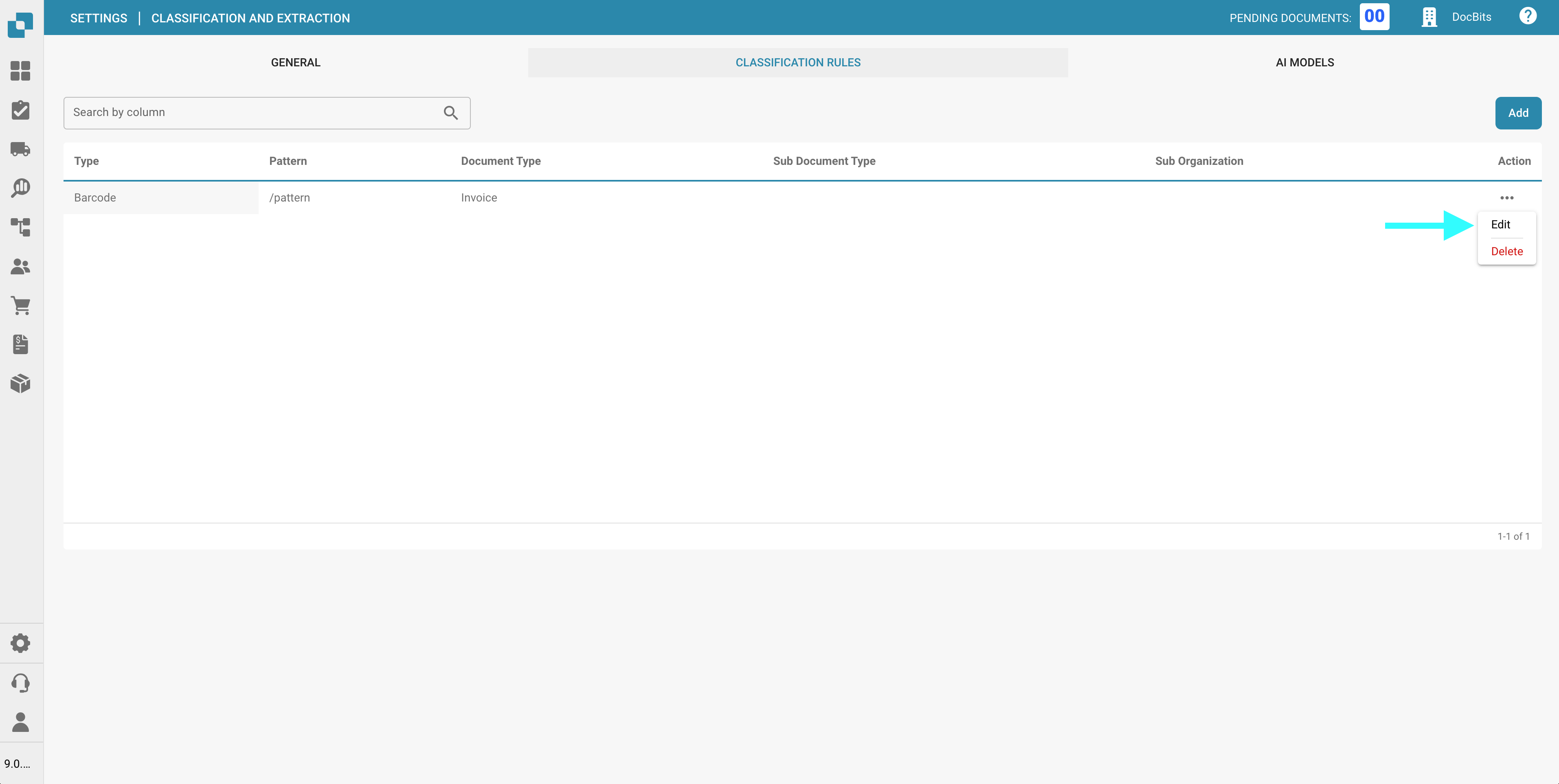
2. Select **Edit**.
3. Make your desired changes.
4. Click **Save** to apply the updates.
### **Delete a Classification Rule**
To delete a rule:
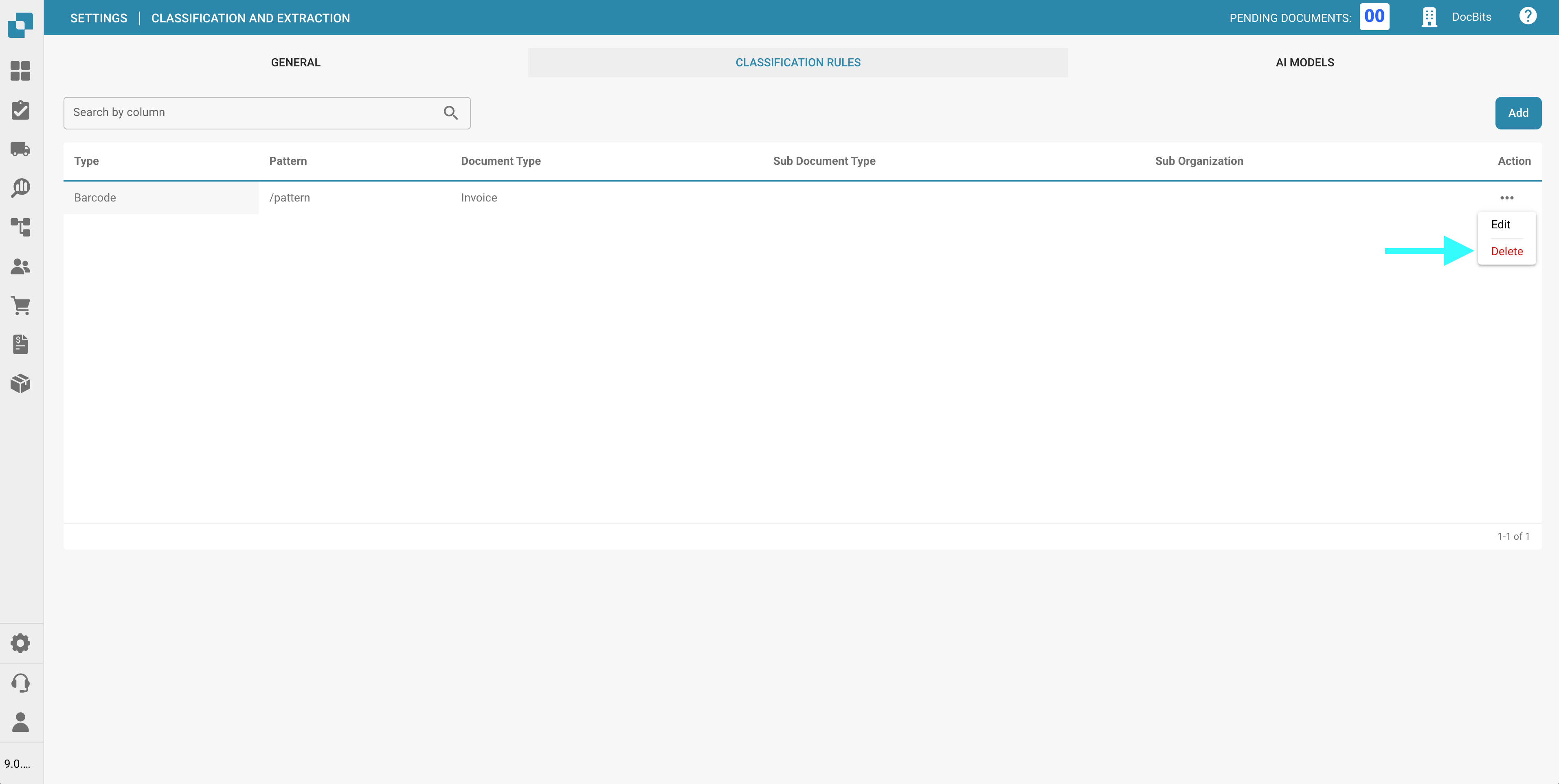
1. Click the three dots in the **Actions** column.
2. Select **Delete**.
## AI Models
The **AI Models** section displays all custom-trained models that have been specifically fine-tuned for your needs.
### Accessing the AI Models Section
To open this section, click the **AI Models** tab located at the top of the page.
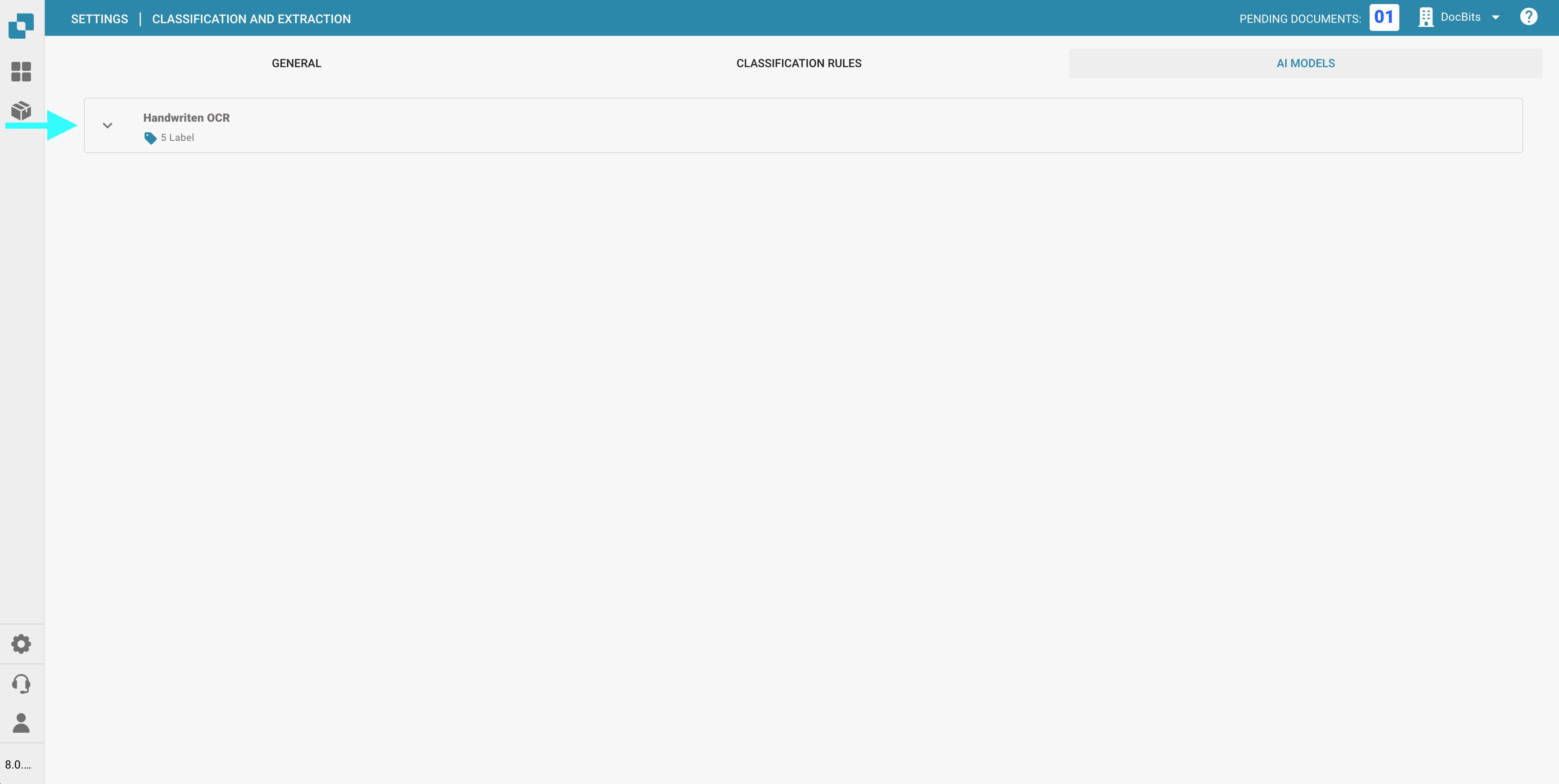
### Model Categories
Models are organized into categories. Below each category name, the number of models it contains is shown.\
Click on a category to view its details.
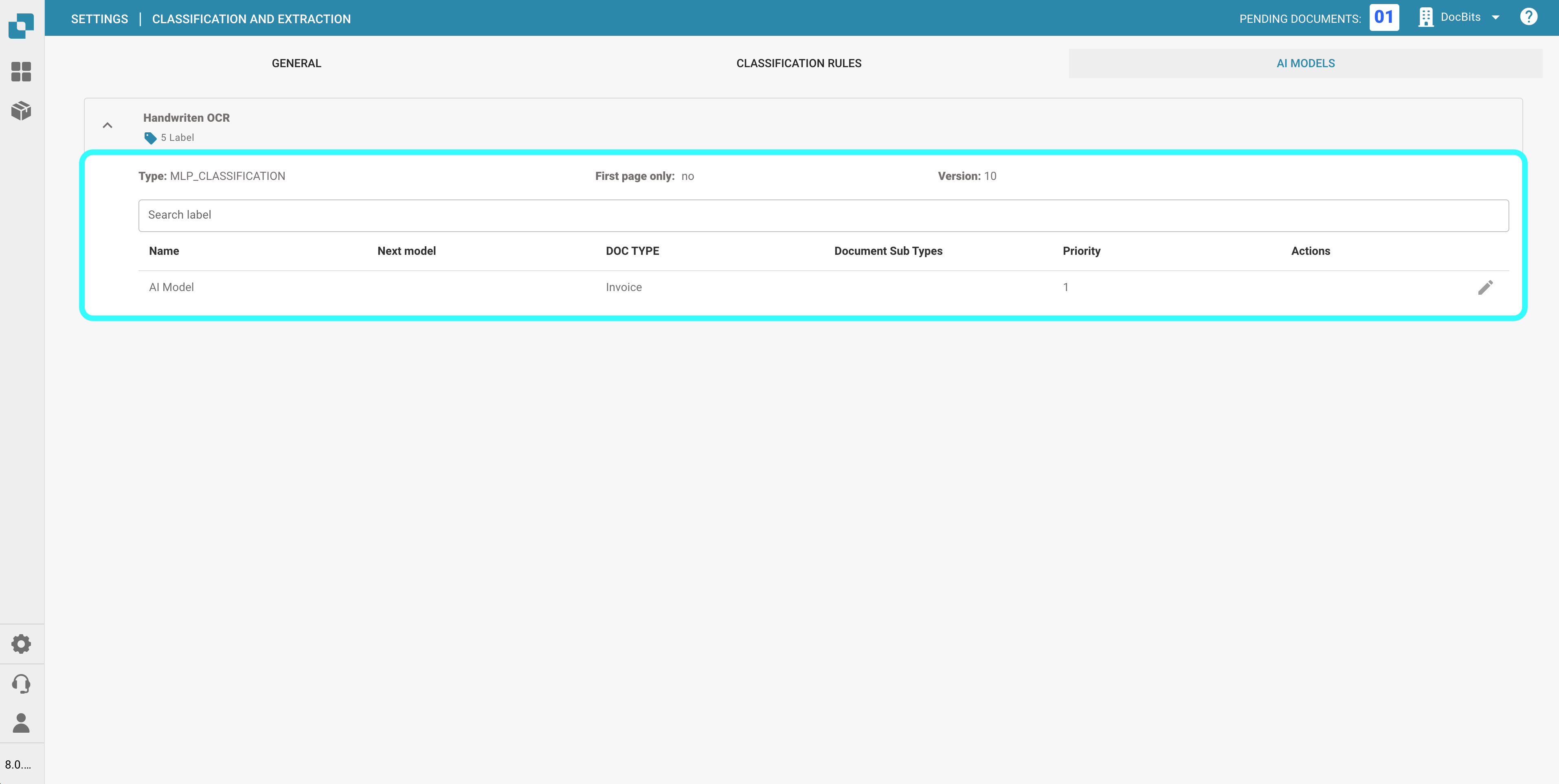
At the top of the selected category page, you’ll see key information about each model:
* **Type**: The type of model.
* **First Page Only**: Indicates whether the model processes only the first page of a document.
* **Version**: The version number of the model.
### Model Table
All models within a category are listed in a table, which includes the following information:
* **Name**: The name of the model.
* **Next Model**: The model that will further process the output of the current model.
* **Document Type**: The primary document type assigned by the model during classification.
* **Document Sub Types**: The sub types into which the document is further classified.
* **Priority**: The priority level that determines the model’s position in the classification queue.
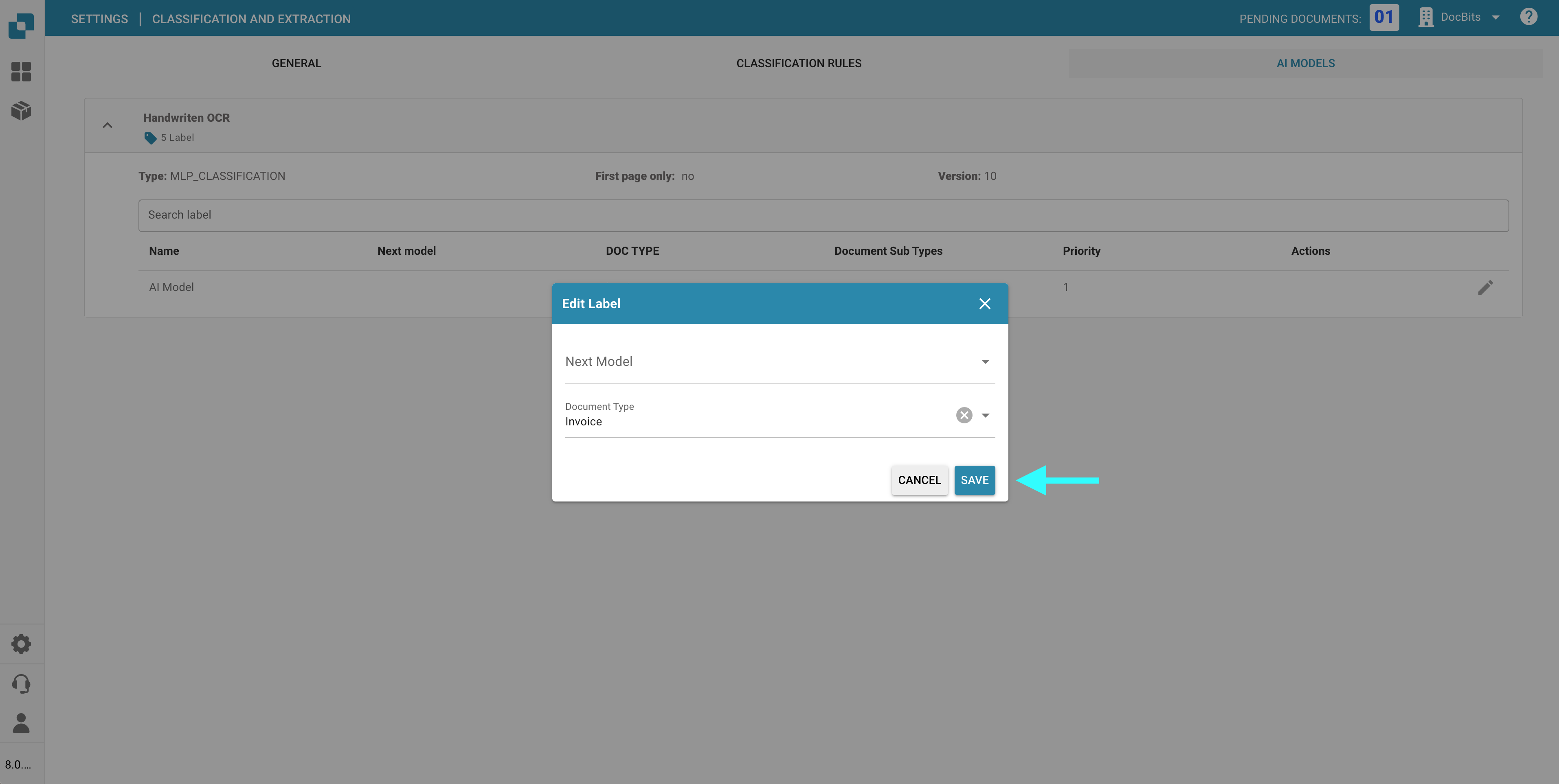
### Editing a Model
To edit a model:
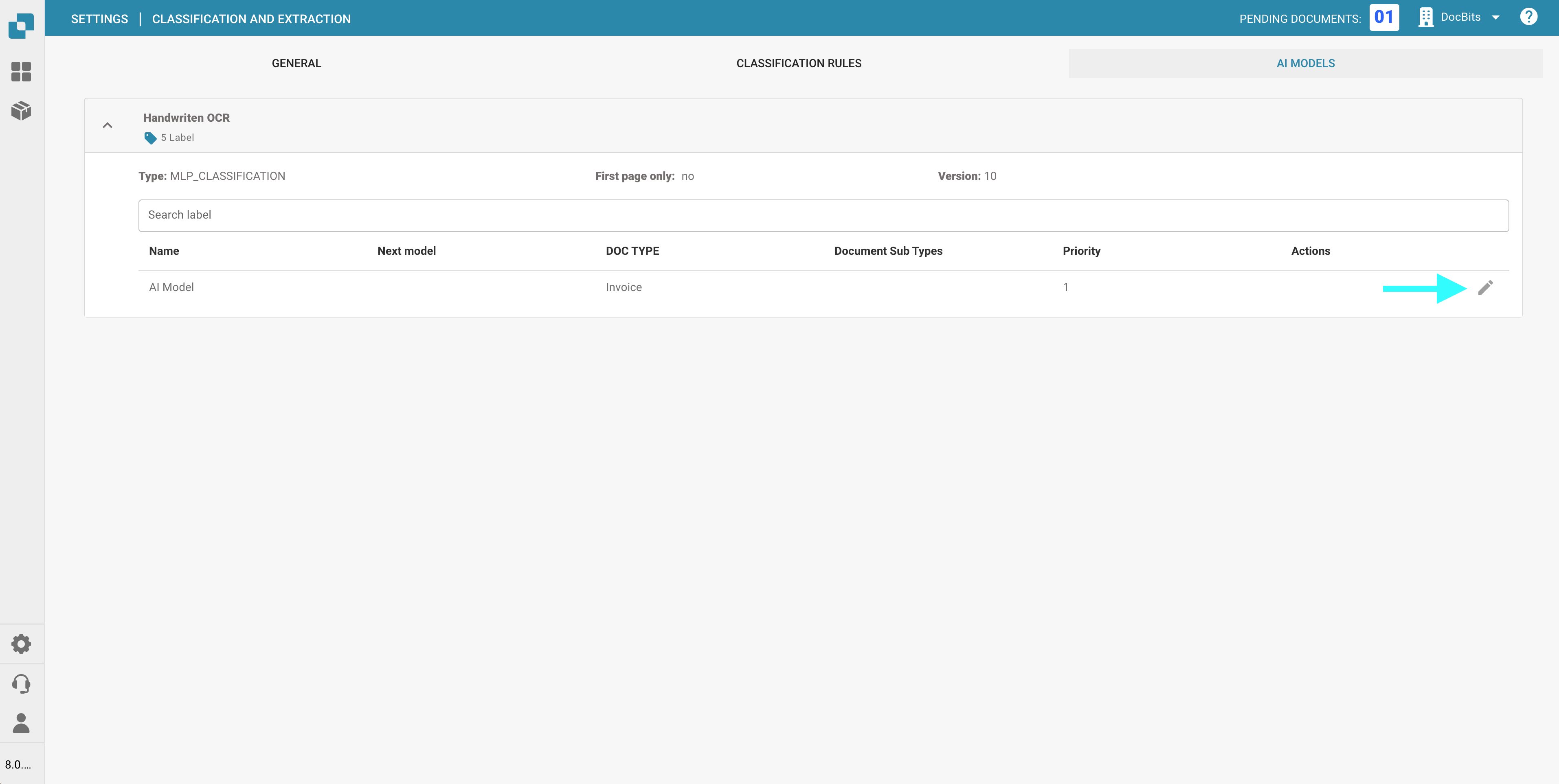
1. Click the pen icon in the **Actions** column next to the model you want to edit.
2. Update the available fields:
* **Next Model**: Select the model that should process the output from the current model.
* **Document Type**: Choose the document type the model should classify the input as.
3. Click **Save** to apply your changes.
---
# Agent Instructions
This documentation is published with GitBook. GitBook is the documentation platform designed so that both humans and AI agents can read, navigate, and reason over technical content effectively. Learn more at gitbook.com.
## Querying This Documentation
If you need additional information that is not directly available in this page, you can query the documentation dynamically by asking a question.
Perform an HTTP GET request on the current page URL with the `ask` query parameter, and the optional `goal` query parameter:
```
GET https://docs.docbits.com/administration-and-setup/settings/document-processing/classification-and-extraction.md?ask=&goal=
```
`ask` is the immediate question: it should be specific, self-contained, and written in natural language.
`goal` is optional and describes the broader end goal you are ultimately trying to accomplish on behalf of the user. GitBook uses it to tailor the answer towards what is most useful for that goal.
The response will contain a direct answer to the question and relevant excerpts and sources from the documentation.
Use this mechanism when the answer is not explicitly present in the current page, you need clarification or additional context, or you want to retrieve related documentation sections.