> For the complete documentation index, see [llms.txt](https://docs.docbits.com/llms.txt). Markdown versions of documentation pages are available by appending `.md` to page URLs; this page is available as [Markdown](https://docs.docbits.com/administration-and-setup/settings/global-settings/document-types/fields.md).
# Fields
## Overview
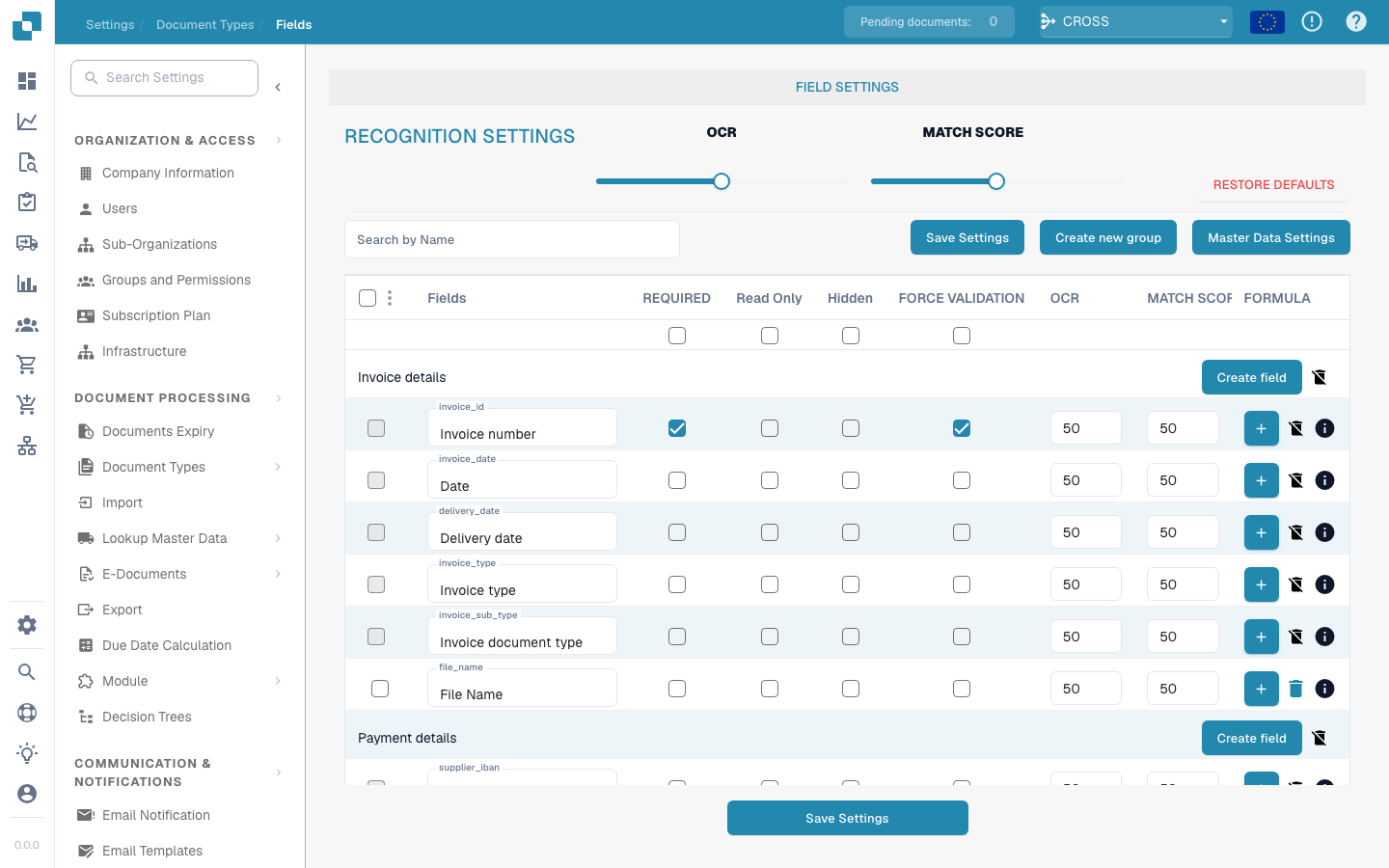
The Fields setting provides a user interface where administrators can manage the properties and behavior of individual data fields associated with a document type. Each field can be adjusted to optimize the accuracy and efficiency of data capture and validation.
{% hint style="info" %}
[Fields with Charges](/administration-and-setup/settings/global-settings/document-types/fields/new-fields-with-charges.md)
{% endhint %}
## Key Features and Options
1. **Fields Configuration**:
* **Field Names**: Lists the names of the fields, typically corresponding to the data elements within the document, like "Invoice Number" or "Purchase Order Date".
* **Required**: Administrators can mark fields as required, making sure that data must be entered or captured for these fields to complete the document processing.
* **Read Only**: Fields can be set to read-only to prevent modification after data capture or during certain stages of document processing.
* **Hidden**: Fields can be hidden from view in the user interface, useful for sensitive information or for simplifying user workflows.
2. **Advanced Settings**:
* **Force Validation**: Ensures that data entered into a field passes certain validation rules before being accepted.
* **OCR (Optical Character Recognition)**: This toggle can be switched on to enable OCR processing for a specific field, useful for automated data extraction from scanned or digital documents.
* **Match Score**: Administrators can define a match score, a threshold used to determine the confidence level of data recognition or matching, impacting how data validation and quality checks are performed.
3. **Action Buttons**:
* **Create New Field**: Allows adding new fields to the document type.
* **Edit Icons**: Each field has an edit icon that allows administrators to further configure field-specific settings, such as data type, default values, or connected business logic.
* **Save Settings**: Commits the changes made to the field configuration
---
# Agent Instructions
This documentation is published with GitBook. GitBook is the documentation platform designed so that both humans and AI agents can read, navigate, and reason over technical content effectively. Learn more at gitbook.com.
## Querying This Documentation
If you need additional information that is not directly available in this page, you can query the documentation dynamically by asking a question.
Perform an HTTP GET request on the current page URL with the `ask` query parameter, and the optional `goal` query parameter:
```
GET https://docs.docbits.com/administration-and-setup/settings/global-settings/document-types/fields.md?ask=&goal=
```
`ask` is the immediate question: it should be specific, self-contained, and written in natural language.
`goal` is optional and describes the broader end goal you are ultimately trying to accomplish on behalf of the user. GitBook uses it to tailor the answer towards what is most useful for that goal.
The response will contain a direct answer to the question and relevant excerpts and sources from the documentation.
Use this mechanism when the answer is not explicitly present in the current page, you need clarification or additional context, or you want to retrieve related documentation sections.