> For the complete documentation index, see [llms.txt](https://docs.docbits.com/llms.txt). Markdown versions of documentation pages are available by appending `.md` to page URLs; this page is available as [Markdown](https://docs.docbits.com/administration-and-setup/settings/global-settings/company-information.md).

# Company Information

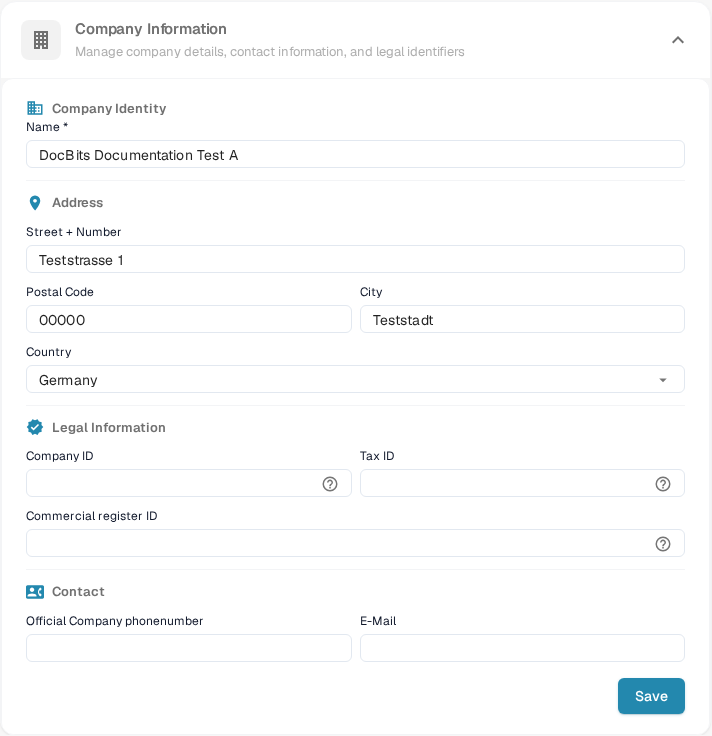
<figure><img src="https://578966019-files.gitbook.io/~/files/v0/b/gitbook-x-prod.appspot.com/o/spaces%2FT2n2w4uDCJvv7CJ5zrdk%2Fuploads%2Fgit-blob-dc0797b3236d11fca0a0e9275be51511c5074d01%2Fcompany_information.png?alt=media" alt="Company Information form in the English DocBits Sandbox test organization"><figcaption><p>Company Information: edit the organization name, address, legal identifiers and contact details, then select Save.</p></figcaption></figure>

The Company Information page lets you manage your company profile, preferences, and subscription details. It is organized into the following sections:

## Company Information

This section contains your core company data, grouped into four areas:

### Company Identity

* **Name** *(required)*: The legal name of your company.

### Address

* **Street + Number**: Your company's street address.
* **Postal Code**: ZIP or postal code.
* **City**: City name.
* **Country**: Select your country from the dropdown.

### Legal Information

* **Company ID**: A unique identifier for your company, used for integrations and internal reference.
* **Tax ID**: Your tax identification number for financial reporting.
* **Commercial Register ID**: Your commercial register number for legal documentation.

### Contact

* **Official Company Phone Number**: The primary phone number for your company.
* **E-Mail**: The main email address used for official communications.

After entering or updating any fields, click **Save** to apply your changes. The **?** icons beside the legal identifiers show extra field guidance. Select the section heading to expand or collapse the form.

## E-mail domains

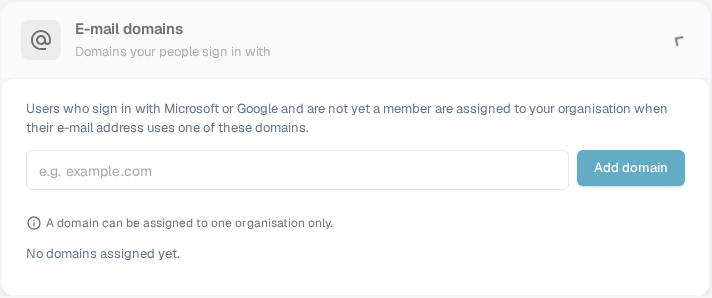
Organization admins can open **Settings → Company Information → E-mail domains** to manage the domains used for automatic organization assignment. When someone signs in with Microsoft or Google and is not yet a member of an organization, DocBits can assign them to this organization if their e-mail address uses one of its listed domains. A domain can belong to only one organization.

<figure><img src="https://578966019-files.gitbook.io/~/files/v0/b/gitbook-x-prod.appspot.com/o/spaces%2FT2n2w4uDCJvv7CJ5zrdk%2Fuploads%2Fgit-blob-93f224736515c1cc9fe15582d5f5c81de97a4ade%2Fcompany_email_domains_en.png?alt=media" alt="Expanded E-mail domains section with an empty domain list, input field and Add domain button"><figcaption><p>The English E-mail domains section before a domain is added. Enter a company domain, then select Add domain.</p></figcaption></figure>

Enter the domain only, such as `example.com`, in the input and select **Add domain** or press Enter. The first domain becomes the primary domain. If more domains are listed, use **Make primary** on another row to change it, or the trash icon to remove a domain. Errors such as an invalid domain, a personal e-mail provider or a domain already assigned elsewhere appear under the input. **No domains assigned yet** means this organization has no domain rule.

Before adding a domain, check which organization should receive new sign-ins. To manage existing memberships, continue with [Users](/administration-and-setup/settings/global-settings/groups-users-and-permissions/users.md).

## Company Preferences

Configure company-wide default settings:

* **Date Pattern**: Choose how dates are displayed throughout DocBits (e.g., `%m/%d/%Y`, `%d.%m.%Y`).
* **Amount Formatting**: Select the number format for amounts (e.g., Deutsch for `1.000,00`, English for `1,000.00`).
* **New Version Info Dialog**: Toggle whether users see a notification when a new DocBits version is released.

Click **Save** after making changes.

## App-Color

Customize the primary color of the DocBits interface. This is useful for visually distinguishing different environments (e.g., dev vs. production).

* **Color**: Enter a hex color code (e.g., `#2388AE`) or use the color picker.
* Click **Save** to apply, or **Reset** to restore the default color.

## Subscription Plan

View your active subscription plans and their details:

* **Plan Name**: The name of each active plan (e.g., DocBits, DocFlow Users, DocSearch).
* **Days Left**: How many days remain until the plan expires.
* **Start Date / End Date**: The subscription period.
* **Users Count**: Total number of users in your organization.
* **Sub Organizations Count**: Number of sub-organizations configured.
* **Suppliers Count**: Number of suppliers registered.

## Subscription Usage

Monitor your monthly token and workflow consumption:

| Column               | Description                                      |
| -------------------- | ------------------------------------------------ |
| **Type**             | The usage type (Document or Workflow).           |
| **From / To**        | The billing period dates.                        |
| **Tokens Used**      | Number of tokens consumed in the current period. |
| **Remaining Tokens** | Tokens still available in the current period.    |

Use the **Select** button to filter by specific date ranges.


---

# Agent Instructions
This documentation is published with GitBook. GitBook is the documentation platform designed so that both humans and AI agents can read, navigate, and reason over technical content effectively. Learn more at gitbook.com.

## Querying This Documentation
If you need additional information that is not directly available in this page, you can query the documentation by asking a question.

Perform an HTTP GET request on the following URL with the `ask` and `goal` query parameters:

```
GET https://docs.docbits.com/administration-and-setup/settings/global-settings/company-information.md?ask=<question>&goal=<user_goal>
```

`ask` is the immediate question: it should be specific, self-contained, and written in natural language.
`goal` is what the user is ultimately trying to achieve, the reason they need the answer. Sharing it helps GitBook give you a better, more relevant answer. A goal is most helpful when it describes the outcome the user wants rather than restating the question. For example, with `ask=how do I create an API token`, a goal like `automate deployments from our CI pipeline` lets GitBook tailor the answer to that use case.

The response will contain a direct answer to the question and relevant excerpts and sources from the documentation.

Use this mechanism when the answer is not explicitly present in the current page, you need clarification or additional context, or you want to retrieve related documentation sections.