> For the complete documentation index, see [llms.txt](https://docs.docbits.com/llms.txt). Markdown versions of documentation pages are available by appending `.md` to page URLs; this page is available as [Markdown](https://docs.docbits.com/end-user-and-partner-section/end-user-section/idea-board.md).
# Idea Board
The Idea Board is the place to submit feature requests, report missing functionality, and vote on what the product team should build next. Ideas are organised by channel and visible to everyone in your organisation, with comments and voting.
## How to access
Open the sidebar and click **Ideas**, or navigate to `/ideas` directly.
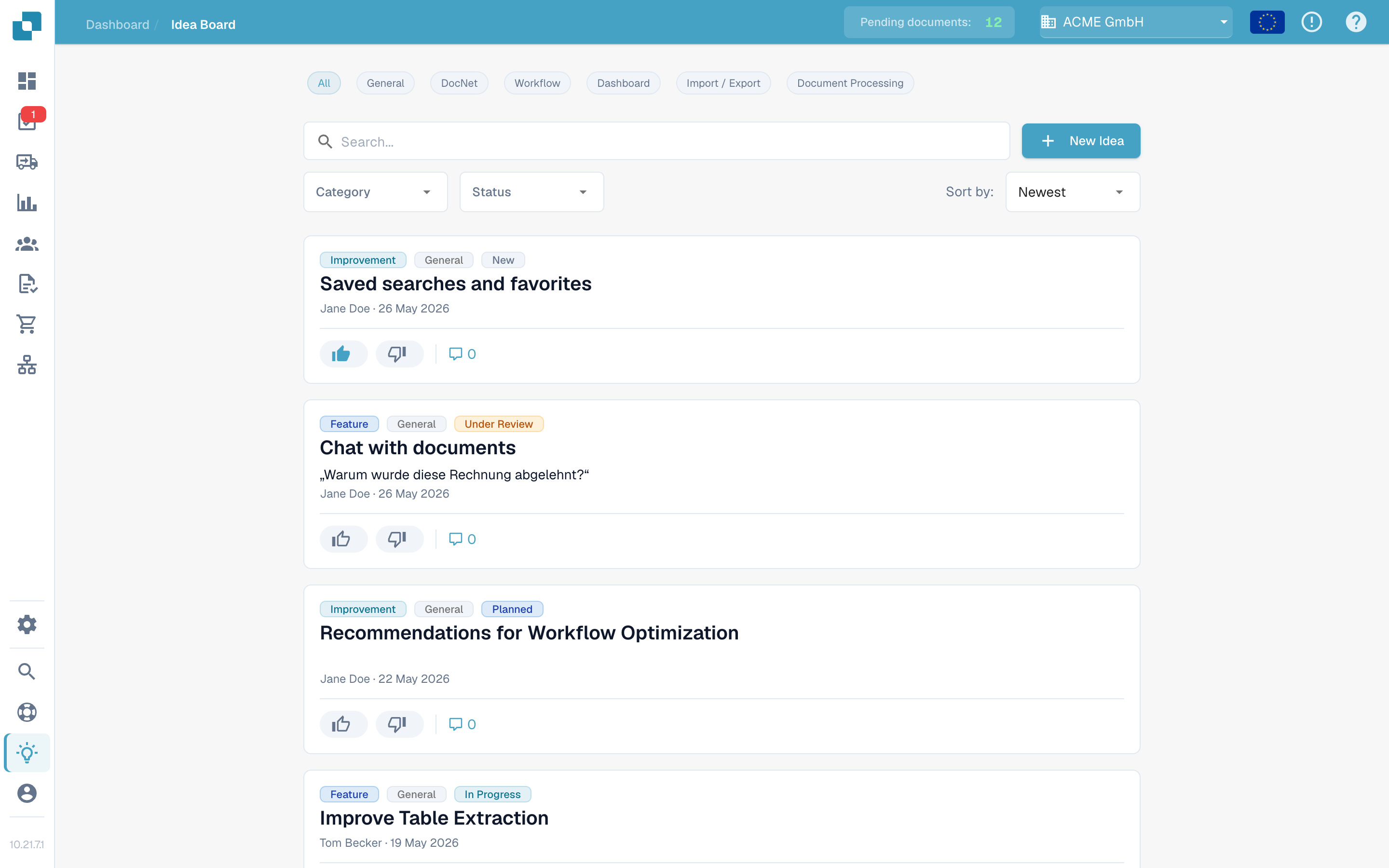
The Idea Board, with channel chips, filters, and idea cards.
## Channels
A row of channel chips sits at the top of the board: **All**, **General**, **DocNet**, **Workflow**, **Dashboard**, **Import / Export**, and **Document Processing**. Click a chip to show only the ideas in that product area; **All** clears the channel filter. Every idea belongs to one channel, shown as a badge on its card.
## Browsing ideas
Each idea is shown as a card with:
* The title and a rich-text description, which can include images.
* Separate **upvote** and **downvote** buttons, each with its own count.
* A category badge — Feature, Improvement, Bug, Integration, or Other.
* A channel badge — General, DocNet, Workflow, Dashboard, Import / Export, or Document Processing.
* A status chip — New, Under Review, Planned, In Progress, Done, or Declined.
* The submitter's name and organisation, and a relative timestamp.
* A comments toggle that expands the discussion below the card.
Pagination at the bottom of the list moves between pages.
## Submitting a new idea
Click **New idea** in the header. The dialog asks for:
* **Title** — a short, descriptive name for the idea.
* **Description** — an optional rich-text editor with bold, italic, underline, strike-through, lists, and links. You can also add images: paste them directly, or use the **Add image** button to insert one into the description.
* **Category** — pick the closest match. The product team uses this to route ideas.
* **Channel** — the product area the idea belongs to.
Press **Submit** to publish. The idea appears in the list with the **New** status.
English New Idea dialog without personal details.
## Voting
Each idea has separate **upvote** and **downvote** buttons, each with its own count. Click a button to cast your vote, click the same button again to remove it, or click the opposite button to switch. Votes signal demand to the product team and feed the **Hot** and **Top Rated** sort orders.
## Commenting
Open an idea's comment thread to ask questions, add context, or share workarounds. You can upvote or downvote comments (but not your own) and delete comments you posted. The submitter and admins can also delete comments to keep threads on-topic.
## Filtering and sorting
Above the list you can combine:
* The **channel** chips.
* A search box matching against title and description.
* A category dropdown.
* A status dropdown.
* A sort selector — **Newest**, **Hot**, or **Top Rated**.
Filters combine, so you can narrow to, say, "Top Rated Improvements that are Under Review" in a few clicks.
## Editing or deleting your own idea
The card menu (three-dot button) lets you edit or delete an idea you submitted.
The Idea Board is for product feedback, not for incident reports. Use a support ticket for issues that are blocking your work today.
---
# Agent Instructions
This documentation is published with GitBook. GitBook is the documentation platform designed so that both humans and AI agents can read, navigate, and reason over technical content effectively. Learn more at gitbook.com.
## Querying This Documentation
If you need additional information that is not directly available in this page, you can query the documentation by asking a question.
Perform an HTTP GET request on the following URL with the `ask` and `goal` query parameters:
```
GET https://docs.docbits.com/end-user-and-partner-section/end-user-section/idea-board.md?ask=&goal=
```
`ask` is the immediate question: it should be specific, self-contained, and written in natural language.
`goal` is what the user is ultimately trying to achieve, the reason they need the answer. Sharing it helps GitBook give you a better, more relevant answer. A goal is most helpful when it describes the outcome the user wants rather than restating the question. For example, with `ask=how do I create an API token`, a goal like `automate deployments from our CI pipeline` lets GitBook tailor the answer to that use case.
The response will contain a direct answer to the question and relevant excerpts and sources from the documentation.
Use this mechanism when the answer is not explicitly present in the current page, you need clarification or additional context, or you want to retrieve related documentation sections.