> For the complete documentation index, see [llms.txt](https://docs.docbits.com/llms.txt). Markdown versions of documentation pages are available by appending `.md` to page URLs; this page is available as [Markdown](https://docs.docbits.com/end-user-and-partner-section/end-user-section/dashboard/quick-search.md).

# Quick Search

**Quick Search** is the fastest way to find documents on the Dashboard. You type what you're looking for — a name, a status, an amount, a date — and the document list filters instantly.

This guide is organised the way the search is built up:

1. **Standard fields** — the columns every document has (document name, status, dates). Always available.
2. **Fulltext fields** — extracted content (supplier, purchase order, invoice number, amounts, line items). Available when fulltext search is enabled.
3. **Operators, shortcuts & recipes** — the full reference once you're comfortable.

> You don't have to memorise anything: click the search bar and pick a field and value from the list — Quick Search builds the query for you. The examples below also show the typed form so you can copy them directly.

<figure><img src="/files/pWrLpsqfK6KDGInbagWU" alt="The Quick Search bar at the top of the Dashboard"><figcaption><p>The Quick Search bar at the top of the Dashboard.</p></figcaption></figure>

***

## How the search bar works — chips, toolbar & raw view

Before the fields themselves, it helps to know how the bar is laid out.

### Conditions become chips

As you complete a condition (a field, an operator and a value) Quick Search turns it into a **chip** — a coloured pill inside the bar — and starts a fresh one. A chip shows the **field**, the **operator** and the **value**, with a **×** to remove it. Chips are colour-coded by where the data lives:

| Chip colour | Field type                                                    |
| ----------- | ------------------------------------------------------------- |
| **Blue**    | Standard column (document name, status, dates)                |
| **Orange**  | Fulltext / extracted field (supplier, amount, invoice number) |
| **Purple**  | Vector (semantic) search                                      |
| **Green**   | OCR text search                                               |

Click a chip to edit it (it expands back to text); click **×** to delete it. Several chips combined read as **AND** by default.

### The toolbar

At the right-hand end of the bar:

* **ⓘ Help** — opens the in-app **Dashboard Search — Fields & Syntax** reference listing every field, operator and shortcut available in your workspace.
* **Filters (tune)** — a quick panel for the common Status / User / Restart filters, with **Clear filters** and **Apply**.
* **Index ring** — a small progress ring showing how much of your fulltext index is built (only shown when fulltext search is enabled).

### Standard vs. raw view

The bar normally shows your query as chips (**standard view**). Switch to **raw view** to see and edit the query as plain text (e.g. `status=ready_for_validation AND supplier_name=Test`) — useful for copying, sharing, or typing a long query directly. Your query survives the switch and is remembered when you reload the Dashboard.

***

## Part 1 — Standard fields

Standard fields are the document's own columns. They are **always available**, whether or not fulltext search is switched on.

### Find documents by name

The document name is the most common search. There are three ways to match it — all **case-insensitive**:

#### `=` → starts with

```
filename=invoice
```

Finds documents whose name **starts with** "invoice". Matching ignores case, so all of these match `filename=invoice`:

```
Invoice.pdf   iNVoice.pdf   iNvoiCE.pdf   INVOICE.pdf
Invoice.xml   iNVoice.xml   iNvoiCE.edi   …
```

It does **not** match `XYZ_Invoice.pdf` (there "invoice" is in the middle — use `:` for that).

<figure><img src="/files/0rhuWPOl3tQXkVDYmh0Z" alt="filename=invoice matches only names that start with invoice, any case"><figcaption><p><code>filename=invoice</code> — only names that <strong>start with</strong> "invoice", any capitalisation (<code>Invoice.pdf</code>, <code>iNVoice.pdf</code>, <code>INVOICE_2026.pdf</code> … all match). Compare with <code>:</code> below.</p></figcaption></figure>

#### `:` → contains (anywhere)

```
filename:invoice
```

Use `:` to match the word **anywhere** in the name — `2026_Invoice.pdf`, `vietnam_einvoice_sample.xml`, `scan_invoice_copy.pdf`.

<figure><img src="/files/4f3l2tGowIZRpmbudfGF" alt="filename:invoice matches the word anywhere in the name"><figcaption><p><code>filename:invoice</code> — matches the word anywhere in the document name.</p></figcaption></figure>

#### `="…"` → starts *or* ends with

```
filename="invoice"
```

Quotes make `=` match names that **start or end** with the value — handy for a leading code or a file ending.

> **The three in one line:** `=` → starts with · `:` → contains · `="…"` → starts or ends with. All ignore upper/lower case. You can see this summarised any time via the **help icon** in the search bar (next section).

### Find documents by status

```
status=ready_for_validation
```

Status is a fixed list, so `=` is an **exact** match and the bar offers a value picker when you type `status=`.

<figure><img src="/files/kmYhrk326AenFjOTiIj0" alt="Filtering by document status"><figcaption><p><code>status=ready_for_validation</code> — exact match on a fixed-list field.</p></figcaption></figure>

### Find documents by date

```
created_on>2026-05-25
```

Use `>`, `<`, `>=`, `<=` for date ranges. You can also use **relative** dates: `today()`, `today()-7` (last 7 days), `today()+30` (next 30 days).

<figure><img src="/files/EJOAzD15I6pHiSbvABOo" alt="Filtering by creation date"><figcaption><p><code>created_on>2026-05-25</code> — documents created after a date.</p></figcaption></figure>

### Find documents by invoice sub-type

```
invoice_sub_type="Cost Invoice"
```

Invoice sub-type is a fixed list (for example **Cost Invoice** or **Purchase Invoice**), so `=` is an **exact** match and the bar offers a value picker when you type `invoice_sub_type=`. Use `invoice_sub_type!="Cost Invoice"` for everything except that sub-type.

***

## Part 2 — Fulltext fields

Fulltext fields search the **extracted content** of your documents — supplier, purchase order, invoice number, amounts, line items. They appear in **orange** and are available when **fulltext search is enabled** for your organisation. The matching rules are exactly the same as for standard text fields (`=` starts-with, `:` contains, `="…"` starts-or-ends).

### Find documents from a supplier

```
supplier_name=Test
```

Starts-with on the extracted supplier name. Use `supplier_name:fuji` to match anywhere, or `supplier_name:"Ruiz Foods"` to quote a value with spaces.

<figure><img src="/files/xpDfKrlxbbuM1wZ0Ob4J" alt="Searching by supplier name"><figcaption><p><code>supplier_name=Test</code> — every result's supplier starts with "Test".</p></figcaption></figure>

### Find documents by purchase order

```
purchase_order=PO
```

Starts-with on the extracted PO number — great for a PO prefix.

<figure><img src="/files/AOMu39jQ0KGbTv1qMGP5" alt="Searching by purchase order"><figcaption><p><code>purchase_order=PO</code> — documents whose PO number starts with "PO".</p></figcaption></figure>

### Find documents by amount

```
total_amount>5000
```

Use `>`, `<`, `>=`, `<=`, or `between 100 and 500` for a span.

<figure><img src="/files/7qB1k8q67OCw7Y4N94MZ" alt="Filtering by total amount"><figcaption><p><code>total_amount>5000</code> — invoices above 5,000.</p></figcaption></figure>

For a window, use `between`:

```
total_amount between 1000 and 5000
```

This is shorthand for `total_amount>=1000 AND total_amount<=5000`.

<figure><img src="/files/gZMTQ9CxLWbha3ErI5I6" alt="Amount window with between"><figcaption><p><code>total_amount between 1000 and 5000</code> — every result falls inside the window.</p></figcaption></figure>

### Find what's missing

```
supplier_name=""
```

`=""` means "this field is **not set**"; `supplier_name!=""` means "has any supplier".

<figure><img src="/files/GCZOfbR7rgDC9KFFlcdS" alt="Finding documents with no supplier"><figcaption><p><code>supplier_name=""</code> — documents that have no supplier yet.</p></figcaption></figure>

The same presence check works on any field — for example documents still missing an AP assignment code:

```
ap_assignment_code=""
```

<figure><img src="/files/GIvayyHWbL5nrQQVPx2X" alt="Documents missing an AP assignment code"><figcaption><p><code>ap_assignment_code=""</code> — documents that have no AP assignment code. Use <code>ap_assignment_code!=""</code> for those that do.</p></figcaption></figure>

***

## Smart Filters — one click

At the top of the Quick Search dropdown (click into the search bar) you'll find **Smart Filters**: ready-made searches you apply with a single click. Each one is just a shortcut for a query you could also type yourself:

| Smart Filter                | Finds                                           | Same as typing                    |
| --------------------------- | ----------------------------------------------- | --------------------------------- |
| ⚠️ **Overdue**              | Past their due date                             | `invoice_due_date<today()`        |
| 🕐 **Due soon**             | Within the next 7 days                          | `invoice_due_date<=today()+7`     |
| 👤 **Assigned to me**       | Items waiting for your action                   | `assigned_to=<you>`               |
| 📅 **Today's inbox**        | Imported today                                  | `imported_on>=today()`            |
| 📋 **Pending validation**   | Ready to be validated                           | `status=ready_for_validation`     |
| 🧾 **Electronic documents** | E-invoices (XML, ZUGFeRD, EDI)                  | `is_edoc=true`                    |
| ✅ **Full PO match**         | Fully matched to a purchase order               | `po_match_status=full_matched`    |
| ➗ **Partial PO match**      | Partially matched to a purchase order           | `po_match_status=partial_matched` |
| 📉 **Under PO match**       | Quantity or unit price under the purchase order | `po_match_status=under_matched`   |

The three **PO match** filters and the fulltext fields require fulltext search to be enabled for your organisation.

<figure><img src="/files/RYfZHuUoHIp7yIPgmcFw" alt="The Smart Filters dropdown panel"><figcaption><p>The Smart Filters at the top of the Quick Search dropdown — one click applies the filter (Overdue, Due soon, Assigned to me, Today's inbox, Pending validation, Electronic documents, Full / Partial / Under PO match).</p></figcaption></figure>

***

## Grouping results

Instead of a flat list, you can **group** the results by any field — supplier, status, document type, sub-organisation, or a date bucket. Add a grouping from the search bar:

```
group by supplier_name
```

The list then shows collapsible **group headers**, each with the group's name and a **count** (e.g. *Ruiz Foods (12)*). Click a header to expand or collapse that group. For date fields you can group by **day, week or month**.

<figure><img src="/files/f0emqHchQB6BAlzuwgmY" alt="Results grouped by supplier with collapsible headers"><figcaption><p><code>group by supplier_name</code> — results collapse into one expandable header per supplier.</p></figcaption></figure>

Grouping combines with any filter — `status=ready_for_validation group by supplier_name` groups only the matching documents. Clicking into a group **drills down**: it applies that group's value as a filter and returns you to the flat list for that selection.

***

## Part 3 — Operators, connectors, shortcuts

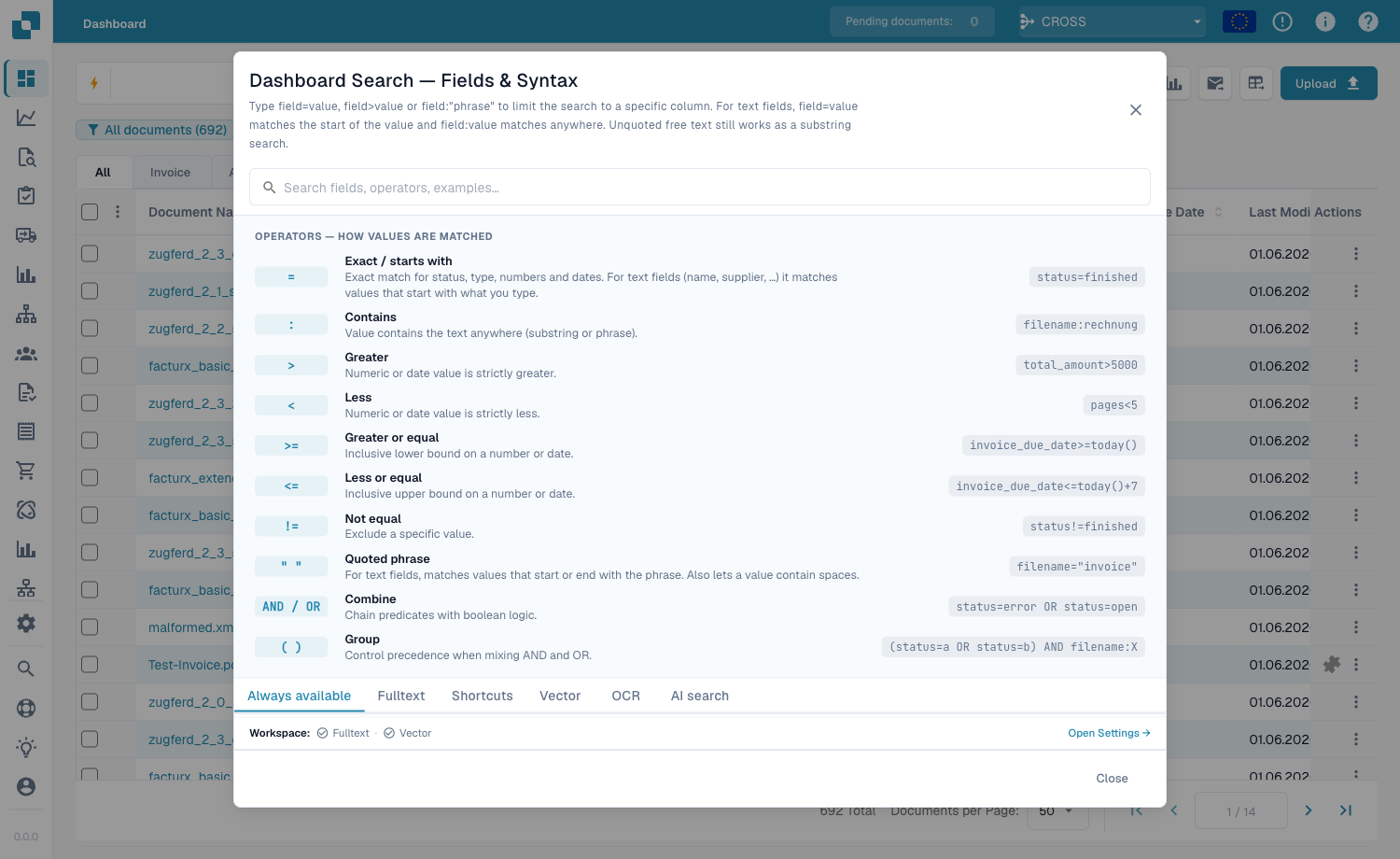
### The built-in help

The **help icon** in the search bar opens a complete reference of every field, operator and shortcut available in your workspace — including which fields are standard vs. fulltext.

<figure><img src="/files/b0rzgjkeOmWsb1r3BYIm" alt="The in-app Dashboard Search help with all operators"><figcaption><p>The built-in <strong>Dashboard Search — Fields &#x26; Syntax</strong> help, listing every operator and how values are matched.</p></figcaption></figure>

### How `=` matches, by field type

All text matching ignores case.

| Field type                                | Example                  | `=` means                   |
| ----------------------------------------- | ------------------------ | --------------------------- |
| Text (name, supplier, purchase order)     | `filename=invoice`       | **starts with**             |
| Text, anywhere                            | `filename:invoice`       | **contains**                |
| Text, start *or* end                      | `filename="invoice"`     | **starts or ends with**     |
| Status / type / PO match (fixed lists)    | `status=finished`        | **exact**                   |
| Identifiers (invoice number, supplier id) | `invoice_number=INV-100` | **exact**                   |
| Number                                    | `total_amount>5000`      | range (`> < >= <= between`) |
| Date                                      | `created_on>2026-01-01`  | range + `today()±N`         |

### Operators

| Operator                             | Meaning                                         |
| ------------------------------------ | ----------------------------------------------- |
| `=`                                  | starts-with (text) / exact (list, number, date) |
| `:`                                  | contains (text, anywhere)                       |
| `="…"`                               | starts-with or ends-with (text)                 |
| `!=`                                 | the opposite of `=`                             |
| `>` `<` `>=` `<=`                    | greater / less than                             |
| `between … and …`                    | inclusive range                                 |
| `field=""` / `field!=""`             | is empty / is set                               |
| `today()`, `today()-7`, `today()+30` | relative dates                                  |

### Connectors

Combine conditions with **AND** (both true), **OR** (either), **NOT**, and parentheses `( … )` for grouping:

```
status=ready_for_validation AND supplier_name=Test
(status=error OR status=failed) AND created_on>today()-1
```

<figure><img src="/files/9UXOHr0ztmXAPD2LmyM9" alt="Combining conditions with AND"><figcaption><p><code>status=ready_for_validation AND supplier_name=Test</code> — two conditions combined.</p></figcaption></figure>

### Shortcuts

Shorter phrasings for the same queries — use whichever reads better:

| Shortcut                            | Same as                                           | Description                                                             |
| ----------------------------------- | ------------------------------------------------- | ----------------------------------------------------------------------- |
| `total_amount gt 5000`              | `total_amount>5000`                               | Word aliases for comparison operators (`gt`/`gte`/`lt`/`lte`/`eq`/`ne`) |
| `due_date > today`                  | `due_date>today()`                                | Bare `today` / `yesterday` / `tomorrow`                                 |
| `imported_on this_week`             | `imported_on>=today()-7 AND imported_on<=today()` | Relative periods (`this_week`, `last_week`, `this_month`, …)            |
| `ap_assignment_code is empty`       | `ap_assignment_code=""`                           | Whether a field has any value                                           |
| `status:open`                       | `status=ready_for_validation`                     | Friendly status label (`open`/`closed`/`failed`/`done`)                 |
| `total_amount not between 100, 200` | `total_amount<100 OR total_amount>200`            | Value outside a window                                                  |
| `status in (finished, error)`       | `status=finished OR status=error`                 | Match any value from a list                                             |
| `not status=finished`               | `status!=finished`                                | Negate any predicate                                                    |
| `filename contains rechnung`        | `filename:rechnung`                               | String match (`contains`/`starts_with`/`ends_with`)                     |
| `total_amount > 5k`                 | `total_amount>5000`                               | Currency suffix `k` (×1 000), `M` (×1 000 000)                          |
| `overdue`                           | `invoice_due_date<today() AND status!=finished`   | Unpaid invoices past due                                                |
| `#INV-1234`                         | `invoice_id:INV-1234`                             | Twitter-style prefix for invoice id                                     |
| `@User`                             | `assigned_to:User`                                | Twitter-style prefix for assignee                                       |
| `$5000+`                            | `total_amount>=5000`                              | `$` prefix for amount thresholds                                        |

### Shortcut query + result gallery

These examples show each shortcut pattern with the query you type and the result the Dashboard shows. The first group uses standard fields and works even when fulltext search is not enabled. The second group uses fulltext-only fields such as amount or invoice due date.

#### Works without fulltext

**Operator aliases**

* Query: `created_on gt 2026-05-25`
* Same as: `created_on>2026-05-25`
* Result: Filters by Created after 25 May 2026.

<figure><img src="/files/BU1meCeAi8VlC4AFqPO3" alt="Quick Search result for created_on gt 2026-05-25"><figcaption><p><code>created_on gt 2026-05-25</code> - Filters by Created after 25 May 2026.</p></figcaption></figure>

**Bare date words**

* Query: `created_on < today`
* Same as: `created_on<today()`
* Result: Expands the bare word today to today().

<figure><img src="/files/CmMO9upYw49HJGI1v8ii" alt="Quick Search result for created_on < today"><figcaption><p><code>created_on &#x3C; today</code> - Expands the bare word today to today().</p></figcaption></figure>

**Relative period**

* Query: `created_on this_month`
* Same as: `created_on>=first day of this month AND created_on<=last day of this month`
* Result: Expands this\_month into a date window.

<figure><img src="/files/RRRC7wjQQ9IGHT1hBimq" alt="Quick Search result for created_on this_month"><figcaption><p><code>created_on this_month</code> - Expands this_month into a date window.</p></figcaption></figure>

**Empty or set words**

* Query: `assigned_to is empty`
* Same as: `assigned_to=""`
* Result: Finds documents without an assignee.

<figure><img src="/files/qPuWtWtDmur1UW8wrSn7" alt="Quick Search result for assigned_to is empty"><figcaption><p><code>assigned_to is empty</code> - Finds documents without an assignee.</p></figcaption></figure>

**Friendly status**

* Query: `status:open`
* Same as: `status=ready_for_validation`
* Result: Maps open to the validation status.

<figure><img src="/files/8YhzJxSelt4xTHB6dklv" alt="Quick Search result for status:open"><figcaption><p><code>status:open</code> - Maps open to the validation status.</p></figcaption></figure>

**Not between**

* Query: `created_on not between 2026-06-01, 2026-06-15`
* Same as: `(created_on<2026-06-01 OR created_on>2026-06-15)`
* Result: Finds values outside a date window.

<figure><img src="/files/lVGRHbXuwjGiCJ4voJXL" alt="Quick Search result for created_on not between 2026-06-01, 2026-06-15"><figcaption><p><code>created_on not between 2026-06-01, 2026-06-15</code> - Finds values outside a date window.</p></figcaption></figure>

**In-list**

* Query: `status in (ready_for_validation, exported)`
* Same as: `status=ready_for_validation OR status=exported`
* Result: Matches any listed status.

<figure><img src="/files/TvOkLqIFbykiuLPqytJH" alt="Quick Search result for status in (ready_for_validation, exported)"><figcaption><p><code>status in (ready_for_validation, exported)</code> - Matches any listed status.</p></figcaption></figure>

**Negation prefix**

* Query: `not status=finished`
* Same as: `status!=finished`
* Result: Inverts the finished-status predicate.

<figure><img src="/files/Gr3Luu33MT4wYmo9lzqE" alt="Quick Search result for not status=finished"><figcaption><p><code>not status=finished</code> - Inverts the finished-status predicate.</p></figcaption></figure>

**String contains**

* Query: `filename contains E2E`
* Same as: `filename:E2E`
* Result: Uses contains as a filename substring search.

<figure><img src="/files/f7gMQCjMvL7rq2tv1D7P" alt="Quick Search result for filename contains E2E"><figcaption><p><code>filename contains E2E</code> - Uses contains as a filename substring search.</p></figcaption></figure>

**Invoice prefix**

* Query: `#INV-1234`
* Same as: `invoice_id:INV-1234`
* Result: Maps #... to an invoice-id search.

<figure><img src="/files/xczWvE43XXOnTLEbsoeQ" alt="Quick Search result for #INV-1234"><figcaption><p><code>#INV-1234</code> - Maps #... to an invoice-id search.</p></figcaption></figure>

**Assignee prefix**

* Query: `@Daniel`
* Same as: `assigned_to:"Daniel"`
* Result: Maps @... to an assignee-name search.

<figure><img src="/files/n1OGdQJtosV9jokGVjrZ" alt="Quick Search result for @Daniel"><figcaption><p><code>@Daniel</code> - Maps @... to an assignee-name search.</p></figcaption></figure>

#### Requires fulltext search

If you use the same shortcut with a fulltext-only field, the query still requires fulltext. For example, `ap_assignment_code is empty` uses the same empty/set shortcut as `assigned_to is empty`, but the AP assignment field is fulltext-only.

**Currency suffix**

* Query: `total_amount > 5k`
* Same as: `total_amount>5000`
* Result: Expands k to thousands on an amount field.

<figure><img src="/files/cPMLWjnCQRc3pHXNFpyX" alt="Quick Search result for total_amount > 5k"><figcaption><p><code>total_amount > 5k</code> - Expands k to thousands on an amount field.</p></figcaption></figure>

**Overdue shortcut**

* Query: `overdue`
* Same as: `invoice_due_date<today() AND status!=finished`
* Result: Finds unfinished invoices past their due date.

<figure><img src="/files/e1JuBRr4kschAesY4yJw" alt="Quick Search result for overdue"><figcaption><p><code>overdue</code> - Finds unfinished invoices past their due date.</p></figcaption></figure>

**Amount prefix**

* Query: `$5000+`
* Same as: `total_amount>=5000`
* Result: Maps $...+ to an amount threshold.

<figure><img src="/files/Igqh6PHUQEF8GLRd3i7N" alt="Quick Search result for $5000+"><figcaption><p><code>$5000+</code> - Maps $...+ to an amount threshold.</p></figcaption></figure>

***

## Part 4 — Advanced search modes

Beyond field search, three prefix modes search the document content itself.

### Vector (semantic) search — `vector:`

Matches by **meaning**, not exact text — useful for "find documents about XYZ". Requires the Vector module; applies to document content.

```
vector: invoices about office supplies
vector: shipping delays with Hamburg port
```

<figure><img src="/files/A7Fev7WoTyCNOafCki8b" alt="Semantic vector search results"><figcaption><p><code>vector: supplier invoice</code> — semantically related documents, even without those exact words.</p></figcaption></figure>

### OCR text search — `ocr:`

Searches **inside the page text** the OCR engine extracted — not just the structured columns. Useful when the value you remember is in the document body.

```
ocr: Versandkosten
ocr: "purchase order PO-12345"
ocr: Hamburg AND doc_type=INVOICE
ocr: IBAN
```

<figure><img src="/files/7x0vxlVBPCXW2jUAXEbU" alt="OCR text search results"><figcaption><p><code>ocr: demo invoice</code> — matches text found anywhere on the document pages.</p></figcaption></figure>

### Natural-language (AI) search — `ai:`

Describe what you want in plain English; the AI reads your phrase and extracts filters (supplier, dates, amounts) into a structured query. Unlike Vector, it **builds a query** rather than finding similar documents.

```
ai: invoices from Ruiz over 1000 last quarter
ai: overdue invoices waiting on approval
ai: shipping documents from Hamburg last month
```

<figure><img src="/files/MYdLJxahkGZnGvDGsrHK" alt="Natural-language AI search results"><figcaption><p><code>ai: invoices over 1000 from this year</code> — the AI turns the sentence into filters automatically.</p></figcaption></figure>

***

### Recipes

| You want…                        | Type this                                                      |
| -------------------------------- | -------------------------------------------------------------- |
| Ready to validate, fully matched | `status=ready_for_validation AND po_match_status=full_matched` |
| This supplier, this week         | `supplier_name=Test AND created_on>today()-7`                  |
| High-value overdue invoices      | `total_amount>5000 AND invoice_due_date<today()`               |
| Two suppliers at once            | `supplier_name=fuji OR supplier_name=acme`                     |
| Errored docs from today          | `(status=error OR status=failed) AND created_on>today()-1`     |
| Electronic credit notes          | `is_edoc=true AND sub_doc_type=CREDIT_NOTE`                    |
| By purchase-order prefix         | `purchase_order=PO-2026`                                       |

> Orange (fulltext) fields require **fulltext search** to be enabled for your organisation. A literal `%` or `_` in a value is treated as a normal character.


---

# Agent Instructions
This documentation is published with GitBook. GitBook is the documentation platform designed so that both humans and AI agents can read, navigate, and reason over technical content effectively. Learn more at gitbook.com.

## Querying This Documentation
If you need additional information that is not directly available in this page, you can query the documentation dynamically by asking a question.

Perform an HTTP GET request on the current page URL with the `ask` query parameter, and the optional `goal` query parameter:

```
GET https://docs.docbits.com/end-user-and-partner-section/end-user-section/dashboard/quick-search.md?ask=<question>&goal=<endgoal>
```

`ask` is the immediate question: it should be specific, self-contained, and written in natural language.
`goal` is optional and describes the broader end goal you are ultimately trying to accomplish on behalf of the user. GitBook uses it to tailor the answer towards what is most useful for that goal.

The response will contain a direct answer to the question and relevant excerpts and sources from the documentation.

Use this mechanism when the answer is not explicitly present in the current page, you need clarification or additional context, or you want to retrieve related documentation sections.