> For the complete documentation index, see [llms.txt](https://docs.docbits.com/llms.txt). Markdown versions of documentation pages are available by appending `.md` to page URLs; this page is available as [Markdown](https://docs.docbits.com/end-user-and-partner-section/end-user-section/customizable-sidebar.md).
# Customizable Sidebar
The sidebar can be rearranged to match how you work. Drag items into the order you prefer, hide entries you never use, and pin the ones you open most often to the top. Your layout is remembered for the next time you log in.
## How to access
Expand the sidebar (if you're in mini mode, click the toggle at the top), scroll to the bottom, and click **Customize**. The sidebar enters edit mode.
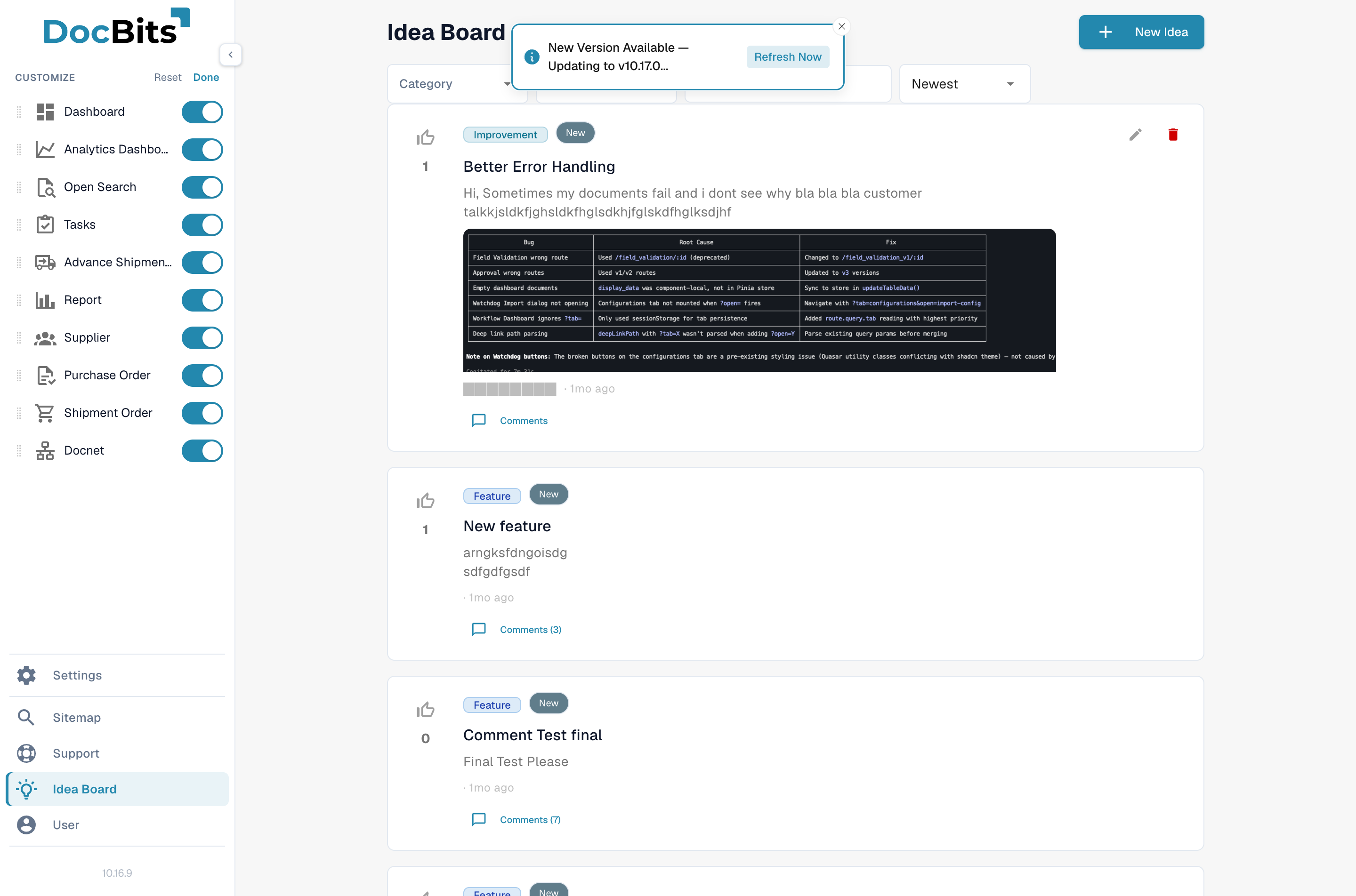
In edit mode, each item shows a drag handle and a visibility toggle.
## Reordering items
In edit mode every entry shows a drag handle (the six-dot icon on the left). Click and drag an item to a new position. Other items slide to make room. Release to drop.
The order is per-user. Other people in your organisation see their own ordering.
## Hiding items
Each entry has a visibility toggle on the right. Switch it off to hide the entry from your sidebar. Hidden entries are dimmed in edit mode so you can still see and re-enable them later.
Hiding an entry removes it from the sidebar — the underlying page is still reachable via [Global Quick Search](/end-user-and-partner-section/end-user-section/global-quick-search.md), the [Sitemap](/end-user-and-partner-section/end-user-section/sitemap.md), or a direct URL.
## Pinning to the top
Some entries can be pinned. Pinned items always float to the top of the sidebar regardless of their position in the drag-and-drop order. Use this for the one or two screens you use multiple times a day.
## Saving and resetting
* **Done** — exits edit mode and applies your new order, visibility, and pinned items.
* **Reset** — clears all customisations and restores the default sidebar.
Your preferences are saved automatically when you press **Done**. They persist across sessions.
## New features
When a new feature is added to DocBits in a future release, it joins the end of your sidebar with default visibility. Reorder or hide it from edit mode to fit your routine.
Features you do not have permission to use are never shown in the customisation list — you cannot accidentally un-hide something your role cannot open.
---
# Agent Instructions
This documentation is published with GitBook. GitBook is the documentation platform designed so that both humans and AI agents can read, navigate, and reason over technical content effectively. Learn more at gitbook.com.
## Querying This Documentation
If you need additional information that is not directly available in this page, you can query the documentation by asking a question.
Perform an HTTP GET request on the following URL with the `ask` and `goal` query parameters:
```
GET https://docs.docbits.com/end-user-and-partner-section/end-user-section/customizable-sidebar.md?ask=&goal=
```
`ask` is the immediate question: it should be specific, self-contained, and written in natural language.
`goal` is what the user is ultimately trying to achieve, the reason they need the answer. Sharing it helps GitBook give you a better, more relevant answer. A goal is most helpful when it describes the outcome the user wants rather than restating the question. For example, with `ask=how do I create an API token`, a goal like `automate deployments from our CI pipeline` lets GitBook tailor the answer to that use case.
The response will contain a direct answer to the question and relevant excerpts and sources from the documentation.
Use this mechanism when the answer is not explicitly present in the current page, you need clarification or additional context, or you want to retrieve related documentation sections.