> For the complete documentation index, see [llms.txt](https://docs.docbits.com/llms.txt). Markdown versions of documentation pages are available by appending `.md` to page URLs; this page is available as [Markdown](https://docs.docbits.com/chinese/zui-zhong-yong-hu-yu-he-zuo-huo-ban/end-user-section/idea-board.md).
# 创意看板
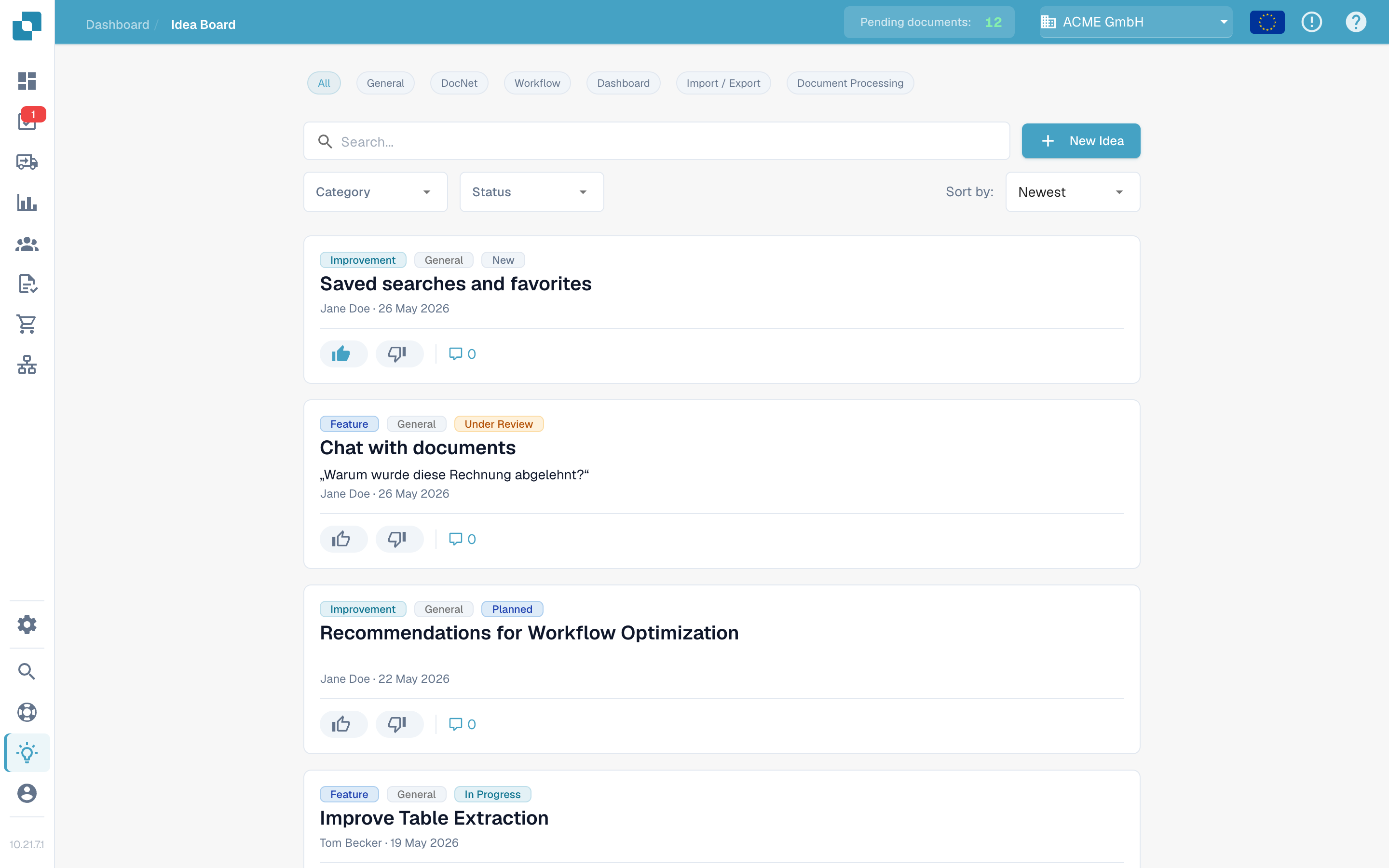
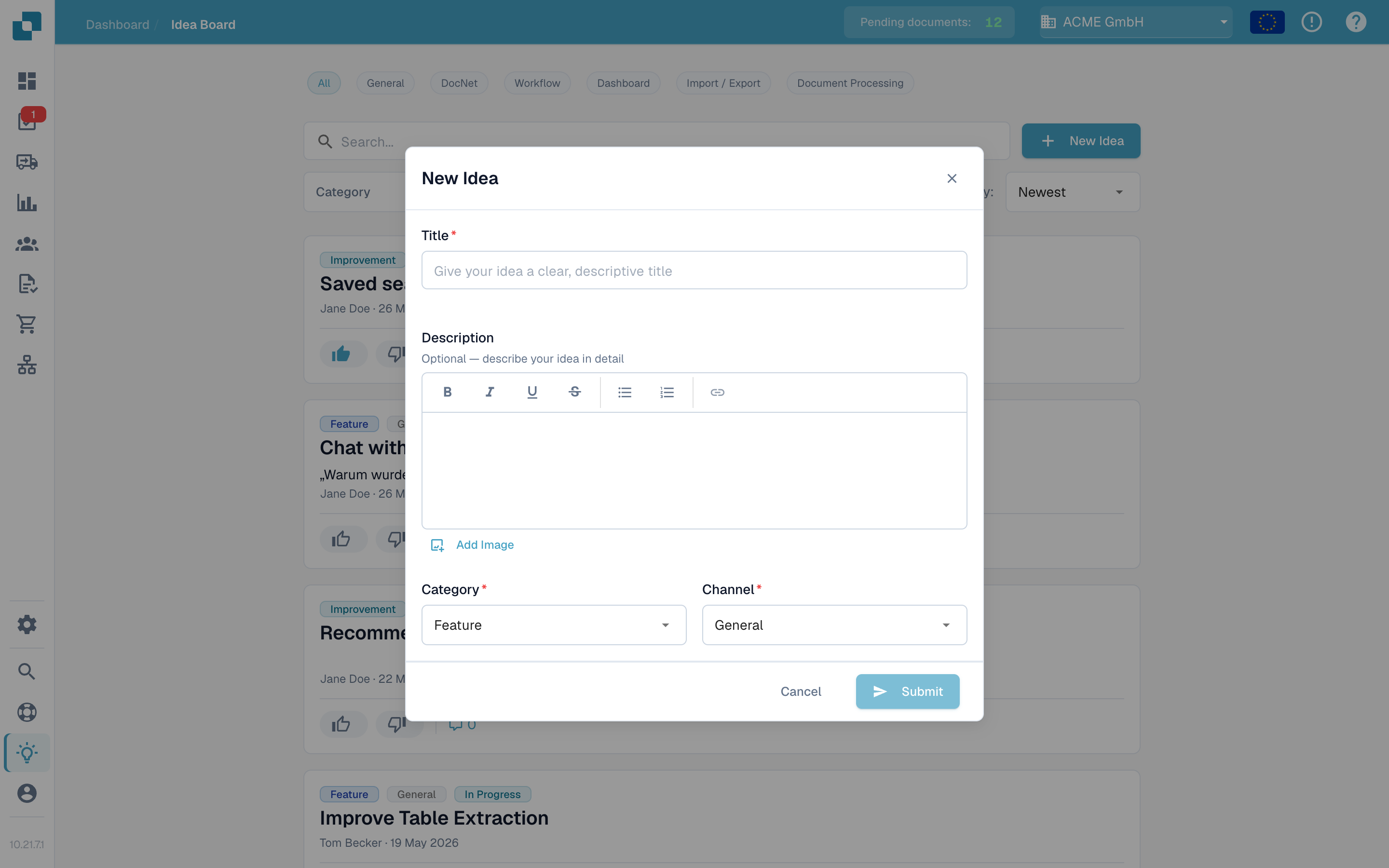
创意看板用于提交功能请求、报告缺失的功能,以及为产品团队接下来应该开发的内容投票。创意按频道分类,并对组织中的所有人可见,大家可以评论和投票。
## 如何访问
打开侧边栏并点击 **Ideas**,或直接导航至 `/ideas`。
## 投票
每条创意都有单独的 **upvote** 和 **downvote** 按钮,各自显示投票数。点击按钮即可投票;再次点击同一按钮可取消投票;点击相反按钮则可切换投票方向。投票可以向产品团队反映需求,并影响 **Hot** 和 **Top Rated** 排序结果。
## 评论
展开创意的评论串,即可提问、补充背景信息或分享临时解决方法。你可以为评论投赞成票或反对票(但不能为自己的评论投票),也可以删除自己发布的评论。创意提交者和管理员也可以删除评论,以确保讨论切合主题。
## 筛选和排序
列表上方可以组合使用以下选项:
* **频道**标签。
* 搜索框,可匹配标题和描述。
* 类别下拉菜单。
* 状态下拉菜单。
* 排序选择器 — **Newest**、**Hot** 或 **Top Rated**。
筛选条件可以组合使用,因此只需点击几下,就能缩小范围,例如查找“评分最高且正在审核中的改进”。
## 编辑或删除自己的创意
卡片菜单(三点按钮)可用于编辑或删除你提交的创意。
创意看板用于收集产品反馈,不用于报告事件。如果问题正影响你当前的工作,请提交支持工单。
---
# Agent Instructions
This documentation is published with GitBook. GitBook is the documentation platform designed so that both humans and AI agents can read, navigate, and reason over technical content effectively. Learn more at gitbook.com.
## Querying This Documentation
If you need additional information that is not directly available in this page, you can query the documentation by asking a question.
Perform an HTTP GET request on the following URL with the `ask` and `goal` query parameters:
```
GET https://docs.docbits.com/chinese/zui-zhong-yong-hu-yu-he-zuo-huo-ban/end-user-section/idea-board.md?ask=&goal=
```
`ask` is the immediate question: it should be specific, self-contained, and written in natural language.
`goal` is what the user is ultimately trying to achieve, the reason they need the answer. Sharing it helps GitBook give you a better, more relevant answer. A goal is most helpful when it describes the outcome the user wants rather than restating the question. For example, with `ask=how do I create an API token`, a goal like `automate deployments from our CI pipeline` lets GitBook tailor the answer to that use case.
The response will contain a direct answer to the question and relevant excerpts and sources from the documentation.
Use this mechanism when the answer is not explicitly present in the current page, you need clarification or additional context, or you want to retrieve related documentation sections.