> For the complete documentation index, see [llms.txt](https://docs.docbits.com/llms.txt). Markdown versions of documentation pages are available by appending `.md` to page URLs; this page is available as [Markdown](https://docs.docbits.com/chinese/zui-zhong-yong-hu-yu-he-zuo-huo-ban/end-user-section/getting-access-and-signing-in.md).

# 获取访问权限并登录

本页介绍如何获取 DocBits 账户，以及忘记密码时如何登录：

* [注册](#registration) — 创建自己的 DocBits 账户。
* [忘记密码](#forgot-password) — 使用重置链接重置密码。
* [管理员创建账户后的首次密码](#first-password-for-admin-created-accounts) — 为管理员创建的账户设置首次密码。

使用现有账户登录以及双重身份验证，请参阅[双重身份验证 (2FA)](/chinese/gai-shu-yu-ji-chu/two-factor-authentication.md)。如果需要使用其他显示语言，请使用这些表单右上角的语言菜单。

## 注册 <a href="#registration" id="registration"></a>

你可以在注册页面自行创建 DocBits 账户。点击登录页面上的 **Register** 链接打开该页面，或访问 `https://app.docbits.com/register`（请使用组织提供的网址）。

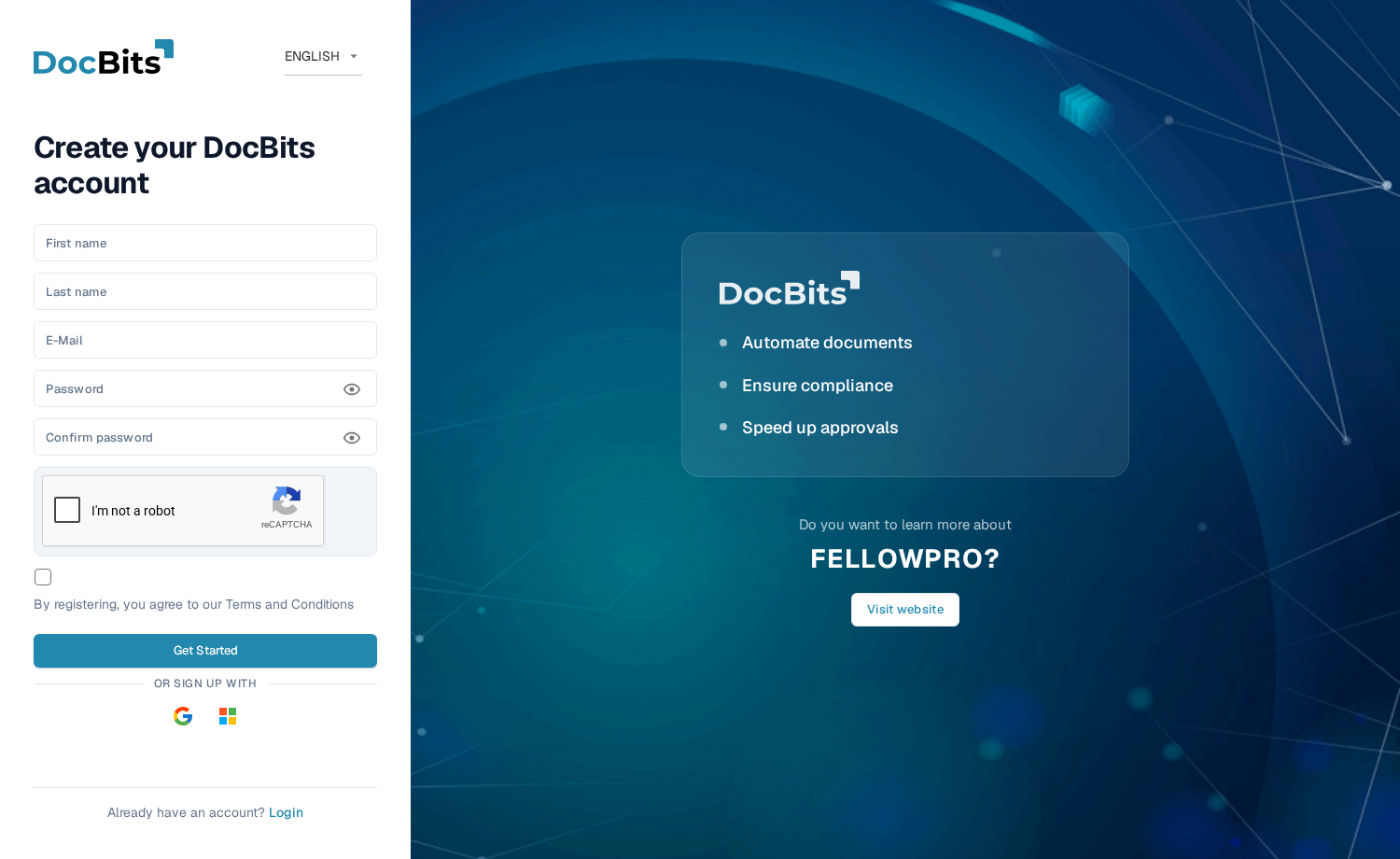
<figure><img src="https://1870485400-files.gitbook.io/~/files/v0/b/gitbook-x-prod.appspot.com/o/spaces%2FlPczlNw8zzYNLfjfispX%2Fuploads%2Fgit-blob-46dbd86801b0cbe00022fa316cea18a2a282a9af%2Fregister-form.png?alt=media" alt="DocBits 注册表单，字段均为空"><figcaption><p>注册表单。除特别注明外，所有字段均为必填项。</p></figcaption></figure>

填写表单：

1. **First name** 和 **Last name** — 填写希望显示在 DocBits 中的姓名。
2. **E-Mail** — 填写你的工作邮箱地址。这是你的登录标识。
3. **Password** 和 **Confirm password** — 请参阅下方的密码规则。密码字段下方的检查清单会显示密码已满足哪些规则。
4. 如果页面显示 **reCAPTCHA** 小组件，请完成验证。仅在你的 DocBits 部署启用了机器人防护时才会显示该小组件。
5. 勾选复选框，确认你同意 **Terms and Conditions**。
6. 点击 **Get Started**。如果你已有账户，请点击底部的 **Login** 返回登录页面。**Visit website** 会打开 DocBits 网站以查看产品信息。

点击密码字段旁边的眼睛图标，可以显示或隐藏已输入的字符。

### 密码规则 <a href="#password-rules" id="password-rules"></a>

密码必须：

* 长度为 **8 到 20 个字符**，
* 至少包含一个**大写字母**和一个**小写字母**，
* 至少包含一个**数字**，
* 至少包含一个**特殊字符** (`!@#$%^&*()_+=\[{]\};:,.<>?/\|~-`)。

只允许使用字母、数字和上述特殊字符。

### 使用 Google 或 Microsoft 注册

你可以点击 **Or sign up with** 下方的 **Google** 或 **Microsoft** 按钮，无需设置密码。DocBits 会通过你的身份提供商创建账户，你之后也可以通过相同方式登录。

### 确认邮箱地址

提交表单后，DocBits 会显示确认页面，并向你填写的地址发送一封**验证邮件**。打开邮件并点击其中的链接，即可进入确认页面验证邮箱地址。如果没有收到邮件，确认页面会提供**重新发送**选项。邮箱地址验证完成后，点击 **Sign in**，使用邮箱和密码登录。

## 忘记密码 <a href="#forgot-password" id="forgot-password"></a>

DocBits 会将登录密码保存为带盐的单向哈希值。无法从哈希值还原已有密码，因此此流程会设置新密码。有关密码存储和恢复的详情，请参阅[凭据的安全存储](/chinese/gai-shu-yu-ji-chu/secure-storage-of-credentials.md)。

如果忘记密码：

1. 在登录页面点击 **Forgot password?**。
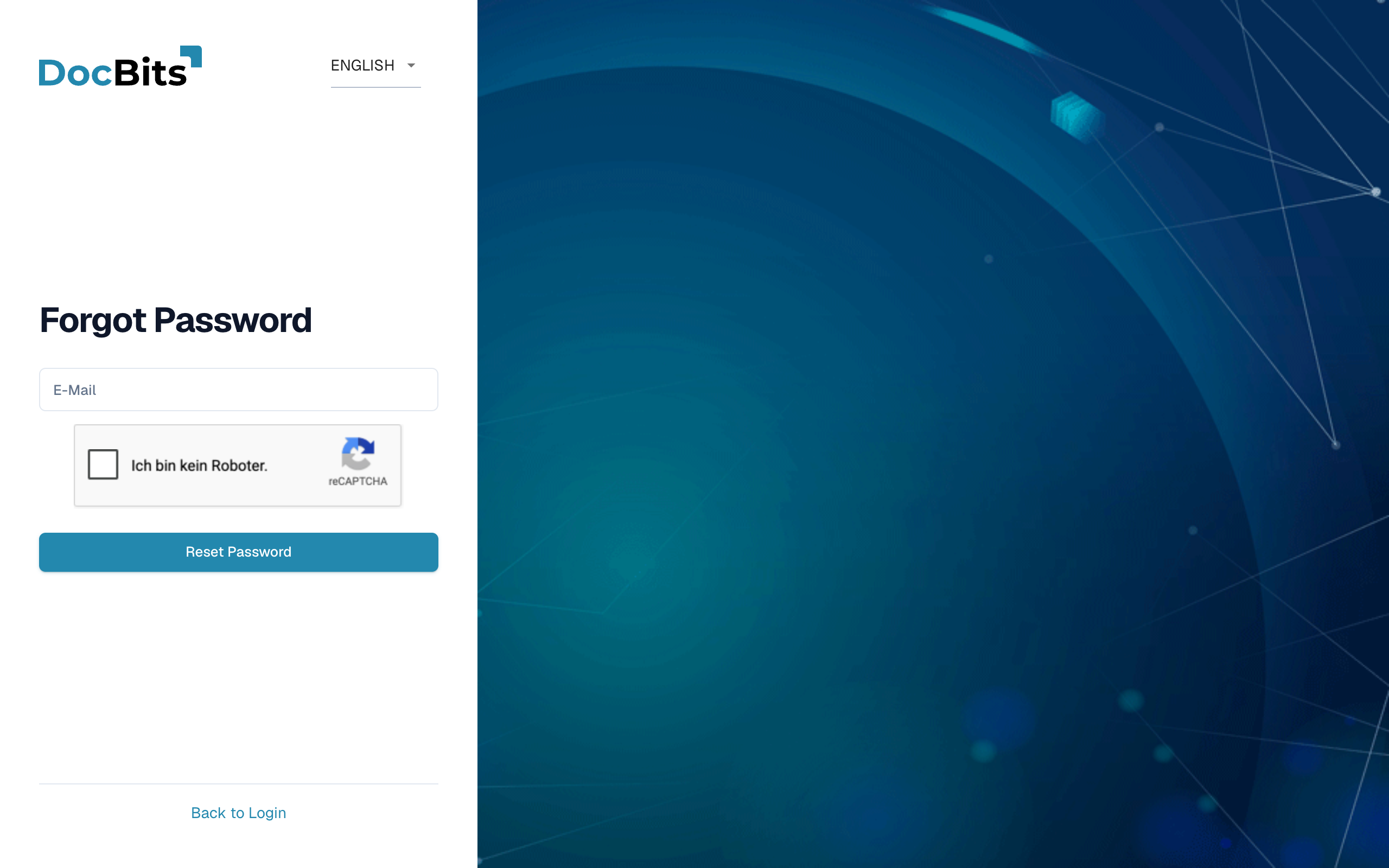
2. 在 **Forgot Password** 页面输入你的 **E-Mail** 地址，然后点击 **Reset Password**。如果页面显示 reCAPTCHA 小组件，请先完成验证。

   <figure><img src="https://1870485400-files.gitbook.io/~/files/v0/b/gitbook-x-prod.appspot.com/o/spaces%2FlPczlNw8zzYNLfjfispX%2Fuploads%2Fgit-blob-579790da940f68407a9519dd9bf5730d5af03ddf%2Fforget-password-form.png?alt=media" alt="Forgot Password 页面及邮箱字段"><figcaption><p>Forgot Password 页面。输入账户邮箱后，DocBits 会向你发送密码重置链接。</p></figcaption></figure>

   如果你不想重置密码，请点击 **Back to Login** 返回登录页面。
3. DocBits 会向你发送一封包含**密码重置链接**的邮件。打开邮件并点击链接，即可打开重置页面。
4. **输入两次新密码**。适用与[注册](#password-rules)时相同的密码规则，检查清单会显示已满足哪些规则。
5. 点击 **Reset Password**。DocBits 会确认密码已更改，并将你带回登录页面，你可以使用新密码登录。

{% hint style="info" %}
重置链接会在短时间后失效。如果链接无法使用，请重复上述步骤申请新链接。
{% endhint %}

## 管理员创建账户后的首次密码 <a href="#first-password-for-admin-created-accounts" id="first-password-for-admin-created-accounts"></a>

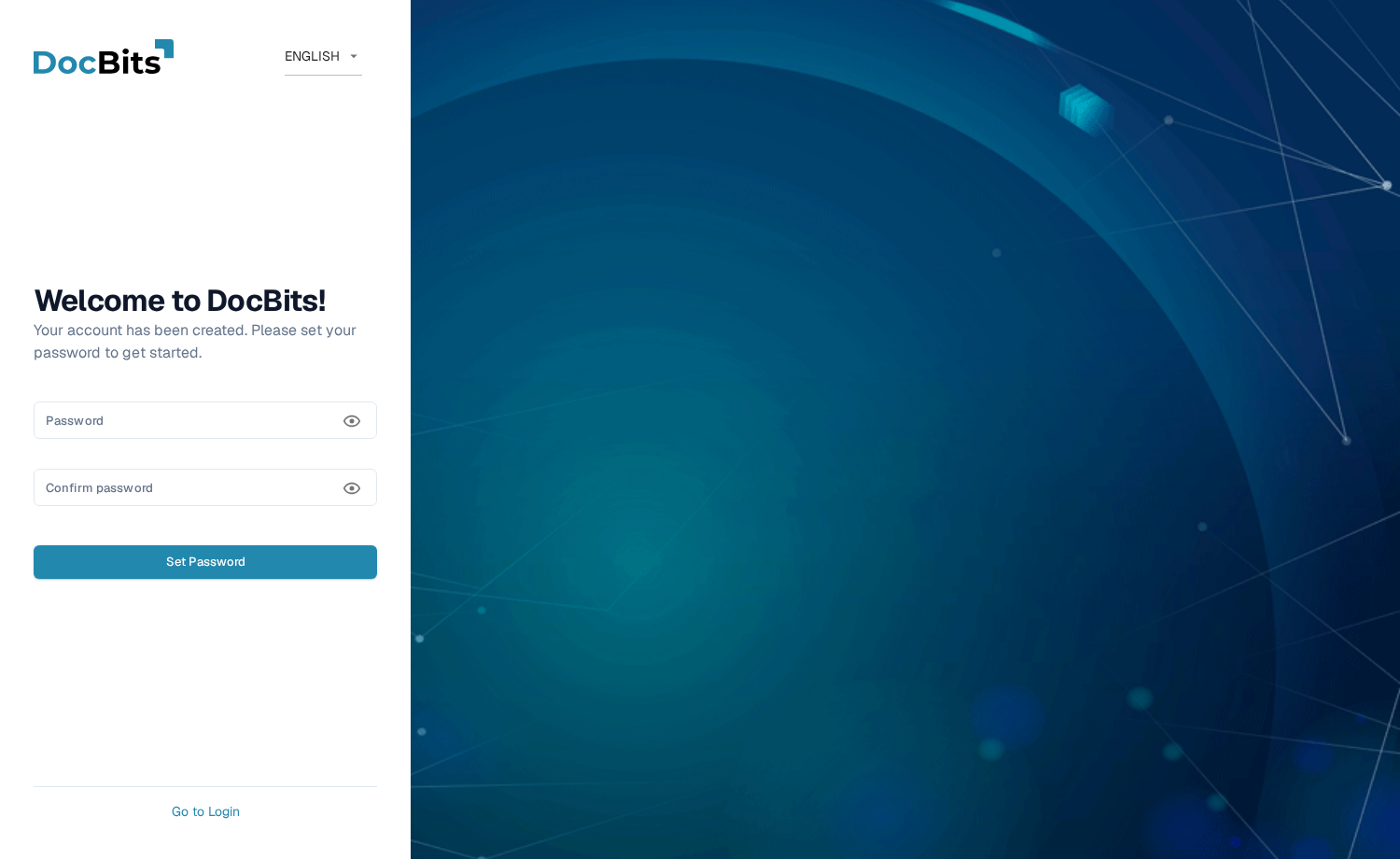
管理员将你添加为用户时（请参阅[用户](/chinese/guan-li-yu-she-zhi/settings/global-settings/groups-users-and-permissions/users.md)），你会收到一封包含登录详情和首次**设置密码**链接的邮件。该链接会打开 **Set Password** 页面：

<figure><img src="https://1870485400-files.gitbook.io/~/files/v0/b/gitbook-x-prod.appspot.com/o/spaces%2FlPczlNw8zzYNLfjfispX%2Fuploads%2Fgit-blob-c49cfe1f8be69270a651ebf5f0454d8c61d77a0b%2Fset-password-form.png?alt=media" alt="Set Password 页面及欢迎消息"><figcaption><p>管理员创建账户后显示的 Set Password 页面。</p></figcaption></figure>

1. 点击邀请邮件中的链接。页面会向你显示欢迎消息：“欢迎使用 DocBits！你的账户已创建。请设置密码以开始使用。”
2. 输入两次密码 — 适用相同的[密码规则](#password-rules)。
3. 点击 **Set Password**。之后，你就可以使用邮箱和该密码登录。

点击眼睛图标可以显示或隐藏已输入的内容。如果你尚未设置密码就离开页面，点击 **Go to Login** 可返回登录页面。

该链接与你的账户绑定，且只能使用一次。如果链接在使用前过期，请联系管理员重新发送邀请，或使用你的邮箱地址点击 **Forgot password?**。


---

# Agent Instructions
This documentation is published with GitBook. GitBook is the documentation platform designed so that both humans and AI agents can read, navigate, and reason over technical content effectively. Learn more at gitbook.com.

## Querying This Documentation
If you need additional information that is not directly available in this page, you can query the documentation by asking a question.

Perform an HTTP GET request on the following URL with the `ask` and `goal` query parameters:

```
GET https://docs.docbits.com/chinese/zui-zhong-yong-hu-yu-he-zuo-huo-ban/end-user-section/getting-access-and-signing-in.md?ask=<question>&goal=<user_goal>
```

`ask` is the immediate question: it should be specific, self-contained, and written in natural language.
`goal` is what the user is ultimately trying to achieve, the reason they need the answer. Sharing it helps GitBook give you a better, more relevant answer. A goal is most helpful when it describes the outcome the user wants rather than restating the question. For example, with `ask=how do I create an API token`, a goal like `automate deployments from our CI pipeline` lets GitBook tailor the answer to that use case.

The response will contain a direct answer to the question and relevant excerpts and sources from the documentation.

Use this mechanism when the answer is not explicitly present in the current page, you need clarification or additional context, or you want to retrieve related documentation sections.