> For the complete documentation index, see [llms.txt](https://docs.docbits.com/llms.txt). Markdown versions of documentation pages are available by appending `.md` to page URLs; this page is available as [Markdown](https://docs.docbits.com/chinese/zui-zhong-yong-hu-yu-he-zuo-huo-ban/end-user-section/dashboard/personal-dashboards.md).
# 个人仪表板
个人仪表板可保存文档列表视图,方便你再次使用常用的筛选条件和列。你可以将其设为仅自己可见、对组织中的所有人可见,或与选定的群组和用户共享。要了解如何在保存视图前筛选文档列表,请参阅[快速搜索](/chinese/zui-zhong-yong-hu-yu-he-zuo-huo-ban/end-user-section/dashboard/quick-search.md)。
## 创建仪表板
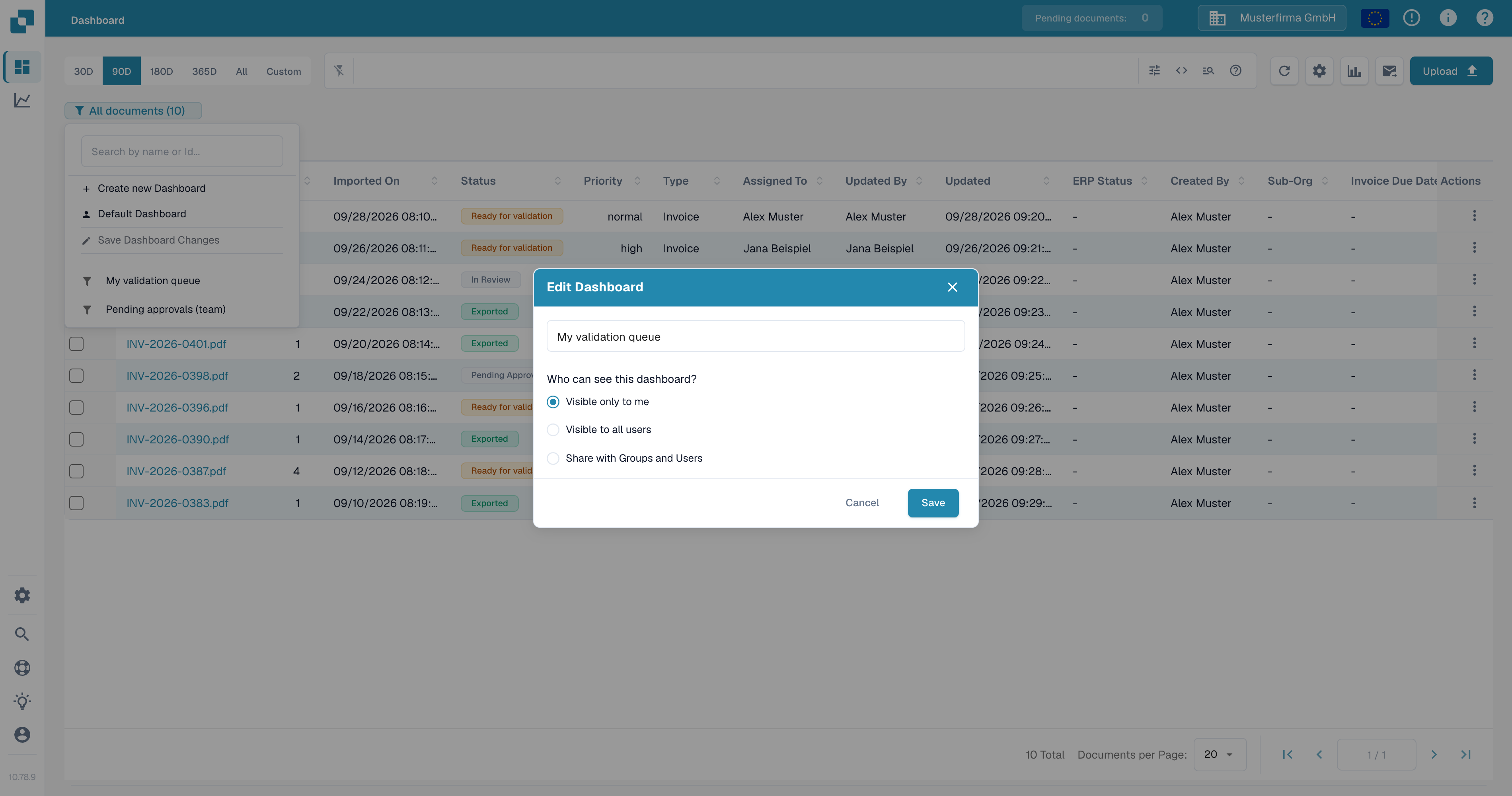
1. 在 **Dashboard** 中,设置要保存的筛选条件和列。
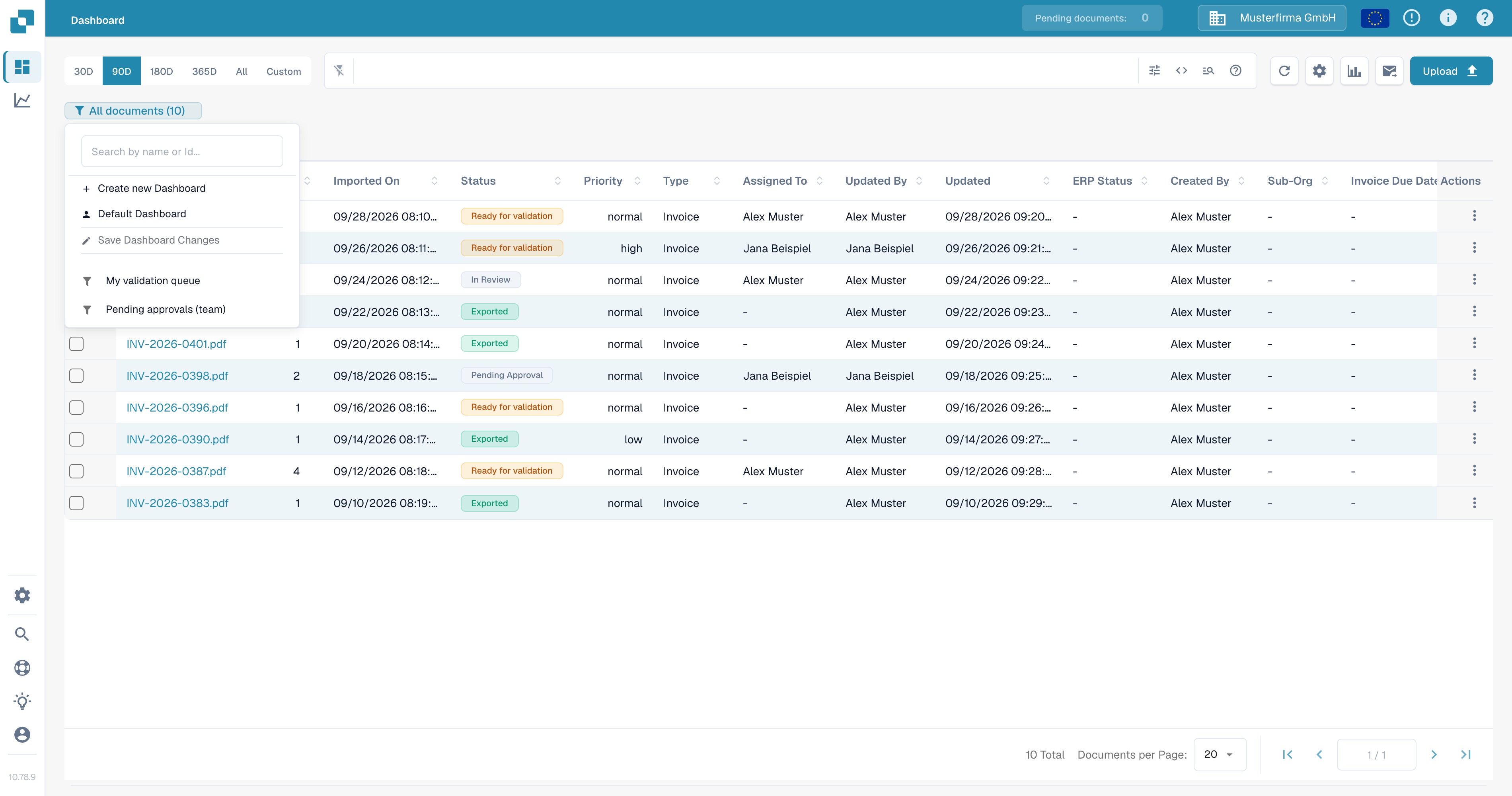
2. 选择搜索栏下方的仪表板徽标。徽标会显示当前视图和文档数量,例如 **All documents (12)**。
3. 选择 **Create new Dashboard**。
打开当前仪表板徽标以创建已保存的视图。
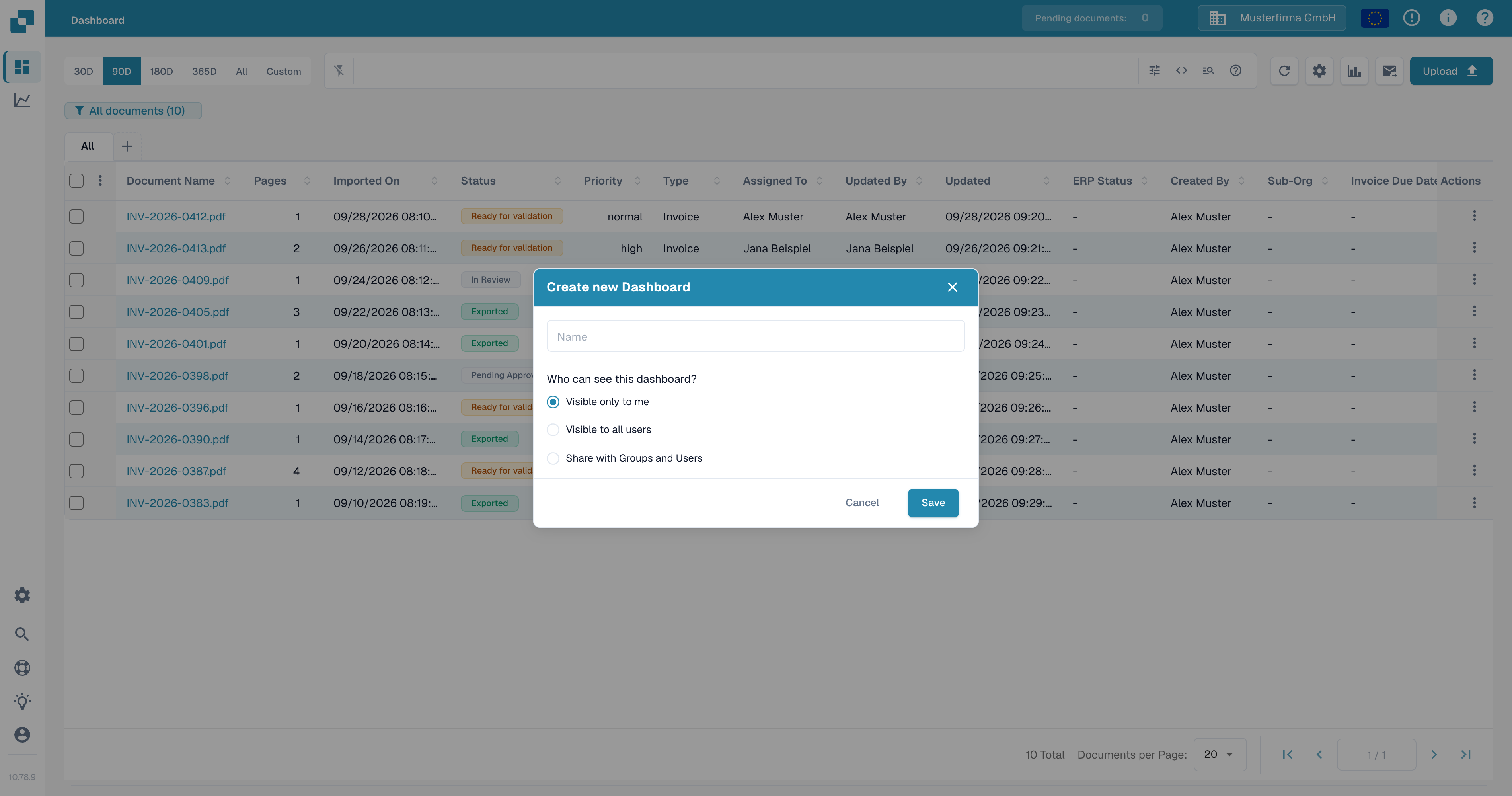
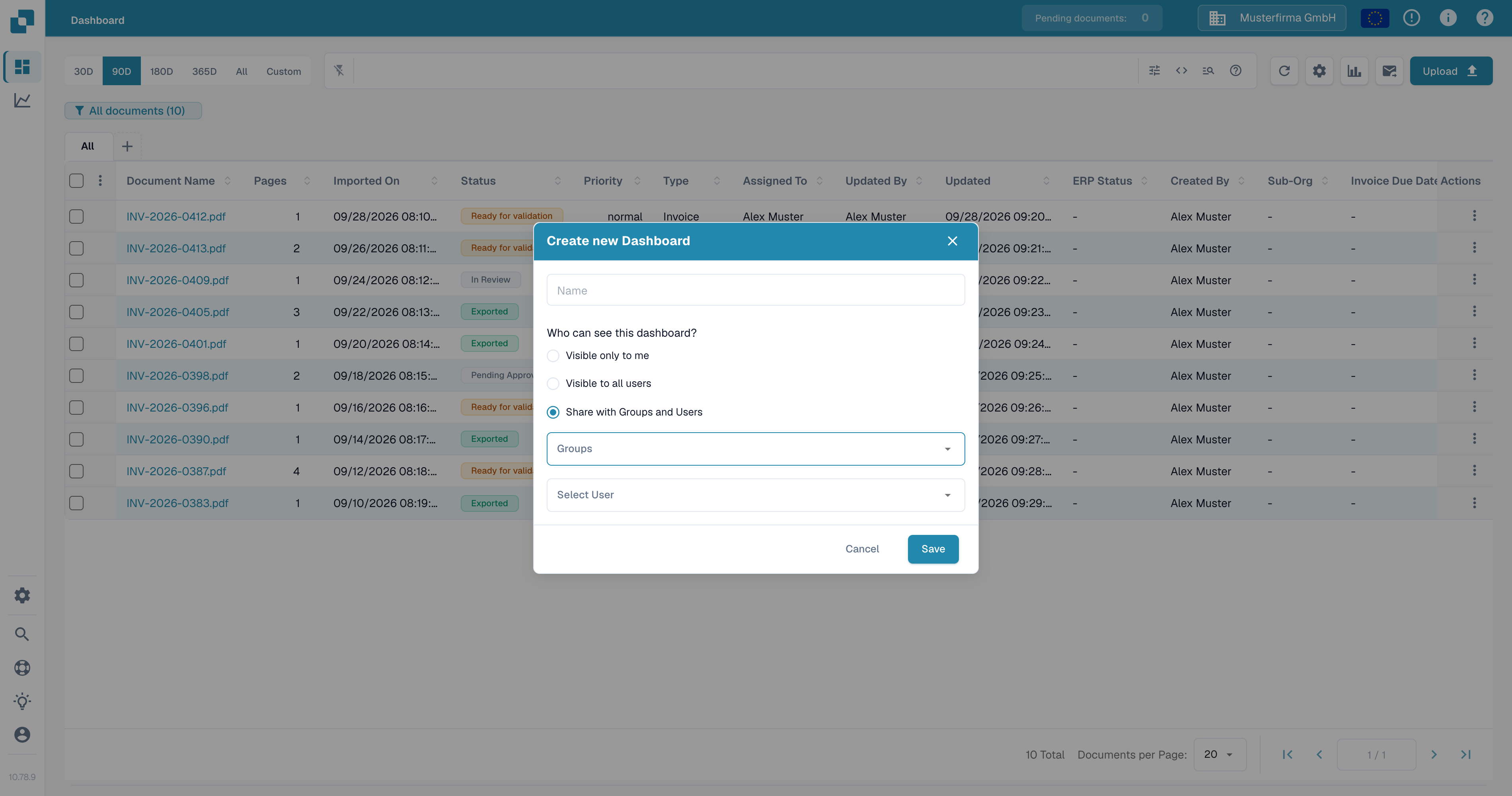
4. 输入名称并选择可以查看此仪表板的人员:
* **Visible only to me** 将视图设为私有。
* **Visible to all users** 使组织中的所有用户都可以使用此视图。
* **Share with Groups and Users** 允许你选择特定群组或人员。
5. 选择 **Save**。
## 保存对当前视图的更改
更改自己创建的仪表板中的筛选条件或列后,请从仪表板菜单中选择 **Save Dashboard Changes**。如果未选择仪表板、视图尚未更改,或所选仪表板属于其他人,则此操作不可用。
## 删除仪表板
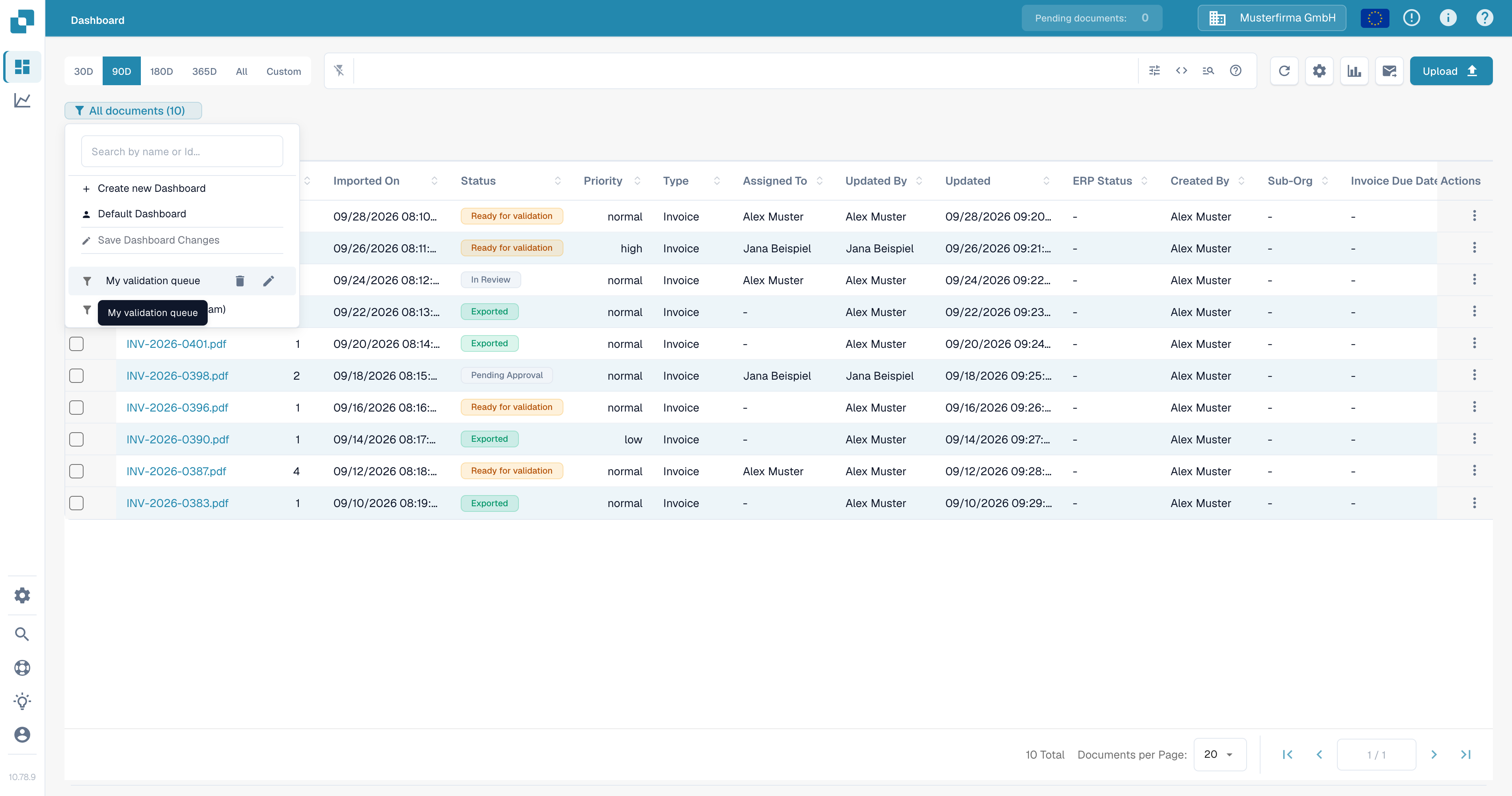
打开仪表板列表,将鼠标悬停在自己创建的仪表板上,然后选择**垃圾桶**图标。选择 **Delete** 确认删除。对于其他人与你共享的仪表板,删除控件不可用。
---
# Agent Instructions
This documentation is published with GitBook. GitBook is the documentation platform designed so that both humans and AI agents can read, navigate, and reason over technical content effectively. Learn more at gitbook.com.
## Querying This Documentation
If you need additional information that is not directly available in this page, you can query the documentation by asking a question.
Perform an HTTP GET request on the following URL with the `ask` and `goal` query parameters:
```
GET https://docs.docbits.com/chinese/zui-zhong-yong-hu-yu-he-zuo-huo-ban/end-user-section/dashboard/personal-dashboards.md?ask=&goal=
```
`ask` is the immediate question: it should be specific, self-contained, and written in natural language.
`goal` is what the user is ultimately trying to achieve, the reason they need the answer. Sharing it helps GitBook give you a better, more relevant answer. A goal is most helpful when it describes the outcome the user wants rather than restating the question. For example, with `ask=how do I create an API token`, a goal like `automate deployments from our CI pipeline` lets GitBook tailor the answer to that use case.
The response will contain a direct answer to the question and relevant excerpts and sources from the documentation.
Use this mechanism when the answer is not explicitly present in the current page, you need clarification or additional context, or you want to retrieve related documentation sections.