> For the complete documentation index, see [llms.txt](https://docs.docbits.com/llms.txt). Markdown versions of documentation pages are available by appending `.md` to page URLs; this page is available as [Markdown](https://docs.docbits.com/chinese/zui-zhong-yong-hu-yu-he-zuo-huo-ban/end-user-section/dashboard/filtering-documents.md).

# 筛选文档

使用仪表板搜索栏、筛选面板、日期范围和文档类型选项卡缩小文档列表范围。这些控件会共同生效：文档必须符合当前搜索条件和筛选条件，才会保留在表格中。

## 按名称查找文档

1. 打开 **Dashboard**。
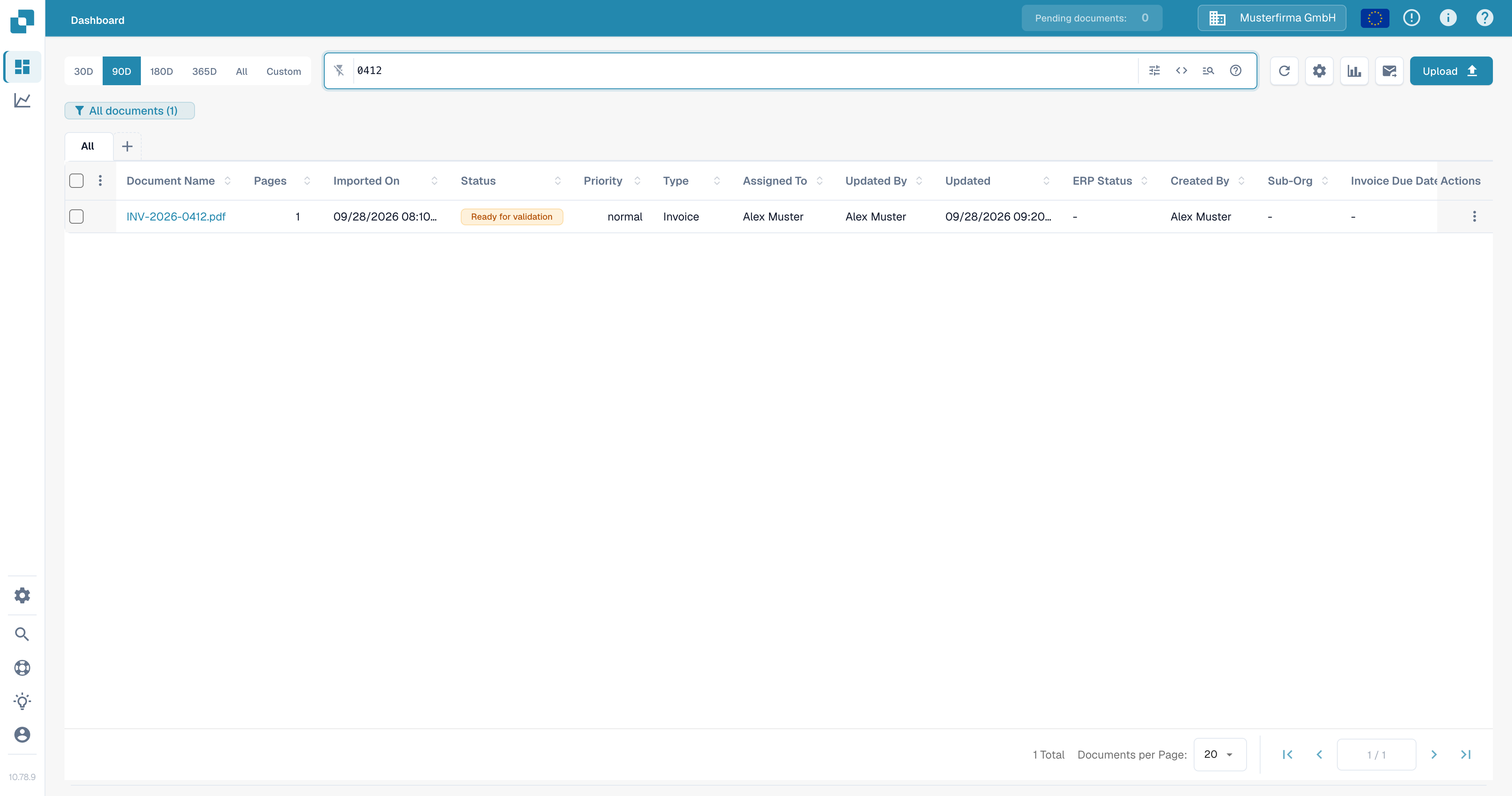
2. 在表格上方的搜索栏中输入部分文档名称，然后按 **Enter**。仪表板徽标中的数量和表格会更新，显示匹配的文档。
3. 想查找其他文档时，请替换搜索词。有关字段搜索和搜索语法，请参阅 [快速搜索](/chinese/zui-zhong-yong-hu-yu-he-zuo-huo-ban/end-user-section/dashboard/quick-search.md)。

<figure><img src="https://1870485400-files.gitbook.io/~/files/v0/b/gitbook-x-prod.appspot.com/o/spaces%2FlPczlNw8zzYNLfjfispX%2Fuploads%2Fgit-blob-997f1cec7d0fef8f4215248460a634bbcbd4dc66%2Fdbdc167_search_result_en.png?alt=media" alt="英文 Dashboard 显示按文档名称搜索后匹配到的一份测试发票"><figcaption><p>按文档名称搜索可缩小测试文档列表的范围。</p></figcaption></figure>

## 按状态、受托人或重启要求筛选

1. 选择搜索栏最右侧的 **Filters** 图标（滑块）。
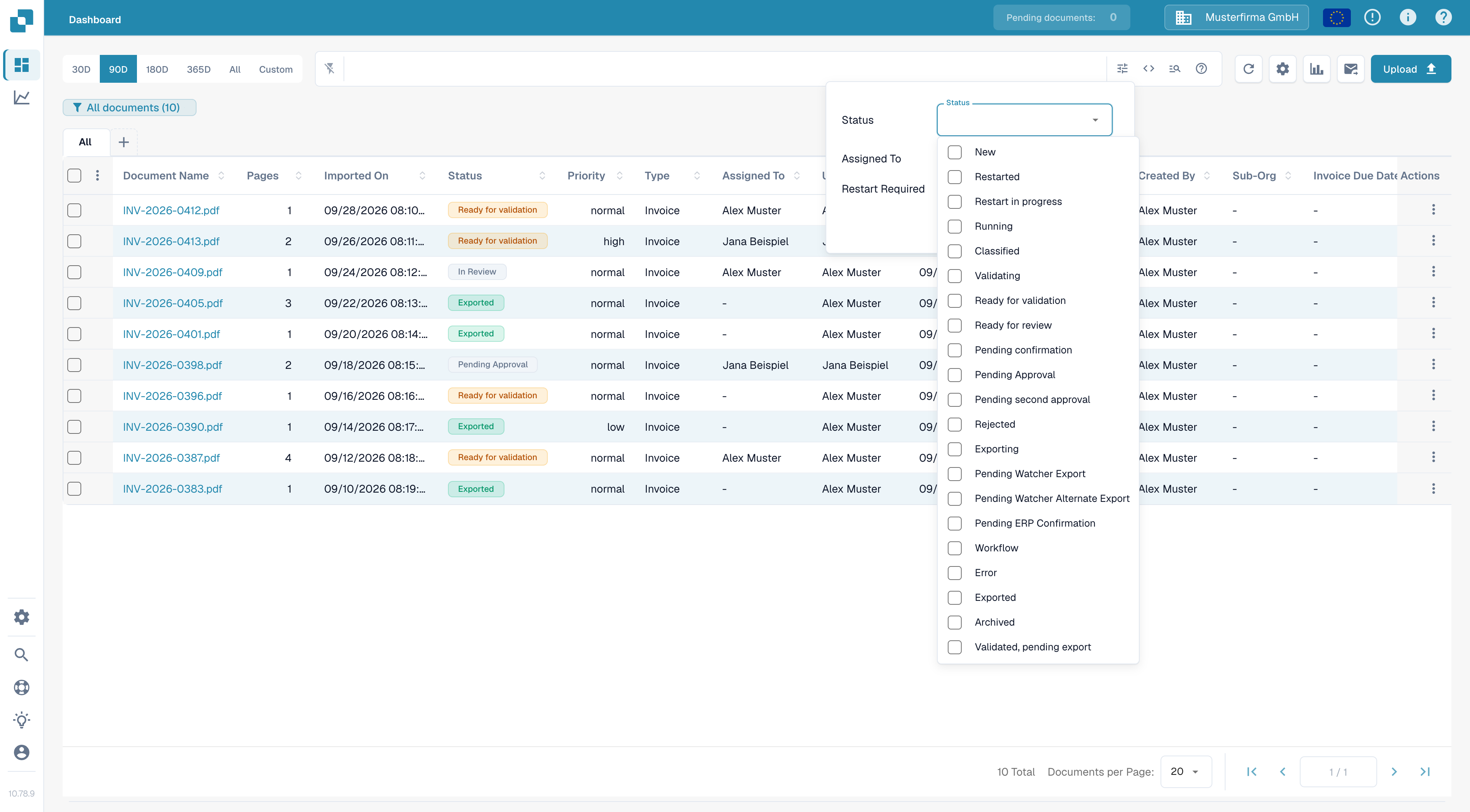
2. 选择一个或多个 **Status** 值。可以同时选择多个状态。
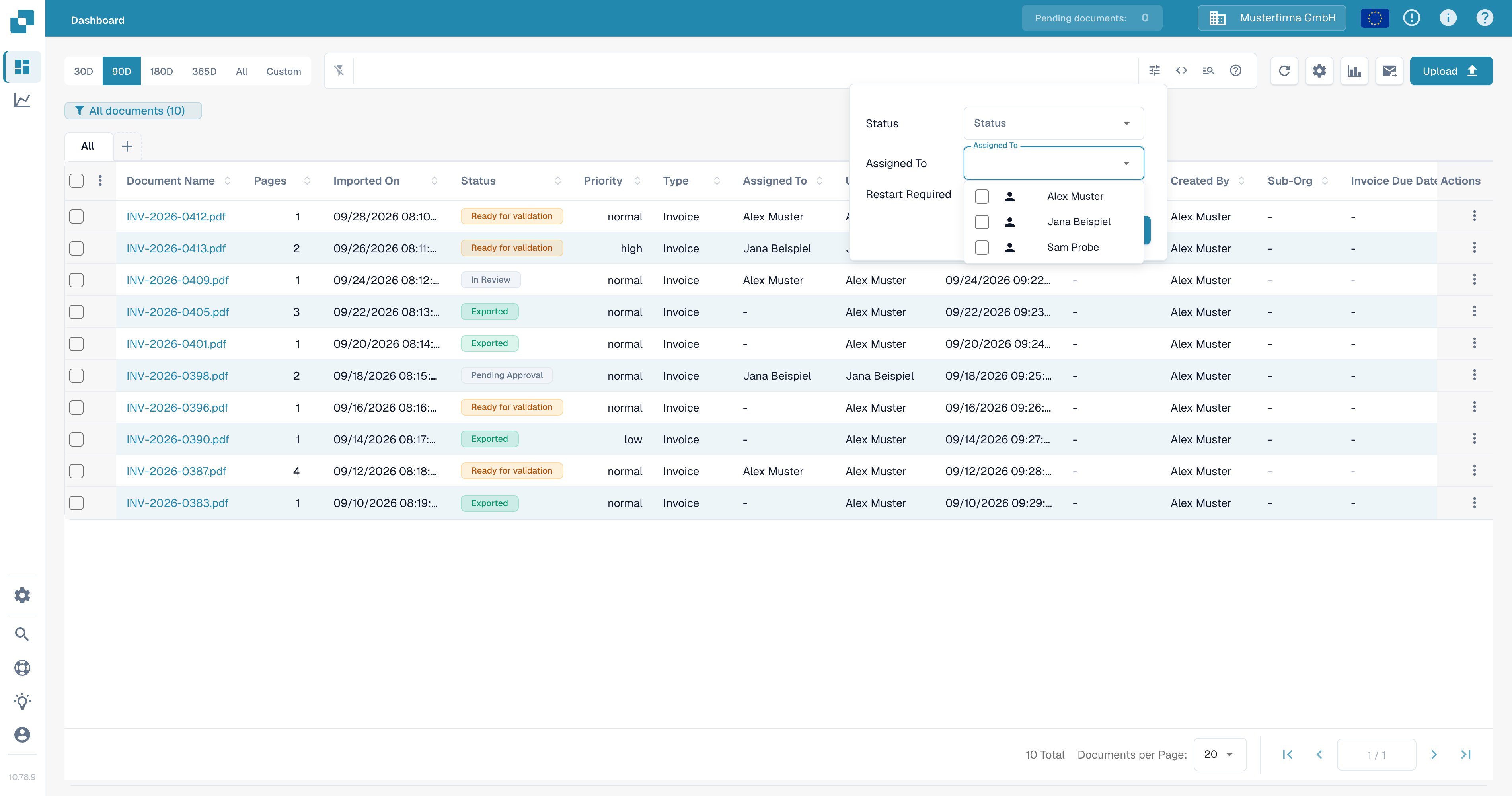
3. 在 **Assigned To** 中，选择要查看其文档的用户。如果组织启用了组权限，组也会显示在此列表中。此面板中没有单独的 **Assigned to Group** 字段。
4. 选择 **Restart Required**，以显示需要重启的文档。
5. 选择 **Apply**。在此面板中选择 **Clear filters** 可移除这些选择；搜索文本和日期范围是单独的控件。

<figure><img src="https://1870485400-files.gitbook.io/~/files/v0/b/gitbook-x-prod.appspot.com/o/spaces%2FlPczlNw8zzYNLfjfispX%2Fuploads%2Fgit-blob-1e832f32e6df0d3a263c116305e729b90c5c5499%2Fdbdc167_filter_panel_en.png?alt=media" alt="英文 Dashboard 筛选面板，包含 Status、Assigned To、Restart Required、Clear filters 和 Apply"><figcaption><p>当前筛选面板包含三个条件和两个操作。</p></figcaption></figure>

<figure><img src="https://1870485400-files.gitbook.io/~/files/v0/b/gitbook-x-prod.appspot.com/o/spaces%2FlPczlNw8zzYNLfjfispX%2Fuploads%2Fgit-blob-46c818c73f99fa65fa9d968d258226123c12bba3%2Fdbdc167_status_options_en.png?alt=media" alt="英文 Dashboard 筛选面板中的 Status 下拉菜单，包含可选择的处理状态"><figcaption><p>选择所需的处理状态。</p></figcaption></figure>

<figure><img src="https://1870485400-files.gitbook.io/~/files/v0/b/gitbook-x-prod.appspot.com/o/spaces%2FlPczlNw8zzYNLfjfispX%2Fuploads%2Fgit-blob-361a60771a9b66f3c369e2615740ad08560302cb%2Fdbdc167_assignee_options_en.png?alt=media" alt="Assigned To 下拉菜单显示测试组织中的模拟用户"><figcaption><p>在 Assigned To 中选择用户。</p></figcaption></figure>

有关各处理状态含义的说明，请参阅 [文档状态](/chinese/zui-zhong-yong-hu-yu-he-zuo-huo-ban/end-user-section/dashboard/document-status.md)。

## 选择导入日期范围

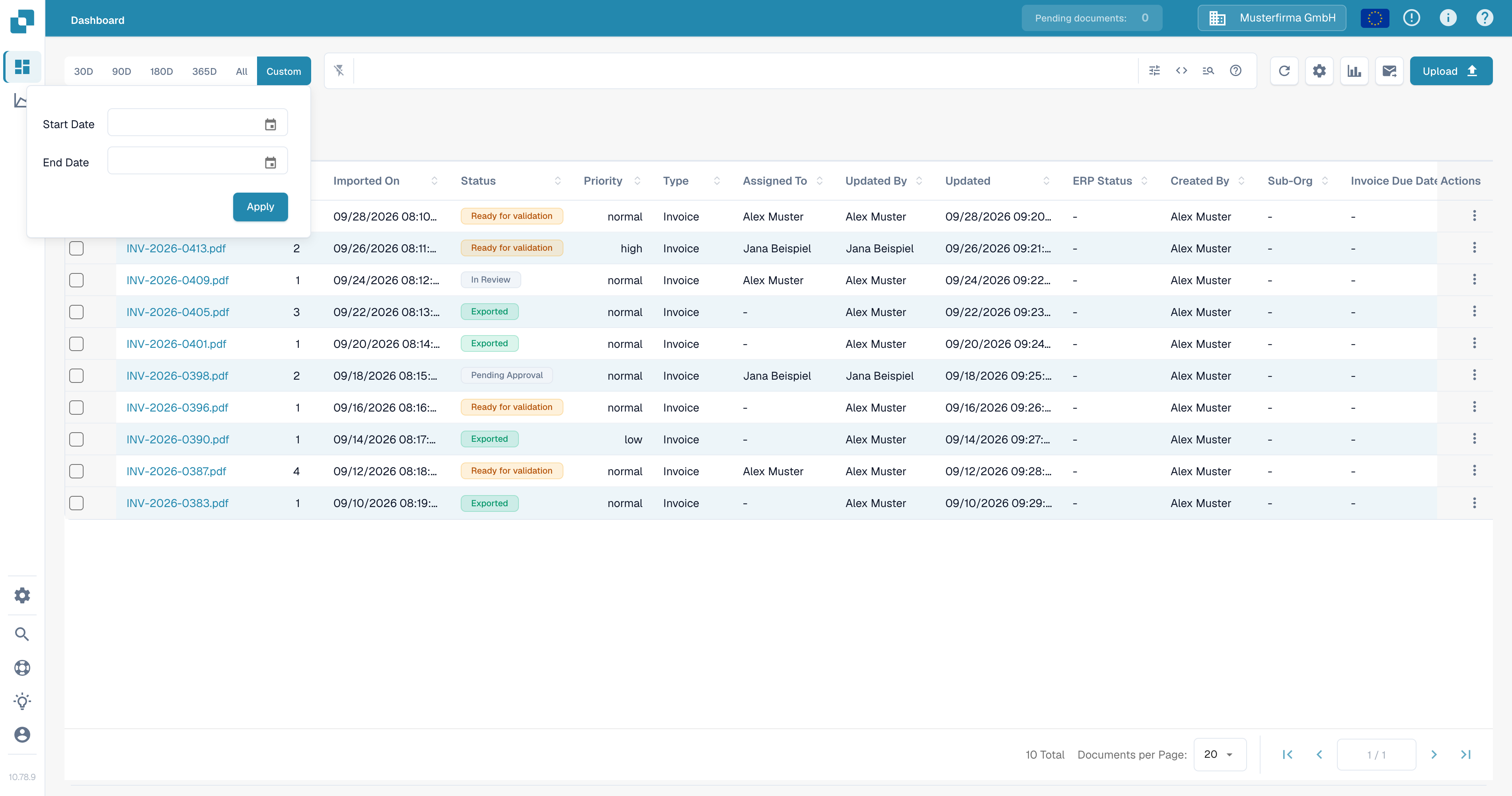
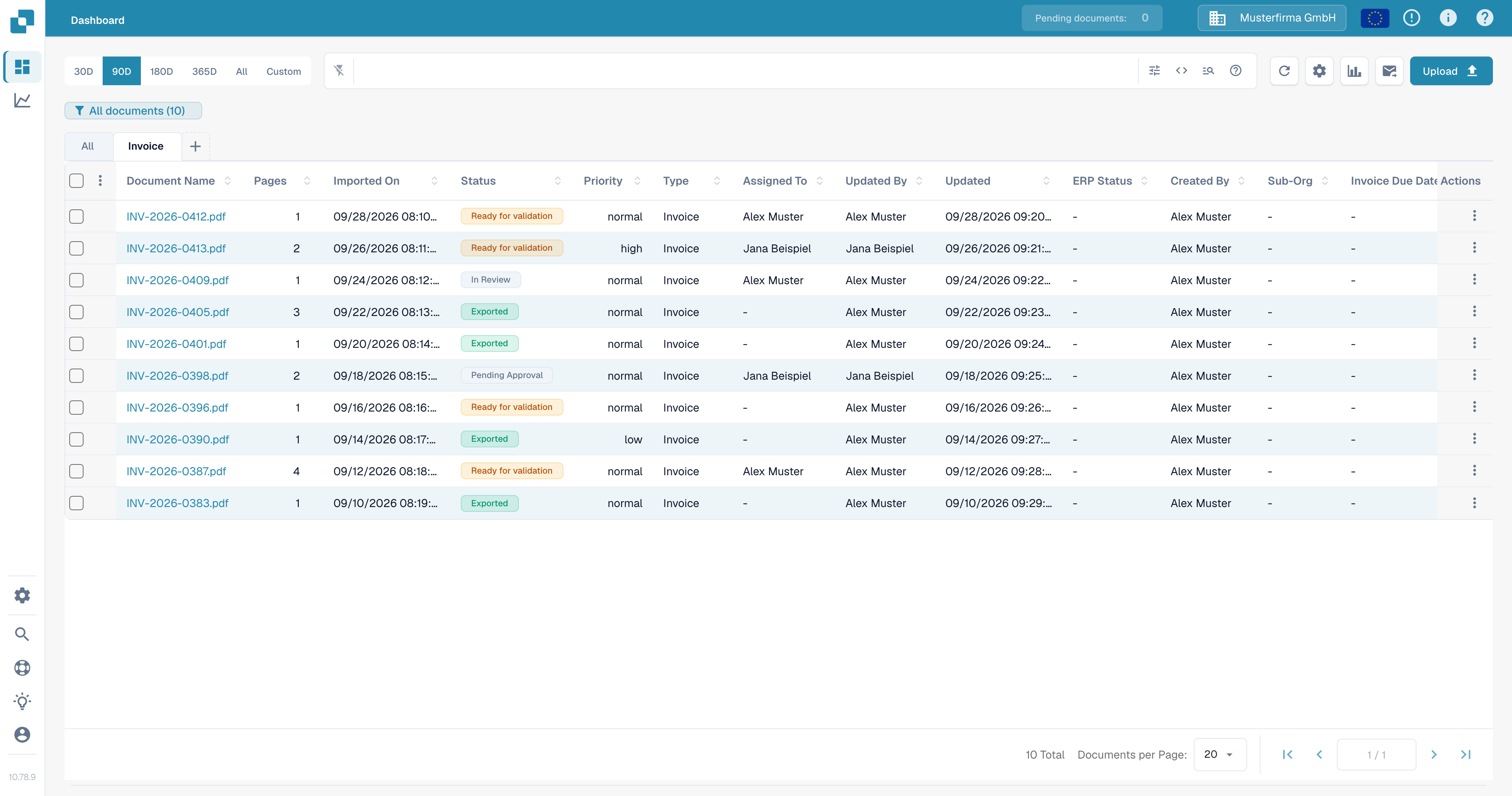
在搜索栏上方，选择 **30D**、**90D**、**180D**、**365D** 或 **All**，以更改导入日期范围。要指定范围，请选择 **Custom**，然后选择 **Start Date** 和 **End Date**，再选择 **Apply**。当前选项会高亮显示。

<figure><img src="https://1870485400-files.gitbook.io/~/files/v0/b/gitbook-x-prod.appspot.com/o/spaces%2FlPczlNw8zzYNLfjfispX%2Fuploads%2Fgit-blob-826c25126c25fcb1d07d5bbf75f4f9edf43456dc%2Fdbdc167_custom_dates_en.png?alt=media" alt="英文 Dashboard 中的自定义日期范围，包含 Start Date、End Date 和 Apply"><figcaption><p>预设日期范围不适用时，请使用 Custom。</p></figcaption></figure>

## 使用文档类型选项卡

1. 选择 **All** 旁边的 **+**。菜单会列出组织可用的文档类型。
2. 选择一种类型（例如 **Invoice**）以添加对应选项卡。然后选择新选项卡，将表格筛选为该类型。选择 **All** 可取消类型限制，但不会删除该选项卡。
3. 要移除类型选项卡，请选择其 **×**。**All** 选项卡不能移除。

<figure><img src="https://1870485400-files.gitbook.io/~/files/v0/b/gitbook-x-prod.appspot.com/o/spaces%2FlPczlNw8zzYNLfjfispX%2Fuploads%2Fgit-blob-fa14b8b87a626f9b764ca8beab3d046c05fcc2c5%2Fdbdc167_document_type_menu_en.png?alt=media" alt="英文 Dashboard 中的加号菜单，显示 Invoice 是一种可用文档类型"><figcaption><p>从加号菜单添加文档类型选项卡。</p></figcaption></figure>

<figure><img src="https://1870485400-files.gitbook.io/~/files/v0/b/gitbook-x-prod.appspot.com/o/spaces%2FlPczlNw8zzYNLfjfispX%2Fuploads%2Fgit-blob-358e77e98fa9ea77ce5a70b8a96738df2e4c530e%2Fdbdc167_invoice_tab_en.png?alt=media" alt="英文 Dashboard 中选中的 Invoice 文档类型选项卡，显示其移除图标"><figcaption><p>选择选项卡以应用类型筛选；选择 × 可移除选项卡。</p></figcaption></figure>

如果 **+** 菜单中没有任何类型，请联系管理员检查组织启用了哪些文档类型。请参阅 [文档类型](/chinese/guan-li-yu-she-zhi/settings/global-settings/document-types.md)。如需保存一组筛选条件以便稍后使用，请参阅 [个人仪表板](/chinese/zui-zhong-yong-hu-yu-he-zuo-huo-ban/end-user-section/dashboard/personal-dashboards.md)。


---

# Agent Instructions
This documentation is published with GitBook. GitBook is the documentation platform designed so that both humans and AI agents can read, navigate, and reason over technical content effectively. Learn more at gitbook.com.

## Querying This Documentation
If you need additional information that is not directly available in this page, you can query the documentation by asking a question.

Perform an HTTP GET request on the following URL with the `ask` and `goal` query parameters:

```
GET https://docs.docbits.com/chinese/zui-zhong-yong-hu-yu-he-zuo-huo-ban/end-user-section/dashboard/filtering-documents.md?ask=<question>&goal=<user_goal>
```

`ask` is the immediate question: it should be specific, self-contained, and written in natural language.
`goal` is what the user is ultimately trying to achieve, the reason they need the answer. Sharing it helps GitBook give you a better, more relevant answer. A goal is most helpful when it describes the outcome the user wants rather than restating the question. For example, with `ask=how do I create an API token`, a goal like `automate deployments from our CI pipeline` lets GitBook tailor the answer to that use case.

The response will contain a direct answer to the question and relevant excerpts and sources from the documentation.

Use this mechanism when the answer is not explicitly present in the current page, you need clarification or additional context, or you want to retrieve related documentation sections.