> For the complete documentation index, see [llms.txt](https://docs.docbits.com/llms.txt). Markdown versions of documentation pages are available by appending `.md` to page URLs; this page is available as [Markdown](https://docs.docbits.com/chinese/guan-li-yu-she-zhi/workflow/advanced-workflow-builder/toolbar-and-canvas.md).
# 工具栏和画布
高级工作流工具栏位于画布底部,提供构建、导航和管理流程所需的一切。
## 工具栏控件
* **+ Add** — 打开节点菜单以添加节点(参见[节点](/chinese/guan-li-yu-she-zhi/workflow/advanced-workflow-builder/nodes.md))。
* **Undo / Redo** — 向后或向前逐步恢复或重做更改。
* **Zoom in / Zoom out** — 更改画布缩放级别。
* **Workflow name** — 在行内为工作流命名。
* **Edit description** — 为工作流添加描述。
* **Variables** — 打开[变量](/chinese/guan-li-yu-she-zhi/workflow/advanced-workflow-builder/variables.md)面板。
* **Help** — 打开键盘快捷键和帮助对话框。
* **Validate / Test** — 检查并运行流程(参见[验证和测试](/chinese/guan-li-yu-she-zhi/workflow/advanced-workflow-builder/validation-and-testing.md))。
* **Snap to grid** — 切换节点是否吸附到网格,以便整齐布局。
* **Mini-map** — 切换小型概览地图,以便浏览大型图表。
* **Save** — 保存工作流。**auto-save** 指示器会显示流程最近一次自动保存的时间。
## 键盘快捷键
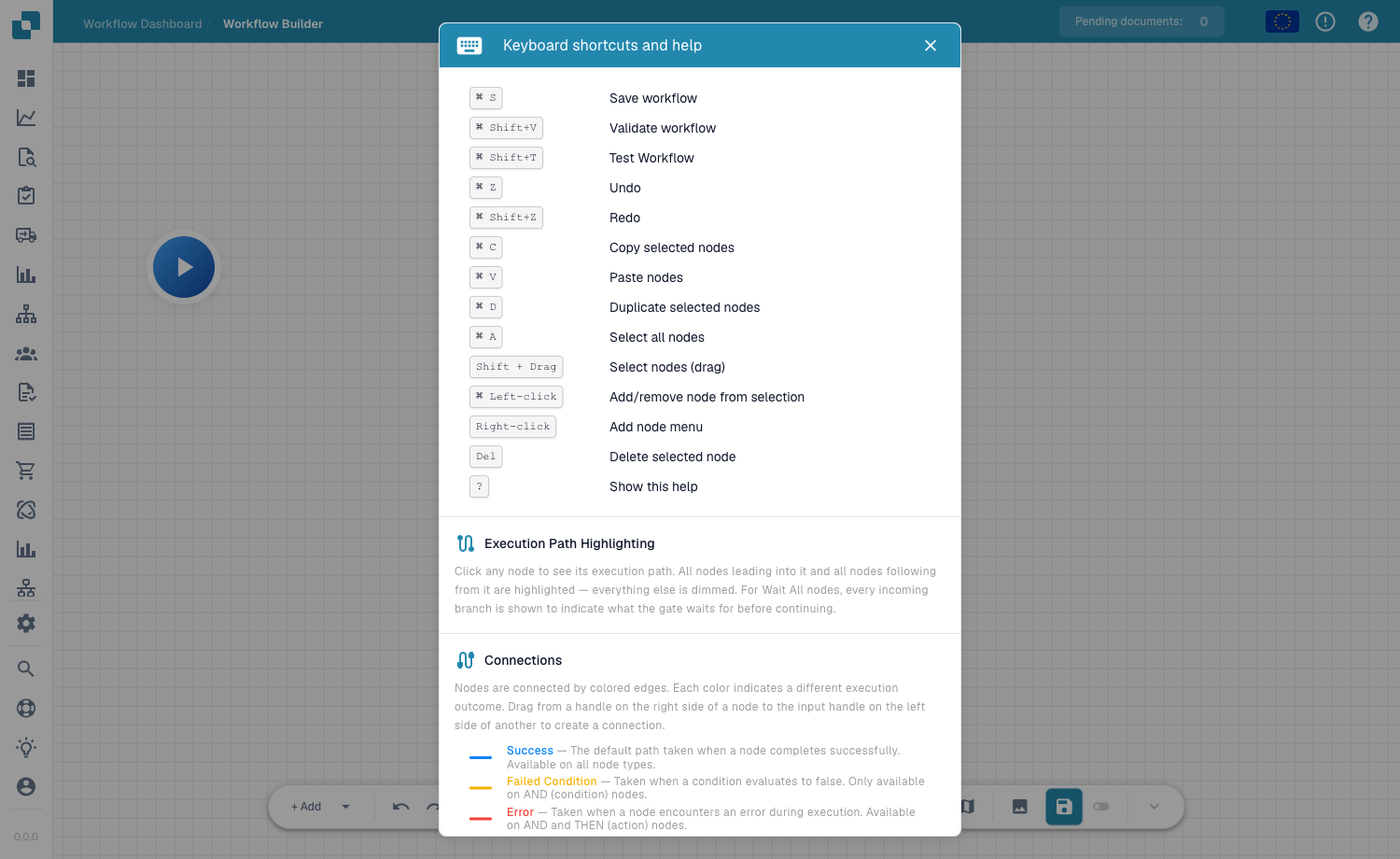
在画布上随时按 ? 打开快捷键和帮助对话框。
键盘快捷键和帮助对话框——快捷键、执行路径高亮和连接线颜色。
| 快捷键 | 操作 |
| -------------------------------------------------------------------- | ---------------- |
| Cmd/Ctrl + S | 保存工作流 |
| Cmd/Ctrl + Shift + V | 验证工作流 |
| Cmd/Ctrl + Shift + T | 测试工作流 |
| Cmd/Ctrl + Z / Shift + Z | 撤销 / 重做 |
| Cmd/Ctrl + C / V / D | 复制 / 粘贴 / 复制所选节点 |
| Cmd/Ctrl + A | 选择所有节点 |
| Shift + 拖动 | 选择节点(拖动) |
| Cmd/Ctrl + 单击鼠标左键 | 将节点添加到选择中或从中移除 |
| 单击鼠标右键 | 打开添加节点菜单 |
| Del | 删除所选节点 |
| ? | 显示此帮助 |
## 后续步骤
* 使用[节点](/chinese/guan-li-yu-she-zhi/workflow/advanced-workflow-builder/nodes.md)和[变量](/chinese/guan-li-yu-she-zhi/workflow/advanced-workflow-builder/variables.md)构建流程。
---
# Agent Instructions
This documentation is published with GitBook. GitBook is the documentation platform designed so that both humans and AI agents can read, navigate, and reason over technical content effectively. Learn more at gitbook.com.
## Querying This Documentation
If you need additional information that is not directly available in this page, you can query the documentation by asking a question.
Perform an HTTP GET request on the following URL with the `ask` and `goal` query parameters:
```
GET https://docs.docbits.com/chinese/guan-li-yu-she-zhi/workflow/advanced-workflow-builder/toolbar-and-canvas.md?ask=&goal=
```
`ask` is the immediate question: it should be specific, self-contained, and written in natural language.
`goal` is what the user is ultimately trying to achieve, the reason they need the answer. Sharing it helps GitBook give you a better, more relevant answer. A goal is most helpful when it describes the outcome the user wants rather than restating the question. For example, with `ask=how do I create an API token`, a goal like `automate deployments from our CI pipeline` lets GitBook tailor the answer to that use case.
The response will contain a direct answer to the question and relevant excerpts and sources from the documentation.
Use this mechanism when the answer is not explicitly present in the current page, you need clarification or additional context, or you want to retrieve related documentation sections.