> For the complete documentation index, see [llms.txt](https://docs.docbits.com/llms.txt). Markdown versions of documentation pages are available by appending `.md` to page URLs; this page is available as [Markdown](https://docs.docbits.com/chinese/guan-li-yu-she-zhi/setup/watchdog/watchdog-admin-faq.md).
# WatchDog 管理员常见问题与故障排查
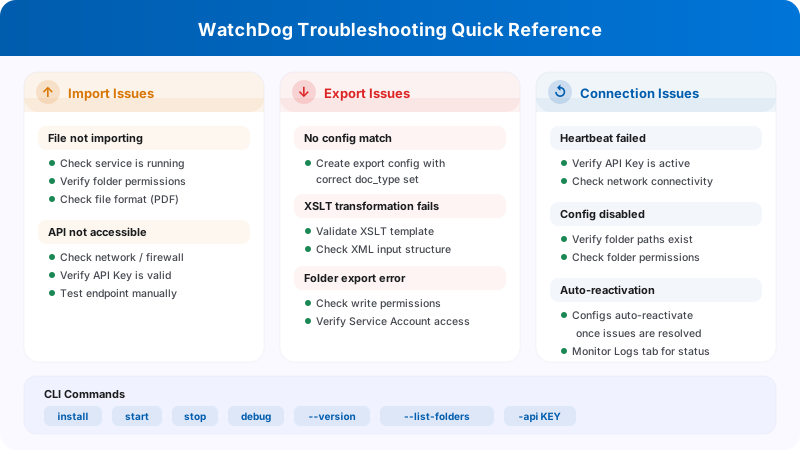 本文档帮助管理员了解 WatchDog 错误消息并排查问题。
**UI 位置:** 设置 → 文档处理 → WatchDog
***
## 1. WatchDog 设置页面(UI)
### 1.1 常规选项卡
本文档帮助管理员了解 WatchDog 错误消息并排查问题。
**UI 位置:** 设置 → 文档处理 → WatchDog
***
## 1. WatchDog 设置页面(UI)
### 1.1 常规选项卡
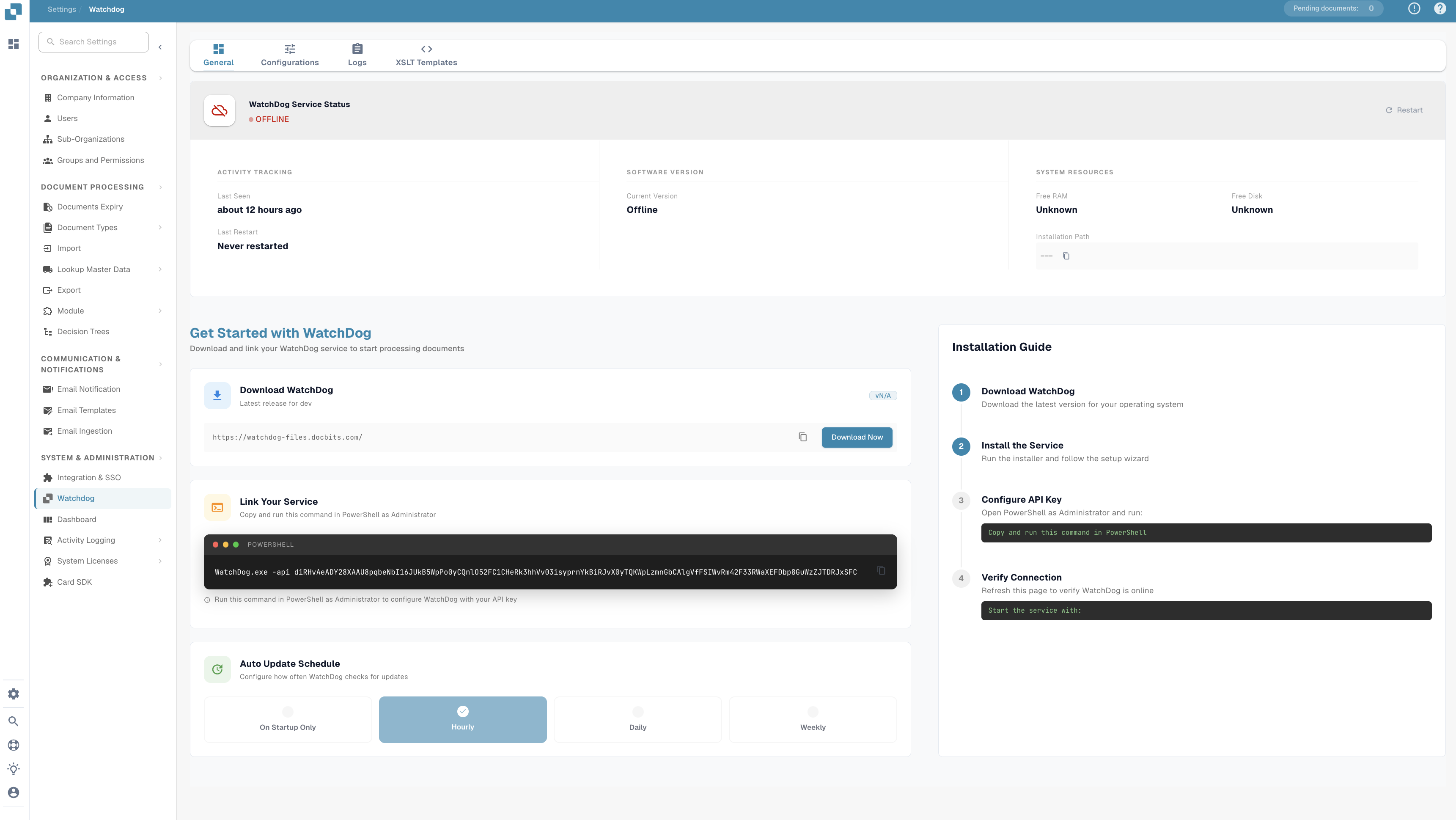 * **下载:** 获取最新的 WatchDog.exe
* **API Key:** 复制配置命令
* **自动更新计划:** 配置更新频率
* **安装指南:** 分步设置说明
### 1.2 配置选项卡
* **导入配置:** 定义监视文件夹和文档类型
* **导出配置:** 定义导出目标位置和方法
* **批量复制:** 在子组织之间复制配置
* **导入/导出:** 以 JSON 格式导入/导出配置
> **重要:** 导出配置现在**必须指定文档类型**(`doc_type`)。缺少有效文档类型的配置将被拒绝。
### 1.3 状态选项卡
* **下载:** 获取最新的 WatchDog.exe
* **API Key:** 复制配置命令
* **自动更新计划:** 配置更新频率
* **安装指南:** 分步设置说明
### 1.2 配置选项卡
* **导入配置:** 定义监视文件夹和文档类型
* **导出配置:** 定义导出目标位置和方法
* **批量复制:** 在子组织之间复制配置
* **导入/导出:** 以 JSON 格式导入/导出配置
> **重要:** 导出配置现在**必须指定文档类型**(`doc_type`)。缺少有效文档类型的配置将被拒绝。
### 1.3 状态选项卡
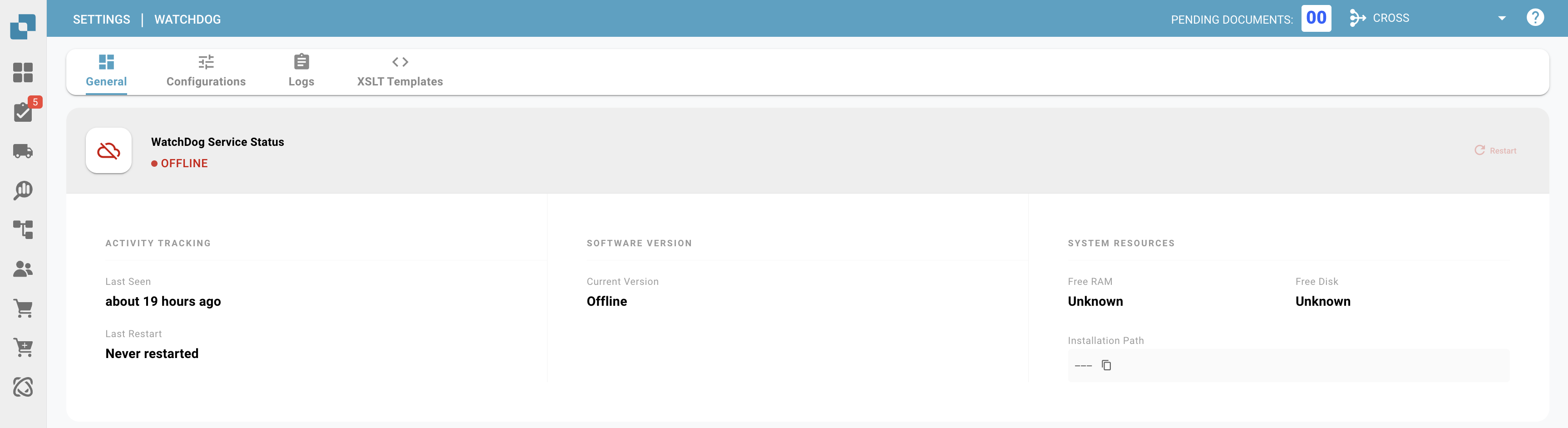 * 显示 WatchDog 的实时连接状态
* **新增字段:** `last_restart`、`version_first_seen`、`latest_version_checked_at`
* **系统信息:** 安装路径、可用 RAM、可用磁盘空间
### 1.4 日志选项卡
* 显示 WatchDog 的实时连接状态
* **新增字段:** `last_restart`、`version_first_seen`、`latest_version_checked_at`
* **系统信息:** 安装路径、可用 RAM、可用磁盘空间
### 1.4 日志选项卡
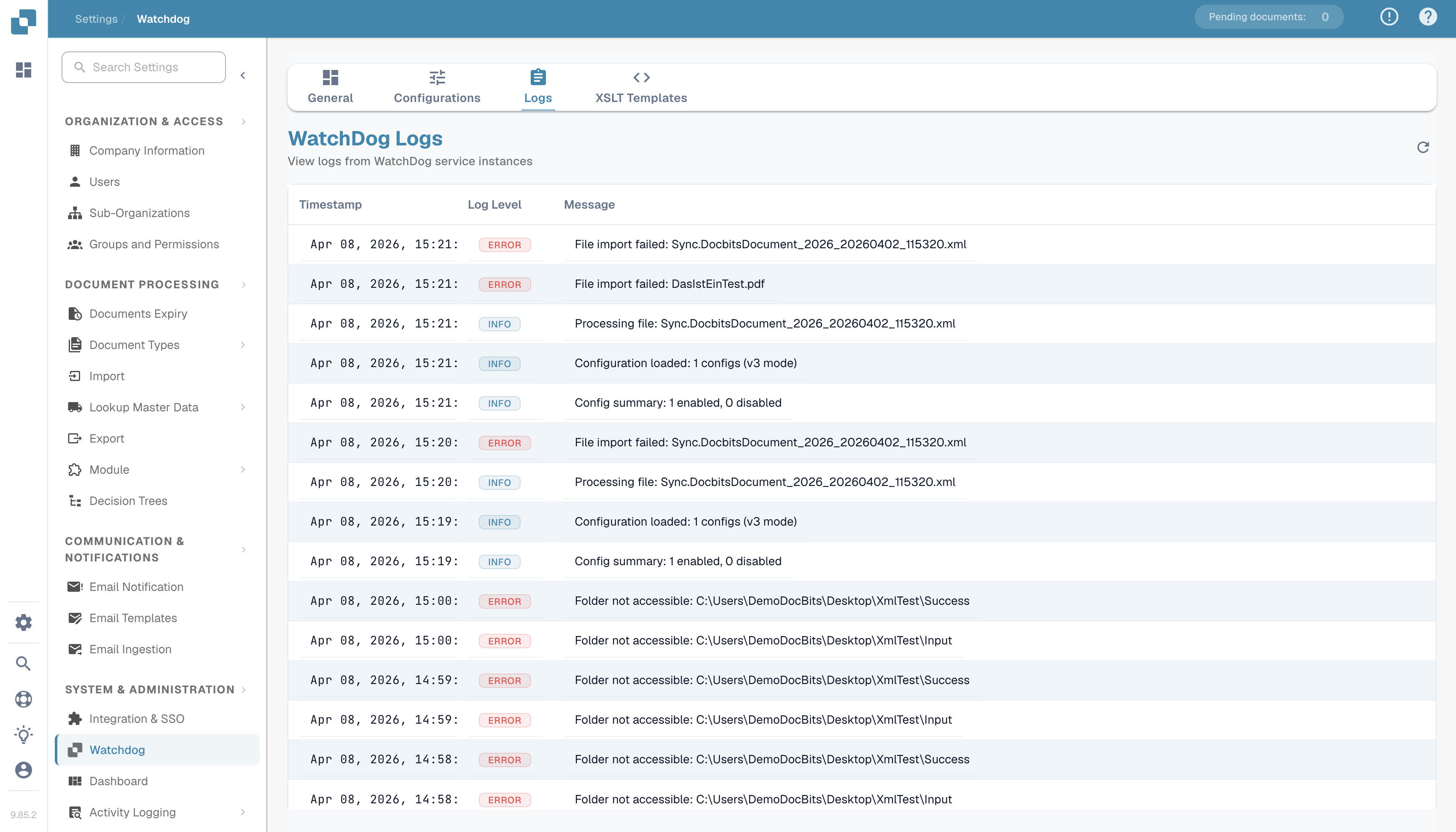 * 显示来自 OpenSearch 的所有 WatchDog 事件
* 可按事件类型、时间段等筛选
* **事件类型:**
* `FILE_IMPORT_STARTED`:文件导入已开始
* `FILE_IMPORT_COMPLETED`:导入成功
* `FILE_IMPORT_FAILED`:导入失败
* `EXPORT_STARTED`:导出已开始
* `EXPORT_COMPLETED`:导出成功
* `EXPORT_FAILED`:导出失败
* `FOLDER_VALIDATION_FAILED`:文件夹无法访问
* `CONFIG_LOADED`:配置已加载
* `SERVICE_RESTART_INITIATED`:已请求重启服务
* `SERVICE_RESTART_COMPLETED`:服务已重启
### 1.5 XSLT 模板选项卡
* 显示来自 OpenSearch 的所有 WatchDog 事件
* 可按事件类型、时间段等筛选
* **事件类型:**
* `FILE_IMPORT_STARTED`:文件导入已开始
* `FILE_IMPORT_COMPLETED`:导入成功
* `FILE_IMPORT_FAILED`:导入失败
* `EXPORT_STARTED`:导出已开始
* `EXPORT_COMPLETED`:导出成功
* `EXPORT_FAILED`:导出失败
* `FOLDER_VALIDATION_FAILED`:文件夹无法访问
* `CONFIG_LOADED`:配置已加载
* `SERVICE_RESTART_INITIATED`:已请求重启服务
* `SERVICE_RESTART_COMPLETED`:服务已重启
### 1.5 XSLT 模板选项卡
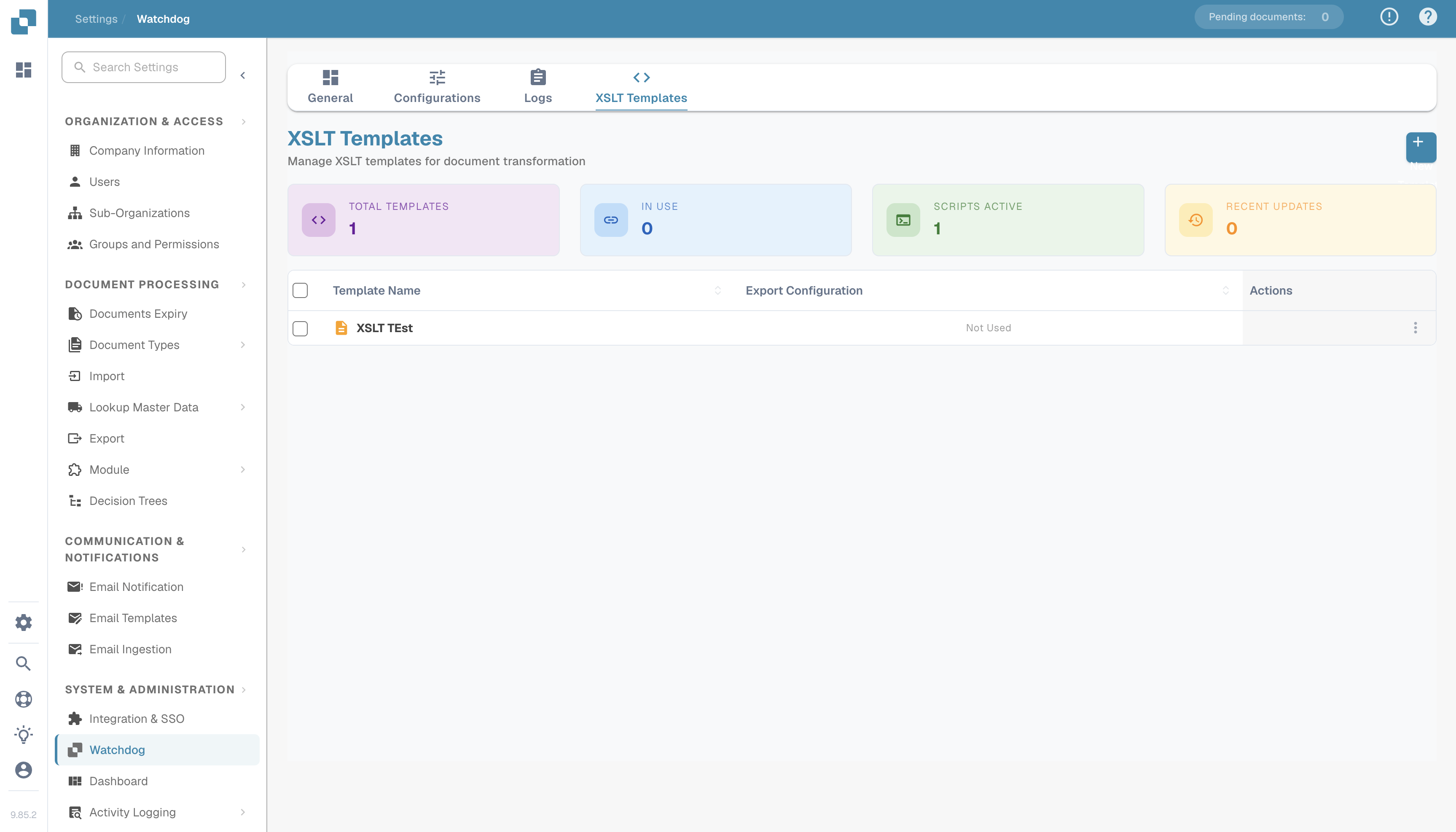 * 上传和管理 XSLT 转换模板
* 使用字段分析进行实时验证
* 将模板关联到导出配置
***
## 2. 文件夹验证错误消息
| 错误 | 含义 | 解决方案 |
| ----------------- | -------- | ------------------- |
| `not_found` | 文件夹不存在 | 创建文件夹或更正路径 |
| `no_read_access` | 没有读取权限 | 为 WatchDog 服务账户设置权限 |
| `no_write_access` | 没有写入权限 | 向服务账户授予写入权限 |
| `not_configured` | 未配置文件夹路径 | 在配置中输入路径 |
**受影响的文件夹:**
* **监视文件夹(导入):** WatchDog 查找新文件的位置
* **成功文件夹:** 成功导入的文件移至此处
* **导出文件夹:** 写入导出的 XML/PDF 文件的位置
***
## 3. 导入错误消息
| 错误 | 含义 | 解决方案 |
| -------------------- | ---------------- | -------------------- |
| `file_not_found` | 文件在导入前已被删除 | 重新提供文件 |
| `invalid_file_type` | 仅支持 PDF 文件 | 移除其他文件类型 |
| `api_not_accessible` | 无法访问 DocBits API | 检查网络/防火墙,并确认 API URL |
| `api_check_failed` | API 健康检查失败 | 检查 API Key 和连接 |
| `upload_failed` | 上传到 API 失败 | 检查 API Key、网络和服务器状态 |
***
## 4. 导出错误消息
| 错误 | 含义 | 解决方案 |
| ---------------------- | --------- | -------------------- |
| `transformation_error` | XSLT 转换失败 | 检查 XSLT 模板并验证 XML 结构 |
| `folder_error` | 无法访问导出文件夹 | 创建文件夹并检查权限 |
| `file_write_error` | 无法写入文件 | 检查磁盘空间、权限和文件锁定状态 |
| `permission_denied` | 没有写入权限 | 设置服务账户权限 |
| `creation_failed` | 无法创建文件夹 | 检查父文件夹权限 |
| `no_config_match` | 没有匹配的导出配置 | 创建文档类型正确的导出配置 |
> **注意:** 导出配置必须指定 `doc_type`。如果看到 `no_config_match`,请确认存在适用于该文档类型的启用导出配置。
***
## 5. 配置已禁用 — 原因
配置被禁用时,会显示以下原因之一:
| 禁用原因 | 含义 |
| --------------------------------- | --------- |
| `Watch folder: not_found` | 导入文件夹不存在 |
| `Watch folder: no_read_access` | 无法读取导入文件夹 |
| `Export folder: not_found` | 导出文件夹不存在 |
| `Export folder: no_write_access` | 无法写入导出文件夹 |
| `Success folder: not_found` | 成功文件夹不存在 |
| `Success folder: no_write_access` | 无法写入成功文件夹 |
**自动重新启用:** WatchDog 会定期检查文件夹(每 60 秒)。文件夹一旦重新可访问,配置就会自动重新启用。
***
## 6. 错误文件夹(`_error`)
失败的文件会移至 `_error` 文件夹:
**位置:** `{import_folder}/_error/{error_type}/`
**文件格式:** `{original_name}_{YYYYMMDD_HHMMSS}.pdf`
**伴随文件:** 每个失败文件都有一个 `.error` 伴随文件,其中包含:
```
Error Type: transformation_error
Error Message: XSLT template not found
Timestamp: 2026-03-26 08:30:15
Original File: invoice_001.pdf
Original Path: C:\WatchDog\Import\invoice_001.pdf
```
***
## 7. 心跳与连接状态
WatchDog 每隔约 10 秒向 DocBits 发送一次心跳,并附带系统信息:
| 发送的数据 | 说明 |
| ------------------- | ---------------- |
| Timestamp | 当前时间 |
| Version | 已安装的 WatchDog 版本 |
| Last Restart | 上次重启服务的时间 |
| Auto-Update Enabled | 是否启用了自动更新 |
| Latest Version | 可用的最新版本 |
| Installation Path | WatchDog 的安装位置 |
| Free RAM / Disk | 可用系统资源 |
### 连接状态
| 状态 | 含义 |
| --------- | ------------------- |
| ✅ **在线** | WatchDog 已连接并处于活动状态 |
| ⚠️ **离线** | 超过 30 秒未收到心跳 |
| ❌ **未安装** | WatchDog 从未连接过 |
**心跳错误:**
* `Heartbeat failed - invalid API key` → API Key 无效
* `Heartbeat failed: 401` → 身份验证失败
* `Heartbeat failed: 5xx` → 服务器问题
***
## 8. 常见问题与解决方案
### 问题:WatchDog 不导入文件
1. 检查服务是否正在运行:`services.msc` → WatchDog
2. 检查日志:设置 → WatchDog → 日志选项卡
3. 检查 WatchDog 服务账户的文件夹权限
4. 测试 API 连接:在 CMD 中运行 `WatchDog.exe debug`
5. 确认文件类型为 PDF
### 问题:导出无法正常工作
1. 是否存在文档类型正确的导出配置?
2. 文档和配置中的文档类型是否匹配?
3. 是否已关联 XSLT 模板(用于文件夹导出)?
4. 服务账户是否有权写入导出文件夹?
5. 对于 Infor 导出:ION 凭据是否配置正确?
### 问题:配置已禁用
1. 文件夹路径是否存在?
2. `NT AUTHORITY\LOCAL SERVICE` 或服务账户是否拥有相应权限?
3. 网络驱动器是否可访问?(检查 UNC 路径)
4. 文件夹重新可用时,WatchDog 会自动重新启用配置
### 问题:XSLT 转换失败
1. XSLT 模板是否有效?(在 XSLT 模板选项卡中使用 Validate)
2. 模板是否适用于该文档类型?
3. 检查文档的 XML 结构
4. V3 文件夹导出使用服务器端转换——请检查 API 连接
### 问题:REST API 导出失败
1. 是否在导出配置中配置了 ION OAuth 凭据?
2. WatchDog 服务器是否可以访问目标 API 端点?
3. 检查有效负载格式是否符合目标 API 的要求
4. 检查请求链配置中是否存在 JSONPath 错误
***
## 9. 命令行命令
```bash
# Configure API connection
WatchDog.exe -api YOUR_API_KEY
# Install Service
WatchDog.exe install
# Start Service
WatchDog.exe start
# Stop Service
WatchDog.exe stop
# Run in debug mode (console output)
WatchDog.exe debug
# Uninstall Service
WatchDog.exe remove
# Show version
WatchDog.exe --version
# List watch folders
WatchDog.exe --list-folders
# Add/remove watch folder
WatchDog.exe --add-folder "C:\Import\Invoices"
WatchDog.exe --remove-folder "C:\Import\Invoices"
# Check Windows service status
sc query WatchDog
```
***
## 10. 日志文件
**位置:** `C:\WatchDog\logs\{module}\`
**日志格式:**
```
INFO - 2026-03-26 10:00:00 - module_name - Message - function=func_name - line=42
```
**日志级别:** DEBUG、INFO、WARNING、ERROR
**远程日志:** WatchDog 也会将日志发送到 DocBits(可在日志选项卡中查看),并可选择发送到 Logtail 云日志服务。
---
# Agent Instructions
This documentation is published with GitBook. GitBook is the documentation platform designed so that both humans and AI agents can read, navigate, and reason over technical content effectively. Learn more at gitbook.com.
## Querying This Documentation
If you need additional information that is not directly available in this page, you can query the documentation by asking a question.
Perform an HTTP GET request on the following URL with the `ask` and `goal` query parameters:
```
GET https://docs.docbits.com/chinese/guan-li-yu-she-zhi/setup/watchdog/watchdog-admin-faq.md?ask=&goal=
```
`ask` is the immediate question: it should be specific, self-contained, and written in natural language.
`goal` is what the user is ultimately trying to achieve, the reason they need the answer. Sharing it helps GitBook give you a better, more relevant answer. A goal is most helpful when it describes the outcome the user wants rather than restating the question. For example, with `ask=how do I create an API token`, a goal like `automate deployments from our CI pipeline` lets GitBook tailor the answer to that use case.
The response will contain a direct answer to the question and relevant excerpts and sources from the documentation.
Use this mechanism when the answer is not explicitly present in the current page, you need clarification or additional context, or you want to retrieve related documentation sections.
* 上传和管理 XSLT 转换模板
* 使用字段分析进行实时验证
* 将模板关联到导出配置
***
## 2. 文件夹验证错误消息
| 错误 | 含义 | 解决方案 |
| ----------------- | -------- | ------------------- |
| `not_found` | 文件夹不存在 | 创建文件夹或更正路径 |
| `no_read_access` | 没有读取权限 | 为 WatchDog 服务账户设置权限 |
| `no_write_access` | 没有写入权限 | 向服务账户授予写入权限 |
| `not_configured` | 未配置文件夹路径 | 在配置中输入路径 |
**受影响的文件夹:**
* **监视文件夹(导入):** WatchDog 查找新文件的位置
* **成功文件夹:** 成功导入的文件移至此处
* **导出文件夹:** 写入导出的 XML/PDF 文件的位置
***
## 3. 导入错误消息
| 错误 | 含义 | 解决方案 |
| -------------------- | ---------------- | -------------------- |
| `file_not_found` | 文件在导入前已被删除 | 重新提供文件 |
| `invalid_file_type` | 仅支持 PDF 文件 | 移除其他文件类型 |
| `api_not_accessible` | 无法访问 DocBits API | 检查网络/防火墙,并确认 API URL |
| `api_check_failed` | API 健康检查失败 | 检查 API Key 和连接 |
| `upload_failed` | 上传到 API 失败 | 检查 API Key、网络和服务器状态 |
***
## 4. 导出错误消息
| 错误 | 含义 | 解决方案 |
| ---------------------- | --------- | -------------------- |
| `transformation_error` | XSLT 转换失败 | 检查 XSLT 模板并验证 XML 结构 |
| `folder_error` | 无法访问导出文件夹 | 创建文件夹并检查权限 |
| `file_write_error` | 无法写入文件 | 检查磁盘空间、权限和文件锁定状态 |
| `permission_denied` | 没有写入权限 | 设置服务账户权限 |
| `creation_failed` | 无法创建文件夹 | 检查父文件夹权限 |
| `no_config_match` | 没有匹配的导出配置 | 创建文档类型正确的导出配置 |
> **注意:** 导出配置必须指定 `doc_type`。如果看到 `no_config_match`,请确认存在适用于该文档类型的启用导出配置。
***
## 5. 配置已禁用 — 原因
配置被禁用时,会显示以下原因之一:
| 禁用原因 | 含义 |
| --------------------------------- | --------- |
| `Watch folder: not_found` | 导入文件夹不存在 |
| `Watch folder: no_read_access` | 无法读取导入文件夹 |
| `Export folder: not_found` | 导出文件夹不存在 |
| `Export folder: no_write_access` | 无法写入导出文件夹 |
| `Success folder: not_found` | 成功文件夹不存在 |
| `Success folder: no_write_access` | 无法写入成功文件夹 |
**自动重新启用:** WatchDog 会定期检查文件夹(每 60 秒)。文件夹一旦重新可访问,配置就会自动重新启用。
***
## 6. 错误文件夹(`_error`)
失败的文件会移至 `_error` 文件夹:
**位置:** `{import_folder}/_error/{error_type}/`
**文件格式:** `{original_name}_{YYYYMMDD_HHMMSS}.pdf`
**伴随文件:** 每个失败文件都有一个 `.error` 伴随文件,其中包含:
```
Error Type: transformation_error
Error Message: XSLT template not found
Timestamp: 2026-03-26 08:30:15
Original File: invoice_001.pdf
Original Path: C:\WatchDog\Import\invoice_001.pdf
```
***
## 7. 心跳与连接状态
WatchDog 每隔约 10 秒向 DocBits 发送一次心跳,并附带系统信息:
| 发送的数据 | 说明 |
| ------------------- | ---------------- |
| Timestamp | 当前时间 |
| Version | 已安装的 WatchDog 版本 |
| Last Restart | 上次重启服务的时间 |
| Auto-Update Enabled | 是否启用了自动更新 |
| Latest Version | 可用的最新版本 |
| Installation Path | WatchDog 的安装位置 |
| Free RAM / Disk | 可用系统资源 |
### 连接状态
| 状态 | 含义 |
| --------- | ------------------- |
| ✅ **在线** | WatchDog 已连接并处于活动状态 |
| ⚠️ **离线** | 超过 30 秒未收到心跳 |
| ❌ **未安装** | WatchDog 从未连接过 |
**心跳错误:**
* `Heartbeat failed - invalid API key` → API Key 无效
* `Heartbeat failed: 401` → 身份验证失败
* `Heartbeat failed: 5xx` → 服务器问题
***
## 8. 常见问题与解决方案
### 问题:WatchDog 不导入文件
1. 检查服务是否正在运行:`services.msc` → WatchDog
2. 检查日志:设置 → WatchDog → 日志选项卡
3. 检查 WatchDog 服务账户的文件夹权限
4. 测试 API 连接:在 CMD 中运行 `WatchDog.exe debug`
5. 确认文件类型为 PDF
### 问题:导出无法正常工作
1. 是否存在文档类型正确的导出配置?
2. 文档和配置中的文档类型是否匹配?
3. 是否已关联 XSLT 模板(用于文件夹导出)?
4. 服务账户是否有权写入导出文件夹?
5. 对于 Infor 导出:ION 凭据是否配置正确?
### 问题:配置已禁用
1. 文件夹路径是否存在?
2. `NT AUTHORITY\LOCAL SERVICE` 或服务账户是否拥有相应权限?
3. 网络驱动器是否可访问?(检查 UNC 路径)
4. 文件夹重新可用时,WatchDog 会自动重新启用配置
### 问题:XSLT 转换失败
1. XSLT 模板是否有效?(在 XSLT 模板选项卡中使用 Validate)
2. 模板是否适用于该文档类型?
3. 检查文档的 XML 结构
4. V3 文件夹导出使用服务器端转换——请检查 API 连接
### 问题:REST API 导出失败
1. 是否在导出配置中配置了 ION OAuth 凭据?
2. WatchDog 服务器是否可以访问目标 API 端点?
3. 检查有效负载格式是否符合目标 API 的要求
4. 检查请求链配置中是否存在 JSONPath 错误
***
## 9. 命令行命令
```bash
# Configure API connection
WatchDog.exe -api YOUR_API_KEY
# Install Service
WatchDog.exe install
# Start Service
WatchDog.exe start
# Stop Service
WatchDog.exe stop
# Run in debug mode (console output)
WatchDog.exe debug
# Uninstall Service
WatchDog.exe remove
# Show version
WatchDog.exe --version
# List watch folders
WatchDog.exe --list-folders
# Add/remove watch folder
WatchDog.exe --add-folder "C:\Import\Invoices"
WatchDog.exe --remove-folder "C:\Import\Invoices"
# Check Windows service status
sc query WatchDog
```
***
## 10. 日志文件
**位置:** `C:\WatchDog\logs\{module}\`
**日志格式:**
```
INFO - 2026-03-26 10:00:00 - module_name - Message - function=func_name - line=42
```
**日志级别:** DEBUG、INFO、WARNING、ERROR
**远程日志:** WatchDog 也会将日志发送到 DocBits(可在日志选项卡中查看),并可选择发送到 Logtail 云日志服务。
---
# Agent Instructions
This documentation is published with GitBook. GitBook is the documentation platform designed so that both humans and AI agents can read, navigate, and reason over technical content effectively. Learn more at gitbook.com.
## Querying This Documentation
If you need additional information that is not directly available in this page, you can query the documentation by asking a question.
Perform an HTTP GET request on the following URL with the `ask` and `goal` query parameters:
```
GET https://docs.docbits.com/chinese/guan-li-yu-she-zhi/setup/watchdog/watchdog-admin-faq.md?ask=&goal=
```
`ask` is the immediate question: it should be specific, self-contained, and written in natural language.
`goal` is what the user is ultimately trying to achieve, the reason they need the answer. Sharing it helps GitBook give you a better, more relevant answer. A goal is most helpful when it describes the outcome the user wants rather than restating the question. For example, with `ask=how do I create an API token`, a goal like `automate deployments from our CI pipeline` lets GitBook tailor the answer to that use case.
The response will contain a direct answer to the question and relevant excerpts and sources from the documentation.
Use this mechanism when the answer is not explicitly present in the current page, you need clarification or additional context, or you want to retrieve related documentation sections.