> For the complete documentation index, see [llms.txt](https://docs.docbits.com/llms.txt). Markdown versions of documentation pages are available by appending `.md` to page URLs; this page is available as [Markdown](https://docs.docbits.com/chinese/guan-li-yu-she-zhi/setup/document-training/training-line-fields-table-training/advanced-settings.md).

# 高级设置

在某些文档中，表格结构可能很复杂，例如跨越多行、包含分组信息或包含不必要的额外行。训练模式中的\_高级设置\_可以让您针对这些情况微调表格提取，从而提高准确性和一致性。

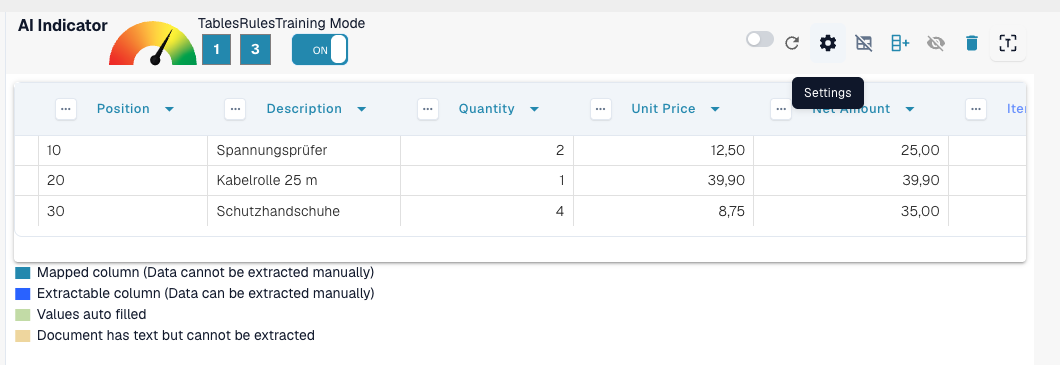
要访问这些设置，请启用**训练模式**，然后点击顶部操作栏中的**设置**齿轮图标：

<figure><img src="https://1870485400-files.gitbook.io/~/files/v0/b/gitbook-x-prod.appspot.com/o/spaces%2FlPczlNw8zzYNLfjfispX%2Fuploads%2Fgit-blob-d40b6e6916dc0a831c4b4cde22b2c81ea5097265%2Fa-training-line-fields-table-training-advanced-settings-gear-en-20261006.png?alt=media" alt="训练模式下的表格提取界面，鼠标悬停在顶部操作栏中的设置齿轮图标上。"><figcaption><p>训练模式操作栏中的设置齿轮图标可打开高级设置。</p></figcaption></figure>

### 表头行数

**使用此设置可定义表格表头包含多少行。**

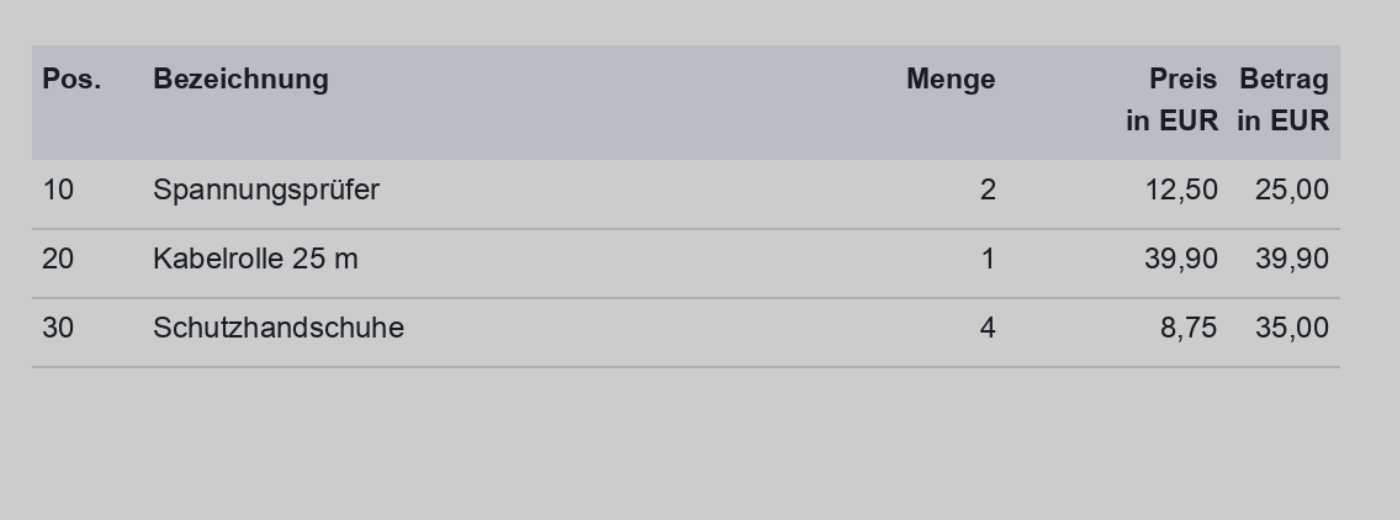
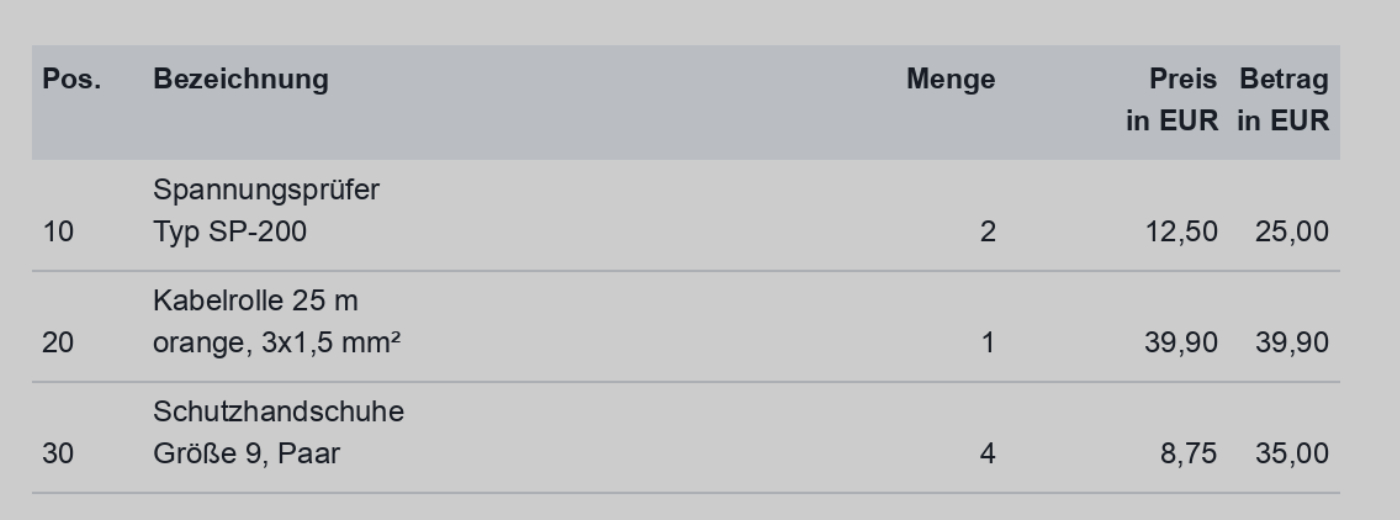
有些表格的表头跨越多行。例如，此表格的表头跨越两行：

<figure><img src="https://1870485400-files.gitbook.io/~/files/v0/b/gitbook-x-prod.appspot.com/o/spaces%2FlPczlNw8zzYNLfjfispX%2Fuploads%2Fgit-blob-3e6ed812b9668ca0ab62fbae53138b1fa2f4ef61%2Fa-training-line-fields-table-training-advanced-settings-header-two-lines-en-20261006.png?alt=media" alt="表头跨越两行的发票表格（Preis / in EUR 和 Betrag / in EUR）。"><figcaption><p>表头跨越两行的表格。</p></figcaption></figure>

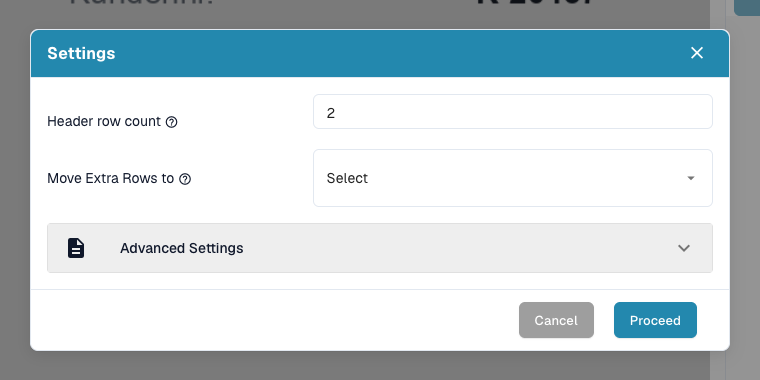
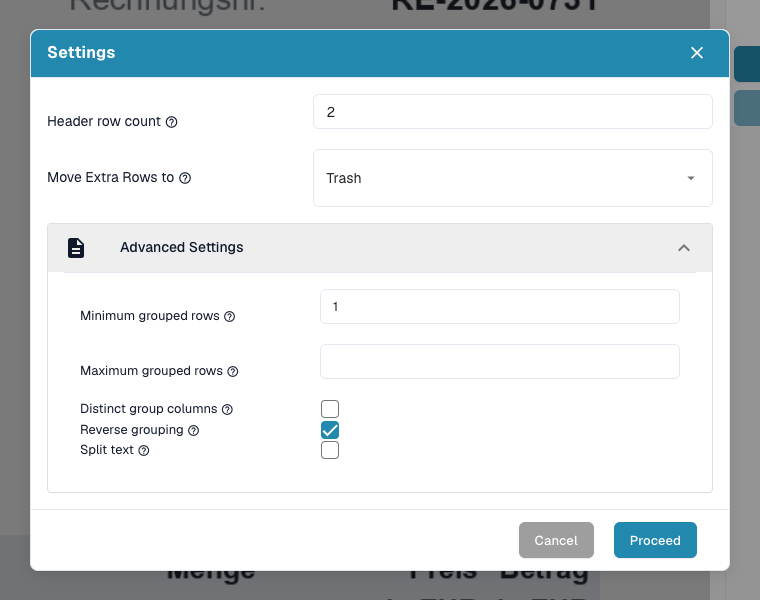
将**表头行数**设置为相应的值：

<figure><img src="https://1870485400-files.gitbook.io/~/files/v0/b/gitbook-x-prod.appspot.com/o/spaces%2FlPczlNw8zzYNLfjfispX%2Fuploads%2Fgit-blob-32187efc0b2e5361cf3c800f63be76af2ac1a1cd%2Fa-training-line-fields-table-training-advanced-settings-header-row-count-en-20261006.png?alt=media" alt="设置对话框中，表头行数设为 2。"><figcaption><p>设置对话框中的表头行数设为 2。</p></figcaption></figure>

#### 为什么这很重要？

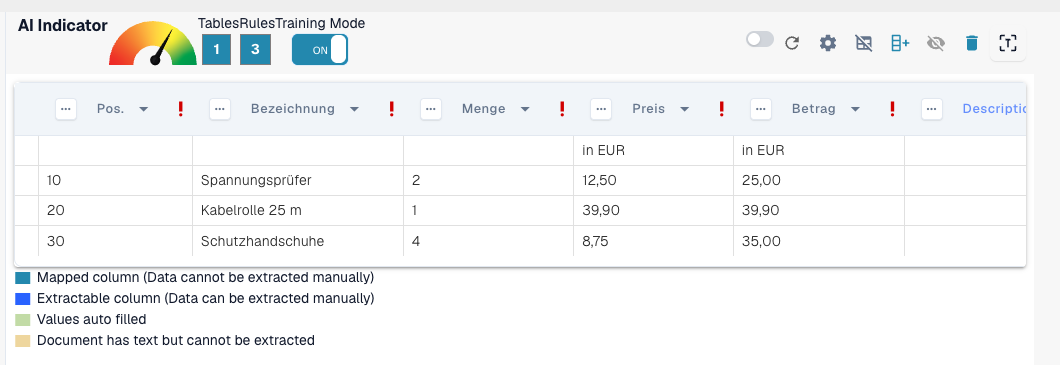
如果不设置此项，DocBits 可能会将第二行识别为数据，而非表头的一部分，从而导致提取错误：

**之前：**

<figure><img src="https://1870485400-files.gitbook.io/~/files/v0/b/gitbook-x-prod.appspot.com/o/spaces%2FlPczlNw8zzYNLfjfispX%2Fuploads%2Fgit-blob-7a225512d76c40b831e8f6568826a2d3c5df8435%2Fa-training-line-fields-table-training-advanced-settings-header-before-en-20261006.png?alt=media" alt="提取的表格中表头行数设置错误：第二行表头被显示为数据行，列标题也未映射。"><figcaption><p>之前：第二行表头被识别为数据。</p></figcaption></figure>

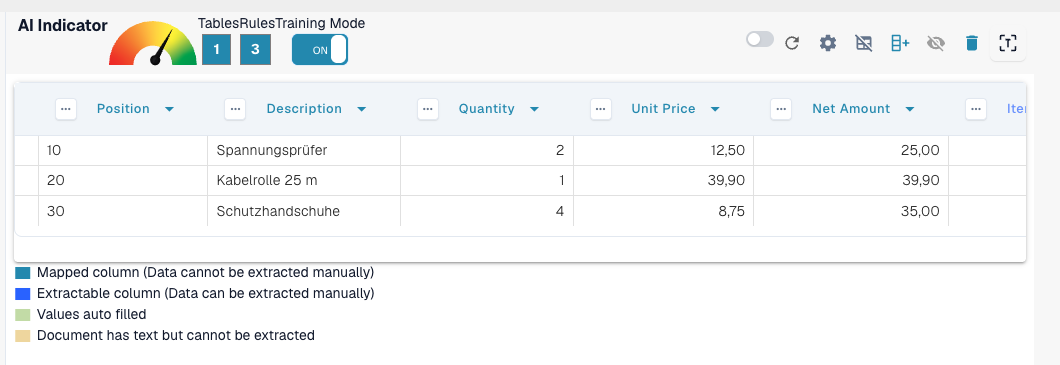
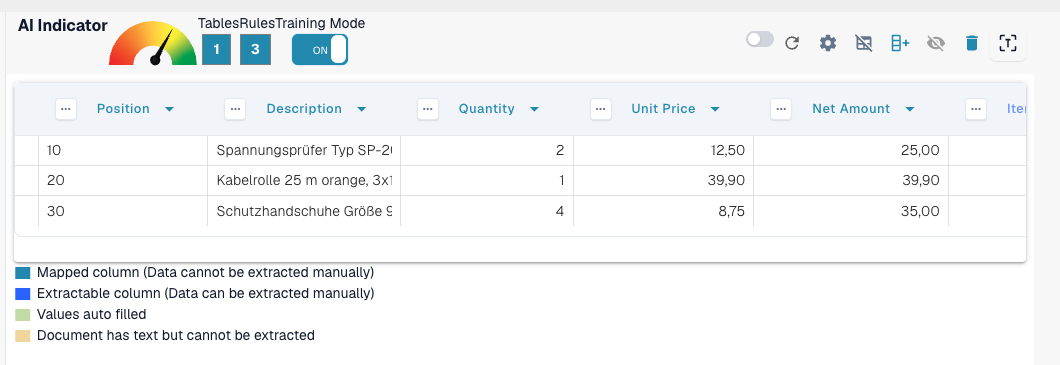
之后：

<figure><img src="https://1870485400-files.gitbook.io/~/files/v0/b/gitbook-x-prod.appspot.com/o/spaces%2FlPczlNw8zzYNLfjfispX%2Fuploads%2Fgit-blob-553f4e55f08395446a00bf8e5c3bfc4c11f0a2c0%2Fa-training-line-fields-table-training-advanced-settings-header-after-en-20261006.png?alt=media" alt="提取的表格中表头行数设为 2：列已映射为 Position、Description、Quantity、Unit Price 和 Net Amount，且行内容正确。"><figcaption><p>之后：表头行和数据行已正确区分。</p></figcaption></figure>

### 将额外行移至回收站

**使用此设置可舍弃不需要的多行条目，例如溢出的描述。**

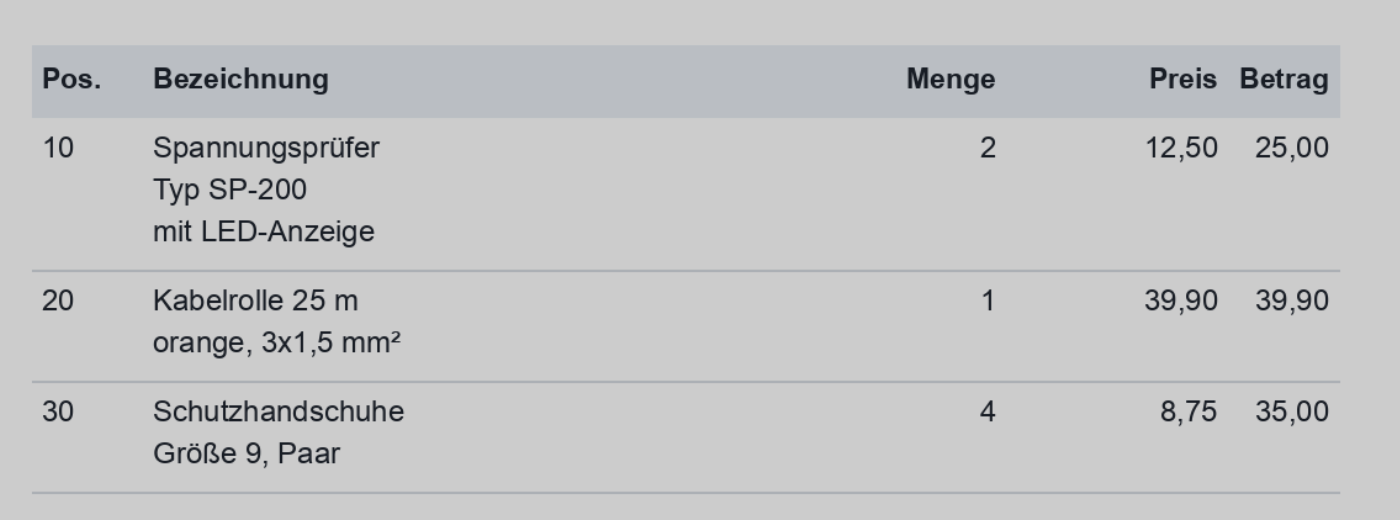
此示例中的描述延伸到了多行，但只有第一行是相关内容：

<figure><img src="https://1870485400-files.gitbook.io/~/files/v0/b/gitbook-x-prod.appspot.com/o/spaces%2FlPczlNw8zzYNLfjfispX%2Fuploads%2Fgit-blob-55e0e078a1b8254cf5a811303f74d46279782c11%2Fa-training-line-fields-table-training-advanced-settings-overflow-doc-en-20261006.png?alt=media" alt="发票表格中，每个行项目的描述都延伸到其下方的额外文本行。"><figcaption><p>描述延伸到了多行，其中只有第一行是相关内容。</p></figcaption></figure>

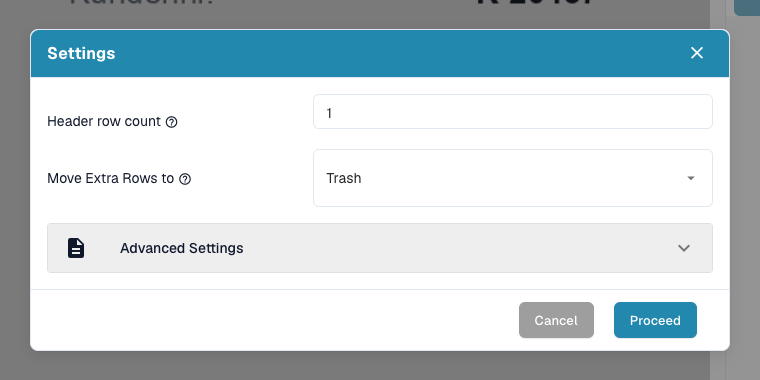
启用**将额外行移至回收站**以移除溢出的内容：

<figure><img src="https://1870485400-files.gitbook.io/~/files/v0/b/gitbook-x-prod.appspot.com/o/spaces%2FlPczlNw8zzYNLfjfispX%2Fuploads%2Fgit-blob-d65b0e746e4ecd3df53dc0753f7520a3a2d14fe1%2Fa-training-line-fields-table-training-advanced-settings-move-extra-rows-en-20261006.png?alt=media" alt="设置对话框中，将额外行设置为移至回收站。"><figcaption><p>已启用将额外行移至回收站。</p></figcaption></figure>

**映射后的结果：**

<figure><img src="https://1870485400-files.gitbook.io/~/files/v0/b/gitbook-x-prod.appspot.com/o/spaces%2FlPczlNw8zzYNLfjfispX%2Fuploads%2Fgit-blob-553f4e55f08395446a00bf8e5c3bfc4c11f0a2c0%2Fa-training-line-fields-table-training-advanced-settings-header-after-en-20261006.png?alt=media" alt="提取后的表格包含三行整洁的数据，额外的描述行已移至回收站，列也已映射。"><figcaption><p>映射后的结果：仅保留相关行。</p></figcaption></figure>

### 最小分组行数

**当需要将多行归到一个主行下时使用此设置（例如，包含多个子行的行项目）。**

在此示例中，六行中只有三行是相关内容。两个关键列已映射（例如 Position、Description），其他列则作为自定义字段处理。

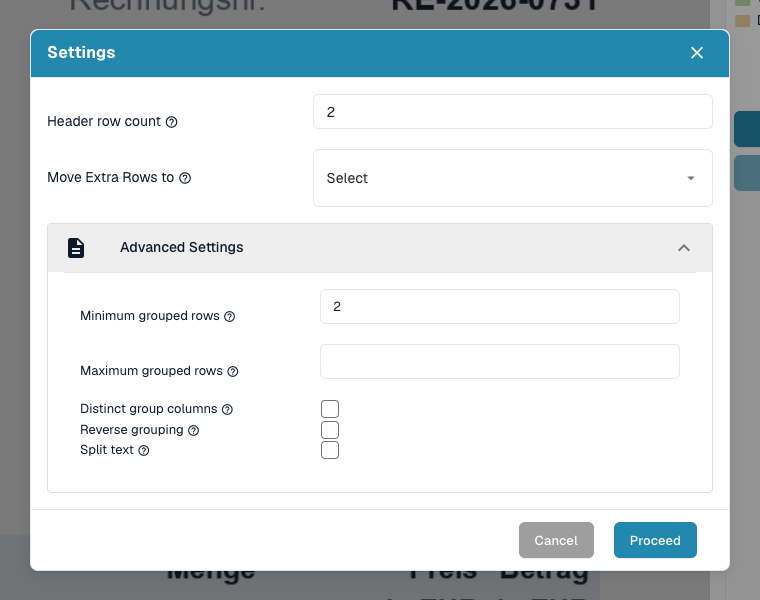
首先，设置**表头行数**和**最小分组行数**：

<figure><img src="https://1870485400-files.gitbook.io/~/files/v0/b/gitbook-x-prod.appspot.com/o/spaces%2FlPczlNw8zzYNLfjfispX%2Fuploads%2Fgit-blob-cab5d6e44f40755279fba049e20d88bbd620a87f%2Fa-training-line-fields-table-training-advanced-settings-min-grouped-en-20261006.png?alt=media" alt="设置对话框中，表头行数设为 2，并展开高级设置部分，其中最小分组行数设为 2。"><figcaption><p>在设置对话框中设置表头行数和最小分组行数。</p></figcaption></figure>

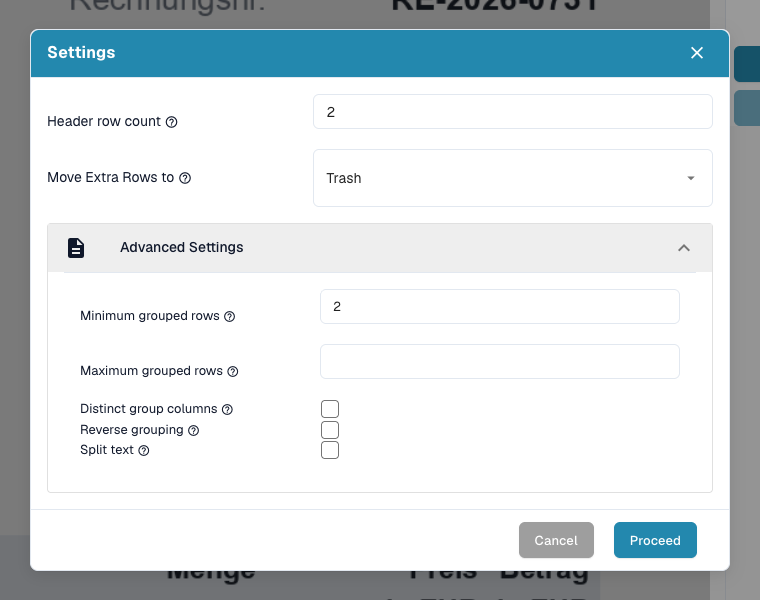
同时启用**将额外行移至回收站**，以清理不相关的数据：

<figure><img src="https://1870485400-files.gitbook.io/~/files/v0/b/gitbook-x-prod.appspot.com/o/spaces%2FlPczlNw8zzYNLfjfispX%2Fuploads%2Fgit-blob-119301fbf9d12b2493b8a0fb70f8c7e3da4ba523%2Fa-training-line-fields-table-training-advanced-settings-min-grouped-trash-en-20261006.png?alt=media" alt="设置对话框中，表头行数设为 2，已启用将额外行移至回收站，最小分组行数设为 2。"><figcaption><p>此外还启用了将额外行移至回收站。</p></figcaption></figure>

然后定义分组键列，例如\_Position\_：

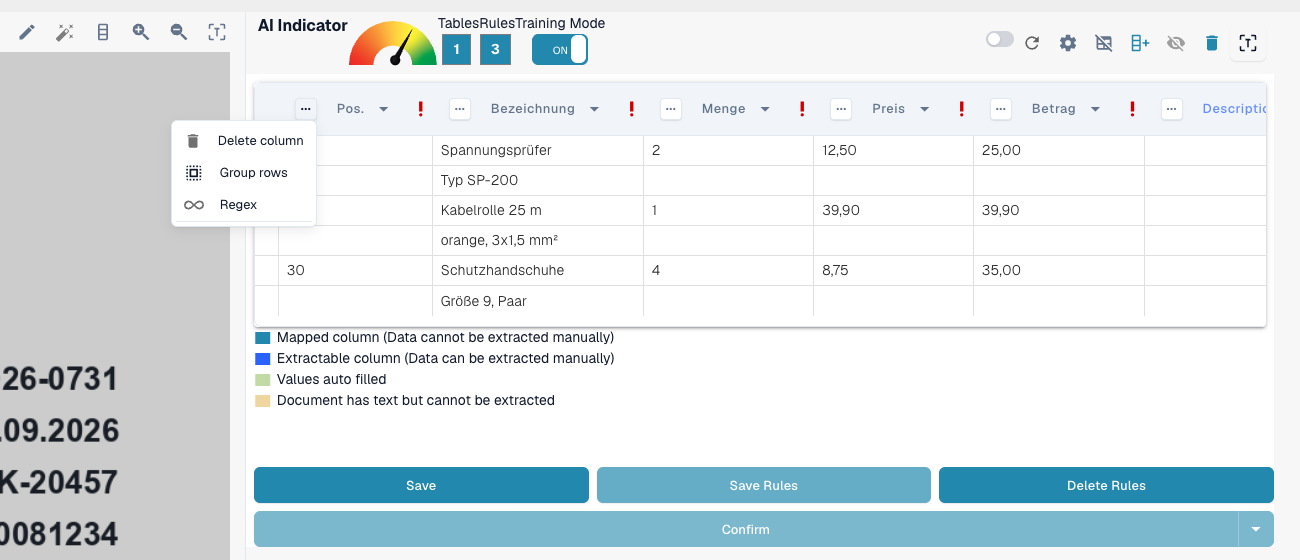
<figure><img src="https://1870485400-files.gitbook.io/~/files/v0/b/gitbook-x-prod.appspot.com/o/spaces%2FlPczlNw8zzYNLfjfispX%2Fuploads%2Fgit-blob-52aa8b4dffb2bcf959a486856676d9b273dd981f%2Fa-training-line-fields-table-training-advanced-settings-group-key-en-20261006.png?alt=media" alt="提取的表格中打开了 Position 列的列菜单，其中显示 Delete column、Group rows 和 Regex。"><figcaption><p>在分组键列（Position）的列菜单中选择 Group rows。</p></figcaption></figure>

**结果：**

<figure><img src="https://1870485400-files.gitbook.io/~/files/v0/b/gitbook-x-prod.appspot.com/o/spaces%2FlPczlNw8zzYNLfjfispX%2Fuploads%2Fgit-blob-553f4e55f08395446a00bf8e5c3bfc4c11f0a2c0%2Fa-training-line-fields-table-training-advanced-settings-header-after-en-20261006.png?alt=media" alt="提取后的表格包含三行分组数据，已按 Position 分组，并将额外行移至回收站。"><figcaption><p>结果：六个实际行被分组成三个行项目。</p></figcaption></figure>

### 反向分组

**当分组行出现在应被其分组的行&#x20;*****之后*****&#x20;时使用此设置。**

如果应与其他数据分组的行出现在分组键\_上方\_，请启用此选项：

<figure><img src="https://1870485400-files.gitbook.io/~/files/v0/b/gitbook-x-prod.appspot.com/o/spaces%2FlPczlNw8zzYNLfjfispX%2Fuploads%2Fgit-blob-2611e3e8729ab2d1999e81adcb63055317279bc3%2Fa-training-line-fields-table-training-advanced-settings-reverse-doc-en-20261006.png?alt=media" alt="发票表格中，描述行位于包含位置、数量和金额的行上方。"><figcaption><p>分组行出现在应被其分组的行之后。</p></figcaption></figure>

启用**反向分组**，按主列（例如 Net amount）分组，并根据需要使用**将额外行移至回收站**：

<figure><img src="https://1870485400-files.gitbook.io/~/files/v0/b/gitbook-x-prod.appspot.com/o/spaces%2FlPczlNw8zzYNLfjfispX%2Fuploads%2Fgit-blob-1d567ac2be13a132fc2b0368890564d73426219d%2Fa-training-line-fields-table-training-advanced-settings-reverse-dialog-en-20261006.png?alt=media" alt="设置对话框中已勾选反向分组，已启用将额外行移至回收站，表头行数设为 2。"><figcaption><p>已启用反向分组，同时启用了将额外行移至回收站。</p></figcaption></figure>

**最终结果：**\\

<figure><img src="https://1870485400-files.gitbook.io/~/files/v0/b/gitbook-x-prod.appspot.com/o/spaces%2FlPczlNw8zzYNLfjfispX%2Fuploads%2Fgit-blob-95e6018c656582358ba1ea05e230c97ace018a95%2Fa-training-line-fields-table-training-advanced-settings-reverse-result-en-20261006.png?alt=media" alt="提取后的表格包含三行，已按金额列进行反向分组。"><figcaption><p>启用反向分组后的最终结果。</p></figcaption></figure>

### 总结

使用\_高级设置\_可教会 DocBits 如何准确处理更复杂或不一致的表格结构。这些设置通过处理以下情况来提高提取精度：

* 多行表头
* 多行描述
* 分组行项目
* 分组数据顺序相反

在训练期间启用这些选项，可确保 DocBits 记住正确的布局，以用于同一供应商的后续文档。


---

# Agent Instructions
This documentation is published with GitBook. GitBook is the documentation platform designed so that both humans and AI agents can read, navigate, and reason over technical content effectively. Learn more at gitbook.com.

## Querying This Documentation
If you need additional information that is not directly available in this page, you can query the documentation by asking a question.

Perform an HTTP GET request on the following URL with the `ask` and `goal` query parameters:

```
GET https://docs.docbits.com/chinese/guan-li-yu-she-zhi/setup/document-training/training-line-fields-table-training/advanced-settings.md?ask=<question>&goal=<user_goal>
```

`ask` is the immediate question: it should be specific, self-contained, and written in natural language.
`goal` is what the user is ultimately trying to achieve, the reason they need the answer. Sharing it helps GitBook give you a better, more relevant answer. A goal is most helpful when it describes the outcome the user wants rather than restating the question. For example, with `ask=how do I create an API token`, a goal like `automate deployments from our CI pipeline` lets GitBook tailor the answer to that use case.

The response will contain a direct answer to the question and relevant excerpts and sources from the documentation.

Use this mechanism when the answer is not explicitly present in the current page, you need clarification or additional context, or you want to retrieve related documentation sections.