> For the complete documentation index, see [llms.txt](https://docs.docbits.com/llms.txt). Markdown versions of documentation pages are available by appending `.md` to page URLs; this page is available as [Markdown](https://docs.docbits.com/chinese/guan-li-yu-she-zhi/settings/ui-redesign-guide.md).
# 熟悉新版布局
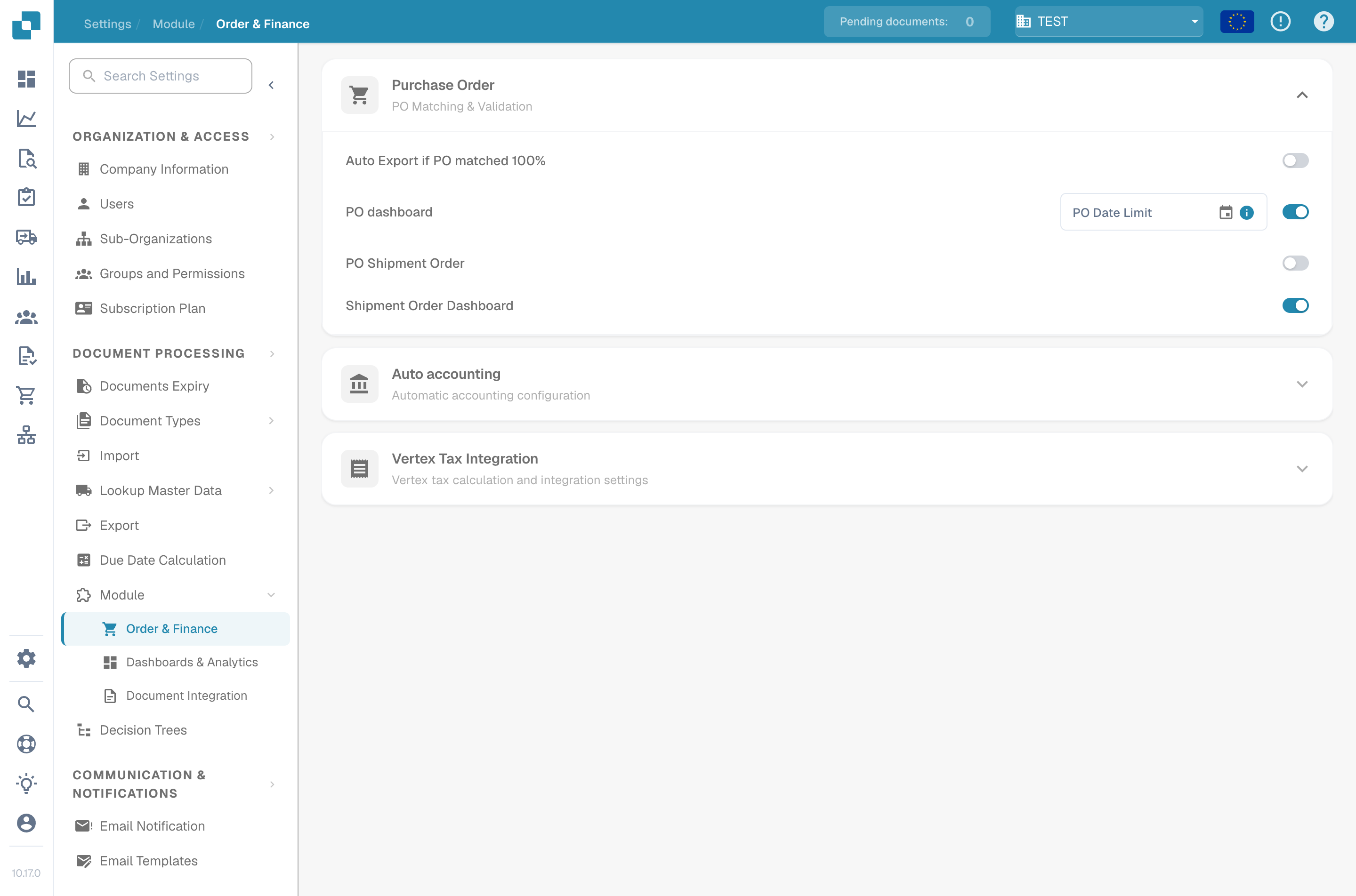
本页可帮助你快速了解当前的 DocBits 布局——在哪里查找内容、导航如何运作,以及如何使用新的帮助功能。如果某个屏幕看起来和你记忆中的不同,或者你一时找不到某项设置,可以参考本页。
## 侧边栏
主侧边栏会列出你有权限使用的所有 DocBits 区域。你可以通过以下两种方式控制侧边栏:
* **迷你模式** — 点击侧边栏顶部的切换按钮,将其折叠为仅显示图标。将鼠标悬停在任意图标上即可查看标签。侧边栏会记住你上次选择的展开或折叠状态。
* **自定义** — 展开的侧边栏底部有一个 **Customize** 入口。你可以用它调整菜单顺序、隐藏不常用的入口,或固定最常打开的入口。
有关调整顺序、隐藏和固定入口的完整说明,请参阅[可自定义侧边栏](/chinese/zui-zhong-yong-hu-yu-he-zuo-huo-ban/end-user-section/customizable-sidebar.md)。
## 设置现在位于何处
“设置”菜单按用途分组,而不是按数据模型分组。如果你记得某项设置但找不到,可以尝试查看以下对应分组:
| 要查找的内容… | 打开“设置”→ |
| -------------------- | --------------- |
| 公司名称、徽标、时区、应用颜色 | 公司与用户 → 公司信息 |
| 用户、组、权限 | 公司与用户 → 组、用户和权限 |
| API 密钥、ERP 连接、导出配置 | 集成 |
| 文档类型、字段、脚本、EDI、模型训练 | 文档类型 |
| OCR 设置、决策树、值列表、规则管理器 | 文档处理 |
| 访问审计、分析、全文索引、事件日志 | 日志与搜索 |
| 供应商门户、Watchdog | 设置 |
每个分组内的页面按使用频率排列,最常用的页面位于顶部附近。
## 较长的设置页面 — 锚点导航
包含多个区块的设置页面(例如“全局设置”或“文档类型”配置)会在页面标题区域显示锚点链接列表。点击锚点即可跳转到对应区块。滚动时,URL 会随之更新,因此可以复制或收藏指向特定区块的链接。
## 工作时查找文档 — 帮助图标
现在,大多数设置页面、对话框和工具界面的标题区域都会显示一个小小的 **?** 图标。
帮助图标会在新标签页中打开对应的文档页面。
点击该图标会在新标签页中打开 `docs.docbits.com` 上对应的页面,无需在文档中搜索合适的页面。该图标会根据你选择的界面语言打开相应的本地化文档;如果尚未发布该语言的文档,则会回退到英文版。
## 登录
登录屏幕、密码重置和 SSO 入口(Microsoft 365、Google、Infor OS)与 DocBits 的其他页面采用相同的布局。错误会直接显示在触发错误的字段下方;密码重置和帮助链接位于表单底部。操作流程与之前相同,只有布局发生了变化。
## 如果发现内容似乎缺失
如果某个页面或设置似乎已移动,而你找不到它:
1. 使用 Cmd/Ctrl+K 打开[全局快速搜索](/chinese/zui-zhong-yong-hu-yu-he-zuo-huo-ban/end-user-section/global-quick-search.md),然后输入功能名称——快速搜索会索引应用中的所有页面。
2. 打开 `/sitemap` 上的[站点地图](/chinese/zui-zhong-yong-hu-yu-he-zuo-huo-ban/end-user-section/sitemap.md),查看完整且可筛选的目录。
3. 使用最接近的屏幕上的帮助图标,跳转到相关文档。
---
# Agent Instructions
This documentation is published with GitBook. GitBook is the documentation platform designed so that both humans and AI agents can read, navigate, and reason over technical content effectively. Learn more at gitbook.com.
## Querying This Documentation
If you need additional information that is not directly available in this page, you can query the documentation by asking a question.
Perform an HTTP GET request on the following URL with the `ask` and `goal` query parameters:
```
GET https://docs.docbits.com/chinese/guan-li-yu-she-zhi/settings/ui-redesign-guide.md?ask=&goal=
```
`ask` is the immediate question: it should be specific, self-contained, and written in natural language.
`goal` is what the user is ultimately trying to achieve, the reason they need the answer. Sharing it helps GitBook give you a better, more relevant answer. A goal is most helpful when it describes the outcome the user wants rather than restating the question. For example, with `ask=how do I create an API token`, a goal like `automate deployments from our CI pipeline` lets GitBook tailor the answer to that use case.
The response will contain a direct answer to the question and relevant excerpts and sources from the documentation.
Use this mechanism when the answer is not explicitly present in the current page, you need clarification or additional context, or you want to retrieve related documentation sections.