> For the complete documentation index, see [llms.txt](https://docs.docbits.com/llms.txt). Markdown versions of documentation pages are available by appending `.md` to page URLs; this page is available as [Markdown](https://docs.docbits.com/chinese/guan-li-yu-she-zhi/settings/supplier-setting/editing-email-templates.md).
# 编辑电子邮件模板
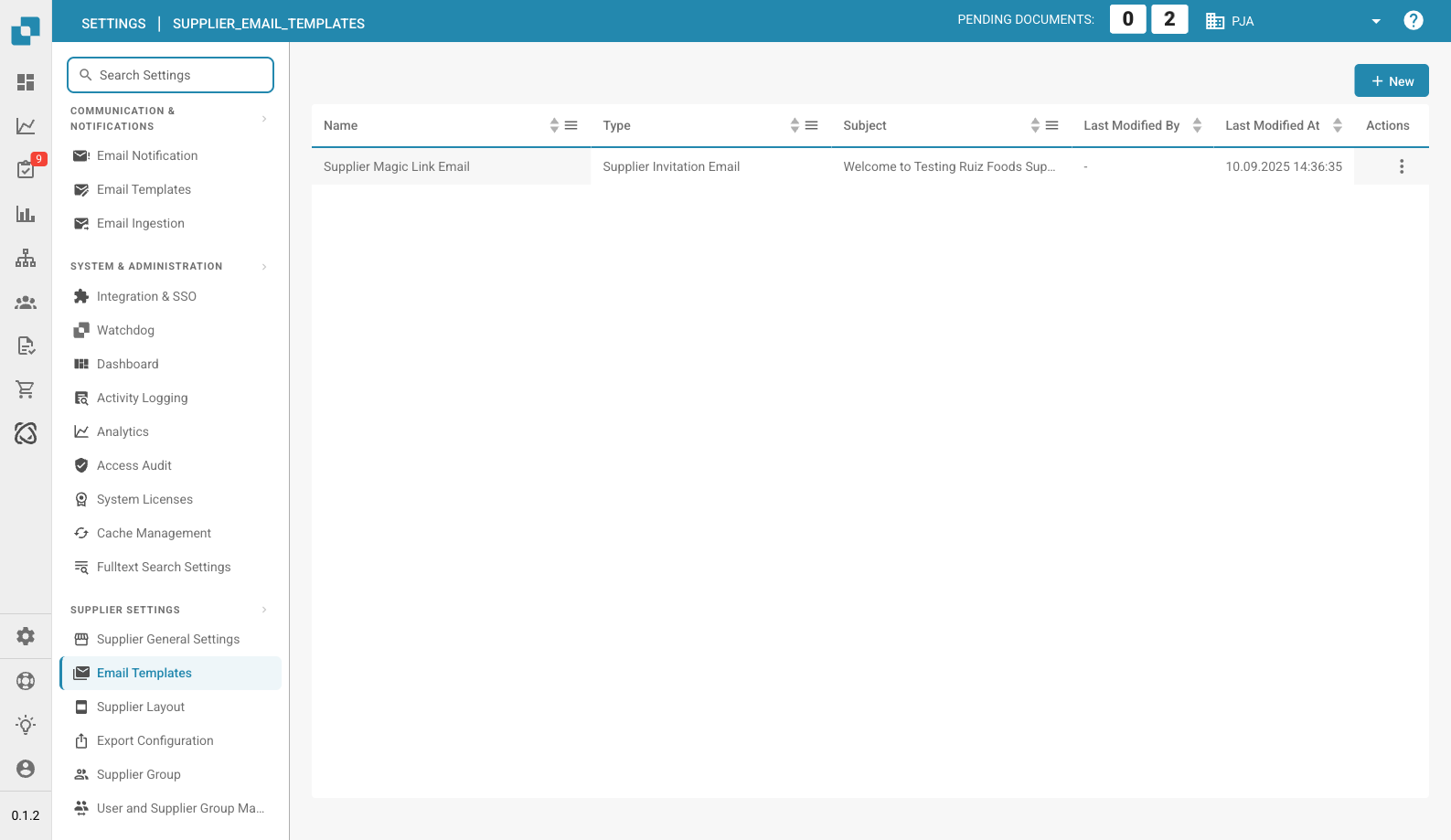
供应商电子邮件模板页面
### 概述
“电子邮件模板”功能允许管理员创建和自定义自动发送给供应商的电子邮件。其中一个关键元素是 `{{magic_link}}`,它会为每位收件人提供专属的动态链接。
#### 什么是 `{{magic_link}}`?
`{{magic_link}}` 是一个占位符,发送电子邮件时会动态替换为唯一 URL。该 URL 通常会引导收件人完成某项操作,例如注册、审批,或访问供应商门户中的特定部分。
### 编辑电子邮件模板
#### 访问电子邮件模板编辑器
1. **导航至电子邮件模板**:
* 从主菜单进入 **Email Templates**(电子邮件模板)部分。
2. **选择要编辑的模板**:
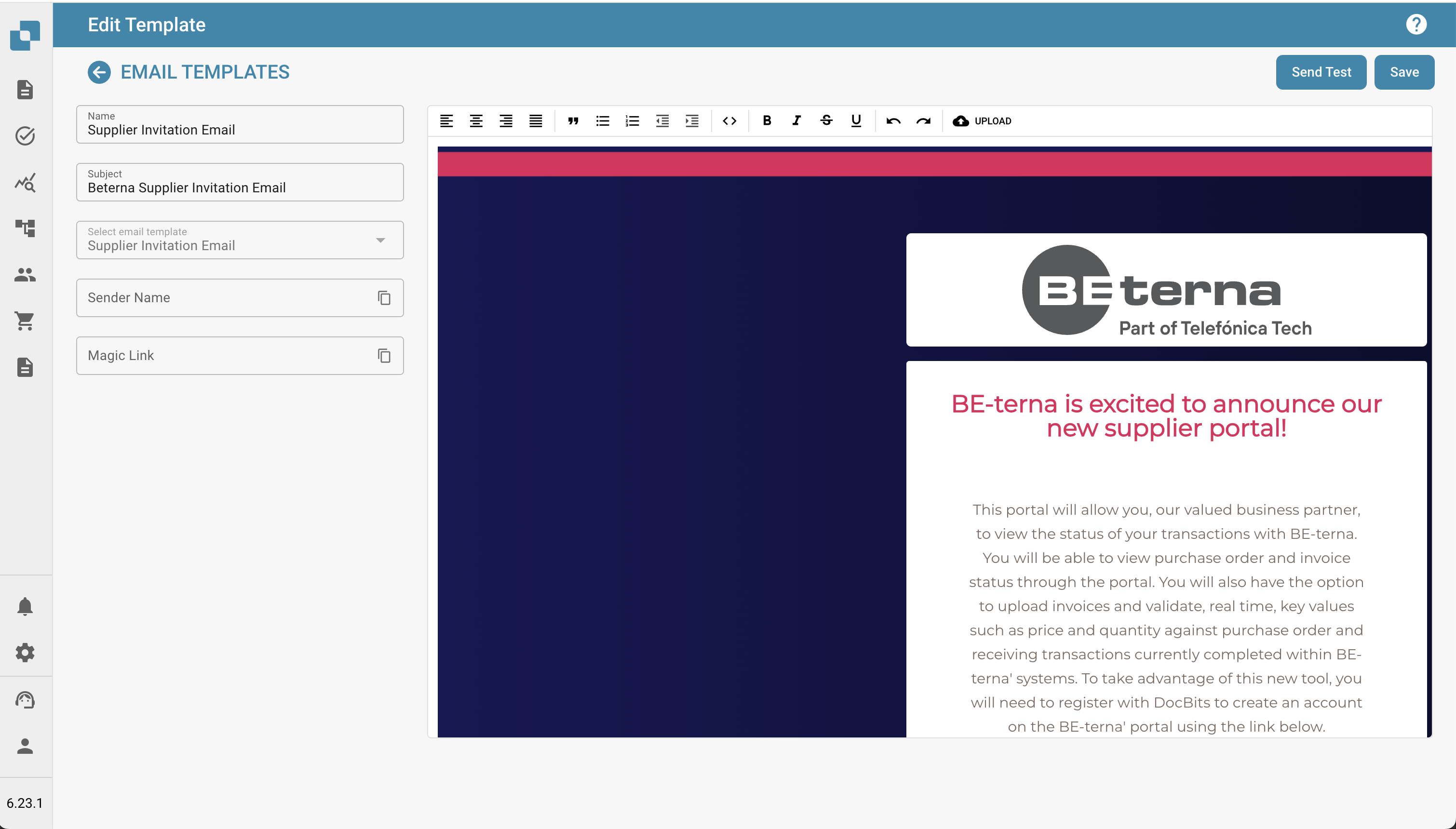
* 点击模板名称,选择要编辑的电子邮件模板(例如,“Supplier Invitation Email”(供应商邀请电子邮件))。
3. **编辑模板**:
* 编辑器允许您修改电子邮件的 HTML 代码和视觉设计。
* 您可以使用提供的选项卡,在可视化编辑和代码编辑之间切换。
#### 将 `{{magic_link}}` 设置为链接
要将 `{{magic_link}}` 设置为电子邮件中的可点击链接,请确保在模板的 HTML 代码中正确设置其格式。请按以下步骤操作:
1. **在 HTML 代码中找到链接部分**:
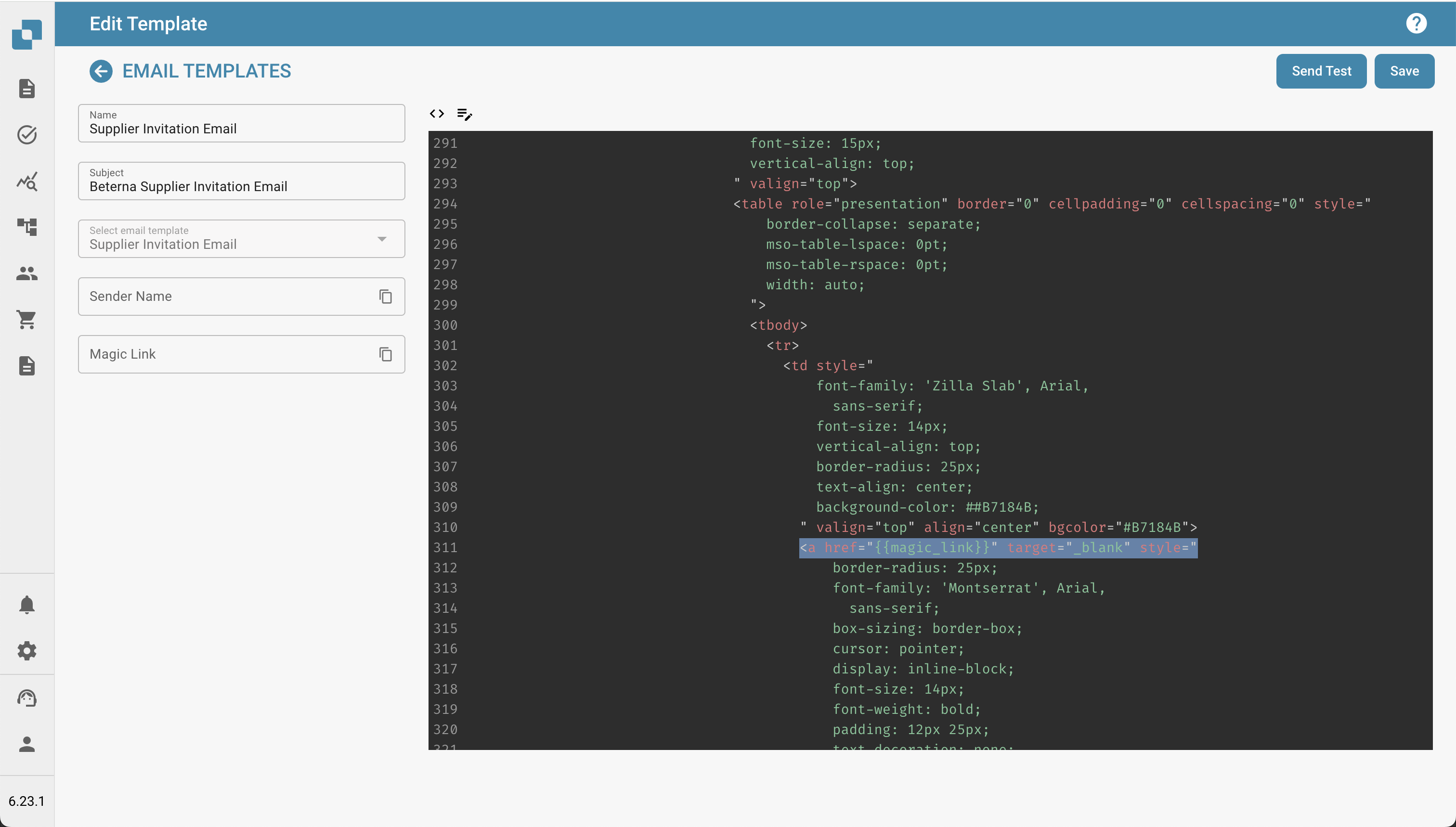
* 在代码编辑器中,找到要放置 magic link 的部分。通常它位于 ``(锚点)标签内。
2. **插入 `{{magic_link}}` 占位符**:
* 将锚点标签的 `href` 属性替换为 `{{magic_link}}`。
* 确保链接样式与电子邮件模板相符。示例如下:
```html
Complete Registration
```
### 3. 自定义链接文本:
• 修改开始 \ 标签与结束 \ 标签之间的文本,以说明您希望用户执行的操作。例如,“Complete Registration”(完成注册)或“Access Your Account”(访问您的账户)。
4\. 保存并测试模板:
• 完成修改后,点击 Save(保存)按钮。
• 您可以使用 Send Test(发送测试)按钮发送测试电子邮件,以确认链接能否正常使用。
## 使用 {{magic\_link}} 的最佳实践
• 链接位置:将 {{magic\_link}} 放在电子邮件中醒目的位置,确保收件人能够轻松找到。
• 明确的行动号召:链接文本应清楚地说明要执行的操作,例如“Complete Registration”(完成注册)或“Confirm Your Email”(确认电子邮件地址)。
• 样式:确保链接的样式与电子邮件模板的其余部分保持一致,同时在视觉上足够醒目。
• 测试:编辑模板后,务必发送测试电子邮件,验证 {{magic\_link}} 能否正确解析,以及样式是否合适。
## 总结
在电子邮件模板中正确设置 {{magic\_link}},可确保收件人收到个性化且便于操作的电子邮件,引导他们在供应商门户中完成相应任务。这有助于提升用户体验,并确保顺利完成入驻和沟通流程。
\\
本文档为管理员提供了逐步说明,介绍如何在电子邮件模板中设置和使用 {{magic\_link}},确保电子邮件功能正常且外观清晰。
---
# Agent Instructions
This documentation is published with GitBook. GitBook is the documentation platform designed so that both humans and AI agents can read, navigate, and reason over technical content effectively. Learn more at gitbook.com.
## Querying This Documentation
If you need additional information that is not directly available in this page, you can query the documentation by asking a question.
Perform an HTTP GET request on the following URL with the `ask` and `goal` query parameters:
```
GET https://docs.docbits.com/chinese/guan-li-yu-she-zhi/settings/supplier-setting/editing-email-templates.md?ask=&goal=
```
`ask` is the immediate question: it should be specific, self-contained, and written in natural language.
`goal` is what the user is ultimately trying to achieve, the reason they need the answer. Sharing it helps GitBook give you a better, more relevant answer. A goal is most helpful when it describes the outcome the user wants rather than restating the question. For example, with `ask=how do I create an API token`, a goal like `automate deployments from our CI pipeline` lets GitBook tailor the answer to that use case.
The response will contain a direct answer to the question and relevant excerpts and sources from the documentation.
Use this mechanism when the answer is not explicitly present in the current page, you need clarification or additional context, or you want to retrieve related documentation sections.