> For the complete documentation index, see [llms.txt](https://docs.docbits.com/llms.txt). Markdown versions of documentation pages are available by appending `.md` to page URLs; this page is available as [Markdown](https://docs.docbits.com/chinese/guan-li-yu-she-zhi/settings/global-settings/document-types/more-settings/vertex-tax-verification.md).

# Vertex 税务验证

Vertex 税务验证会将供应商在发票上收取的税额与 Vertex 对相同行项目计算出的税额进行比较。DocBits 会向 Vertex 请求计算结果，并向用户显示这两个金额；如果供应商税额过高，则会停止处理文档。

## 工作原理

1. 文档到达触发点。你可以在模块设置中选择触发点：**导出前**（默认）或**审批前**。
2. DocBits 将发票行项目发送给 Vertex，并接收计算出的税额。
3. DocBits 将结果写回文档：每个行项目的 **Vertex 税额**和 **Vertex 税率**，以及页眉汇总金额：**供应商税额**（发票上收取的税额）、**Vertex 税额**、小计和**差额**。
4. DocBits 将供应商税额与 Vertex 税额进行比较：

| 情况                              | 结果                           |
| ------------------------------- | ---------------------------- |
| 供应商税额高于 Vertex 税额，且差额**超过差额阈值** | 文档被拒绝。其状态变为**Vertex 税务已拒绝**。 |
| 供应商税额较高，但差额**在阈值范围内**           | 文档被接受。                       |
| 供应商税额等于 Vertex 税额               | 文档被接受。                       |
| 供应商税额**较低**于 Vertex 税额          | 文档被接受，并计提差额。                 |

结果消息会列出相关金额，例如：*已拒绝：供应商税额 $380.00 高于 Vertex 计算的税额 $140.00，差额为 $240.00（171.4%），超过已配置的 $25.00 阈值。*

用户可以在文档仪表板行中的 Vertex 图标处打开结果。**Vertex 税务验证**屏幕会显示横幅（包含消息的**验证失败**，或**验证成功**）、你设计的布局字段，以及按行显示税额的 Vertex 表格。

{% hint style="info" %}
此验证仅针对导出配置类型为 **Vertex** 的文档类型运行。如果没有此类配置，文档将继续处理，不进行验证。
{% endhint %}

## 设置集成

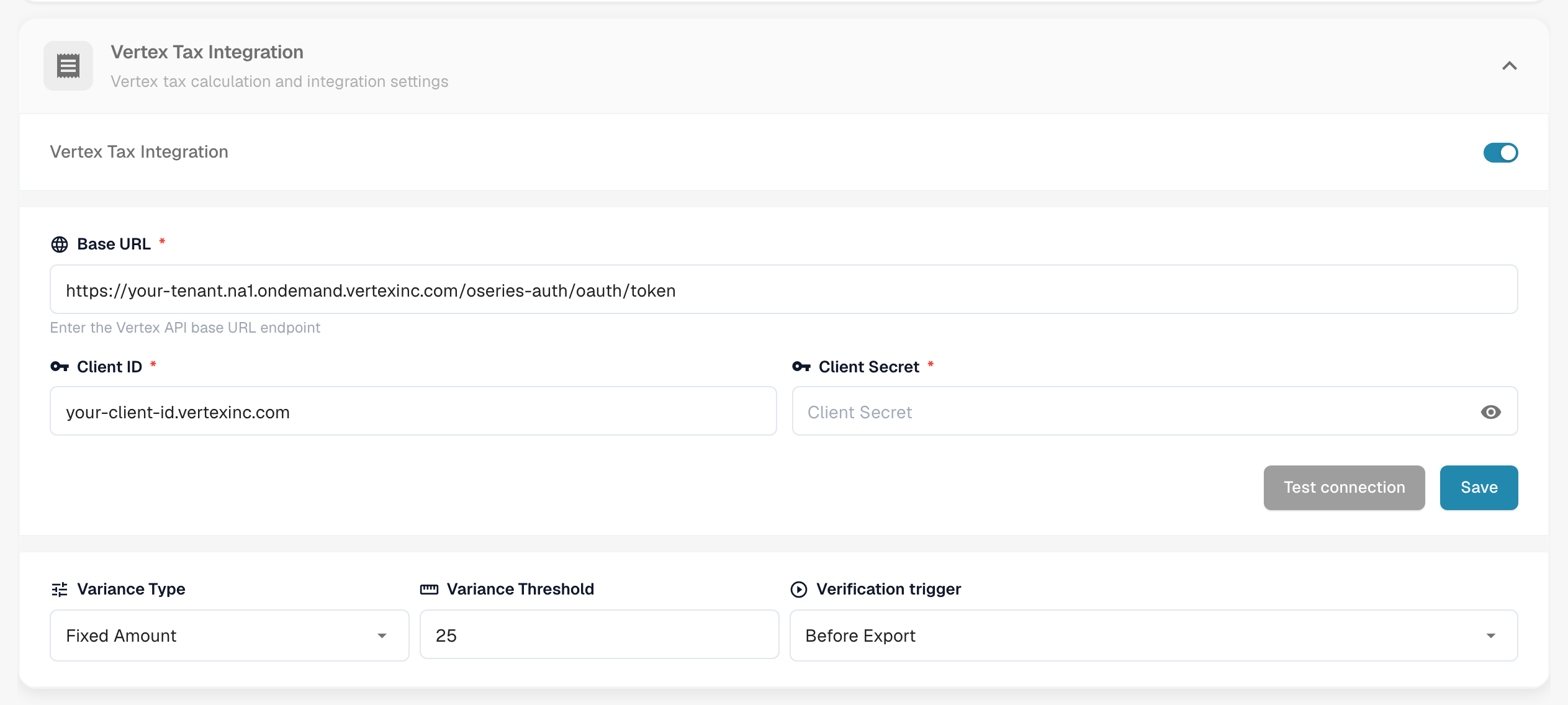
打开**设置** → **模块** → **订单与财务**，然后转到 **Vertex 税务集成**卡片。此页面还包含采购订单匹配和自动会计设置。

<figure><img src="https://1870485400-files.gitbook.io/~/files/v0/b/gitbook-x-prod.appspot.com/o/spaces%2FlPczlNw8zzYNLfjfispX%2Fuploads%2Fgit-blob-63b78a8bd2d65af2420e52e655357b4e838260f8%2Fvertex-module-settings.png?alt=media" alt="包含连接设置和容差设置的 Vertex 税务集成卡片"><figcaption><p>Vertex 税务集成卡片。在此截图中，租户和客户端值已替换为占位符。</p></figcaption></figure>

1. 打开 **Vertex 税务集成**开关。此功能需要 Vertex 税务订阅。
2. 输入 Vertex 令牌端点的**基础 URL**、**客户端 ID**和**客户端密钥**。
3. 点击**测试连接**，然后点击**保存**。
4. 设置容差和触发点：
   * **差额类型：\*\*\*\*固定金额**或**百分比**。
   * \*\*差额阈值：\*\*仍可接受的偏差。默认值为固定金额 25。使用百分比模式时，请输入小数值，例如 0.05 表示 5 %。
   * **验证触发点：\*\*\*\*导出前**或**审批前**。选择**审批前**时，系统会在文档处理期间、进入审批流程前运行检查。如果检查本身失败，文档状态将变为**导出错误**。

然后，为该文档类型添加类型为 **Vertex** 的导出配置（**设置** → **导出**）。该配置使用 TOML 映射文件。

## 设计验证表单

验证屏幕上向用户显示的字段是按文档类型设计的。

1. 打开**设置** → **全局设置** → **文档类型**，选择文档类型，然后点击**更多设置**。
2. 打开 **Vertex 税务验证**卡片，然后点击**设计 Vertex 税务验证**。

<figure><img src="https://1870485400-files.gitbook.io/~/files/v0/b/gitbook-x-prod.appspot.com/o/spaces%2FlPczlNw8zzYNLfjfispX%2Fuploads%2Fgit-blob-87e8a5acb06c3e3b8538b1d38cc3772278220ed0%2Fdoc-type-settings-vertex-tax-verification.png?alt=media" alt="文档类型设置中的 Vertex 税务验证卡片"><figcaption><p>Vertex 税务验证卡片。</p></figcaption></figure>

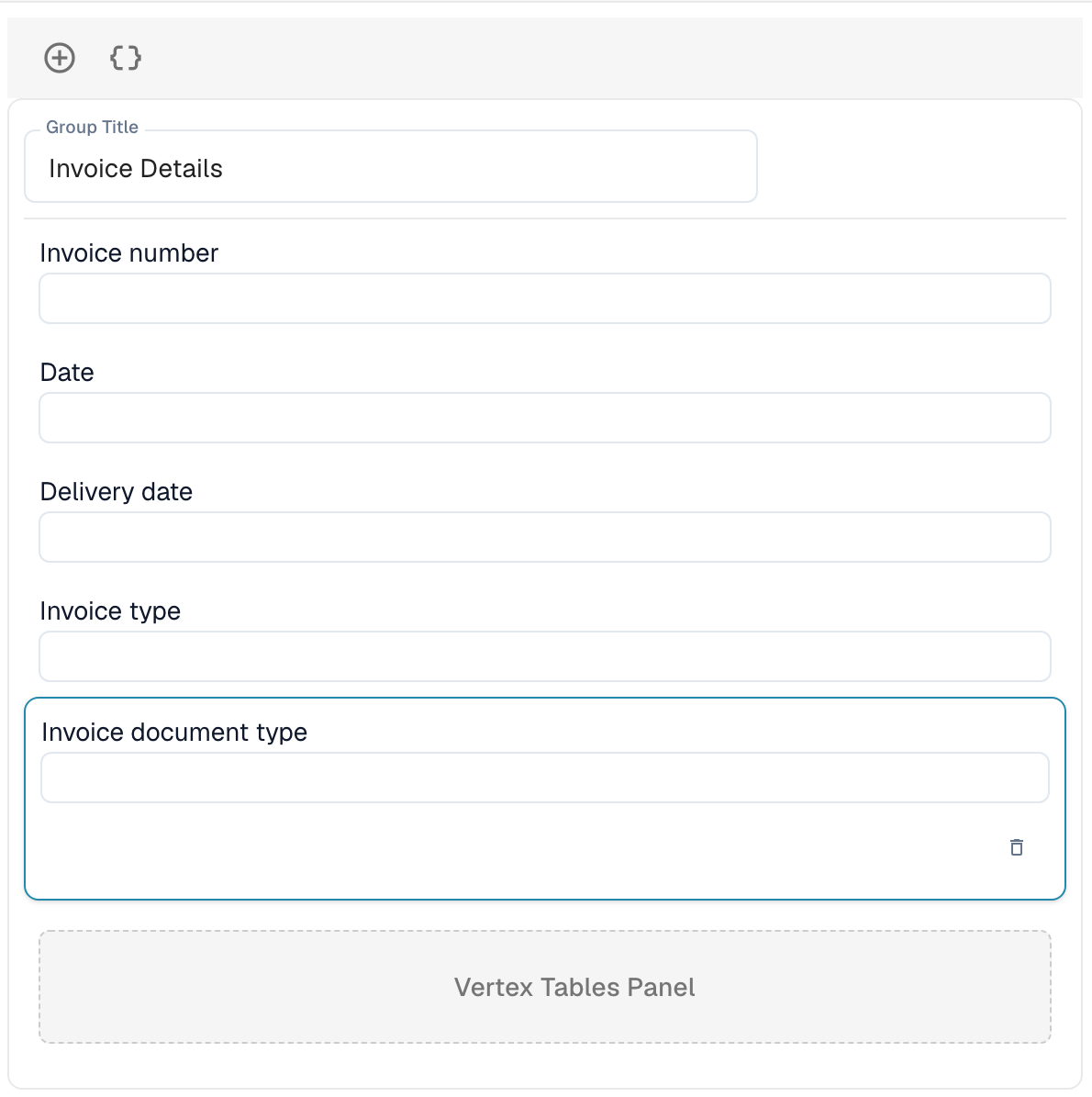
布局构建器会打开，布局类型为 **Vertex 税务验证**。将分组和字段拖入表单，例如包含发票号码、日期和交货日期的**发票详情**。**Vertex 表格面板**会显示税额比较结果，以及逐行显示 Vertex 税额的行项目。该面板是布局的一部分。

<figure><img src="https://1870485400-files.gitbook.io/~/files/v0/b/gitbook-x-prod.appspot.com/o/spaces%2FlPczlNw8zzYNLfjfispX%2Fuploads%2Fgit-blob-08b8e0b8b31b21b4776fbeff25800a688ae926fa%2Fvertex-layout-builder.png?alt=media" alt="Vertex 税务验证布局的布局构建器，包含一个分组和 Vertex 表格面板"><figcaption><p>一个 Vertex 税务验证布局，包含“发票详情”分组和 Vertex 表格面板。</p></figcaption></figure>

有关布局构建器的工作方式，请参阅[布局管理器](/chinese/guan-li-yu-she-zhi/settings/global-settings/document-types/layout-manager.md)。


---

# Agent Instructions
This documentation is published with GitBook. GitBook is the documentation platform designed so that both humans and AI agents can read, navigate, and reason over technical content effectively. Learn more at gitbook.com.

## Querying This Documentation
If you need additional information that is not directly available in this page, you can query the documentation by asking a question.

Perform an HTTP GET request on the following URL with the `ask` and `goal` query parameters:

```
GET https://docs.docbits.com/chinese/guan-li-yu-she-zhi/settings/global-settings/document-types/more-settings/vertex-tax-verification.md?ask=<question>&goal=<user_goal>
```

`ask` is the immediate question: it should be specific, self-contained, and written in natural language.
`goal` is what the user is ultimately trying to achieve, the reason they need the answer. Sharing it helps GitBook give you a better, more relevant answer. A goal is most helpful when it describes the outcome the user wants rather than restating the question. For example, with `ask=how do I create an API token`, a goal like `automate deployments from our CI pipeline` lets GitBook tailor the answer to that use case.

The response will contain a direct answer to the question and relevant excerpts and sources from the documentation.

Use this mechanism when the answer is not explicitly present in the current page, you need clarification or additional context, or you want to retrieve related documentation sections.