> For the complete documentation index, see [llms.txt](https://docs.docbits.com/llms.txt). Markdown versions of documentation pages are available by appending `.md` to page URLs; this page is available as [Markdown](https://docs.docbits.com/chinese/guan-li-yu-she-zhi/settings/global-settings/company-information/settings-assistant.md).

# 设置助手：启用

\*\*Settings Assistant（设置助手）\*\*是设置区域中的聊天面板。您可以用自然语言提出问题，它会读取您所在组织的配置、回答问题，并直接带您前往相应设置。它还可以在设置中的某项功能停止运行时发出警告，并在获得您的确认后为您更改设置。

当您知道**想要做什么**（“停止按条形码拆分文档”），但不知道设置**在哪里**，或者想了解**为什么**某项功能没有生效（“为什么采购订单匹配没有启用？”）时，它最能派上用场。

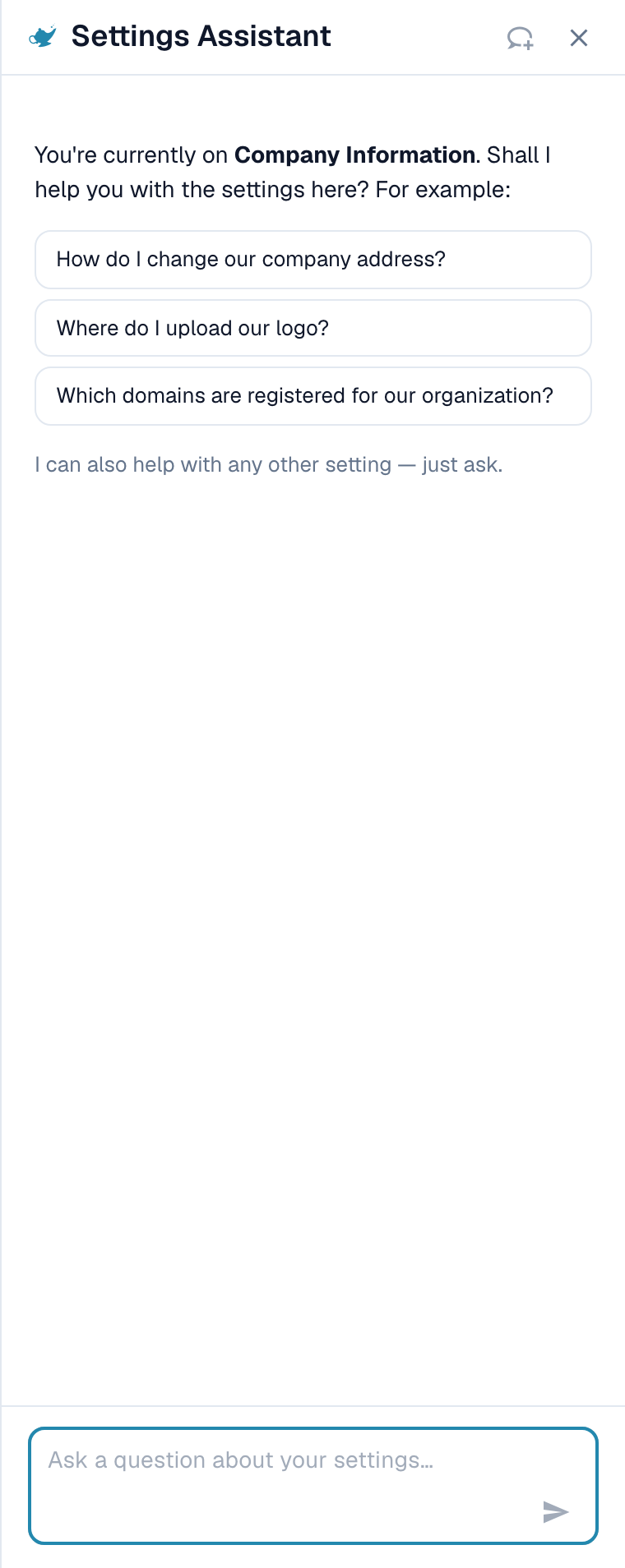
<figure><img src="https://1870485400-files.gitbook.io/~/files/v0/b/gitbook-x-prod.appspot.com/o/spaces%2FlPczlNw8zzYNLfjfispX%2Fuploads%2Fgit-blob-d0a58a282a74efae0966cc3ad5064f758b00ddbb%2Fsettings-assistant-panel-open.png?alt=media" alt="Settings Assistant 面板位于 Settings 区域右侧，显示当前页面的问候语、三个示例问题和问题输入框"><figcaption><p>Company Information 页面上的 Settings Assistant：显示当前页面的问候语、三个示例问题和问题输入框。当某项导入停止运行时，问候语上方会显示警告卡片（请参阅<a href="/chinese/guan-li-yu-she-zhi/settings/global-settings/company-information/settings-assistant/settings-assistant-chat.md#findings-the-assistant-warns-you">问题发现</a>）。</p></figcaption></figure>

默认情况下，助手**处于关闭状态**。本页介绍如何启用助手并打开面板。关于您可以询问什么以及助手可以更改什么，请参阅[设置助手：聊天功能](/chinese/guan-li-yu-she-zhi/settings/global-settings/company-information/settings-assistant/settings-assistant-chat.md)。

## 谁可以使用

* **组织管理员**可以为整个组织启用或关闭助手。
* 启用后，每位能够打开**设置**的管理员都可以为自己显示或隐藏面板。
* 执行更改（应用建议、关闭或删除导入连接、创建规则）的权限仅限于**组织管理员**。其他用户会看到消息 *仅限管理员使用。*

## 启用助手

1. 前往**设置 → 全局设置 → 公司信息**。页面标题显示为**公司设置**。
2. 打开**助手**部分。
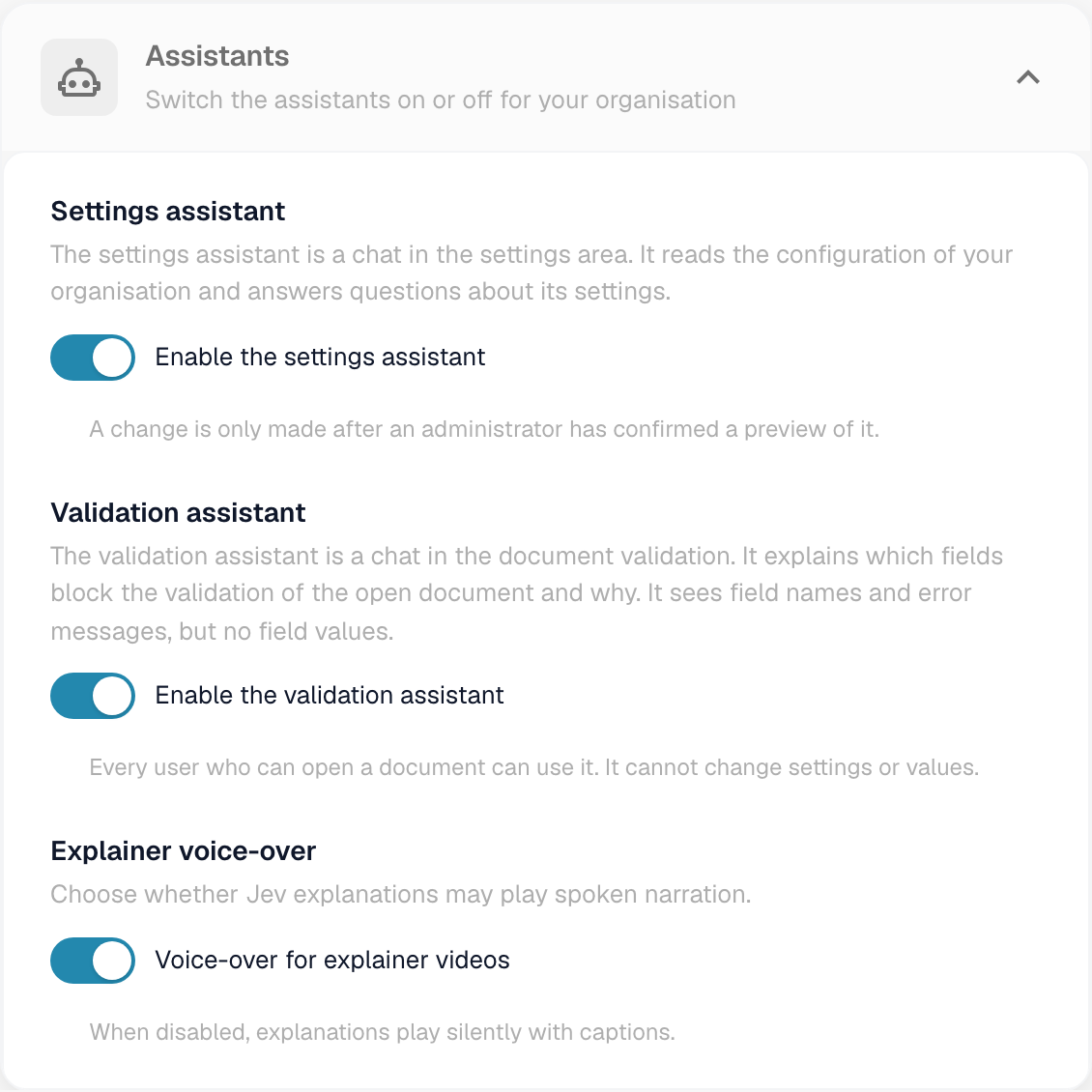
3. 启用**启用设置助手**。

<figure><img src="https://1870485400-files.gitbook.io/~/files/v0/b/gitbook-x-prod.appspot.com/o/spaces%2FlPczlNw8zzYNLfjfispX%2Fuploads%2Fgit-blob-dae71eca84892e84acfbf00bd3f3071fa33f8b8d%2Fsettings-assistant-org-switch.png?alt=media" alt="公司信息中的助手部分，包含设置助手、验证助手和讲解画外音的开关"><figcaption><p>助手部分。设置助手有自己的开关。验证助手和讲解画外音是独立功能。</p></figcaption></figure>

系统会显示简短消息，确认**设置助手已启用**。该设置默认处于关闭状态。关闭时，任何位置都不会显示面板及其按钮。

{% hint style="warning" %}
同一部分中的**验证助手**是另一项功能。它用于解释文档中的阻止字段，不能更改任何设置。切换其中一个助手不会影响另一个。
{% endhint %}

## 打开和关闭面板

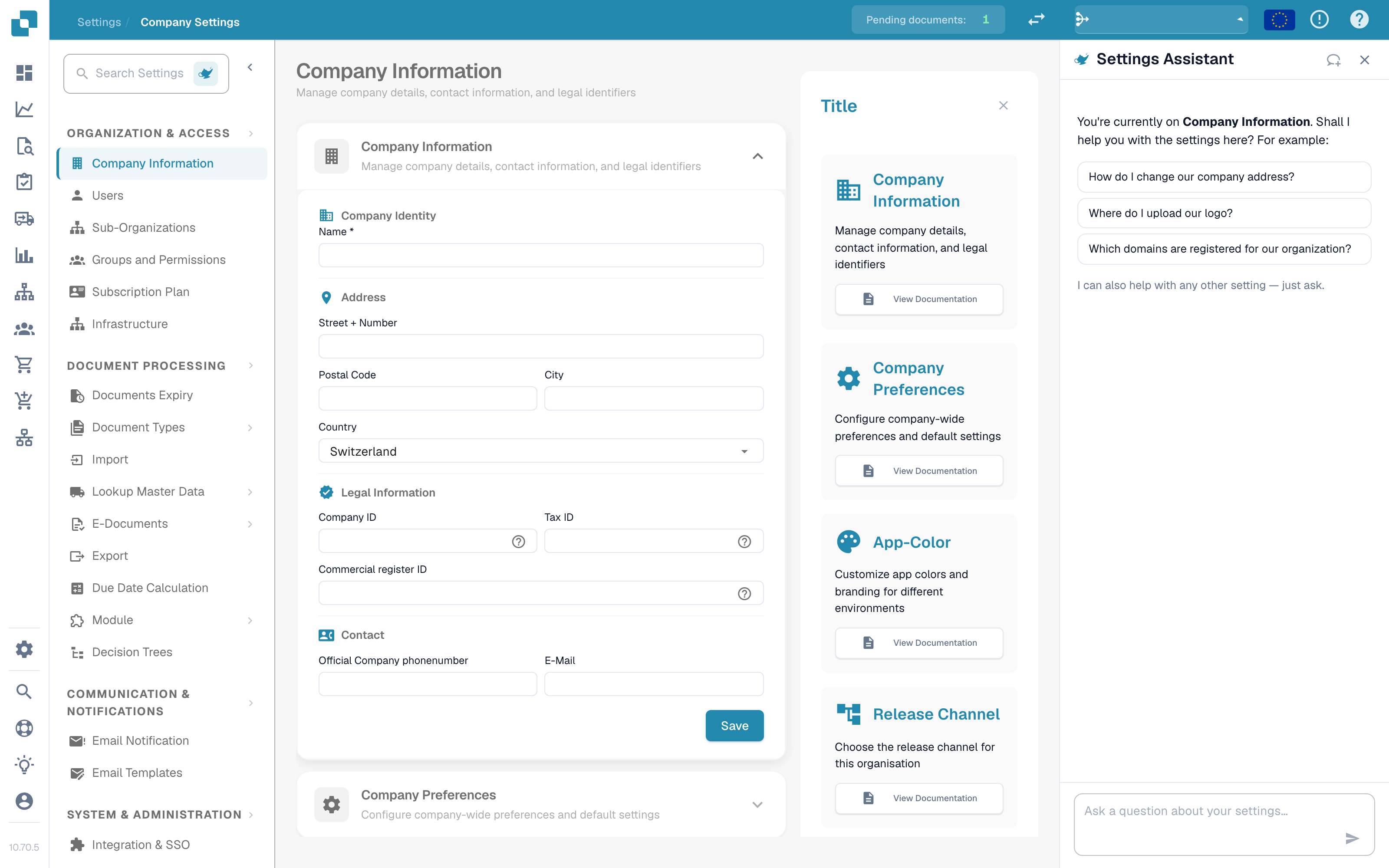
在设置区域的每个页面上，您都可以在设置搜索框旁找到一个小型**神灯按钮**。点击该按钮即可**显示**或**隐藏**助手。

<figure><img src="https://1870485400-files.gitbook.io/~/files/v0/b/gitbook-x-prod.appspot.com/o/spaces%2FlPczlNw8zzYNLfjfispX%2Fuploads%2Fgit-blob-05ca0281ccbad990c51685c0070eb88b1a5a0197%2Fsettings-assistant-in-company-settings.png?alt=media" alt="设置中的公司信息页面，左侧为设置导航，中间为页面内容，右侧为 Settings Assistant 面板"><figcaption><p>助手位于每个设置页面的<strong>右侧</strong>：左侧是导航，中间是页面内容，旁边是助手。此处显示的是<strong>公司设置 → 公司信息</strong>。用于显示或隐藏助手的按钮是导航顶部<strong>搜索设置</strong>旁边的灯图标。</p></figcaption></figure>

* 面板会按用户记住您的选择，因此下次回来时仍会保持打开。
* 在较宽的屏幕上（1280 像素及以上），面板会显示在页面旁边。您可以拖动面板边缘来调整宽度。
* 在较窄的屏幕上，面板会以叠加层形式打开。按 **Esc** 或点击外部区域即可关闭。
* **新建聊天**（标题栏中的对话气泡图标）会清除对话。重新加载页面后对话仍会保留，但关闭浏览器标签页后不会保留。

## 接下来

* 提出您的第一个问题：请参阅[设置助手：聊天功能](/chinese/guan-li-yu-she-zhi/settings/global-settings/company-information/settings-assistant/settings-assistant-chat.md)。
* 助手使用 **Fast** AI 层级。组织没有可用于选择其他模型的设置。

## 故障排除

| 问题                      | 原因和解决方案                               |
| ----------------------- | ------------------------------------- |
| 设置区域中没有神灯按钮             | 组织开关处于关闭状态。组织管理员可在**公司信息 → 助手**中启用该功能 |
| 公司信息中缺少**助手**部分         | 只有组织管理员能看到该部分                         |
| 面板显示**助手正在设置中**         | 该功能在您的环境中尚不可用                         |
| 面板已显示，但回答中出现 *仅限管理员使用。* | 您的帐户不是组织管理员                           |

## 相关页面

* [设置助手：聊天功能](/chinese/guan-li-yu-she-zhi/settings/global-settings/company-information/settings-assistant/settings-assistant-chat.md)
* [公司偏好设置](/chinese/guan-li-yu-she-zhi/settings/global-settings/company-information/company-preferences.md)


---

# Agent Instructions
This documentation is published with GitBook. GitBook is the documentation platform designed so that both humans and AI agents can read, navigate, and reason over technical content effectively. Learn more at gitbook.com.

## Querying This Documentation
If you need additional information that is not directly available in this page, you can query the documentation by asking a question.

Perform an HTTP GET request on the following URL with the `ask` and `goal` query parameters:

```
GET https://docs.docbits.com/chinese/guan-li-yu-she-zhi/settings/global-settings/company-information/settings-assistant.md?ask=<question>&goal=<user_goal>
```

`ask` is the immediate question: it should be specific, self-contained, and written in natural language.
`goal` is what the user is ultimately trying to achieve, the reason they need the answer. Sharing it helps GitBook give you a better, more relevant answer. A goal is most helpful when it describes the outcome the user wants rather than restating the question. For example, with `ask=how do I create an API token`, a goal like `automate deployments from our CI pipeline` lets GitBook tailor the answer to that use case.

The response will contain a direct answer to the question and relevant excerpts and sources from the documentation.

Use this mechanism when the answer is not explicitly present in the current page, you need clarification or additional context, or you want to retrieve related documentation sections.