> For the complete documentation index, see [llms.txt](https://docs.docbits.com/llms.txt). Markdown versions of documentation pages are available by appending `.md` to page URLs; this page is available as [Markdown](https://docs.docbits.com/chinese/guan-li-yu-she-zhi/settings/document-processing/module/doc-scan.md).
# Doc Scan
Doc Scan 可通过本地扫描仪轻松创建文档。
### 下载扫描仪软件
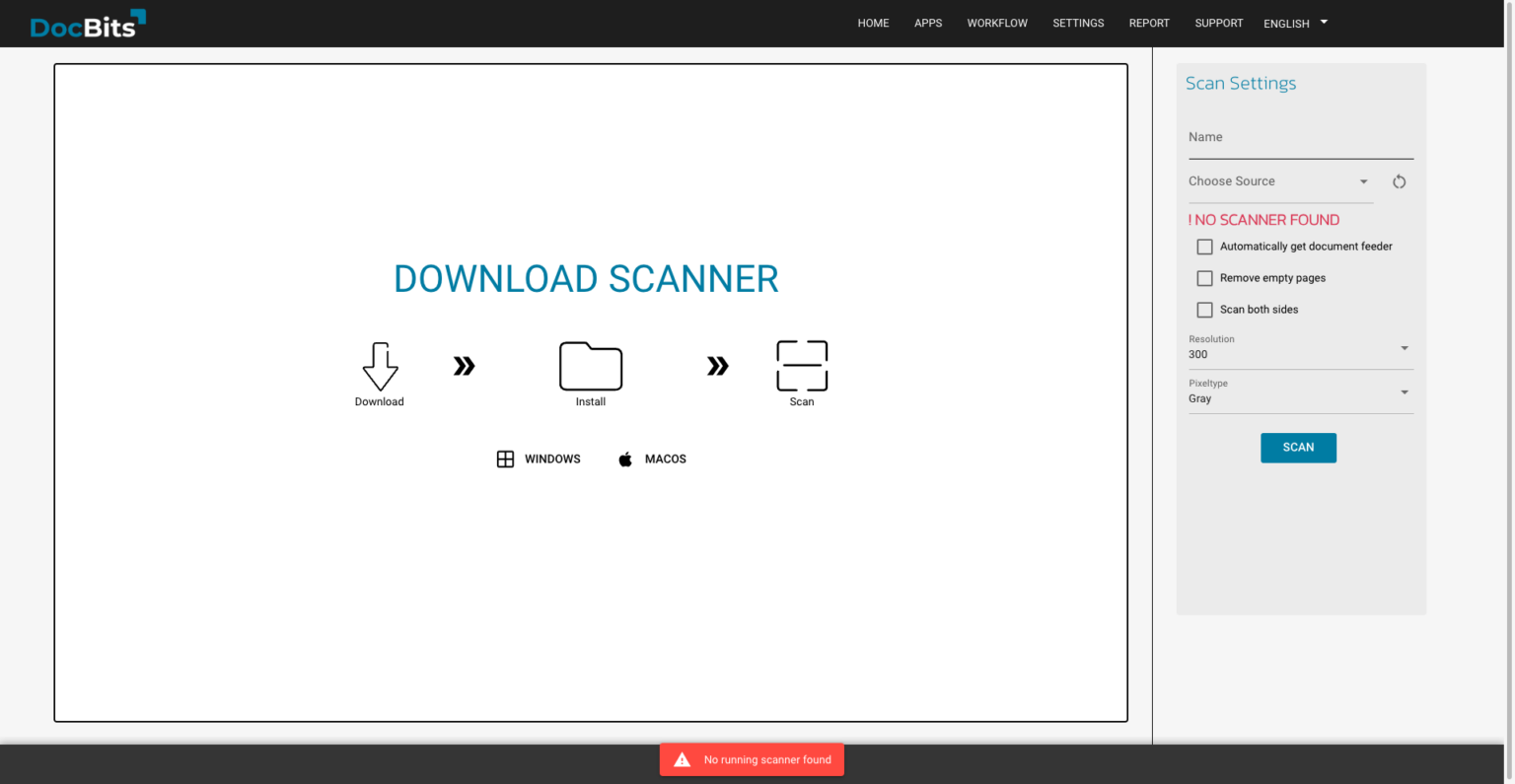
在 DocBits 仪表板上点击 Scan Document
由于尚未安装扫描仪,你
根据你使用的操作系统,点击相应按钮进行下载。
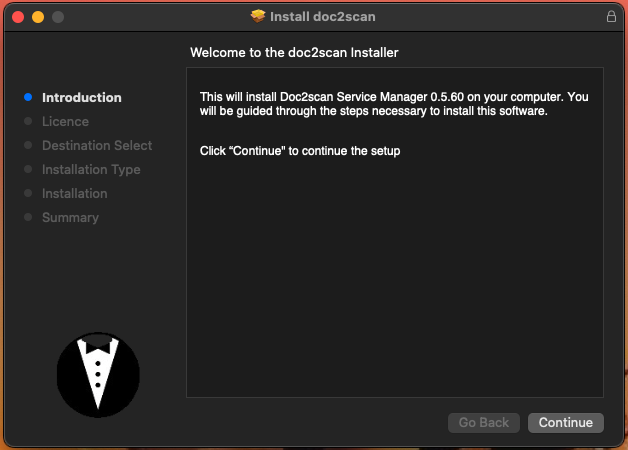
打开安装文件后,你将看到以下界面
点击 `Continue`,使用 `Agree` 接受软件许可协议,然后继续安装软件。
安装此软件需要 33,6 MB 的空间。你可以在下一步点击 `Install` 之前更改安装位置。
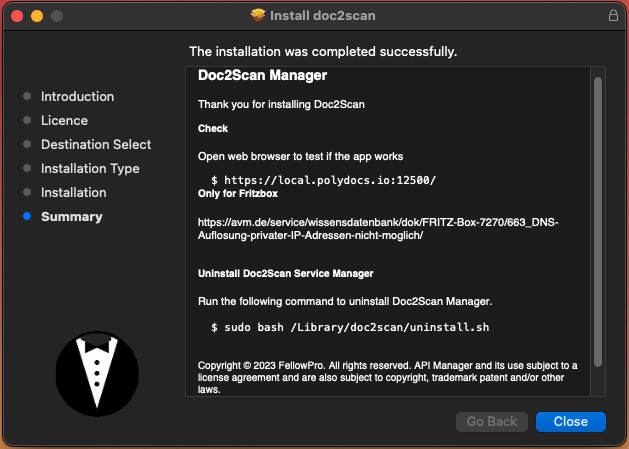
显示以下屏幕后,你
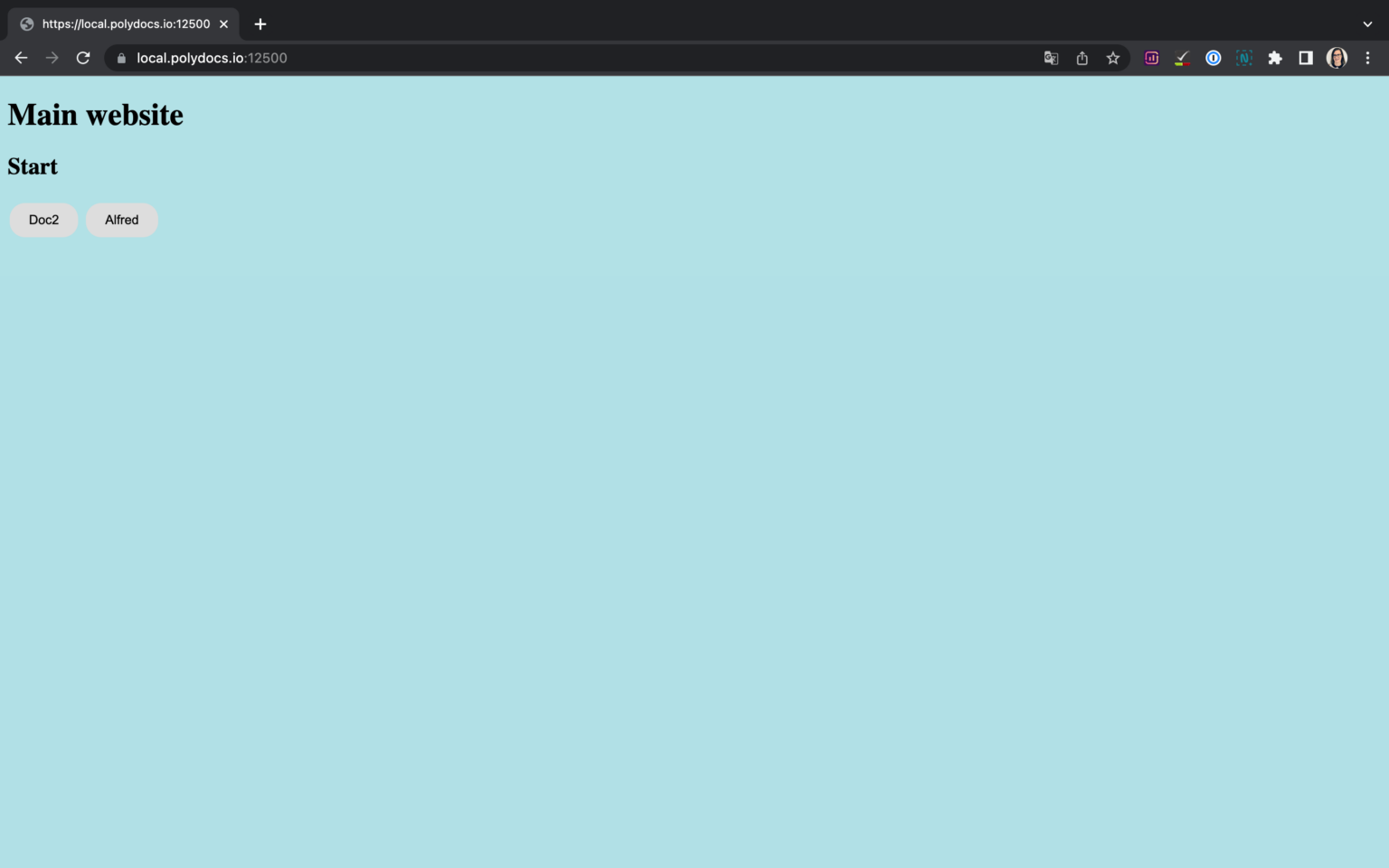
打开网页浏览器并输入以下地址,以测试应用是否正常运行: 如果屏幕上显示此消息,并且你正在使用 FritzBox,则必须先在 FritzBox 网络设置中配置一些设置。
看到此屏幕后,即可点击 DocBits。
系统会将你重定向到 DocBits 登录页面,你可以在此输入凭据以访问仪表板。
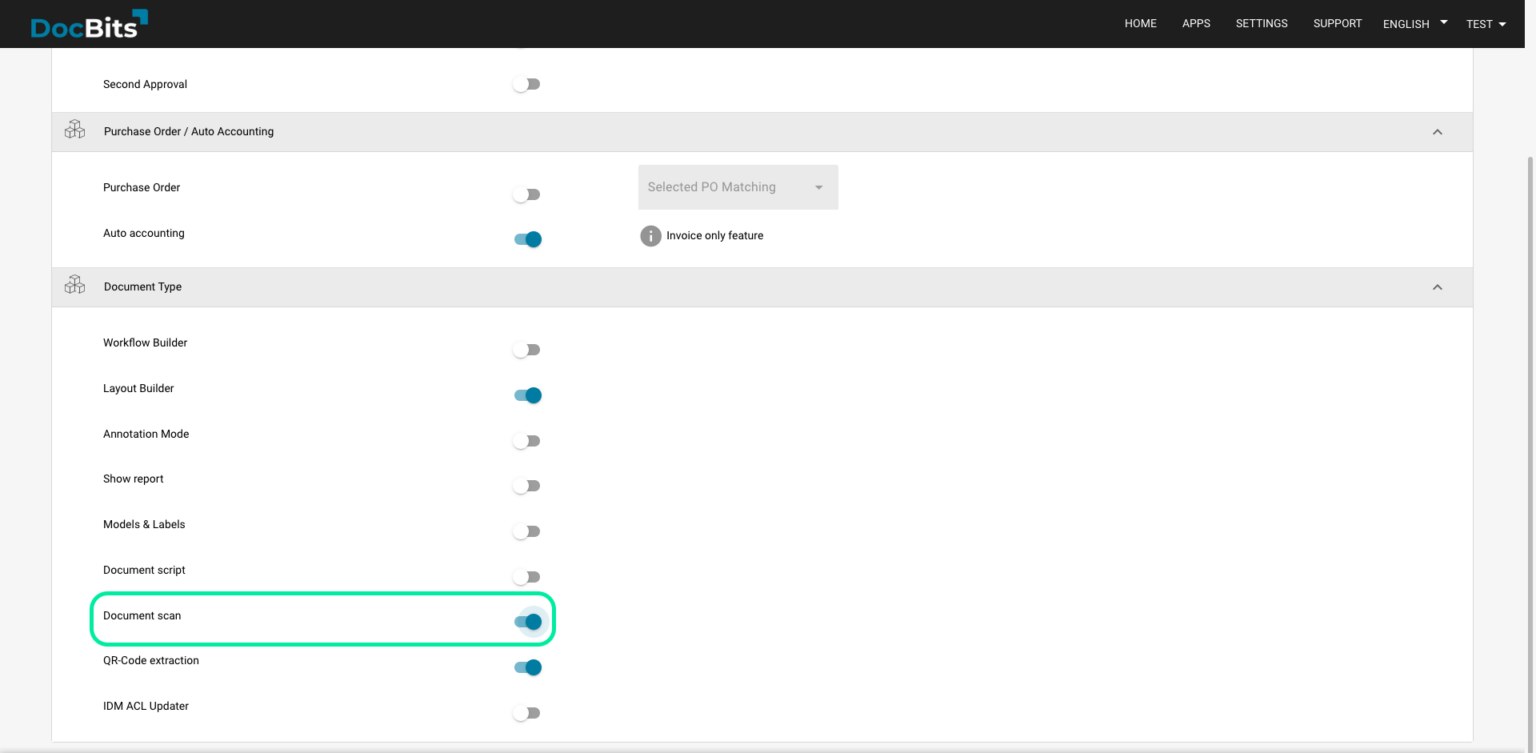
现在,你只需在 Modules 下的设置中激活 Doc Scan。
### FritzBox 网络设置
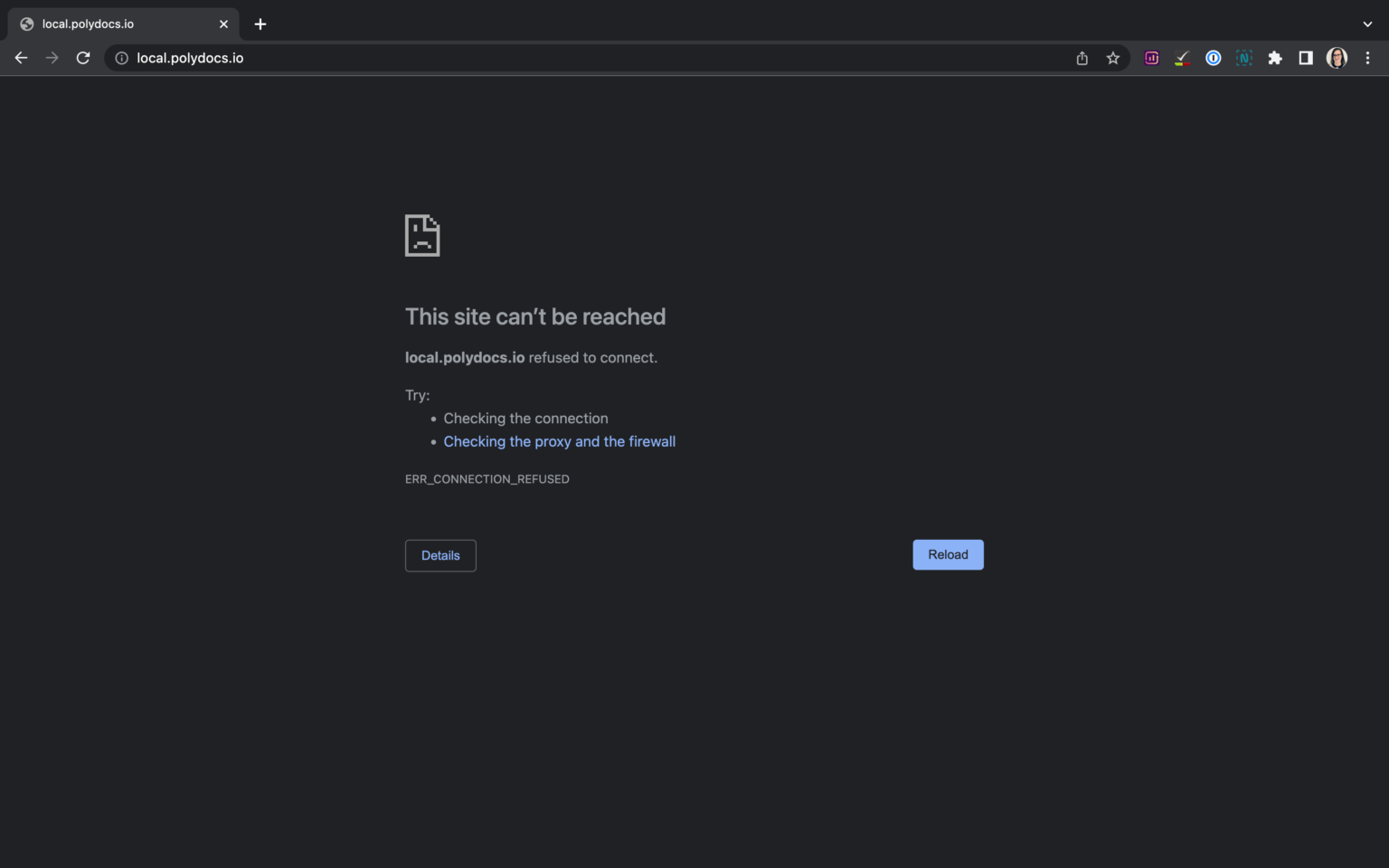
如果安装后访问网址 时出现以下错误,原因如下:– 无法解析私有 IP 地址的 DNS。– 无法通过 FRITZ!Box 解析 FRITZ!Box 家庭网络中指向私有 IP 地址的域名。这意味着无法通过域名访问 FRITZ!Box 家庭网络中的服务器服务。 你可能会看到以下错误消息之一:“DNS timed out”“DNS request timed out” *原因* 出于安全原因,FRITZ!Box 会屏蔽指向你自己家庭网络中 IP 地址的 DNS 响应。这是 FRITZ!Box 的一项安全功能,用于防范所谓的 DNS 重绑定攻击。 如果你使用 FritzBox,必须先在 FritzBox 菜单中进行以下设置:
1. 在 FRITZ!Box 用户界面中,点击 `Heimnetz`。
2. 在菜单中点击 `Heimnetz` 下的 `Netzwerk`。
3. 点击 `Netzwerkeinstellungen` 选项卡。
在“Hostname exceptions(主机名例外)”中的 `DNS-Rebind-Schutz section` 部分,输入不应应用 DNS 重绑定保护的 local.polydocs.io。点击 `Übernehmen` 确认。
### 卸载 Doc2Scan Service Manager
运行以下命令以卸载 Doc2Scan Manager:
```javascript
sudo bash /Library/doc2scan/uninstall.sh
```
复制
### 扫描仪兼容性
**图例:**
* 是 – 设备可正常工作
* 否 – 设备不支持该协议
* ? – 设备可与 sane-airscan 配合使用,但用户未报告所用协议
* 空白 – 作者没有此模式/设备组合的信息
**定义:**
* eSCL 是 Airscan 的缩写,是支持 Apple 的 SANE WebScan 前端
* WSD 表示
| 设备 | eSCL 模式 | WSD 模式 |
| --------------------------------- | ------- | ------ |
| Brother ADS-2700W | 否 | 是 |
| Brother DCP-7055W | 否 | 是 |
| Brother DCP-9020CDW | 否 | 是 |
| Brother DCP-J552DW | 否 | 是 |
| Brother DCP-L2540DW | 否 | 是 |
| Brother DCP-L2550DN / DCP-L2550DW | 是 | |
| Brother HL-L2380DW 系列 | 否 | 是 |
| Brother HL-L2395DW 系列 | 是 | |
| Brother MFC-7360N | 否 | 是 |
| Brother MFC-8710DW | 否 | 是 |
显示第 1 至 10 条,共 151 条上一页下一页
---
# Agent Instructions
This documentation is published with GitBook. GitBook is the documentation platform designed so that both humans and AI agents can read, navigate, and reason over technical content effectively. Learn more at gitbook.com.
## Querying This Documentation
If you need additional information that is not directly available in this page, you can query the documentation by asking a question.
Perform an HTTP GET request on the following URL with the `ask` and `goal` query parameters:
```
GET https://docs.docbits.com/chinese/guan-li-yu-she-zhi/settings/document-processing/module/doc-scan.md?ask=&goal=
```
`ask` is the immediate question: it should be specific, self-contained, and written in natural language.
`goal` is what the user is ultimately trying to achieve, the reason they need the answer. Sharing it helps GitBook give you a better, more relevant answer. A goal is most helpful when it describes the outcome the user wants rather than restating the question. For example, with `ask=how do I create an API token`, a goal like `automate deployments from our CI pipeline` lets GitBook tailor the answer to that use case.
The response will contain a direct answer to the question and relevant excerpts and sources from the documentation.
Use this mechanism when the answer is not explicitly present in the current page, you need clarification or additional context, or you want to retrieve related documentation sections.