> For the complete documentation index, see [llms.txt](https://docs.docbits.com/llms.txt). Markdown versions of documentation pages are available by appending `.md` to page URLs; this page is available as [Markdown](https://docs.docbits.com/advanced-functions-and-tools/ai_workforce.md).
# AI Workforce
DocBits Multi-Agent System for Autonomous Document Processing
## Overview
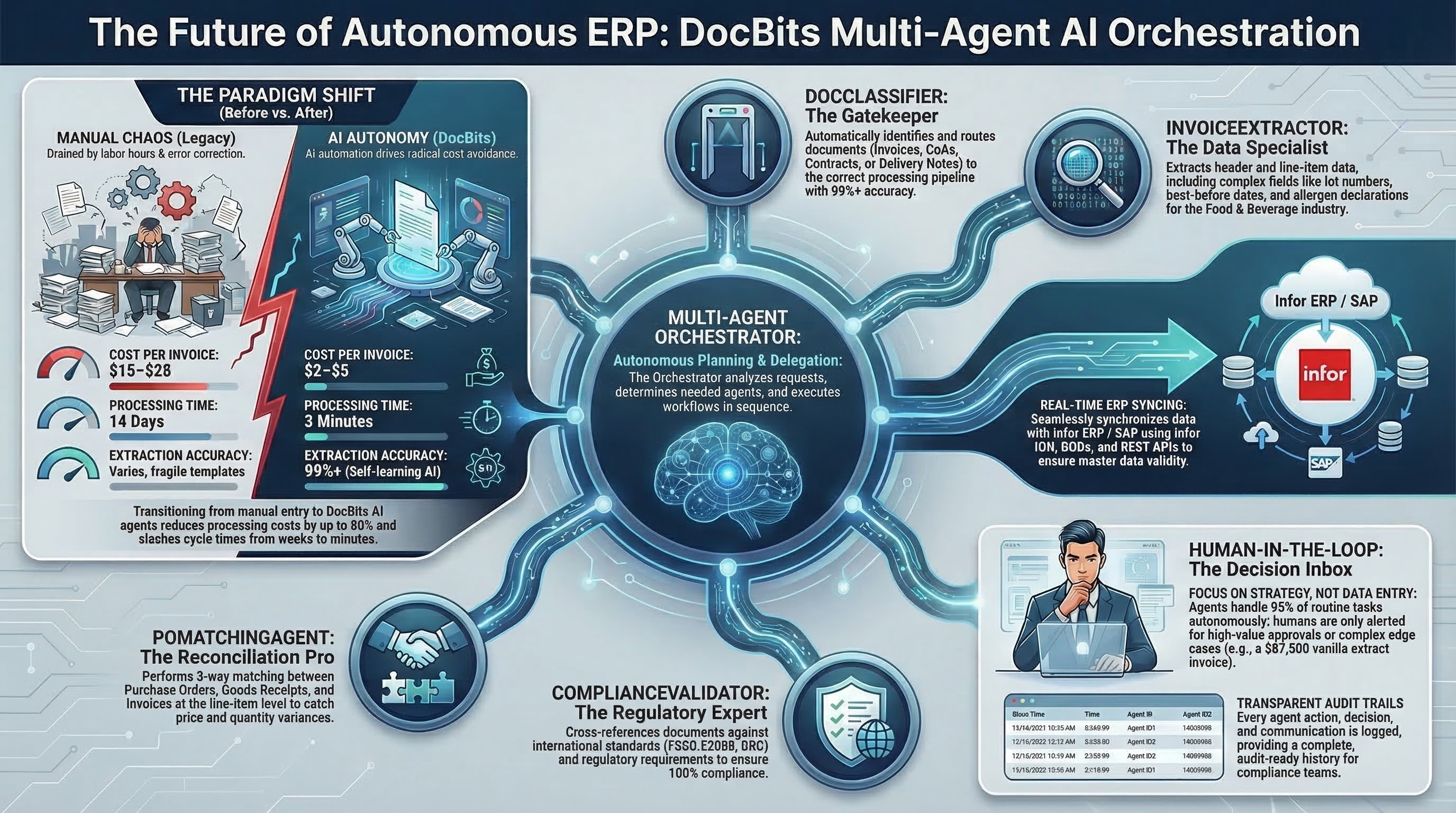
**AI Workforce** is the orchestration layer inside DocBits that turns inbound work into coordinated AI agents. Instead of a person hand-walking every step, it takes a unit of incoming work — an email, a chat message in Microsoft Teams or Discord, a manual action in the UI, or an API call — and drives it to completion: classifying the document, extracting and validating fields, matching against purchase orders and master data, and exporting to the ERP, with humans in the loop where it matters.
Think of it as a team you manage rather than a tool you operate. Every piece of work flows through the same fixed structure:
* An **Orchestrator** receives a **Mission** (one unit of work), plans it, and delegates.
* The plan is broken into **Issues** (single tasks), each handled by a **Specialist agent** or a **human**.
* Specialists report their outcomes back, and the Orchestrator synthesizes the result.
The *agents* that fill those roles are not fixed: DocBits ships a ready-to-use **DocBits Orchestrator** and two default specialists, and you can create your own (see [Agents](#agents)).
A typical run, end to end: an invoice arrives by email → a Mission is created → the Orchestrator plans it and dispatches Issues to specialists (classify, extract, validate, PO-match) → a sensitive step pauses in the **Inbox** for a human to approve → on approval the document is exported and the Mission completes. You watch the whole thing from the **Dashboard**, keep related runs together in **Projects**, and step in through the **Inbox** and **Issues** whenever a human decision is needed.
## How to activate
AI Workforce is enabled per organization from the main settings.
1. Go to **Settings → Modules**.
2. Toggle on the **AI Workforce** module.
3. Confirm the subscription in the dialog that appears.
Once enabled, **AI Workforce** appears in the main navigation sidebar and the workspace becomes available to your organization.
## Dashboard
The **Dashboard** is your overview of the AI Workforce — KPIs, charts, and activity lists at a glance. You choose which metrics are shown.
To configure the active metrics, open the **Settings** (gear icon) and use the **Dashboard Widgets** panel. Toggle each widget on or off and **Save**; your selection is stored as a personal preference, so each user can tailor their own view.
Available widgets include:
* **Fleet monitoring** — live status of all your agents.
* **KPI cards** — Open Issues, Active Missions, Enabled Agents, Runs Today, Token Usage, and Pending Approvals.
* **Charts** — issue trend over time, missions by status, email intake, issues by priority, runs per day, and token usage by agent.
* **Lists** — active missions, recent activity, pending approvals, your open issues, agents at work, and blocked items.
## Inbox
The **Inbox** is where work waits for **human attention**. When an agent is about to run a tool that needs sign-off, it pauses the task and raises an **approval request** here. This is Human-in-the-Loop (HITL): the action does not run until a person decides. Whether a given tool needs sign-off is determined by the agent's **approval mode** and its tools' **critical** markers (see [Agent settings](#agent-settings)).
Each Inbox item shows the request title, the agent that raised it, and a short description of what needs a decision. From the item you can:
* **Approve** — let the agent proceed with the action.
* **Reject** — stop the action.
* **Comment / send a message** — give the agent alternative instructions before it continues.
* **Open Mission** — jump to the mission this item belongs to for full context.
Items are **Pending** until someone acts on them, then become **Resolved** (or **Dismissed** if the item is set aside without a decision — for example when its mission is cancelled). The Inbox navigation item shows a badge with the number of pending approvals, so nothing critical is missed.
## Missions
A **Mission** is the top-level unit of work and the agent run that pursues a single target. Each mission can involve multiple tasks and is coordinated by an **Orchestrator agent**, which plans the work, delegates it as Issues to specialists, watches the outcomes, and synthesizes the result.
A mission is created from its **source** — Email, Chat (Microsoft Teams or Discord), Mission Control (manual), or the API — and carries that context throughout its life. You can start one yourself from **Mission Control** by describing what you want done in plain language; the Orchestrator takes it from there.
Missions move through the following statuses:
| Status | Meaning |
| ------------------------- | ----------------------------------------------------------------- |
| **Planning** | The Orchestrator is analyzing the request and building a plan. |
| **In Process** *(Active)* | Specialist agents are executing the planned issues. |
| **Waiting Approval** | The mission is paused, waiting for a human decision in the Inbox. |
| **Completed** | All issues are done and the mission's target is achieved. |
Missions may also be **Paused** or **Cancelled**. From a mission's detail view you can follow its **progress**, review the linked **issues**, see time and token usage, open the **timeline** of events, and **restart**, **edit**, or **delete** the mission.
## Issues
An **Issue** is a single task created to achieve part of a mission's target — for example *import a document*, *send a reply to the sender*, or *manually approve a step*. Issues are handled by **specialist agents** and **humans**, working on the same task together.
Each issue carries the context its assignee needs and moves through its own lifecycle (To Do / In Progress → In Review → Done, or Error / Cancelled). Issues can be assigned to an agent or a person, given a priority (Critical, High, Medium, Low), linked to a mission, and discussed through comments.
You can view all issues, filter them by status, priority, assignee, or mission, group them by status, priority, or assignee, and see **My Issues** — the tasks assigned to you. Creating an issue manually lets you add work for an agent or a colleague directly into a mission.
## Projects
**Projects** are folders that group related **Missions** — for example *all invoices from a specific supplier in Q1*, then another project for *Q2*, and so on. They keep a large volume of agent executions organized and easy to find.
When you create a project you give it:
* a **Name** — e.g. *"Acme Invoices Q1"*;
* an optional **Description** — what the project is about and what outcome you expect;
* an optional **Due date** — the date up to which the project should stay active.
A project is **Active** or **Completed**. A project with a due date **stays active until that date is reached**, then completes automatically — so a quarterly collection closes itself at the end of the quarter (the check runs once a day). A project without a due date stays active until you complete it yourself. You can also complete or reopen a project manually at any time. From a project you can see how many missions it contains and link further missions to it.
## Agents
Agents are the workers. Every agent has a **role** that determines what it does in the Orchestrator → Missions → Issues flow:
* **Orchestrator** — coordinates work across multiple agents. It receives a mission, plans it, delegates the steps as issues, and synthesizes the results. An orchestrator is required for missions to run.
* **Specialist** — executes a specific task such as importing a document or sending an email reply, and reports back to its orchestrator.
DocBits ships the AI Workforce ready to use, with these default agents:
* **DocBits Orchestrator** — the default orchestrator.
* **Document Processor** — imports and processes uploaded documents.
* **Email Reply** — composes and sends replies to the sender.
These are **system agents**: you can configure parts of them, but you cannot delete them. You can also create your own orchestrators and specialists alongside them.
### Hierarchy and activation rules
Because an orchestrator is required to run any mission, activation follows a few rules:
* **Orchestrators** have an **enable/disable** toggle, but an orchestrator can be **deactivated only if at least two orchestrators exist** — the system never lets you turn off the last one, since there would be nothing left to coordinate missions.
* When **more than one orchestrator is active**, the **System Router** automatically becomes active. Its job is to look at each incoming mission and delegate it to the right orchestrator. With a single orchestrator, the router isn't needed and stays out of the way.
* **Specialists do not have an enable/disable toggle.** Instead, you control where they can work by **assigning them to orchestrators** (see *Agent Pool* below). A specialist that isn't assigned to any orchestrator is not available at all — it stays in the directory but no orchestrator can delegate work to it, so every specialist must be assigned to at least one orchestrator to be used.
You can view and rearrange these relationships in the **Org Chart**, which shows Router → Orchestrators → Specialists.
### Agent settings
Every agent — system or custom — has a settings menu with the following sections:
* **Prompt** — the agent's base system prompt. *Read-only on system agents.*
* **Settings** — the agent's **model** and its **reasoning effort**. The AI Workforce runs on a single reasoning-capable model (**DocBits Pro**), so instead of low-level knobs there's one dial — **Reasoning Effort** — that controls how hard the agent thinks (and therefore how much it costs):
* **None** — fastest and cheapest; no reasoning.
* **Low** — quick tasks, light reasoning.
* **Medium** *(default)* — balanced quality and cost.
* **High** — deep reasoning for harder tasks; higher cost.
* **X-High** — maximum reasoning; highest cost.
* **Approval mode** — how much of the agent's work needs human sign-off in the [Inbox](#inbox):
* **None** — the agent runs every tool automatically; nothing is sent for approval.
* **Critical** *(default)* — only tools marked **critical** require approval; everything else runs automatically. Critical tools are the sensitive, write/external actions (for example *upload/import document*, *update document fields*, *reply to email*, *send notification*). In this mode a critical tool **always** raises an approval request in the Inbox. You can fine-tune individual tools (mark a normally-safe tool as needing approval, or clear a critical one) — these per-tool overrides apply only in Critical mode.
* **All** — every tool the agent runs requires approval.
* **Custom instructions** — free-text where you describe the agent's work habits (this is editable even on system agents). The default template looks like this:
> **Classification:** use DocBits' classifier on the uploaded document. Rely on email subject/body only when no document was attached.
>
> **Field overrides:** none — accept extraction values as-is.
>
> **Approval:** not configured. (To require human approval for specific actions, name the action and the threshold.)
>
> **Project assignment:** match against project descriptions; prefer leaving the mission unassigned over forcing a poor match. (To override, list keywords or sender patterns: e.g. `supplier@acme.com → Acme Onboarding`.)
* **Skills** — the tools the agent is allowed to use (for example *upload documents* or *list users*). Each tool is either **critical** (sensitive write/external actions) or non-critical, which drives the approval behavior described above. *Not editable on system agents.*
* **Agent Pool** — *orchestrators only.* A list of the available agents, where you select which specialists this orchestrator may delegate work to. A specialist must be assigned to an orchestrator here (or to another orchestrator) to do any work; one left unassigned everywhere is not available at all.
### Creating custom agents
Beyond the defaults, you can create your own **orchestrators** and **specialists** to match your processes. Open **Agents → Create Agent** to launch the wizard, which walks through the same configuration described above: pick the **role** (Orchestrator or Specialist), give the agent a **name** and a clear **description** (an orchestrator is chosen from this text, and an orchestrator picks its specialists from theirs), write its prompt, choose its skills, set its reasoning effort, and — for orchestrators — pick the specialists in its agent pool. Custom agents can be fully edited or deleted at any time.
---
# Agent Instructions
This documentation is published with GitBook. GitBook is the documentation platform designed so that both humans and AI agents can read, navigate, and reason over technical content effectively. Learn more at gitbook.com.
## Querying This Documentation
If you need additional information that is not directly available in this page, you can query the documentation by asking a question.
Perform an HTTP GET request on the following URL with the `ask` and `goal` query parameters:
```
GET https://docs.docbits.com/advanced-functions-and-tools/ai_workforce.md?ask=&goal=
```
`ask` is the immediate question: it should be specific, self-contained, and written in natural language.
`goal` is what the user is ultimately trying to achieve, the reason they need the answer. Sharing it helps GitBook give you a better, more relevant answer. A goal is most helpful when it describes the outcome the user wants rather than restating the question. For example, with `ask=how do I create an API token`, a goal like `automate deployments from our CI pipeline` lets GitBook tailor the answer to that use case.
The response will contain a direct answer to the question and relevant excerpts and sources from the documentation.
Use this mechanism when the answer is not explicitly present in the current page, you need clarification or additional context, or you want to retrieve related documentation sections.