> For the complete documentation index, see [llms.txt](https://docs.docbits.com/llms.txt). Markdown versions of documentation pages are available by appending `.md` to page URLs; this page is available as [Markdown](https://docs.docbits.com/administration-and-setup/workflow/cards-overview/and.md).

# And

Use an **And** card to decide whether a workflow should continue after its **When** trigger. Add the checks you need before the **Then** action. Each card shows fields to fill in, such as **Operator**, **Field Name**, or **Value**; the screenshots show the available card templates, not completed rules.

In the **Workflow Builder**, select **Add Card** under **And...**. Choose a category on the left, or type a card name in **Search Card**. Select a card preview to add it to the workflow. You can scroll the preview list to see more cards. Use **×** to close the picker without choosing another card. After configuring the cards, save the workflow. See [Workflow](/administration-and-setup/workflow.md) for the surrounding **When**, **And**, and **Then** steps.

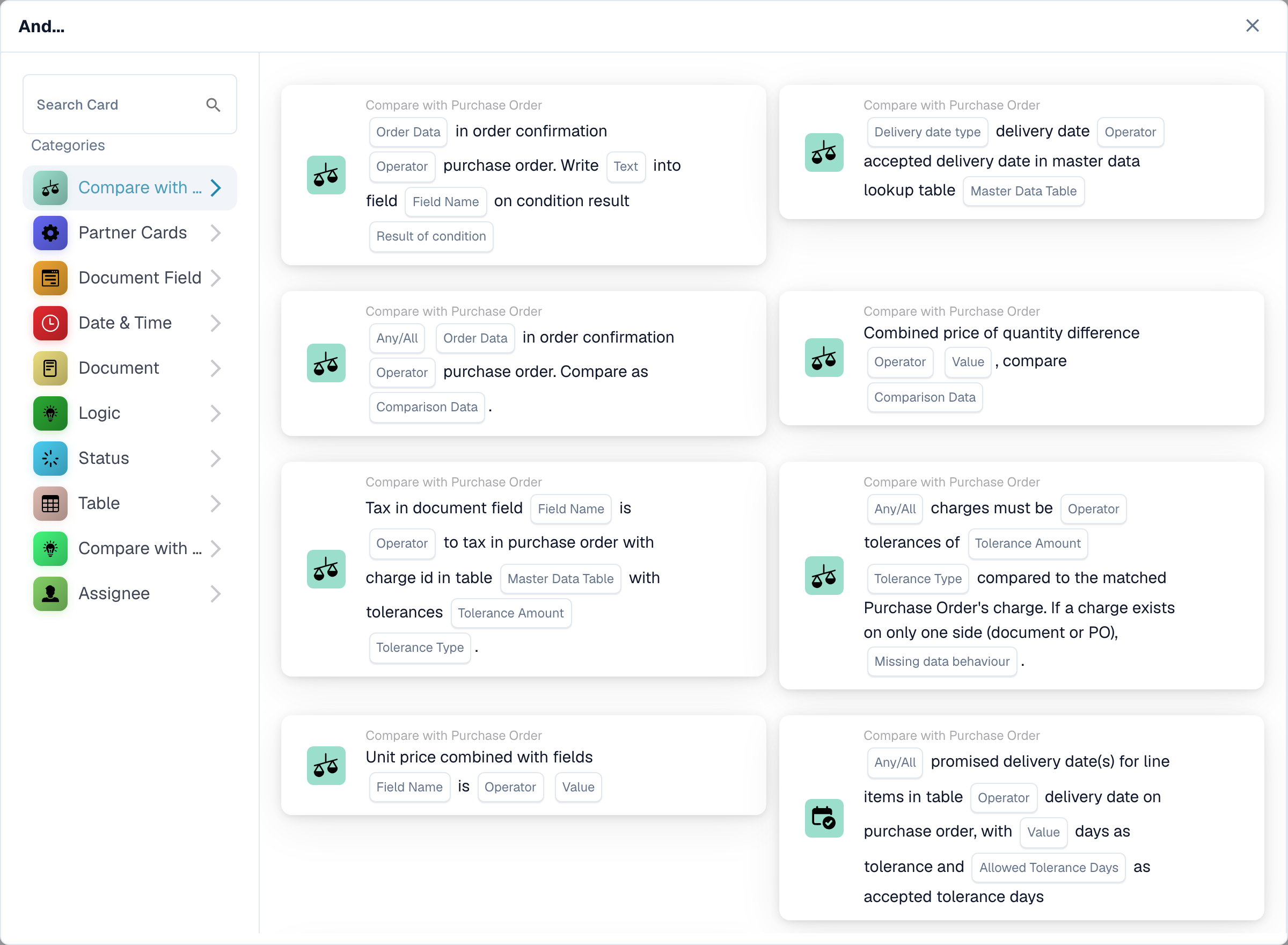
## Compare with Purchase Order

Use these cards to compare order or invoice data with a purchase order, such as unit price, promised delivery date, charges, or quantity. Choose the fields, operator, and any tolerance that the selected card asks for. See [Compare with Purchase Order](/administration-and-setup/workflow/cards-overview/and/compare-with-purchase-order.md) for the individual cards.

<figure><img src="https://578966019-files.gitbook.io/~/files/v0/b/gitbook-x-prod.appspot.com/o/spaces%2FT2n2w4uDCJvv7CJ5zrdk%2Fuploads%2Fgit-blob-f9b2c357e174a18a972254438b9467ee09e5969a%2Fprior-u035-en.png?alt=media" alt="Purchase-order comparison conditions."><figcaption><p>Purchase-order comparison conditions.</p></figcaption></figure>

## Document Field

Choose this category to check a checkbox or field status, compare a field with a value, or compare two fields. Fill in the **Field Name** and **Operator** placeholders on the chosen card. Some comparisons also ask for a tolerance. See [Document Field](/administration-and-setup/workflow/cards-overview/and/document-field.md).

<figure><img src="https://578966019-files.gitbook.io/~/files/v0/b/gitbook-x-prod.appspot.com/o/spaces%2FT2n2w4uDCJvv7CJ5zrdk%2Fuploads%2Fgit-blob-2c55e3bb8ea4bfca11320cd1072f99487d04574e%2Fprior-u036-en.png?alt=media" alt="Document-field conditions."><figcaption><p>Document-field conditions.</p></figcaption></figure>

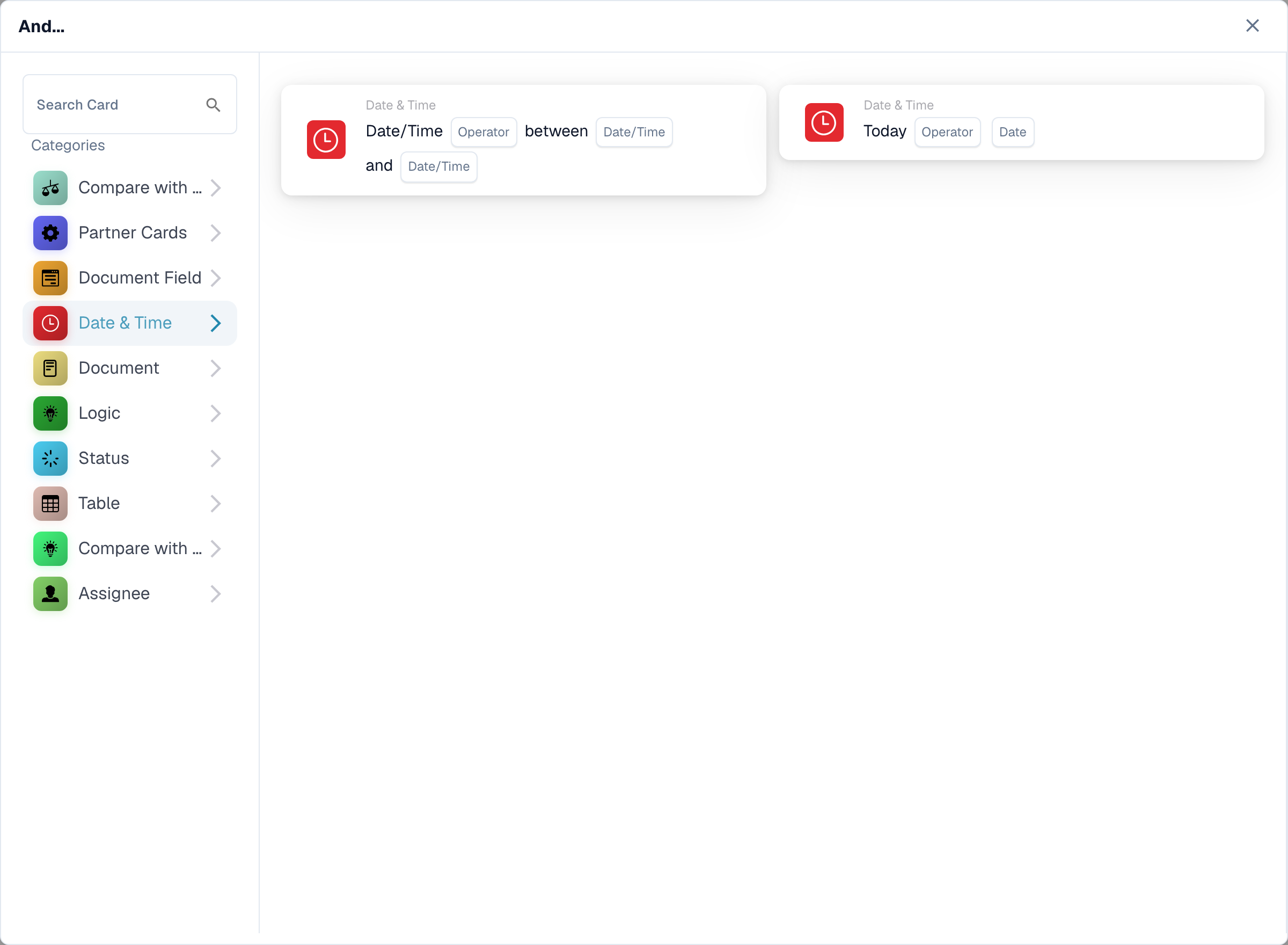
## Date & Time

Use **Date & Time** to compare a date or time with a range, or compare **Today** with a chosen date. Select the **Operator** and date values in the card. See [Date & Time](/administration-and-setup/workflow/cards-overview/and/date-and-time.md).

<figure><img src="https://578966019-files.gitbook.io/~/files/v0/b/gitbook-x-prod.appspot.com/o/spaces%2FT2n2w4uDCJvv7CJ5zrdk%2Fuploads%2Fgit-blob-5b0b24330a4e5fc17ddf893781b97b13f6fe8d49%2Fprior-u037-en.png?alt=media" alt="Date and time conditions."><figcaption><p>Date and time conditions.</p></figcaption></figure>

## Document

Use these cards when a workflow should depend on the **document type** or **sub-organization**. Choose the type or organization named in the card. See [Document](/administration-and-setup/workflow/cards-overview/and/document.md).

<figure><img src="https://578966019-files.gitbook.io/~/files/v0/b/gitbook-x-prod.appspot.com/o/spaces%2FT2n2w4uDCJvv7CJ5zrdk%2Fuploads%2Fgit-blob-1e49fd0e4f823c9422a725c069e908e4445ba08a%2Fprior-u038-en.png?alt=media" alt="Document conditions."><figcaption><p>Document conditions.</p></figcaption></figure>

## Logic

This category includes checks using a decision table, an HTTPS response, module availability, a quoted item price, a chance value, or two values. Open the specific card and fill in its named placeholders; for example, the HTTPS card asks for a URL, method, and accepted status code. See [Logic](/administration-and-setup/workflow/cards-overview/and/logic.md).

<figure><img src="https://578966019-files.gitbook.io/~/files/v0/b/gitbook-x-prod.appspot.com/o/spaces%2FT2n2w4uDCJvv7CJ5zrdk%2Fuploads%2Fgit-blob-ce1c882ef21d2b84aecde26d8f79df3c0cf9651d%2Fprior-u039-en.png?alt=media" alt="Logic conditions."><figcaption><p>Logic conditions.</p></figcaption></figure>

## Status

Use **Status** to check whether a document has a chosen status or whether its status is in a selected set. Choose the **Operator** and **Status** in the card. See [Status](/administration-and-setup/workflow/cards-overview/and/status.md).

<figure><img src="https://578966019-files.gitbook.io/~/files/v0/b/gitbook-x-prod.appspot.com/o/spaces%2FT2n2w4uDCJvv7CJ5zrdk%2Fuploads%2Fgit-blob-0221780c88c1a7dabac350d8a324c8ebea36afd7%2Fprior-u040-en.png?alt=media" alt="Status conditions."><figcaption><p>Status conditions.</p></figcaption></figure>

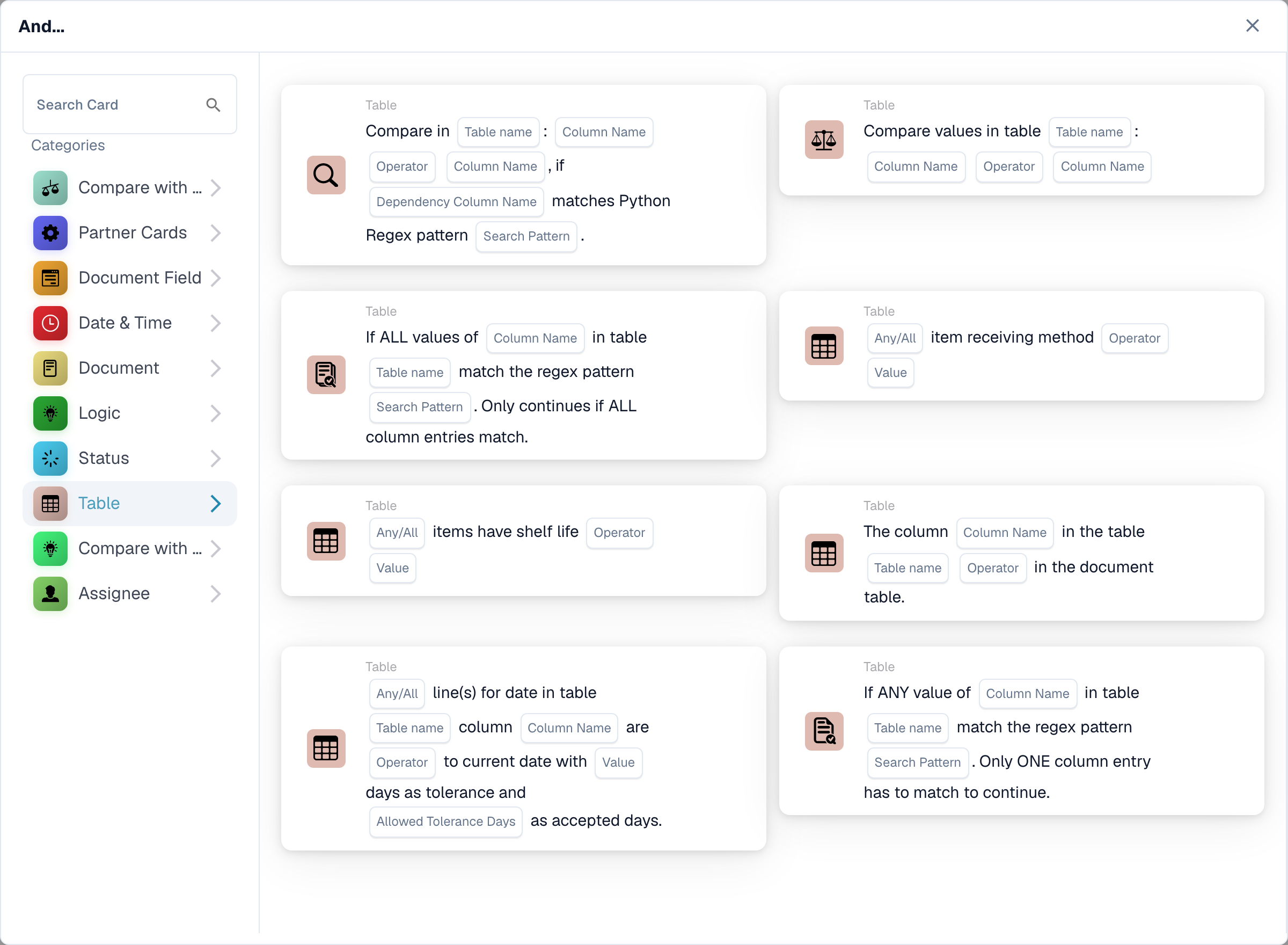
## Table

These cards examine document table rows. The visible options include date checks, text patterns, shelf life, and comparisons between columns. Select the **Table name** and **Column Name** before choosing an operator or pattern. See [Table](/administration-and-setup/workflow/cards-overview/and/table.md).

<figure><img src="https://578966019-files.gitbook.io/~/files/v0/b/gitbook-x-prod.appspot.com/o/spaces%2FT2n2w4uDCJvv7CJ5zrdk%2Fuploads%2Fgit-blob-bc5e078fedf20786708ef23248c49bd628861c40%2Fprior-u041-en.png?alt=media" alt="Data-table conditions."><figcaption><p>Data-table conditions.</p></figcaption></figure>

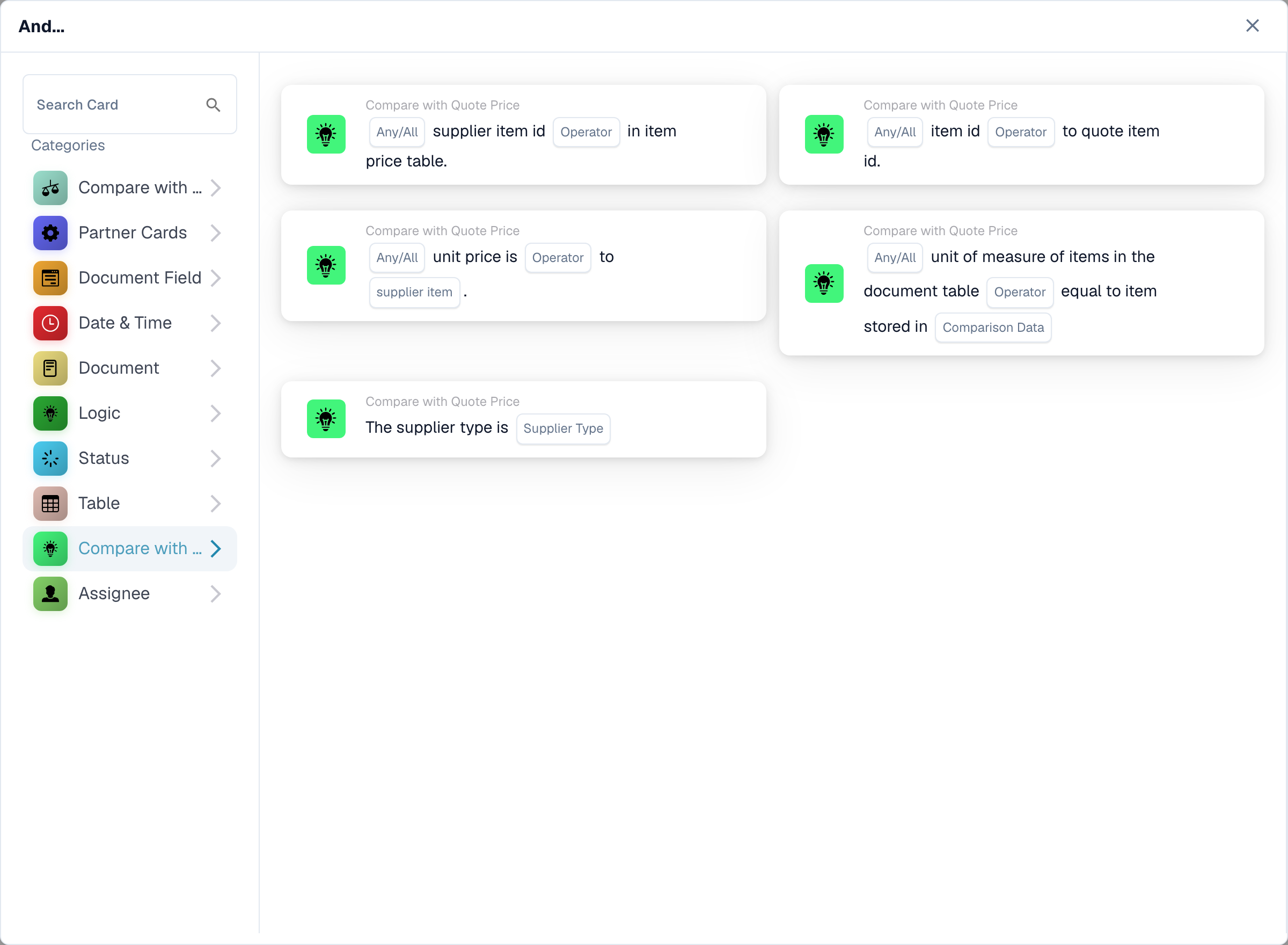
## Compare with Quote Price

Use these cards to compare an item with quoted price data. The visible choices cover item ID, supplier type, supplier item ID, unit price, and unit of measure. The **Operator** and data placeholders depend on the card you select.

<figure><img src="https://578966019-files.gitbook.io/~/files/v0/b/gitbook-x-prod.appspot.com/o/spaces%2FT2n2w4uDCJvv7CJ5zrdk%2Fuploads%2Fgit-blob-f02c5b8327ba5cc2e9e2e5319448ae7db1ad6e89%2Fprior-u042-en.png?alt=media" alt="Quote-price conditions."><figcaption><p>Quote-price conditions.</p></figcaption></figure>

## Assignee

Use **Assignee** when the condition depends on the assigned user or group. Choose whether to compare with one user or group or a selected set. See [Assignee](/administration-and-setup/workflow/cards-overview/and/assignee.md).

<figure><img src="https://578966019-files.gitbook.io/~/files/v0/b/gitbook-x-prod.appspot.com/o/spaces%2FT2n2w4uDCJvv7CJ5zrdk%2Fuploads%2Fgit-blob-50939d4479eab62185a7dbca2a117c4893dee697%2Fprior-u043-en.png?alt=media" alt="Assignment conditions."><figcaption><p>Assignment conditions.</p></figcaption></figure>

[Detailed quote comparison cards and Any/All behavior](/administration-and-setup/workflow/cards-overview/quote-comparison-guide.md).


---

# Agent Instructions
This documentation is published with GitBook. GitBook is the documentation platform designed so that both humans and AI agents can read, navigate, and reason over technical content effectively. Learn more at gitbook.com.

## Querying This Documentation
If you need additional information that is not directly available in this page, you can query the documentation by asking a question.

Perform an HTTP GET request on the following URL with the `ask` and `goal` query parameters:

```
GET https://docs.docbits.com/administration-and-setup/workflow/cards-overview/and.md?ask=<question>&goal=<user_goal>
```

`ask` is the immediate question: it should be specific, self-contained, and written in natural language.
`goal` is what the user is ultimately trying to achieve, the reason they need the answer. Sharing it helps GitBook give you a better, more relevant answer. A goal is most helpful when it describes the outcome the user wants rather than restating the question. For example, with `ask=how do I create an API token`, a goal like `automate deployments from our CI pipeline` lets GitBook tailor the answer to that use case.

The response will contain a direct answer to the question and relevant excerpts and sources from the documentation.

Use this mechanism when the answer is not explicitly present in the current page, you need clarification or additional context, or you want to retrieve related documentation sections.