> For the complete documentation index, see [llms.txt](https://docs.docbits.com/llms.txt). Markdown versions of documentation pages are available by appending `.md` to page URLs; this page is available as [Markdown](https://docs.docbits.com/administration-and-setup/settings/global-settings/document-types/rule-conditions-applies-when.md).

# Rule Conditions (Applies when)

## Overview

Every rule in DocBits' rule features has an **Applies when** section. It decides **for which documents (and, for table rules, for which rows) the rule does anything at all**. The rule's actual job — raising a validation error, changing a value, picking a layout — only happens when the condition is true.

The same condition builder is used in all three rule features:

| Feature                                                                                                                              | Label in the builder                     | When the condition is true…                             | When it is false…                          | When it is left empty…                             |
| ------------------------------------------------------------------------------------------------------------------------------------ | ---------------------------------------- | ------------------------------------------------------- | ------------------------------------------ | -------------------------------------------------- |
| [Custom Validation Rules](/administration-and-setup/settings/global-settings/document-types/custom-validation-rules.md)              | Step 2 **Applies when**                  | the check in step 3 runs                                | the rule is skipped — no error, no warning | the check runs on every document                   |
| [Transformation Rules](/administration-and-setup/settings/global-settings/document-types/transformation-rules.md)                    | Step 2 **When it runs** → **Only when…** | the pipeline changes the value                          | the value is left as it is                 | choose **Always**: the rule runs on every document |
| [Layout Selection Rules](/administration-and-setup/settings/global-settings/document-types/layout-manager/layout-selection-rules.md) | Step 2 **Applies when**                  | the document gets this rule's layout (first match wins) | DocBits tries the next rule                | the rule matches every document at its priority    |

Learn it once here and you can use it everywhere.

{% hint style="info" %}
A condition only decides **whether** a rule applies. It never changes data and never shows a message by itself. "The supplier tax ID must be filled" is the **check** of a validation rule; "only for German invoices" is its **condition**.
{% endhint %}

## Reading a condition

A condition reads like a sentence. The builder below says:

> **If ALL** of the following are true: the Document Origin **is** Deutsch, the Total Amount is **greater than** 250, and (**ANY** of: the Currency **is** EUR, the Currency **is empty**).

<figure><img src="https://578966019-files.gitbook.io/~/files/v0/b/gitbook-x-prod.appspot.com/o/spaces%2FT2n2w4uDCJvv7CJ5zrdk%2Fuploads%2Fgit-blob-8606cf1d4cf9f4d8190516c68cf39de040bd0edf%2Fapplies-when-nested-example.png?alt=media" alt="A condition with two lines and a nested ANY group"><figcaption><p>Two conditions combined with ALL, plus a nested group combined with ANY</p></figcaption></figure>

With that condition, the rule applies to:

| Document | Origin | Total amount | Currency  | Applies? | Why                                                 |
| -------- | ------ | ------------ | --------- | -------- | --------------------------------------------------- |
| A        | DE     | 469.18       | EUR       | **yes**  | all three parts are true                            |
| B        | DE     | 469.18       | *(empty)* | **yes**  | the ANY group is true because the currency is empty |
| C        | DE     | 120.00       | EUR       | no       | 120 is not greater than 250                         |
| D        | DE     | 469.18       | USD       | no       | neither line of the ANY group is true               |
| E        | AT     | 469.18       | EUR       | no       | the origin is not DE                                |

## The building blocks

### Condition lines

Each line has four parts:

| Part         | What it is                                                                                                                                                                       |
| ------------ | -------------------------------------------------------------------------------------------------------------------------------------------------------------------------------- |
| **Field**    | The value that is checked: a document attribute, a header field, a table column or a JSON path. See [Fields you can use](#fields-you-can-use).                                   |
| **Operator** | How the value is compared — *is*, *contains*, *greater than*, *is empty* … See [Operators](#operators).                                                                          |
| **Value**    | What the field is compared with. Hidden for *is empty* / *is not empty*. For fields with a fixed list of values (origin, status, currency…) the value is picked from a dropdown. |
| **Aa**       | Ignore upper/lower case. Available for text comparisons only. When it is on, `gmbh` matches `GmbH`.                                                                              |

Click **✕** to remove a line.

### ALL and ANY

The selector at the start of a group decides how its lines are combined:

* **All** of the following are true — every line must be true (AND).
* **ANY** of the following are true — at least one line must be true (OR).

### Nested groups

Click **+ Add nested group** to put a group inside a group. A nested group counts as one line of its parent group, so you can mix AND and OR:

* *ALL of*: origin is DE, **ANY of** (currency is EUR, currency is empty)
* *ANY of*: supplier is 10040, **ALL of** (supplier is 20723, total amount greater than 1000)

Groups can be nested as deeply as you need. Keep it readable: two levels are enough for almost every business rule.

### An empty condition

If you add no lines, the rule has no condition and **always applies** (for layout rules: it matches every document at its priority). This is the right choice for rules that must run everywhere, such as "trim the invoice number" or "quantity must be positive".

## Fields you can use

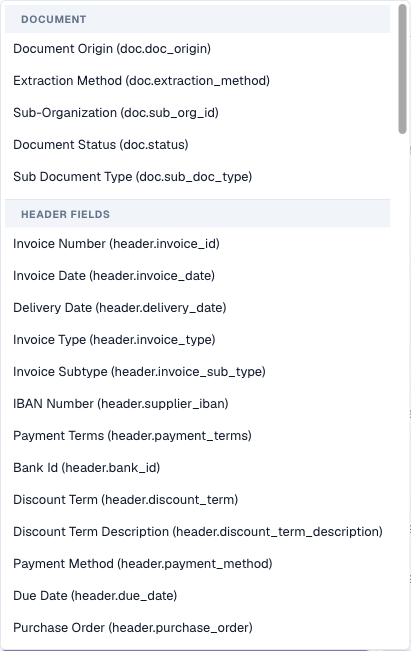
Open the field dropdown to see every field, grouped by where it comes from. Type to filter the list.

<figure><img src="https://578966019-files.gitbook.io/~/files/v0/b/gitbook-x-prod.appspot.com/o/spaces%2FT2n2w4uDCJvv7CJ5zrdk%2Fuploads%2Fgit-blob-1a5215ebd0ad0dc609686333aa925b7a7b685d57%2Fapplies-when-field-picker.png?alt=media" alt="The field picker with the Document and Header fields groups"><figcaption><p>The field picker: document attributes first, then the header fields of the document type</p></figcaption></figure>

### Document attributes (`doc.`)

Information DocBits knows about the document itself, independent of the extracted fields:

| Field in the picker   | Key                     | Example values                                                    | Typical use                                                         |
| --------------------- | ----------------------- | ----------------------------------------------------------------- | ------------------------------------------------------------------- |
| **Document Origin**   | `doc.doc_origin`        | `DE`, `AT`, `US` (shown as Deutsch, Austria, United States)       | country-specific rules and layouts                                  |
| **Extraction Method** | `doc.extraction_method` | `ELECTRONIC_DOCUMENT`, `FELLOW_KV2`, `MANUAL`                     | treat e-invoices (XRechnung, ZUGFeRD) differently from scanned PDFs |
| **Document Status**   | `doc.status`            | Ready for validation, Pending Approval, Pending second approval … | layouts per workflow stage, rules that only apply before approval   |
| **Sub Document Type** | `doc.sub_doc_type`      | your sub types, e.g. credit memo                                  | rules for one sub type only                                         |

### Header fields (`header.`)

Every field of the document type, for example **Invoice Number** (`header.invoice_id`), **Supplier ID** (`header.supplier_id`), **Total Amount** (`header.total_amount`), **Currency** (`header.currency`), **Supplier Tax ID** (`header.supplier_tax_id`), **Purchase Order** (`header.purchase_order`). The picker shows the label and, in brackets, the technical key. The value used is the current value of the field — including corrections a user has made.

### Table columns (`row.`)

Columns of the current table row, for example `row.QUANTITY` or `row.ITEM_NUMBER`. They appear in the picker as **Table columns** only in rules that run **once per row**:

* validation rules with the level **Table line**
* transformation rules with the scope **Table column**

In these rules, the condition is checked **for each row separately**. A row that does not match is skipped; the other rows are still processed.

<figure><img src="https://578966019-files.gitbook.io/~/files/v0/b/gitbook-x-prod.appspot.com/o/spaces%2FT2n2w4uDCJvv7CJ5zrdk%2Fuploads%2Fgit-blob-89d99002ed3a9fc10589599b03229fa9fce1906d%2Fapplies-when-row-condition.png?alt=media" alt="A row condition: ITEM_NUMBER is not empty"><figcaption><p>A per-row condition: only rows that have an item number are checked</p></figcaption></figure>

Rules that run once per document (header rules, whole-table rules, layout rules) cannot use `row.` fields — there is no single row they could look at.

### Custom JSON path (Advanced)

At the bottom of the picker, **Advanced → Custom JSON path…** turns the field into a free text box marked `$path`. It reads a value anywhere in the document's extracted data, even if it is not a field of the document type.

<figure><img src="https://578966019-files.gitbook.io/~/files/v0/b/gitbook-x-prod.appspot.com/o/spaces%2FT2n2w4uDCJvv7CJ5zrdk%2Fuploads%2Fgit-blob-11b9c8fcf4a8999bfc99d0ce6f8d360ab42ca6c5%2Fapplies-when-json-path.png?alt=media" alt="A JSON path condition"><figcaption><p>A JSON path condition on the import channel of the document</p></figcaption></figure>

* The path starts with `$` and uses `.name` for keys and `[0]` for list positions, for example `$.metadata.import_channel` or `$.shipping.addresses[0].country`.
* It must end on a single value. A path that ends on a list or an object counts as empty.
* JSON path lines offer the operators *is*, *is not*, *matches*, *is empty* and *is not empty*.

Use JSON paths sparingly. They depend on the internal structure of the extracted data; a field of the document type is easier to understand and to maintain.

### Where each kind of field can be used

|                            | Validation: Header field | Validation: Table line | Validation: Whole table | Transformation: Header / Routing / Table rows | Transformation: Table column | Layout selection |
| -------------------------- | ------------------------ | ---------------------- | ----------------------- | --------------------------------------------- | ---------------------------- | ---------------- |
| `doc.` document attributes | ✓                        | ✓                      | ✓                       | ✓                                             | ✓                            | ✓                |
| `header.` header fields    | ✓                        | ✓                      | ✓                       | ✓                                             | ✓                            | ✓                |
| `row.` table columns       | –                        | ✓                      | –                       | –                                             | ✓                            | –                |
| `$` JSON path              | ✓                        | ✓                      | ✓                       | ✓                                             | ✓                            | ✓                |

## Operators

<figure><img src="https://578966019-files.gitbook.io/~/files/v0/b/gitbook-x-prod.appspot.com/o/spaces%2FT2n2w4uDCJvv7CJ5zrdk%2Fuploads%2Fgit-blob-108203680e40831122bde102f4d1222cd6321636%2Fapplies-when-text-operators.png?alt=media" alt="The operator list for a text field"><figcaption><p>The operators offered for a text field</p></figcaption></figure>

| Operator                                 | True when…                                       | Value                      | Example                                         |
| ---------------------------------------- | ------------------------------------------------ | -------------------------- | ----------------------------------------------- |
| **is**                                   | the field equals the value                       | one value                  | Supplier ID **is** `20723`                      |
| **is not**                               | the field does not equal the value               | one value                  | Currency **is not** `EUR`                       |
| **is one of**                            | the field equals any value of a list             | values separated by commas | Supplier ID **is one of** `10040, 10041, 20723` |
| **contains**                             | the value appears anywhere in the field          | text                       | Supplier Name **contains** `GmbH`               |
| **starts with**                          | the field begins with the value                  | text                       | Invoice Number **starts with** `GS-`            |
| **ends with**                            | the field ends with the value                    | text                       | Purchase Order **ends with** `-IT`              |
| **matches**                              | a regular expression finds a match in the field  | regular expression         | Invoice Number **matches** `^INV-\d{6}$`        |
| **is empty**                             | the field has no value (missing, or only spaces) | –                          | Purchase Order **is empty**                     |
| **is not empty**                         | the field has a value                            | –                          | Purchase Order **is not empty**                 |
| **greater than** / **less than**         | the field is a number above / below the value    | number                     | Total Amount **greater than** `10000`           |
| **greater or equal** / **less or equal** | the same, including the value itself             | number                     | Total Amount **less or equal** `250`            |

### Which operators a field offers

The list adapts to the type of the field:

| Field type                                                     | Operators                                                                                    |
| -------------------------------------------------------------- | -------------------------------------------------------------------------------------------- |
| Text                                                           | all operators                                                                                |
| Number and amount (Total Amount, Quantity …)                   | is, is not, greater than, less than, greater or equal, less or equal, is empty, is not empty |
| Fields with a fixed list (Document Origin, Status, Currency …) | is, is not, is one of, is empty, is not empty                                                |
| Date (Invoice Date, Due Date …)                                | is, is not, is empty, is not empty                                                           |
| Yes/No                                                         | is, is not, is empty, is not empty                                                           |
| Custom JSON path                                               | is, is not, matches, is empty, is not empty                                                  |

{% hint style="warning" %}
**Dates cannot be compared with&#x20;*****before*****&#x20;or&#x20;*****after*****&#x20;in a condition.** "Due date after invoice date" or "invoice date older than 90 days" belongs in the **check** of a validation rule (**Compare fields**), not in *Applies when*.
{% endhint %}

## How values are compared

Knowing these rules avoids most surprises:

1. **Numbers are compared as numbers.** If both sides look like numbers, `250`, `250.00` and `250,00` are equal. Locale-formatted amounts such as `1.234,56` are understood.
2. **Everything else is compared as text, after removing leading and trailing spaces.** `" EUR "` is `EUR`.
3. **Upper and lower case matter** unless **Aa** (ignore case) is switched on.
4. **Empty is special.** A field that is missing or blank:
   * is true for **is empty** and **is not**,
   * is false for **is**, **is one of**, **contains**, **starts with**, **ends with**, **matches** and all number comparisons.

{% hint style="warning" %}
Because of rule 4, *Currency **is not** EUR* is also true for documents **without** a currency. If that is not what you want, add a second line *Currency **is not empty***.
{% endhint %}

{% hint style="info" %}
Because of rule 1, values that look like numbers are compared numerically even when they are codes: `007` **is** `7` is true. For codes where leading zeros matter, use **matches** with a pattern such as `^007$`.
{% endhint %}

## Examples

**Only German documents** — `Document Origin` **is** `Deutsch`.

**Only e-invoices** — `Extraction Method` **is** `ELECTRONIC_DOCUMENT`. Use **is not** to exclude them, for example for a rule that repairs OCR errors.

**A group of suppliers** — `Supplier ID` **is one of** `10040, 10041, 20723`.

{% hint style="info" %}
For fields whose value is picked from a dropdown (origin, status, currency), **is one of** only lets you pick one entry. To accept several, create an **ANY** group with one **is** line per value.
{% endhint %}

**High-value invoices of one supplier** — **All of**: `Supplier ID` **is** `20723`, `Total Amount` **greater than** `10000`.

**Invoices without a purchase order** — `Purchase Order` **is empty**. A typical condition for a "cost center required" rule.

**Everything except credit notes** — `Invoice Type` **is not** `credit_note` (use the values your organisation stores in the field).

**Invoices that came in by email** — Custom JSON path `$.metadata.import_channel` **is** `EMAIL`.

**Article lines only** (table line / table column rules) — `row.ITEM_NUMBER` **is not empty**. Freight or discount lines without an item number are skipped.

**Second approval stage** (layout rules on the Approval screen) — `Document Status` **is** `Pending second approval`.

**EU or missing currency** — **All of**: `Document Origin` **is** `Deutsch`, **ANY of** (`Currency` **is** `EUR`, `Currency` **is empty**). This is the condition shown at the top of this page.

## Test and debug a condition

Each feature lets you try a condition before relying on it:

* **Validation rules** — **Test rule** runs the rule against a real document. "*Rule skipped — scope not matched*" means the condition was false for that document. See [Test rule](/administration-and-setup/settings/global-settings/document-types/custom-validation-rules.md#test-rule).
* **Transformation rules** — the **Live preview** has **Condition values**: type a value for every field of the condition and see "*Conditions match — rule runs*" or "*Conditions do not match — rule is skipped*".
* **Layout selection rules** — the **Live preview · /resolve** panel shows which rule matched for a sample document.

### Read the condition trace in the logs

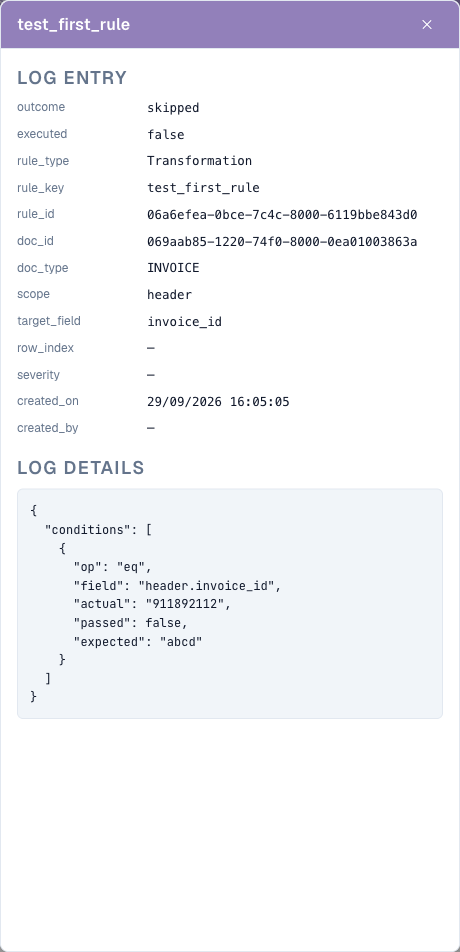
Switch on **Log execution** in a rule. Every evaluation is then written to **Document Types → (document type) → Logs**. Open an entry: under **Log details** each condition line is listed with the value the rule expected, the value the document actually had and whether the line passed.

<figure><img src="https://578966019-files.gitbook.io/~/files/v0/b/gitbook-x-prod.appspot.com/o/spaces%2FT2n2w4uDCJvv7CJ5zrdk%2Fuploads%2Fgit-blob-3c4046b951bdac1c77f68a6f6cba36ae26e8d141%2Frule-execution-log-detail.png?alt=media" alt="A log entry with the condition trace"><figcaption><p>The log entry explains why the rule was skipped: the rule expected <code>abcd</code>, the document had <code>911892112</code></p></figcaption></figure>

The logs can be searched by **Rule key**, **Rule ID** or **Document**, and filtered by rule type, outcome and date. Switch **Log execution** off again when you are done — it writes one entry per evaluation, and rules run on every save.

## Common mistakes

| Symptom                                                     | Cause                                                    | Fix                                                                                      |
| ----------------------------------------------------------- | -------------------------------------------------------- | ---------------------------------------------------------------------------------------- |
| The rule never applies                                      | The value differs in case or spelling (`Gmbh` vs `GmbH`) | Switch on **Aa**, or copy the value exactly from the document                            |
| The rule applies to documents without the field             | **is not** is true for empty fields                      | Add *field* **is not empty**                                                             |
| *greater than* never matches                                | The field is not a number, or it is a date               | Use a number field; compare dates in a validation check                                  |
| The rule applies to too many documents                      | Lines were combined with **ANY** instead of **All**      | Check the selector of each group                                                         |
| Table columns are missing from the picker                   | The rule runs once per document                          | Use the level **Table line** (validation) or the scope **Table column** (transformation) |
| The condition worked in the preview but not on the document | The preview used values you typed                        | Test with **Test rule** on a real document, or check the log trace                       |


---

# Agent Instructions
This documentation is published with GitBook. GitBook is the documentation platform designed so that both humans and AI agents can read, navigate, and reason over technical content effectively. Learn more at gitbook.com.

## Querying This Documentation
If you need additional information that is not directly available in this page, you can query the documentation by asking a question.

Perform an HTTP GET request on the following URL with the `ask` and `goal` query parameters:

```
GET https://docs.docbits.com/administration-and-setup/settings/global-settings/document-types/rule-conditions-applies-when.md?ask=<question>&goal=<user_goal>
```

`ask` is the immediate question: it should be specific, self-contained, and written in natural language.
`goal` is what the user is ultimately trying to achieve, the reason they need the answer. Sharing it helps GitBook give you a better, more relevant answer. A goal is most helpful when it describes the outcome the user wants rather than restating the question. For example, with `ask=how do I create an API token`, a goal like `automate deployments from our CI pipeline` lets GitBook tailor the answer to that use case.

The response will contain a direct answer to the question and relevant excerpts and sources from the documentation.

Use this mechanism when the answer is not explicitly present in the current page, you need clarification or additional context, or you want to retrieve related documentation sections.