> For the complete documentation index, see [llms.txt](https://docs.docbits.com/llms.txt). Markdown versions of documentation pages are available by appending `.md` to page URLs; this page is available as [Markdown](https://docs.docbits.com/administration-and-setup/settings/document-processing/e-documents.md).
# E-Documents
DocBits validates incoming electronic invoices (e-invoices) against the official standards — **XRechnung**, **ZUGFeRD** and **Factur-X** — and routes any problems it finds to the right handler. The **E-Documents** settings group (under **Document Processing**) has two pages:
* [**Validation Rules**](/administration-and-setup/settings/document-processing/e-documents/validation-rules.md) — choose which e-invoice versions and profiles you accept, and set the severity of each validation rule for your organization.
* [**Notification Routing**](/administration-and-setup/settings/document-processing/e-documents/notification-routing.md) — map validation findings to the AI Workforce agent that should handle them.
Together they let you decide **what counts as a problem** on an incoming e-invoice and **who deals with it**.
## Enable or disable e-invoice validation
The two E-Documents pages only take effect once **e-invoice validation is switched on for the document type**. The switch lives on the document type itself, not in the E-Documents menu.
Go to **Settings → Document Types → Invoice → Advanced Settings** and open the **E-Invoice Validation** section.
Turn e-invoice validation on or off per document type, with optional supplier notification
* **Validate incoming e-invoices** — the master switch. When **on**, every uploaded invoice is checked against the KoSIT XRechnung Schematron rules plus the L0 PDF/A-3 and L4 IBAN/VAT semantic checks, using the severities you set on the [Validation Rules](/administration-and-setup/settings/document-processing/e-documents/validation-rules.md) page. Invalid invoices are blocked. When **off**, invoices skip e-invoice validation entirely and the Validation Rules and Notification Routing pages have no effect.
* **Notify supplier on rejection** — appears once validation is enabled. When **on**, a rejected invoice triggers an email to the supplier listing the missing or incorrect fields so they can reissue it. Who receives and handles each finding is configured on the [Notification Routing](/administration-and-setup/settings/document-processing/e-documents/notification-routing.md) page.
> E-invoice validation is configured **per document type**. Today it applies to the **Invoice** document type; enable it on each document type that should be validated.
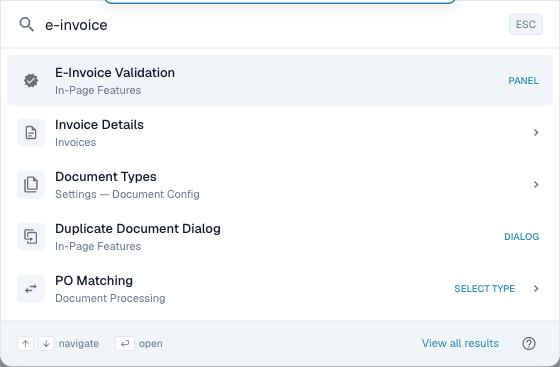
You can also jump straight here with **Global Quick Search**: press Cmd + K (Ctrl + K on Windows and Linux) anywhere in DocBits and type *e-invoice*.
Type "e-invoice" in Quick Search to jump straight to the toggle.
---
# Agent Instructions
This documentation is published with GitBook. GitBook is the documentation platform designed so that both humans and AI agents can read, navigate, and reason over technical content effectively. Learn more at gitbook.com.
## Querying This Documentation
If you need additional information that is not directly available in this page, you can query the documentation dynamically by asking a question.
Perform an HTTP GET request on the current page URL with the `ask` query parameter, and the optional `goal` query parameter:
```
GET https://docs.docbits.com/administration-and-setup/settings/document-processing/e-documents.md?ask=&goal=
```
`ask` is the immediate question: it should be specific, self-contained, and written in natural language.
`goal` is optional and describes the broader end goal you are ultimately trying to accomplish on behalf of the user. GitBook uses it to tailor the answer towards what is most useful for that goal.
The response will contain a direct answer to the question and relevant excerpts and sources from the documentation.
Use this mechanism when the answer is not explicitly present in the current page, you need clarification or additional context, or you want to retrieve related documentation sections.